To log in, the user account must be **created and enabled** by an administrator with **backoffice** permissions.
--- ### First-time login **1.** Open the **welcome email** you received after creating your account and click the **activation link**. [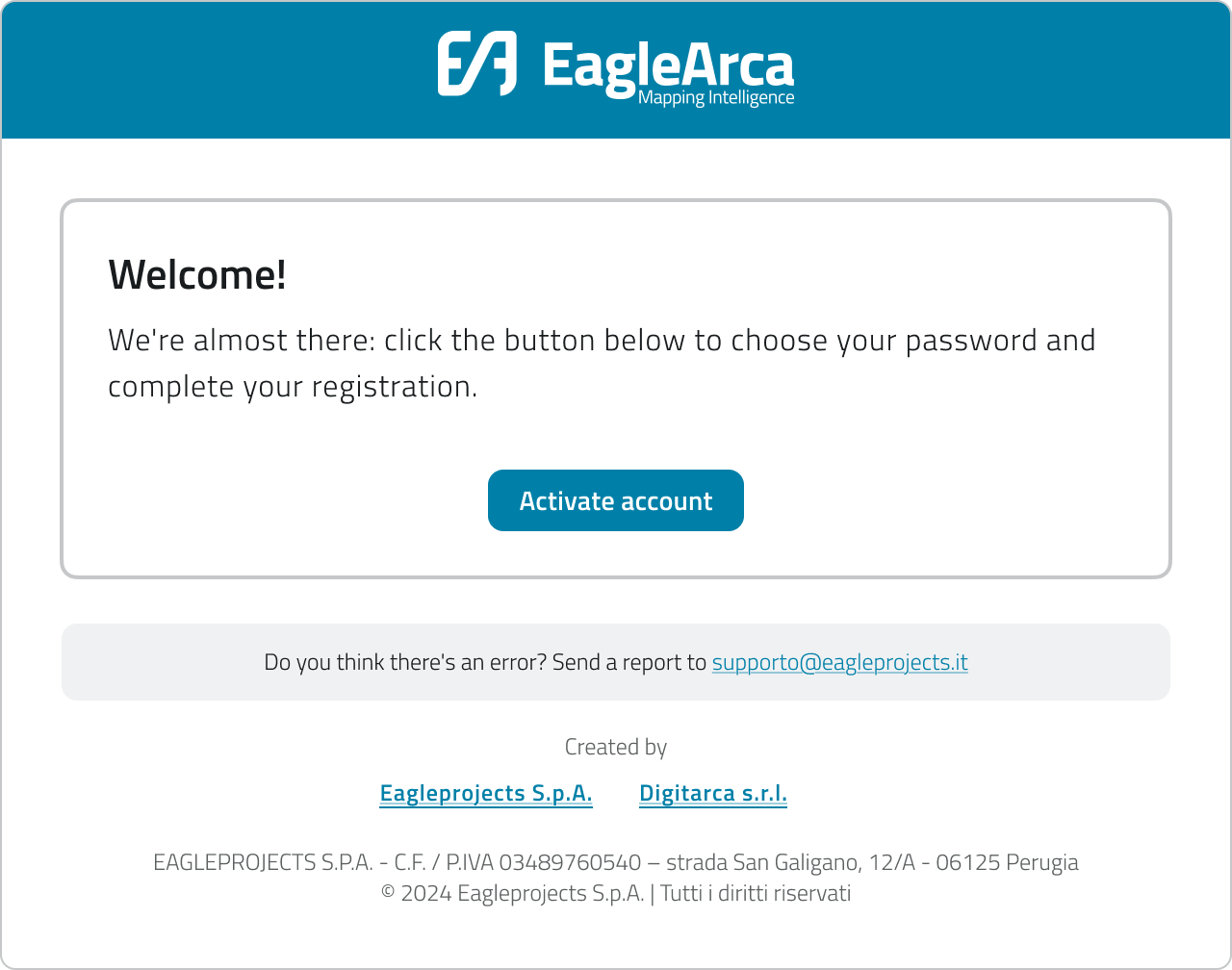](https://wiki.eaglearca.com/uploads/images/gallery/2026-03/scaled-1680-/Oau1-mail-first-access.png) **2.** Set your **new password**, making sure it meets the minimum requirements: - at least 8 characters - one uppercase letter - one number - one special character **3.** Confirm to **save the password**. **4.** You will be redirected to the **login pag****e**: enter your email address and password, then click **Login**. [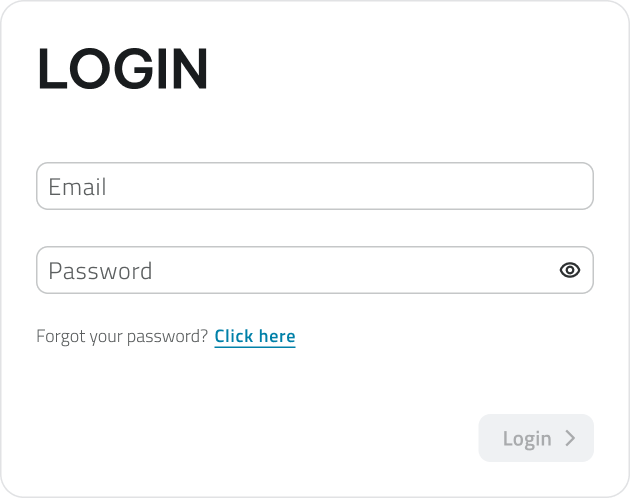](https://wiki.eaglearca.com/uploads/images/gallery/2025-11/scaled-1680-/Y3Z2-login.png)The activation link is valid for a limited time. If it has expired, please request account creation again.
**💡 TIP**: If the **welcome link has expired**, ask the project contact for a new invitation or reset. --- ### Reset your password **1.** Go to the EagleArca **login** page. **2.** Click on **Forgot your password?** [](https://wiki.eaglearca.com/uploads/images/gallery/2025-11/scaled-1680-/8a13-link-password-dimenticata.png) **3.** Enter the **email** address associated with your account and click **Send**. **4.** Check your email inbox and open the **reset link** you received. [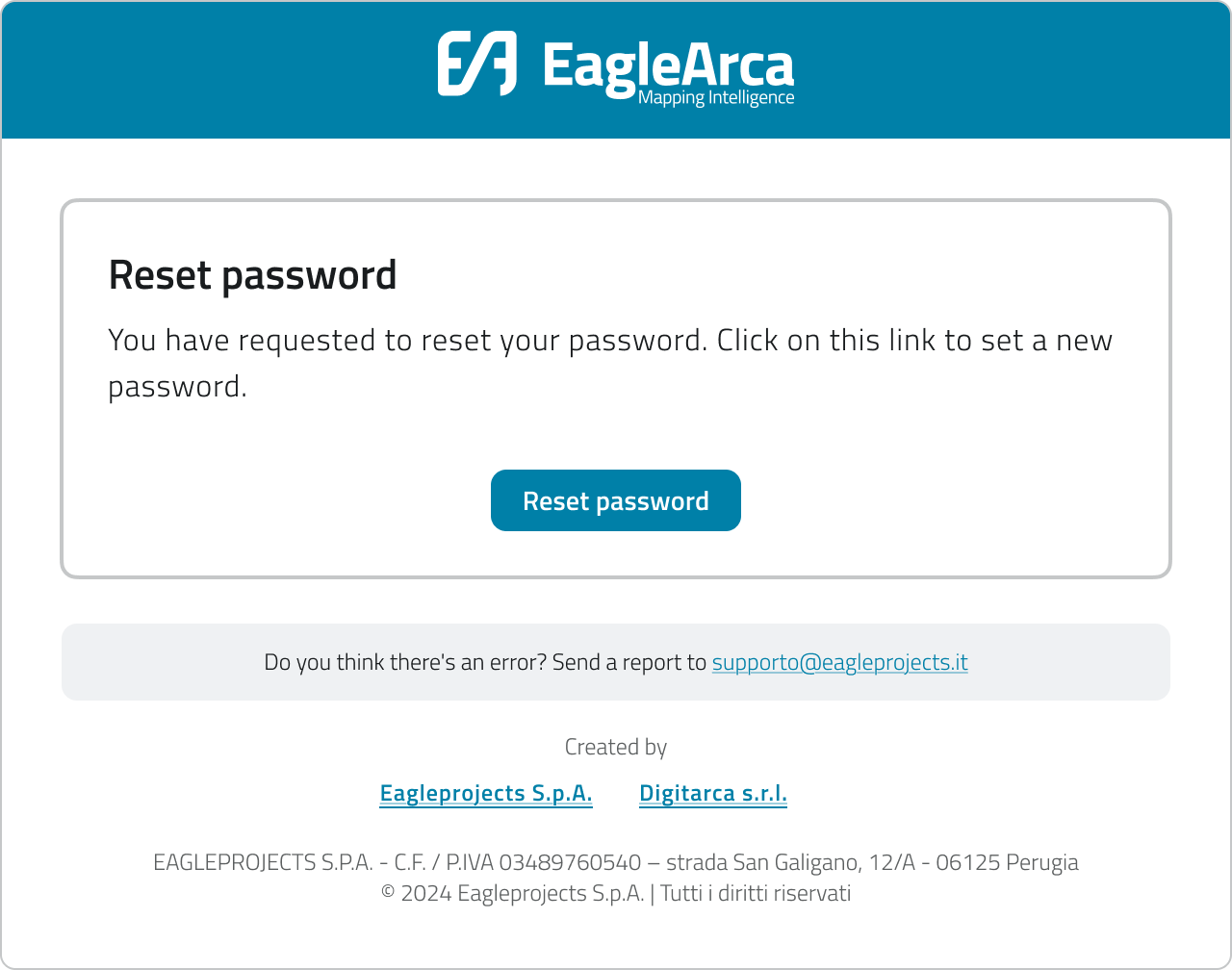](https://wiki.eaglearca.com/uploads/images/gallery/2026-03/scaled-1680-/4-mail-reset-password.png) **5.** Set and confirm your **new password**, making sure it meets the minimum requirements: - at least 8 characters - one uppercase letter - one number - one special character then click **Change Password**. [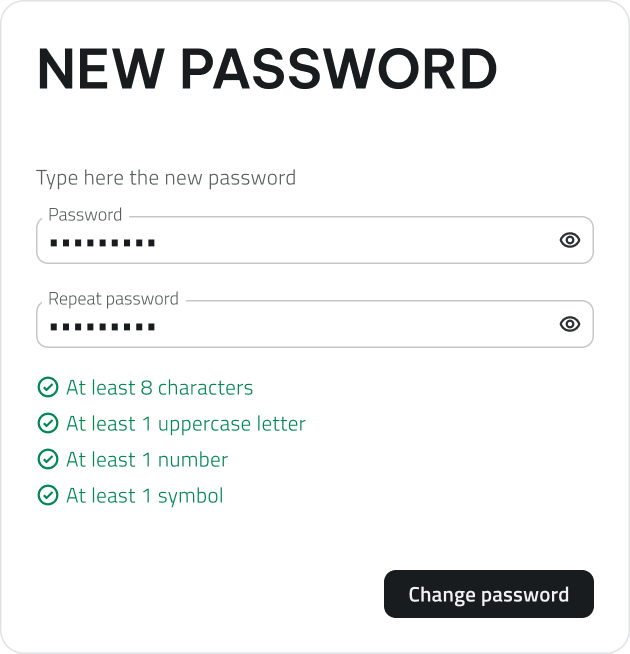](https://wiki.eaglearca.com/uploads/images/gallery/2025-11/scaled-1680-/Lkg5-password-requirements.png) **6.** Go back to the login page and sign in with your new password.If you don't receive the email, check your **Spam** or **Junk folder**.
--- ### Select organization and app **1.** After logging in, the **app selection page** opens. - Choose the **organization** from the top menu. - Select the desired **app** (Backoffice or App Inventory). - Click **Open** on the app card. [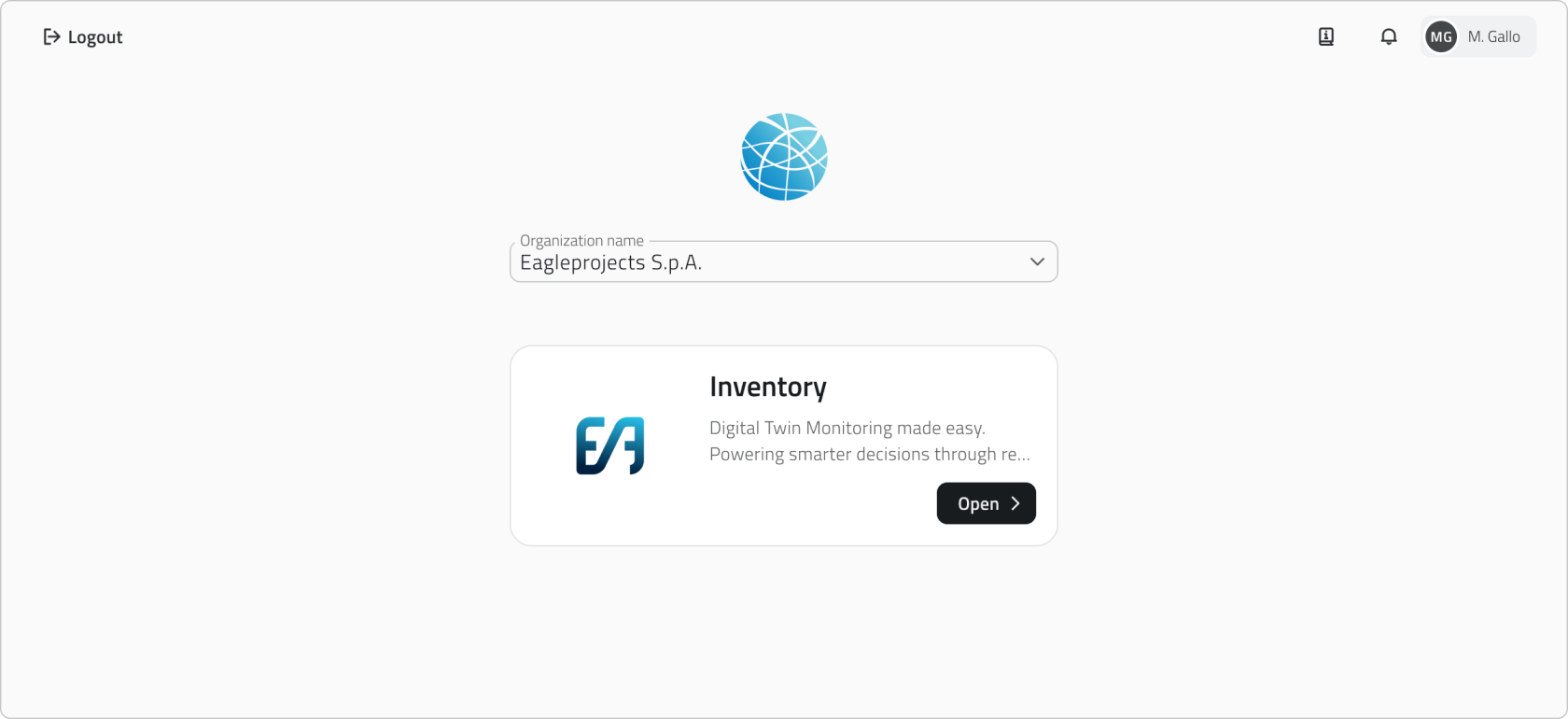](https://wiki.eaglearca.com/uploads/images/gallery/2026-03/scaled-1680-/qTi6-app-selection.png) **2.** If you are associated with **only one organization and one application**, access is granted automatically. - With **App Inventory** permissions, you access the application directly. - With **Backoffice** permissions, you enter the configuration console. **3.** If you access an organization but **you are not associated with any app**, an **empty page** is displayed. - The page indicates that no apps are available for the selected organization. - You are asked to **contact the administrator** to obtain the necessary authorizations. **4.** To change organization or app after entering, click the current **organization and app name** at the top left and select a new item. [](https://wiki.eaglearca.com/uploads/images/gallery/2025-12/scaled-1680-/VnY7-header-organization-app.png) --- ### Access the project Once you open the Inventory app, the **project selection home page** appears. You can change the view (to cards, list, or table) using the selector in the top-right corner. Projects can be filtered using the search bar. [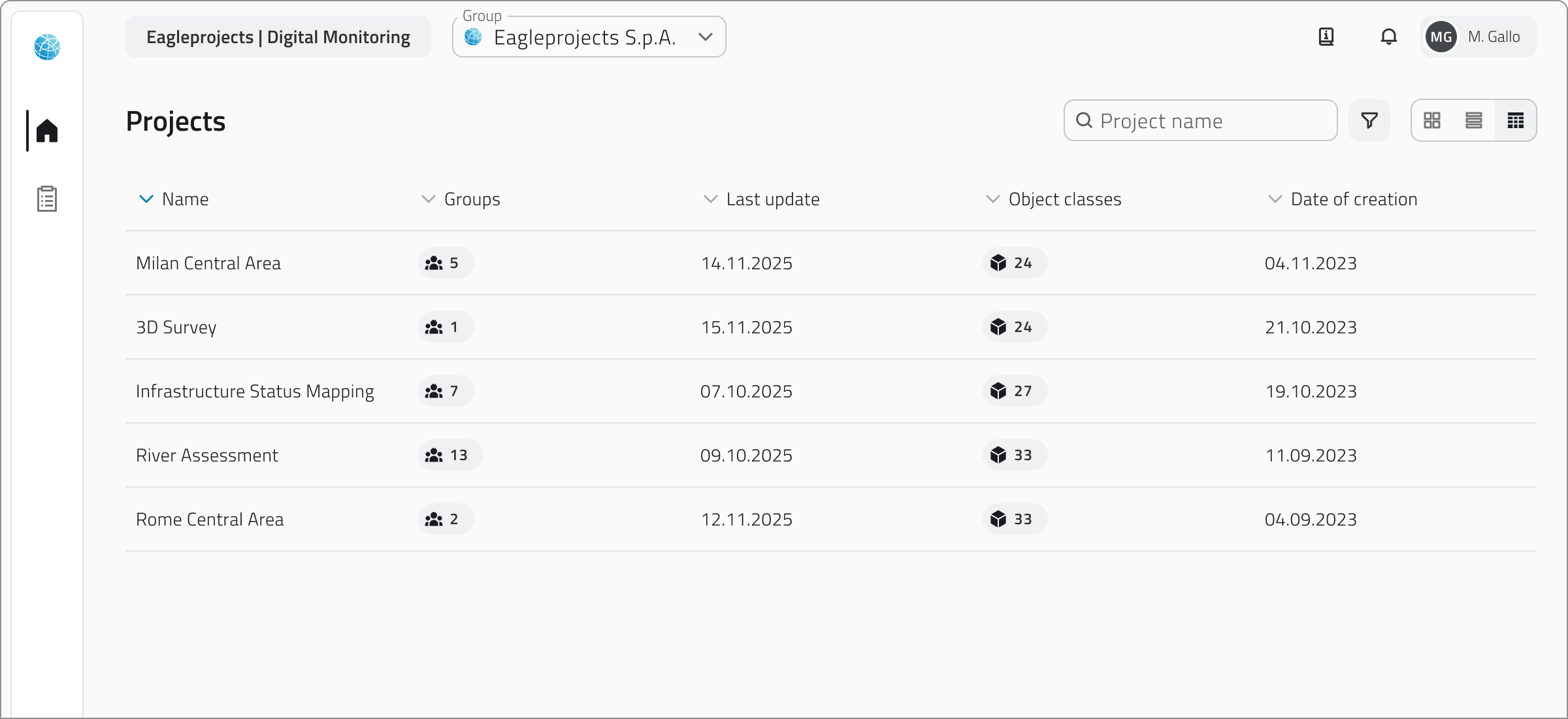](https://wiki.eaglearca.com/uploads/images/gallery/2026-03/scaled-1680-/TyJ8-layout-searchbar.png) Each project represents a separate workspace, containing its own groups, object classes, and data. - To view a project's details, click on it to open a side panel with the information. - To open a project, click the **Open** button, which appears when you hover over the item or at the top of the details panel. - Please wait for the main view to load. [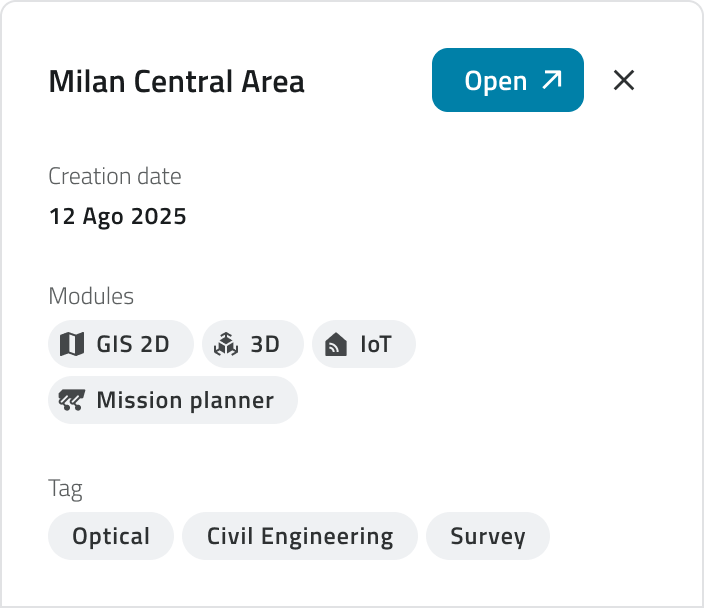](https://wiki.eaglearca.com/uploads/images/gallery/2025-12/scaled-1680-/9-project-detail.png)Project availability depends on the groups and roles assigned to you: if you don't see a project in the list, check with an administrator to make sure your account is properly assigned.
--- ### Managing concurrent sessions **Only one session can be active** per account at a time. If you try to log in while your account is already logged in from another browser or device, the platform will display a message indicating that a session is already active. [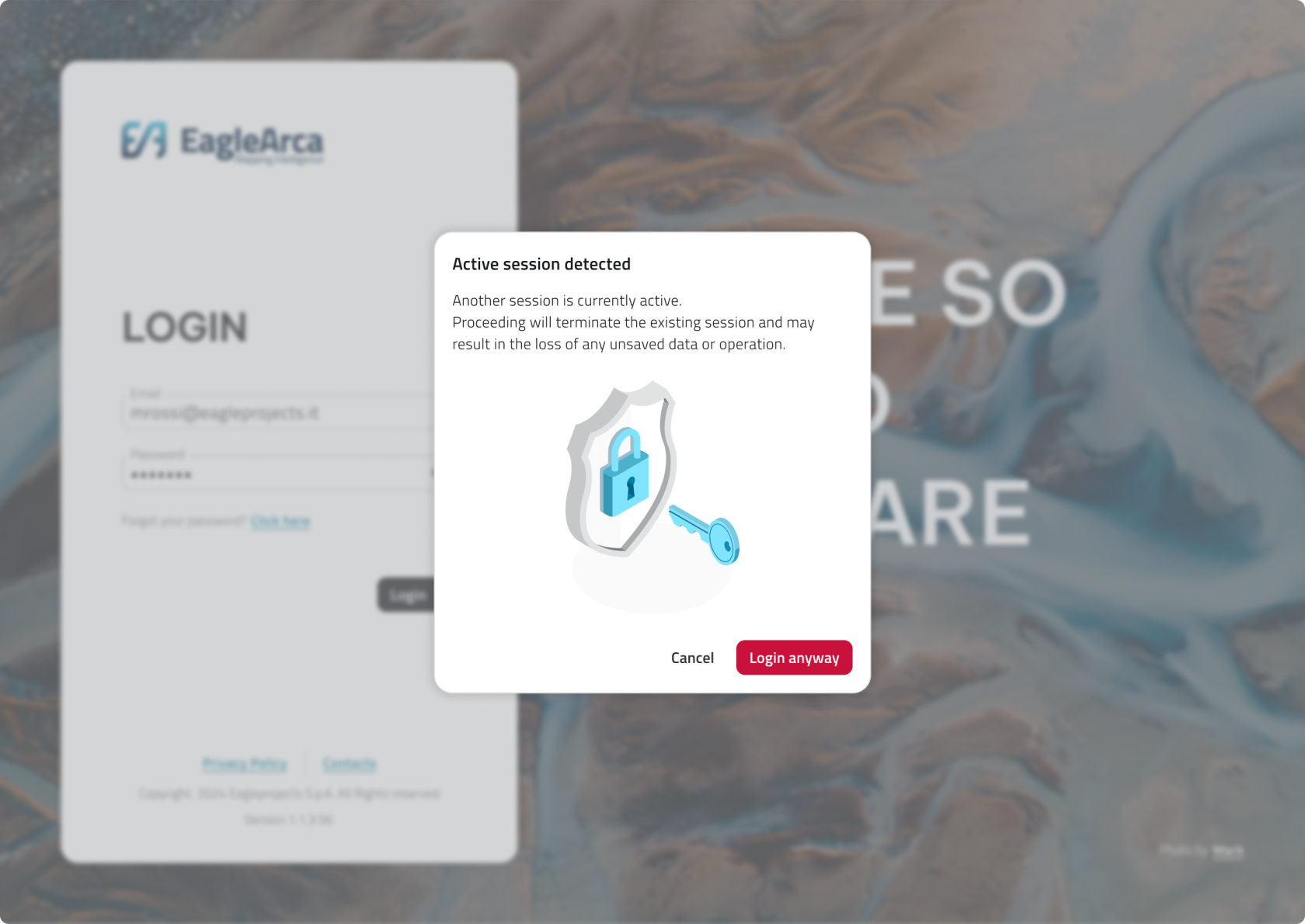](https://wiki.eaglearca.com/uploads/images/gallery/2026-03/scaled-1680-/cdF10-active-session-detected.png) In this case, you can choose between two options: - **Cancel:** Stops the login and keeps the already open session active. - **Access anyway:** Completes access in the new session and automatically disconnects the previous one. It is not possible to be connected simultaneously from a **mobile device and computer**. If you log in from **mobile** while already connected from a **computer** (or vice versa) you will be **automatically disconnected** from the other device. --- ### Links - [Overview of users, roles and groups](https://wiki.eaglearca.com/books/access-and-overview/page/overview-of-users-roles-and-groups "Overview of users, roles and groups") ---Per accedere è necessario che l’utenza sia **creata e abilitata** da un amministratore con permesso di **backoffice**.
--- ### Primo accesso **1.** Apri la **mail di benvenuto** ricevuta dopo la creazione dell’utenza e clicca il **link di attivazione**. [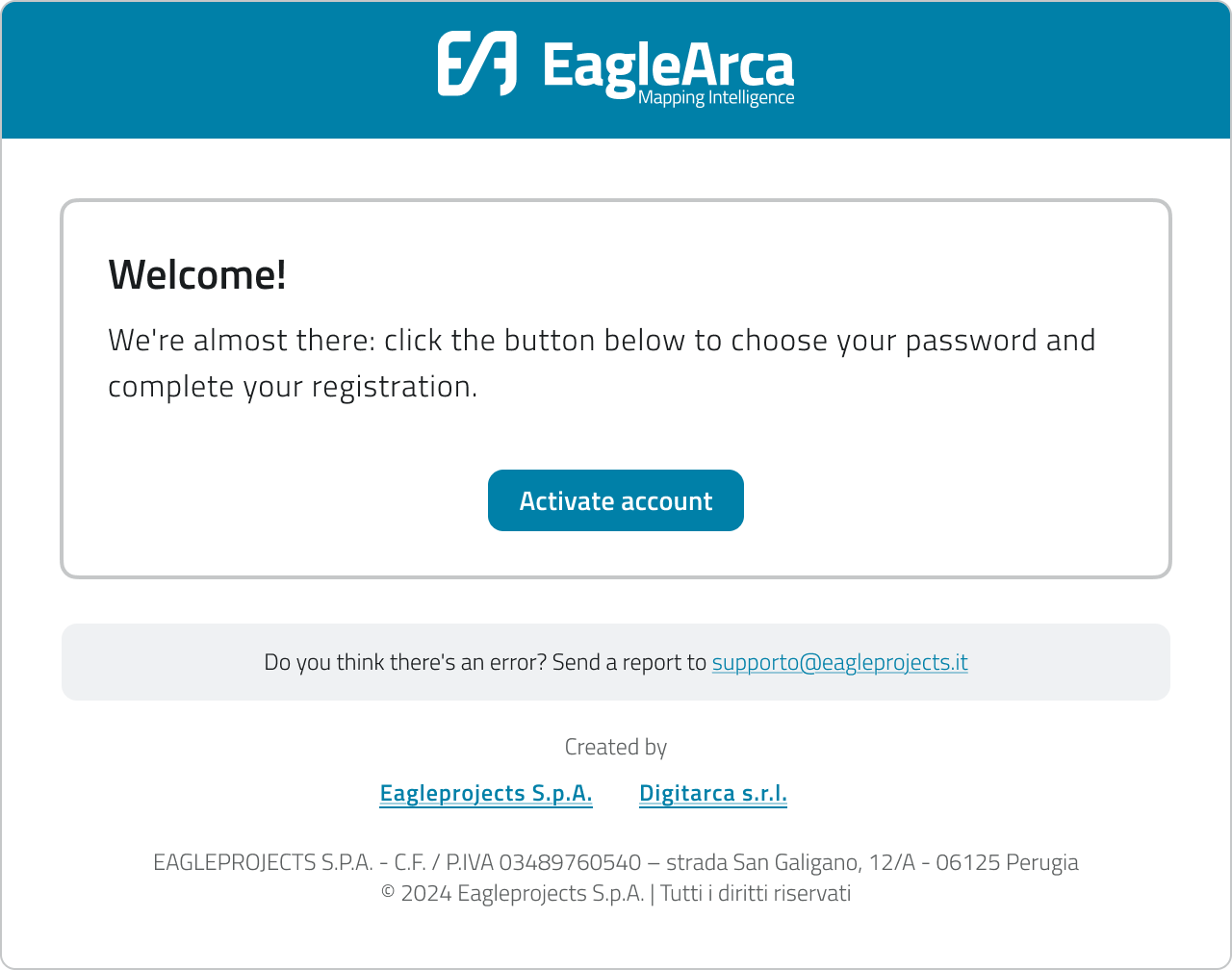](https://wiki.eaglearca.com/uploads/images/gallery/2025-12/1-mail-first-access.png) **2.** Imposta la **nuova password** rispettando i requisiti minimi: - almeno 8 caratteri - una lettera maiuscola - un numero - un carattere speciale **3.** Conferma per **salvare la password**. **4.** Verrai reindirizzato alla **pagina di login**: inserisci email e password, quindi clicca su **Login**. [](https://wiki.eaglearca.com/uploads/images/gallery/2025-11/Y3Z2-login.png)Il link di attivazione ha validità limitata. Se risulta scaduto, richiedi nuovamente la creazione dell’utenza.
**💡 Suggerimento**: Se il **link di benvenuto è scaduto**, richiedi un nuovo invito o un reset al referente del progetto. --- ### Reimpostare la password **1.** Vai alla pagina di **login** di EagleArca. **2.** Clicca su **Hai dimenticato la password?** [](https://wiki.eaglearca.com/uploads/images/gallery/2025-11/8a13-link-password-dimenticata.png) **3.** Inserisci l’**email** associata all’utenza e clicca su **Invia**. **4.** Controlla la tua casella email e apri il **link di reset** ricevuto. [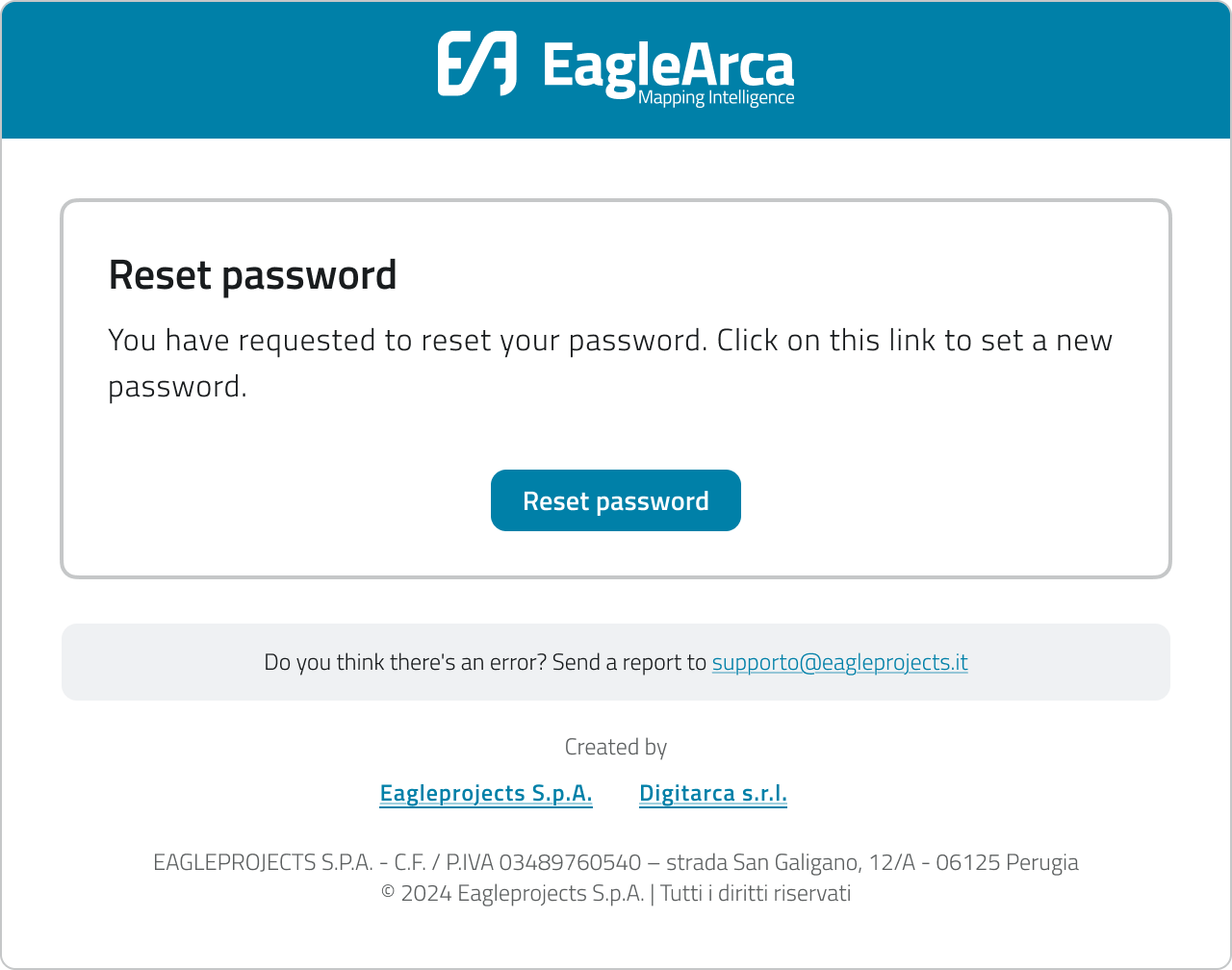](https://wiki.eaglearca.com/uploads/images/gallery/2025-12/4-mail-reset-password.png) **5.** Imposta e conferma la **nuova password** rispettando i requisiti minimi: - almeno 8 caratteri - una lettera maiuscola - un numero - un carattere speciale quindi clicca su **Cambia password**. [](https://wiki.eaglearca.com/uploads/images/gallery/2025-11/Lkg5-password-requirements.png) **6.** Torna alla pagina di login e accedi con la nuova password.Se la mail non arriva, controlla la cartella **Spam** o **Posta indesiderata**.
--- ### Selezionare organizzazione e app **1.** Dopo il login, si apre la **pagina di selezione app**. - Scegli l’**organizzazione** dal menu in alto. - Seleziona l’**app** desiderata (Backoffice o App Inventory). - Clicca su **Apri** nella card dell’app. [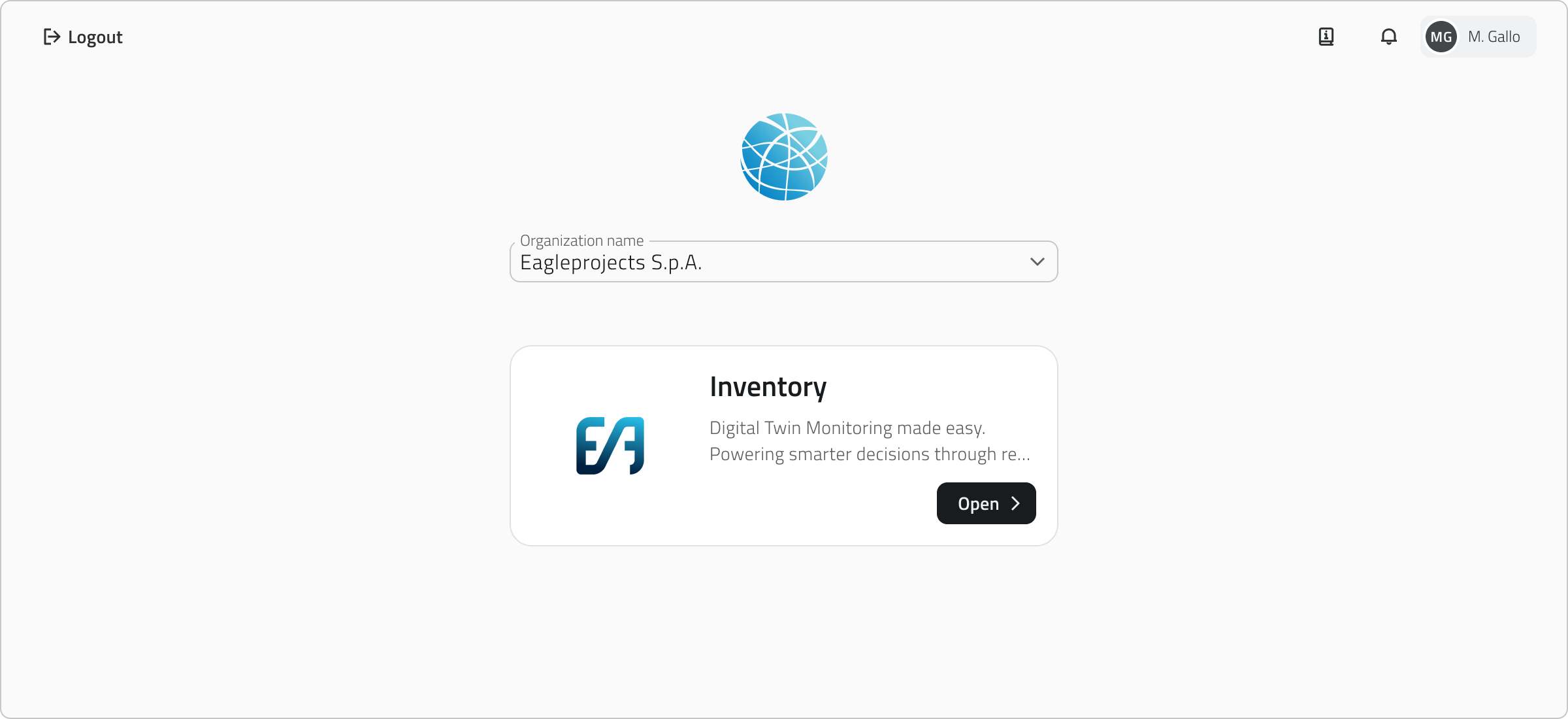](https://wiki.eaglearca.com/uploads/images/gallery/2026-03/6-app-selection.png) **2.** Se si è associati a **una sola organizzazione e a una sola applicazione**, l’accesso avviene automaticamente. - Con permessi per l’**App Inventory**, si accede direttamente all’applicazione. - Con permessi **Backoffice**, si entra nella console di configurazione. **3.** Se accedi a un’organizzazione ma **non sei associato a nessuna app**, viene mostrata una **pagina vuota**. - La pagina indica che non sono disponibili app per l’organizzazione selezionata. - Viene richiesto di **contattare l’amministratore** per ottenere le autorizzazioni necessarie. **4.** Per cambiare organizzazione o app una volta entrato, clicca in alto a sinistra sul **nome dell'organizzazione e dell'app** correnti e seleziona una nuova voce.  --- ### Accedere al progetto Una volta aperta l’App Inventory, viene mostrata la **pagina iniziale di selezione progetto**. La visualizzazione può essere cambiata (a card, a lista o a tabella) con un selettore in alto a destra. I progetti possono essere filtrati tramite searchbar. [](https://wiki.eaglearca.com/uploads/images/gallery/2026-03/TyJ8-layout-searchbar.png) Ogni progetto rappresenta un ambiente di lavoro indipendente, che contiene i propri gruppi, classi oggetto e dati. - Per visualizzare i dettagli di un progetto, clicca su di esso per aprire un pannello laterale con le informazioni. - Per aprire un progetto, clicca sul bottone **Apri**, visibile al passaggio del mouse sopra l'elemento o in alto sul pannello dei dettagli. - Attendere il caricamento della vista principale. [](https://wiki.eaglearca.com/uploads/images/gallery/2025-12/9-project-detail.png)La disponibilità dei progetti dipende dai **gruppi** e dai **ruoli** assegnati: se non vedi un progetto nella lista, verifica con un amministratore che l’utenza sia associata correttamente.
--- ### Gestione degli accessi contemporanei Per ogni account può essere attiva **una sola sessione alla volta**. Se provi ad accedere mentre la tua utenza è già collegata da un altro browser o dispositivo, la piattaforma mostra un messaggio che segnala la presenza di una sessione già attiva. [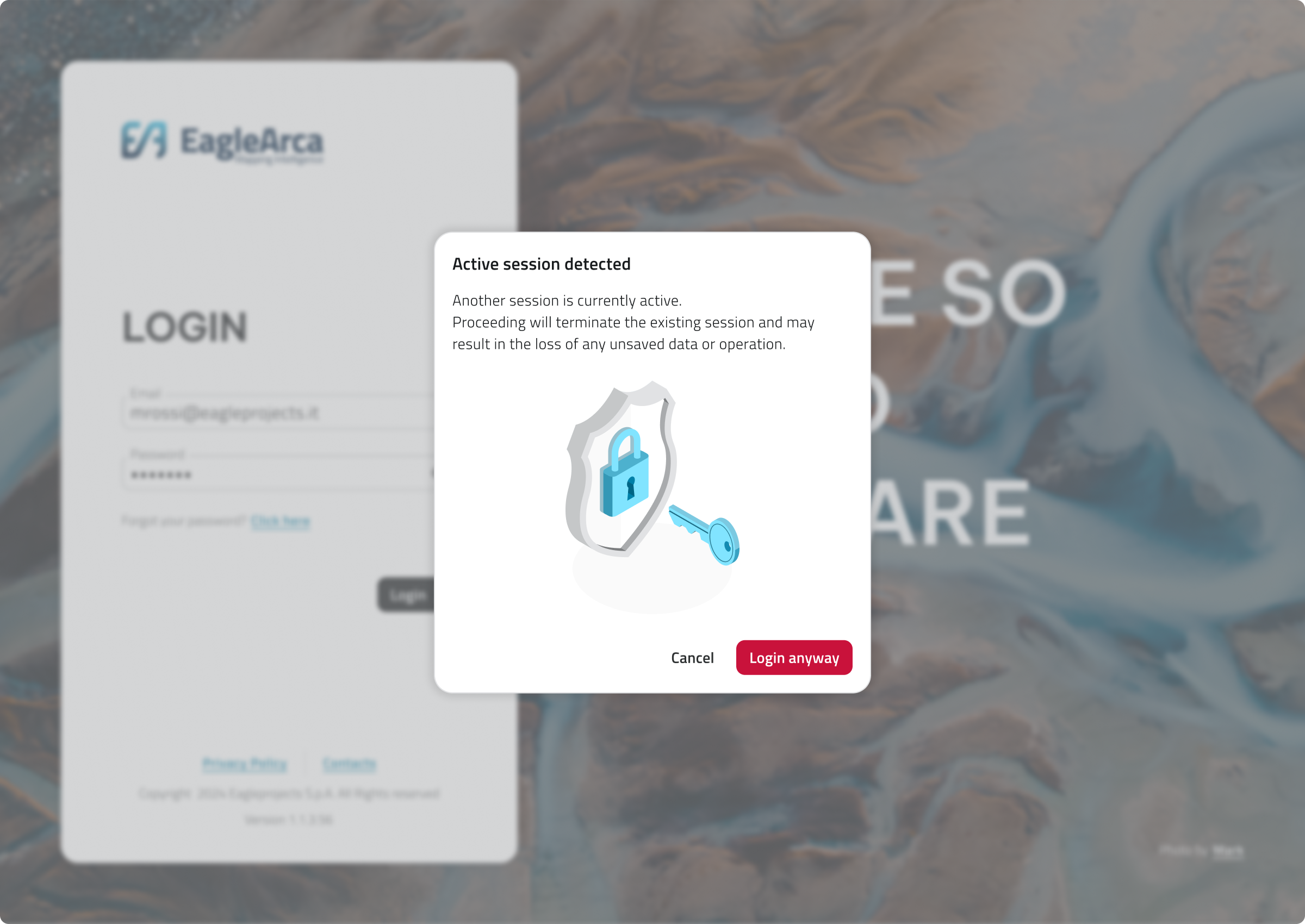](https://wiki.eaglearca.com/uploads/images/gallery/2026-03/10-active-session-detected.png) In questo caso puoi scegliere tra due opzioni: - **Annulla:** Interrompe il login e mantiene attiva la sessione già aperta. - **Accedi comunque:** Completa l’accesso nella nuova sessione e disconnette automaticamente quella precedente. Non è possibile essere collegati contemporaneamente da **dispositivo mobile** e **computer**. Se accedi da **mobile** mentre sei già collegato da **computer** (o viceversa), verrai **automaticamente disconnesso** dall’altro dispositivo. --- ### Collegamenti - [Panoramica utenti, ruoli e gruppi](https://wiki.eaglearca.com/books/access-and-overview/page/overview-of-users-roles-and-groups "Overview of users, roles and groups") --- ***Last update:** *28 May 2026**