Each user can belong to one or more organizations, but access to projects depends on the roles and groups to which they are assigned.
Within EagleArca, users are classified as: - **Internal**, if created directly within the organization. - **External**, if already registered in another organization and added as collaborators. [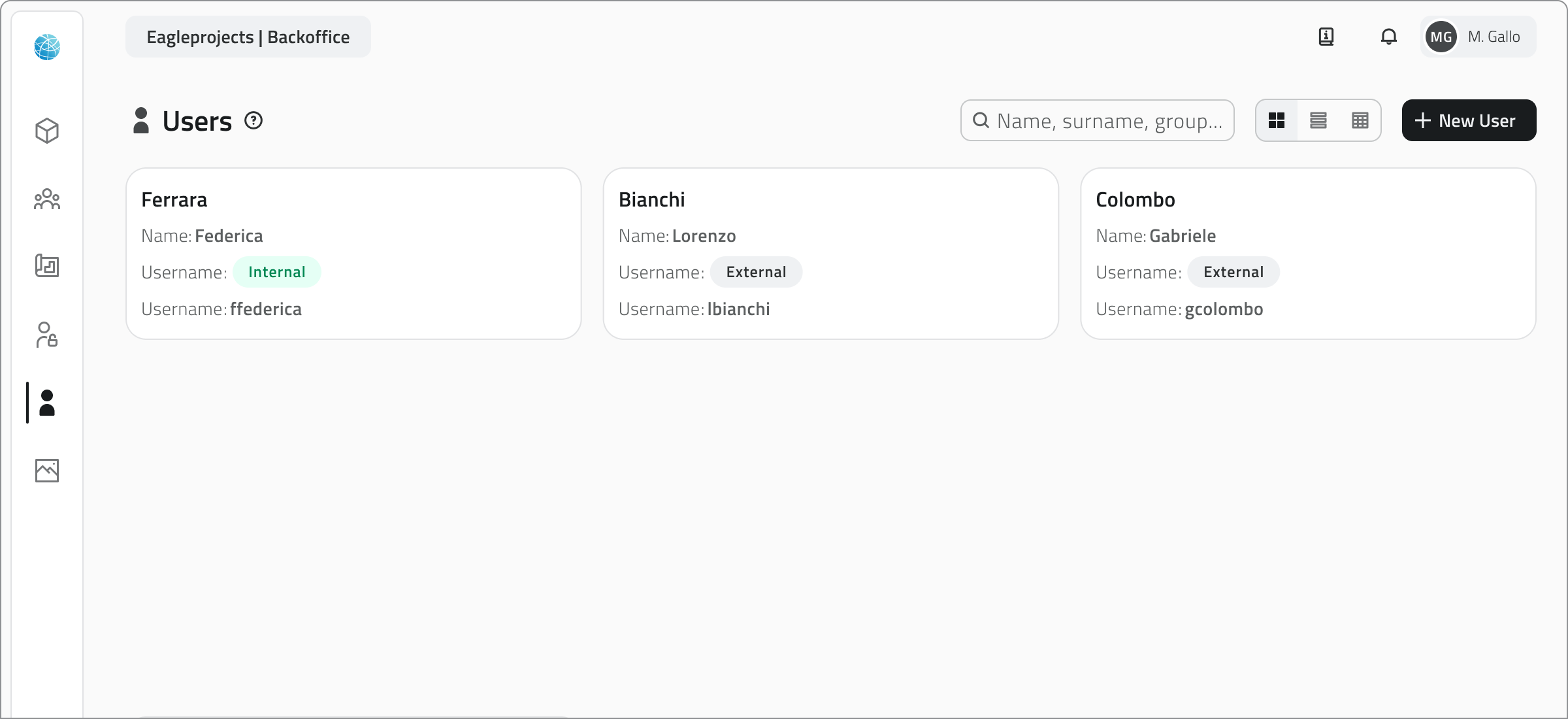](https://wiki.eaglearca.com/uploads/images/gallery/2026-03/cQm1-users.png) When a new user is created, they receive a **welcome email** containing a link to set their password and complete their first login. Each user account can have different permissions for the **App Inventory** and the **Backoffice**, and consume separate licenses based on the access granted. --- ### Roles A **role** defines which actions a user can perform on the platform's data. It is a set of **permissions** that determine what is visible or editable. - **Object classes** can be set to be invisible, visible, or editable. - **Resources** can be either visible or invisible. [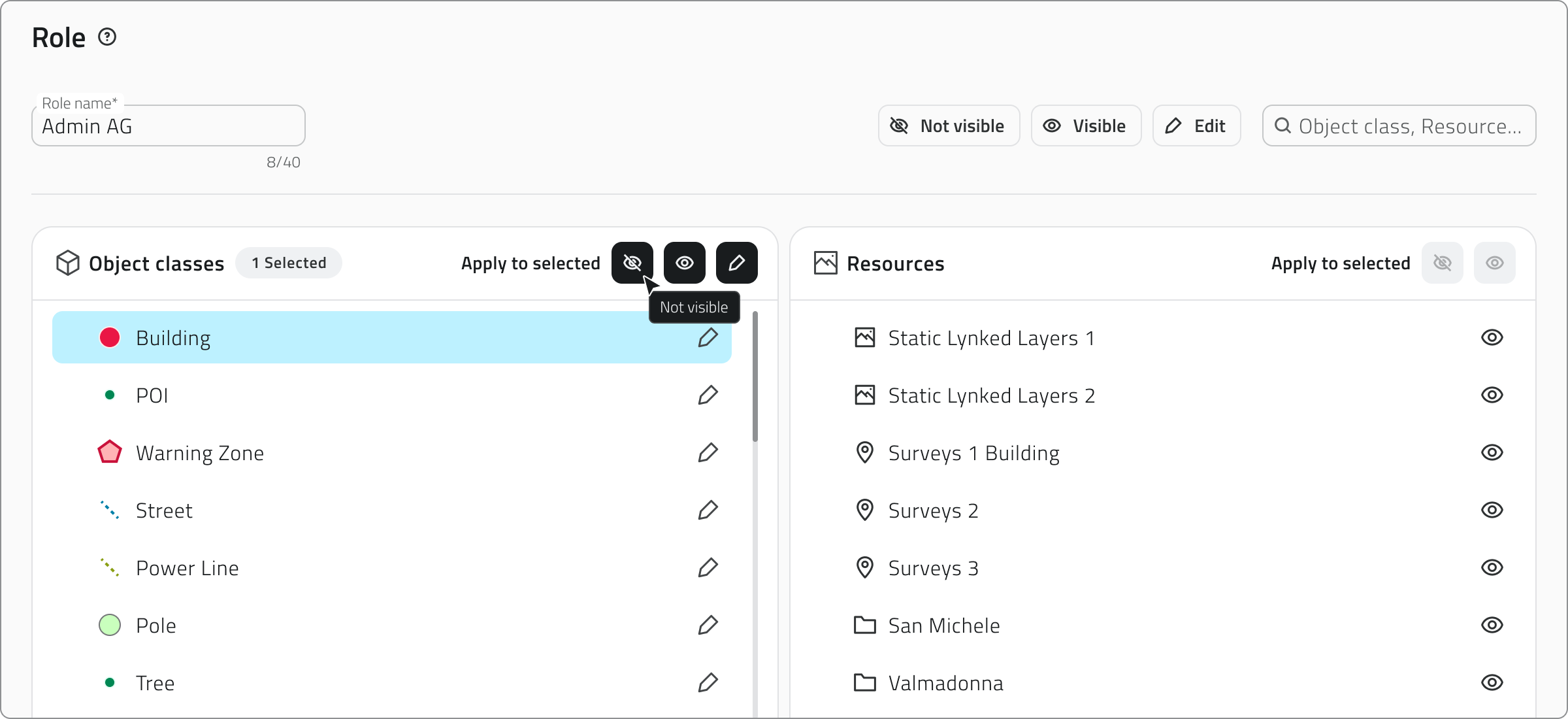](https://wiki.eaglearca.com/uploads/images/gallery/2025-12/lk63-roles.png) Each role can be linked to one or more groups. This allows you to automatically apply the same permissions to multiple users without having to configure them one by one. **💡 TIP**: Create **clear, reusable roles** to avoid redundant configurations. --- ### Groups A **group** is a collection of users who share the same role and have access to the same projects. Each group is associated with: - a **role**, which determines permissions; - one or more **projects**, which define where users can work. [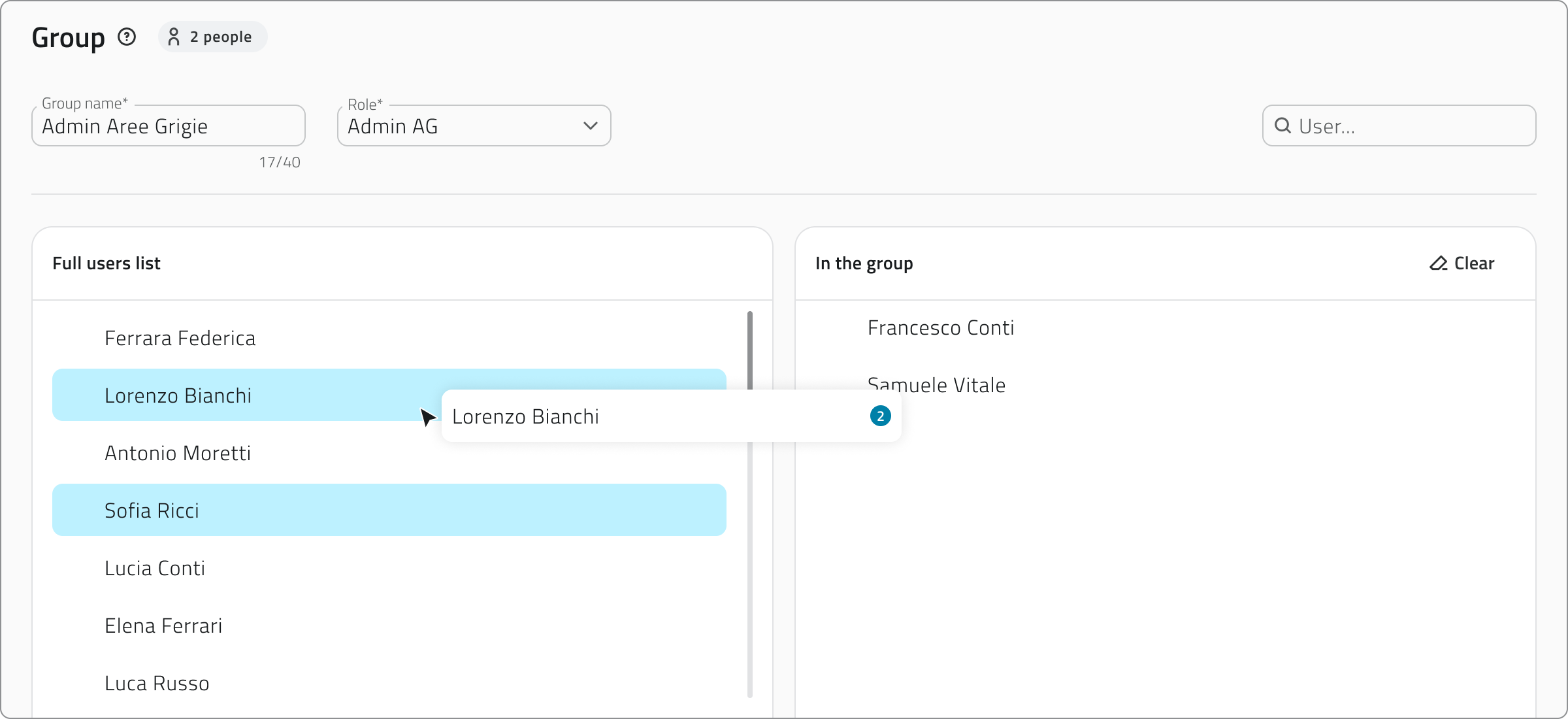](https://wiki.eaglearca.com/uploads/images/gallery/2026-03/2-groups.png) Groups simplify access management, especially in complex organizations. Assigning users to a group allows you to: - Quickly assign consistent permissions to multiple people. - Centrally manage role changes. - Reduce configuration errors in projects. If a user belongs to multiple groups, after logging in, they can select which group to work with to access the corresponding projects. **💡 TIP**: Keep the names consistent (e.g., “Northern Operators” / “Southern Operators”) to make searching easier. --- ### Relationship between users, roles and groups| **Element** | **Main function** | **Assigned to / by** |
|---|---|---|
| **User** | Identifies a person | Is included in one or more groups |
| **Role** | Defines operational permissions | Is assigned to a group |
| **Group** | Collects multiple users with the same purpose | Is associated with a role and one or more projects |
Ogni utente può appartenere a una o più organizzazioni, ma l’accesso ai progetti dipende dai ruoli e dai gruppi a cui è assegnato.
All’interno di EagleArca, gli utenti sono classificati come: - **Interni**, se creati direttamente all’interno dell’organizzazione. - **Esterni**, se già registrati in un’altra organizzazione e aggiunti come collaboratori. [](https://wiki.eaglearca.com/uploads/images/gallery/2026-03/cQm1-users.png) Quando si crea un nuovo utente, questo riceve una **mail di benvenuto** con il link per impostare la password e completare il primo accesso. Ogni utenza può avere permessi diversi per l'**App Inventory** e per il **Backoffice**, e consumare licenze separate in base all’accesso concesso. --- ### Ruoli Un **ruolo** definisce quali azioni può svolgere un utente sui dati della piattaforma. È un insieme di **permessi** che determinano cosa è visibile o modificabile. - Le **classi oggetto** possono essere impostate come *non visibili*, *visibili* o *modificabili*. - Le **risorse** possono essere solo *visibili* o *non visibili*. [](https://wiki.eaglearca.com/uploads/images/gallery/2025-12/lk63-roles.png) Ogni ruolo può essere collegato a uno o più gruppi. Questo consente di applicare automaticamente gli stessi permessi a più utenti senza doverli configurare uno per uno. **💡 Suggerimento**: Crea **ruoli chiari e riutilizzabili** per evitare configurazioni ridondanti. --- ### Gruppi Un **gruppo** è un insieme di utenti che condividono lo stesso ruolo e accedono agli stessi progetti. Ogni gruppo è associato a: - un **ruolo**, che stabilisce i permessi; - uno o più **progetti**, che definiscono dove gli utenti possono operare. [](https://wiki.eaglearca.com/uploads/images/gallery/2026-03/2-groups.png) I gruppi semplificano la gestione degli accessi, specialmente in organizzazioni complesse. Associare utenti a un gruppo consente di: - Assegnare rapidamente permessi coerenti a più persone. - Gestire in modo centralizzato le modifiche dei ruoli. - Ridurre gli errori di configurazione nei progetti. Se un utente appartiene a più gruppi, dopo l’accesso può selezionare con quale gruppo lavorare per accedere ai progetti corrispondenti. **💡 Suggerimento**: Mantieni i nomi coerenti (es. “Operatori Nord” / “Operatori Sud”) per facilitare la ricerca. --- ### Relazione tra utenti, ruoli e gruppi| **Elemento** | **Funzione principale** | **Assegnato a / da** |
|---|---|---|
| **Utente** | Identifica una persona | È inserito in uno o più gruppi |
| **Ruolo** | Definisce i permessi operativi | È assegnato a un gruppo |
| **Gruppo** | Raccoglie più utenti con lo stesso scopo | È associato a un ruolo e uno o più progetti |