# App Features

The **App Features** guide covers all the operations performed **within the EagleArca app**.  
It describes how to interact with the Home screen, how to access projects and **navigate within them using 2D and 3D views**, **manage objects on the map**, **use the Layer**, **Inventory**, and **Dashboard panels**, **take measurements**, and **import shapes or external data**.  
It is designed for those who work in the field or manage data directly from projects, and clearly explains how to interact with the map and the system’s operational tools.

Il libro **Funzionalità dell'app** raccoglie tutte le operazioni che si svolgono **all’interno dell'app di EagleArca**.  
Descrive come interagire sulla Home, come entrare nei progetti e in essi **navigare nelle viste 2D e 3D**, **gestire gli oggetti sulla mappa**, **utilizzare i pannelli Layer, Inventory e Dashboard**, **eseguire misurazioni** e **importare shape o dati esterni**.   
È pensato per chi lavora sul campo o gestisce i dati direttamente dai progetti, e spiega in modo chiaro come interagire con la mappa e con gli strumenti operativi del sistema.

# Create a global object

Global Lists are object classes independent from projects, available at the organization level. They are used to collect shared data, such as records, inventories or verification reports, accessible to multiple teams at all times.

<div id="bkmrk-english-italiano" style="display: flex; gap: 8px; margin-bottom: 20px;">[<button id="bkmrk-btn-italiano" style="display: flex; align-items: center; gap: 6px; padding: 6px 14px; border: 1px solid #DEDFE0; border-radius: 6px; cursor: pointer; background: #EFF1F3; color: #333; font-weight: 600; line-height: 1;">![Bandiera italiana](https://wiki.eaglearca.com/uploads/images/gallery/2026-05/flag-italy-1f1ee-1f1f9.png) Italian version ↓</button>](https://wiki.eaglearca.com/link/132#bkmrk-%C2%A0italian-version%C2%A0)</div>---

<span id="bkmrk-italiano-1"> ![jQPeng.png](https://wiki.eaglearca.com/uploads/images/gallery/2026-05/KKPjqpeng.png) **English version**</span>

**Global Lists** are object classes independent from projects, available at the organization level.

They are used to collect shared data, such as records, inventories or verification reports, accessible to multiple teams at all times.

<p class="callout info">To create, modify and view objects, access permissions to the **App** are required.</p>

---

### Create a global object

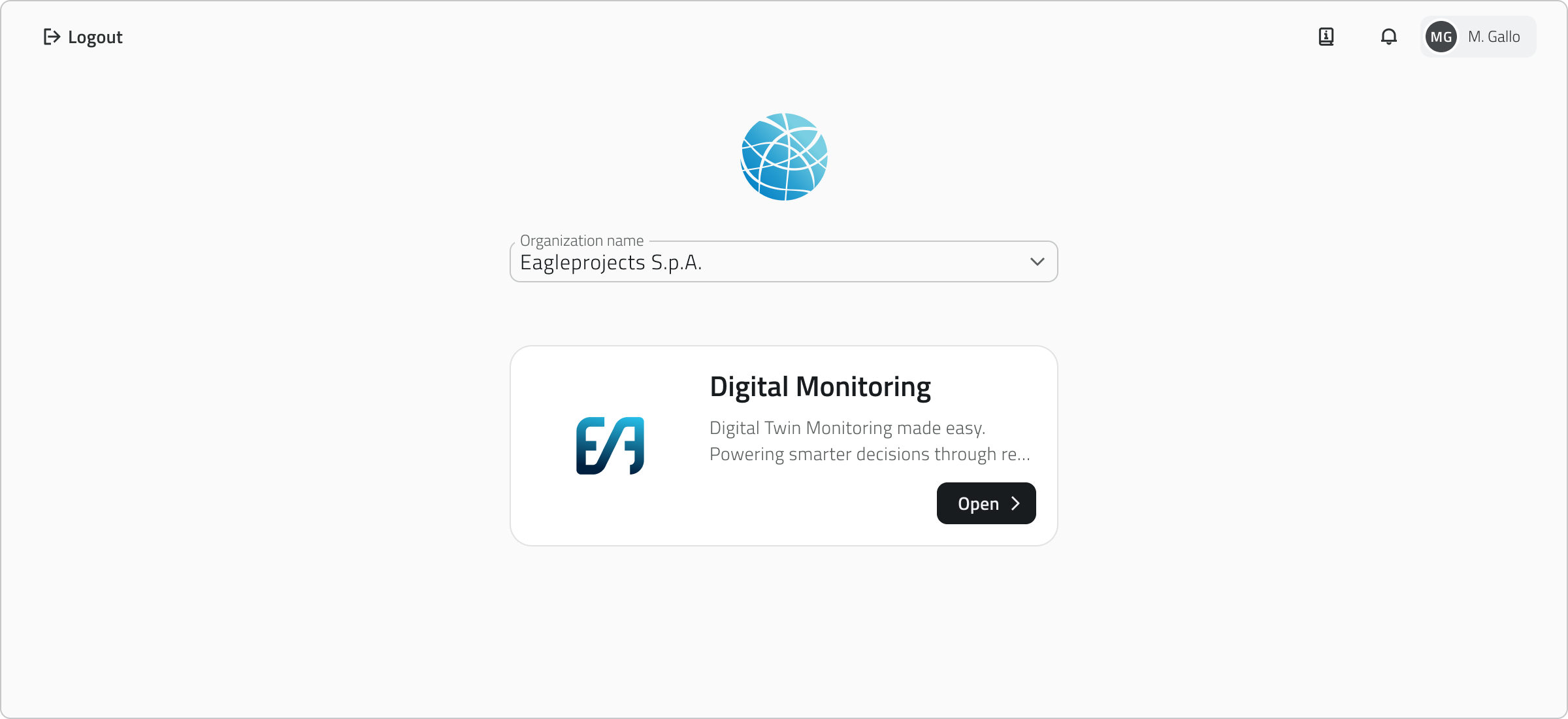
**1.** From the home screen, select your organization's app to access the workspace.

[![1 - Organization selection.png](https://wiki.eaglearca.com/uploads/images/gallery/2026-03/CET1-organization-selection.png)](https://wiki.eaglearca.com/uploads/images/gallery/2026-03/1-organization-selection.png)
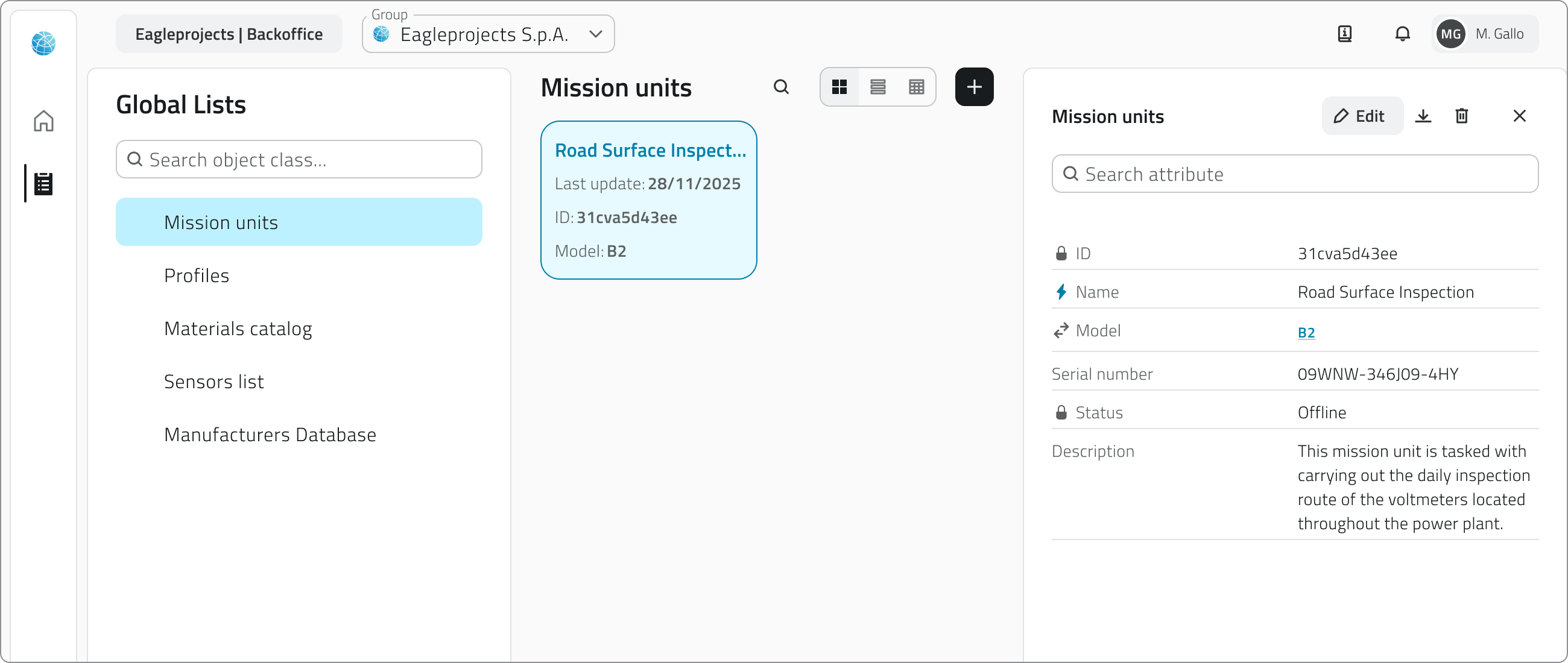
**2.** From the left-side menu, click **Global Lists** to view all available lists.

![2 - Button Global List.png](https://wiki.eaglearca.com/uploads/images/gallery/2025-12/scaled-1680-/2-button-global-list.png)

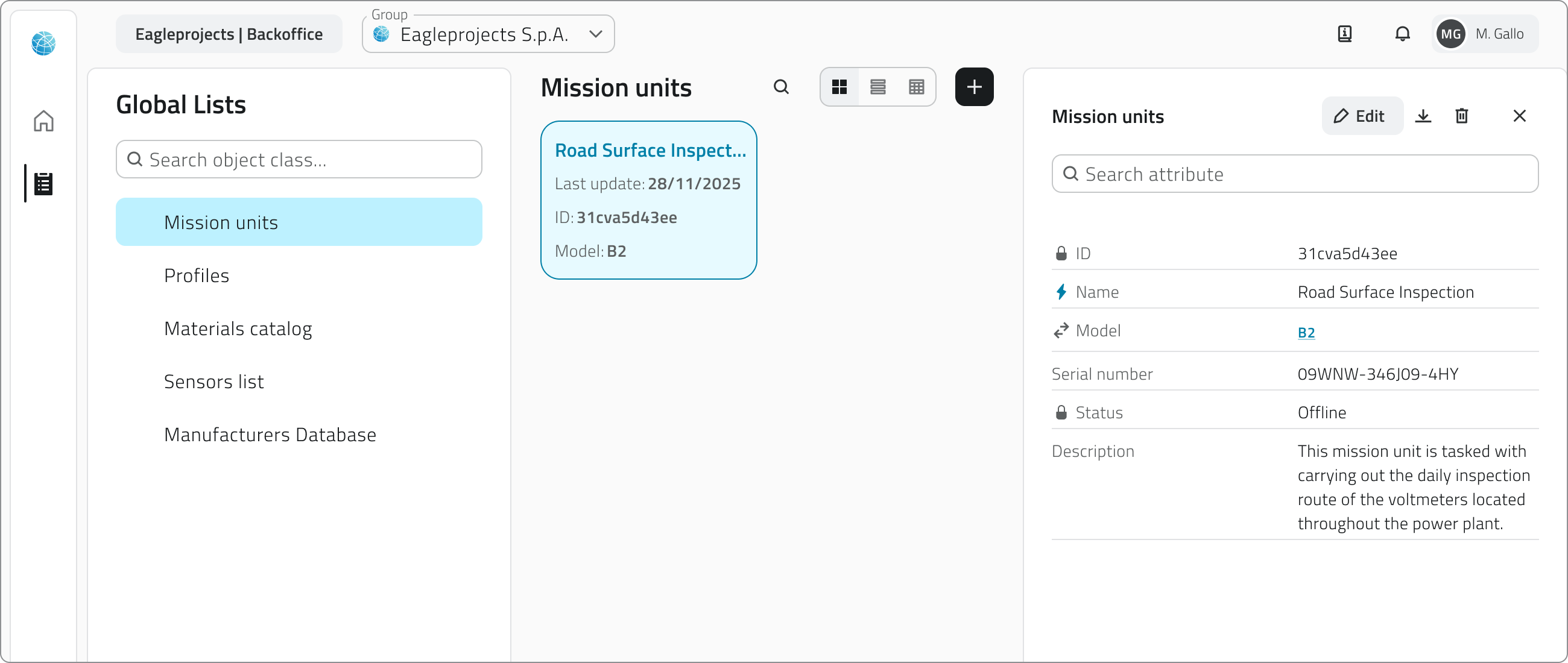
**3.** Choose a class from the list to open the associated objects. You can filter classes or objects using the **search bar** at the top. Objects can be displayed in **grid, list or table** mode.

[![4 - Instances List.png](https://wiki.eaglearca.com/uploads/images/gallery/2026-03/scaled-1680-/XoA4-instances-list.png)](https://wiki.eaglearca.com/uploads/images/gallery/2026-03/XoA4-instances-list.png)
**4.** Click **New object** in the top-right corner.

![5 - Button New Object.png](https://wiki.eaglearca.com/uploads/images/gallery/2025-12/scaled-1680-/5-button-new-object.png)

**5.** The object creation panel will open on the right, requiring you **to fill in the attributes** defined for that object class.

[![6 - New Object.png](https://wiki.eaglearca.com/uploads/images/gallery/2025-12/scaled-1680-/CIG6-new-object.png)](https://wiki.eaglearca.com/uploads/images/gallery/2025-12/CIG6-new-object.png)
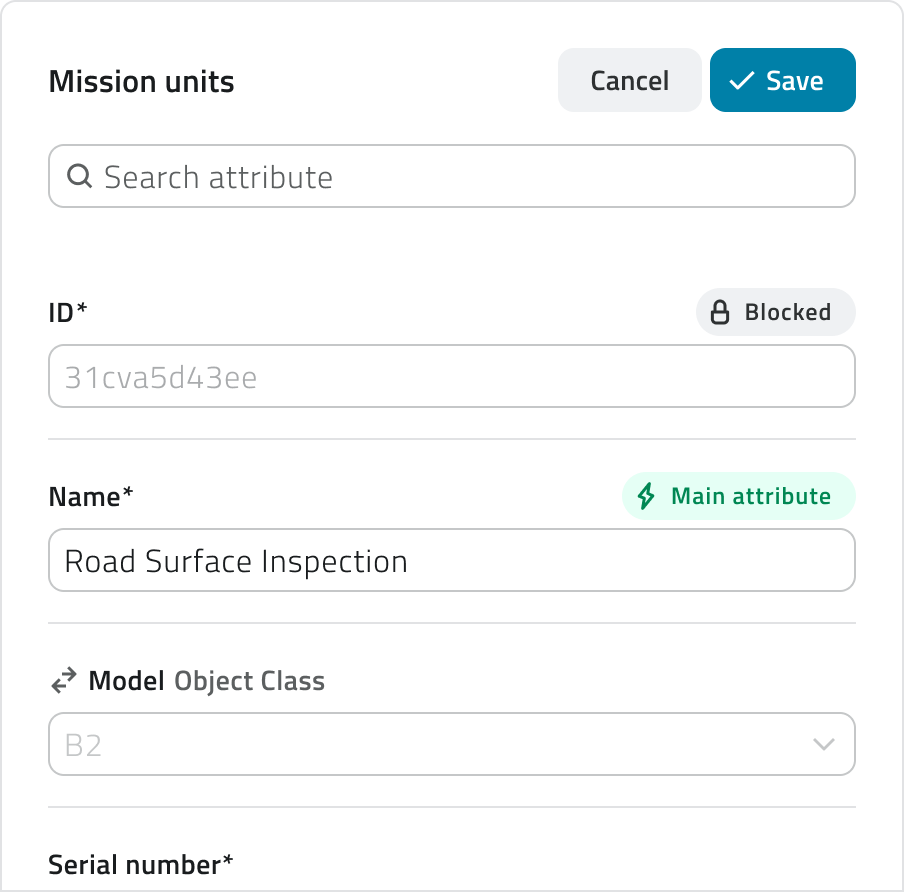
**6.** To create the object, click **Save**.

---

### Editing objects

To open the **Attribute details** panel of an object, click the **blue Open button** that appears when hovering over the element. From here you can view, edit and download the attribute values.

To close the panel, click the **✕** in the top-right corner.

#### Edit

To edit an object, open the details by clicking the **blue Open button** that appears when hovering over the element, then click **Edit**.

#### Delete

To delete an object, open the **Attribute details** panel and click the **Delete button**, then confirm the operation. Alternatively, select one or more objects from the list: the **Delete** button will appear in the top-right corner of the view.

<p class="callout warning">Creating, editing and deleting are **available** only if you have **edit permissions** for that object class.</p>

---

### Links

- [Introduction to Object Classes](https://wiki.eaglearca.com/books/access-and-overview/page/introduction-to-object-classes "Introduction to Object Classes")

---

<span id="bkmrk-%C2%A0italian-version%C2%A0-1">![flag-italy-1f1ee-1f1f9.png](https://wiki.eaglearca.com/uploads/images/gallery/2026-05/aiMflag-italy-1f1ee-1f1f9.png) **Italian version** </span>

Le **Liste Globali** sono **Classi Oggetto indipendenti dai progetti**, disponibili a livello di **organizzazione**.


Servono per raccogliere dati condivisi, come anagrafiche, inventari o rapporti di verifica, consultabili da più team e sempre accessibili.

<p class="callout info">Per creare, modificare e visualizzare gli oggetti sono necessari i permessi di accesso all'**App**.</p>

---

### Creare un oggetto globale

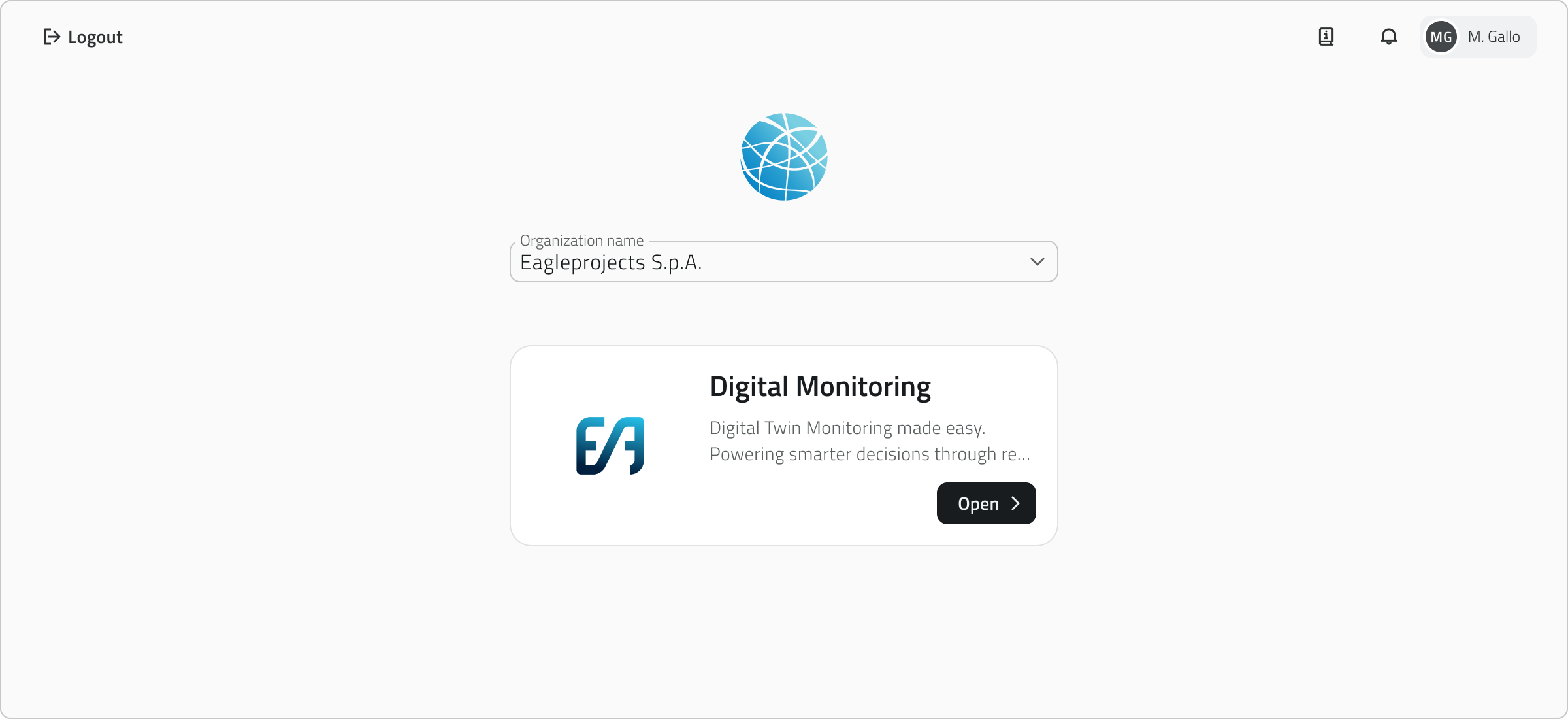
**1.** Dalla schermata iniziale, seleziona l'app della tua organizzazione per accedere all'ambiente di lavoro.

[![1 - Organization selection.png](https://wiki.eaglearca.com/uploads/images/gallery/2026-03/CET1-organization-selection.png)](https://wiki.eaglearca.com/uploads/images/gallery/2026-03/1-organization-selection.png)
**2.** Dal menu laterale sinistro, clicca su **Liste Globali** per visualizzare tutte le liste disponibili.

![2 - Button Global List.png](https://wiki.eaglearca.com/uploads/images/gallery/2025-12/scaled-1680-/2-button-global-list.png)

**3.** Scegli una classe dall'elenco per aprire la lista degli oggetti associati.  
Puoi filtrare le classi o gli oggetti usando la **barra di ricerca** in alto.  
Gli oggetti possono essere visualizzati in modalità **griglia, lista o tabella**.

[![4 - Instances List.png](https://wiki.eaglearca.com/uploads/images/gallery/2026-03/scaled-1680-/XoA4-instances-list.png)](https://wiki.eaglearca.com/uploads/images/gallery/2026-03/XoA4-instances-list.png)
**4.** Clicca su **Nuovo oggetto** in alto a destra.

![5 - Button New Object.png](https://wiki.eaglearca.com/uploads/images/gallery/2025-12/scaled-1680-/5-button-new-object.png)

**5.** Si aprirà il pannello laterale di creazione degli oggetti, che richiede la **compilazione degli attributi** definiti per quella classe oggetto.

[![6 - New Object.png](https://wiki.eaglearca.com/uploads/images/gallery/2025-12/scaled-1680-/CIG6-new-object.png)](https://wiki.eaglearca.com/uploads/images/gallery/2025-12/CIG6-new-object.png)
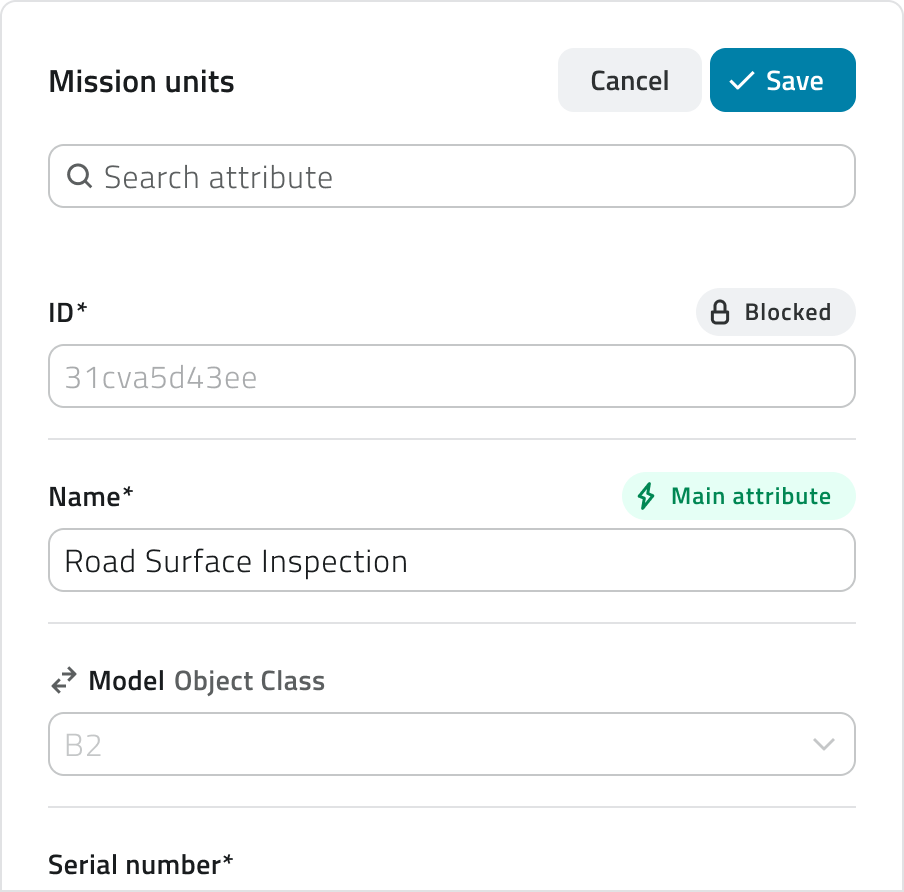
**6.** Per creare l'oggetto, clicca **Salva.**

---

### Modifica degli oggetti

Per aprire il pannello **Dettaglio attributi** di un oggetto, clicca il **pulsante blu Apri** che compare al passaggio del mouse sull'elemento. Da qui puoi consultare i valori degli attributi, modificarli e scaricare i dati.

Per chiudere il pannello, clicca sulla **✕** in alto a destra.


#### Modifica

Per modificare un oggetto, apri il dettaglio cliccando il **pulsante blu Apri** che compare al passaggio del mouse sull'elemento, quindi clicca **Modifica**.

#### Elimina

Per eliminare un oggetto apri il pannello **Dettaglio attributi** e clicca il **pulsante Elimina**, quindi conferma l'operazione. In alternativa, seleziona uno o più oggetti dall'elenco: comparirà il pulsante **Elimina** in alto a destra della vista.

<p class="callout warning">La creazione, la modifica e l'eliminazione sono **disponibili** solo se si dispone dei **permessi di modifica** per quella classe oggetto.</p>

---

### Collegamenti

- [Introduzione alle Classi Oggetto](https://wiki.eaglearca.com/books/access-and-overview/page/introduction-to-object-classes "Introduction to Object Classes")

---

***Last update:** 21 May 2026*

# Create a global report

Global Reports are reports independent from projects, available at the organization level. The data collected for each report refers to all projects present in the platform, or to data that is independent from projects altogether, such as user access logs.

<div id="bkmrk-english-italiano" style="display: flex; gap: 8px; margin-bottom: 20px;">[<button id="bkmrk-btn-italiano" style="display: flex; align-items: center; gap: 6px; padding: 6px 14px; border: 1px solid #DEDFE0; border-radius: 6px; cursor: pointer; background: #EFF1F3; color: #333; font-weight: 600; line-height: 1;">![Bandiera italiana](https://wiki.eaglearca.com/uploads/images/gallery/2026-05/flag-italy-1f1ee-1f1f9.png) Italian version ↓</button>](https://wiki.eaglearca.com/link/160#bkmrk-%C2%A0italian-version%C2%A0)</div>---

<div id="bkmrk--1" style="display: flex; gap: 8px; margin-bottom: 20px;"></div><span id="bkmrk-italiano-1"> ![jQPeng.png](https://wiki.eaglearca.com/uploads/images/gallery/2026-05/KKPjqpeng.png) **English version**</span>

Global Reports are reports independent from projects, available at the organization level. The data collected for each report refers to all projects present in the platform, or to data that is independent from projects altogether, such as user access logs.

They are generated from predefined templates and can be downloaded in the available formats.

<p class="callout info">To generate and view reports, you need access permissions for the **App** and **view or edit permissions** for that template.</p>

---

### Generate a global report

**1.** From the home screen, select your organization's app to access the workspace.

[![1 - Organization selection.png](https://wiki.eaglearca.com/uploads/images/gallery/2026-03/CET1-organization-selection.png)](https://wiki.eaglearca.com/uploads/images/gallery/2026-03/1-organization-selection.png)

**2.** From the left-side menu, click **Reports** to view all available report templates.

![Report icon.png](https://wiki.eaglearca.com/uploads/images/gallery/2026-05/scaled-1680-/report-icon.png)

**3.** Select the desired template from the list to open the **Report page**. You can filter reports using the **search bar** at the top. Elements can be displayed in **grid, list or table** mode.

[![Report page.png](https://wiki.eaglearca.com/uploads/images/gallery/2026-05/scaled-1680-/1TWreport-page.png)](https://wiki.eaglearca.com/uploads/images/gallery/2026-05/1TWreport-page.png)
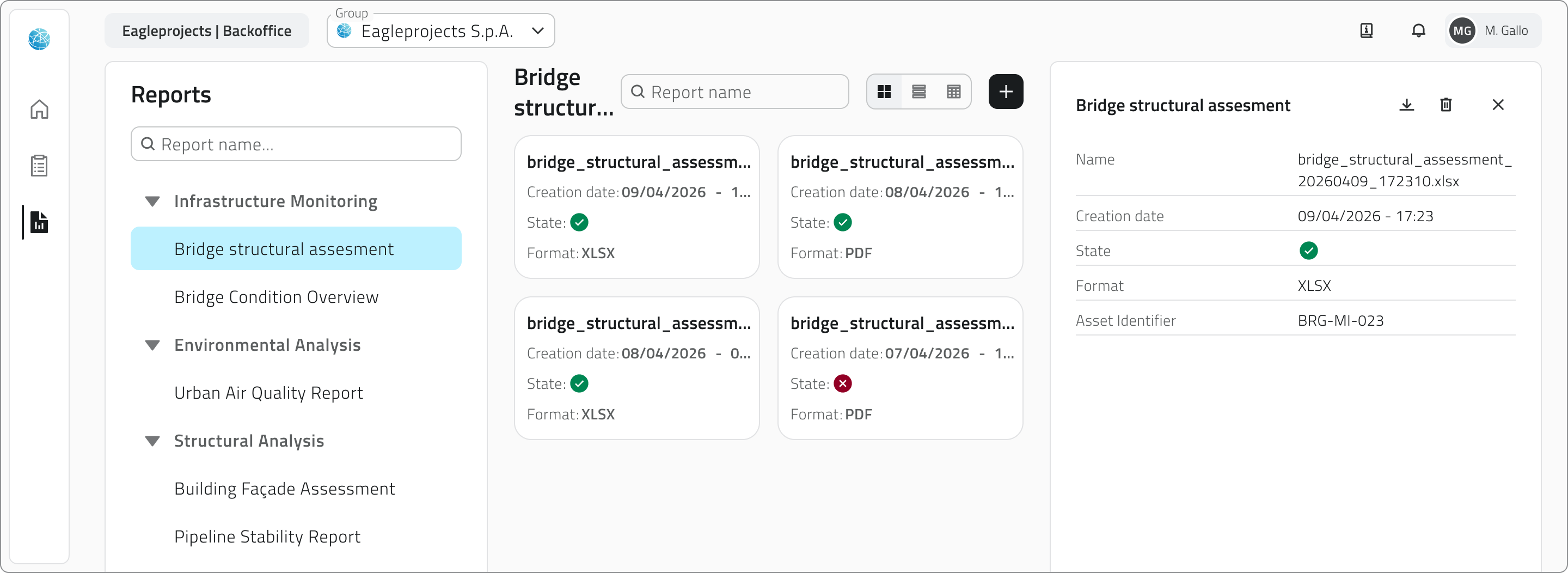
**4.** Click the **Generate report** button in the top-right corner.

[![Generate Report.png](https://wiki.eaglearca.com/uploads/images/gallery/2026-05/scaled-1680-/generate-report.png)](https://wiki.eaglearca.com/uploads/images/gallery/2026-05/generate-report.png)

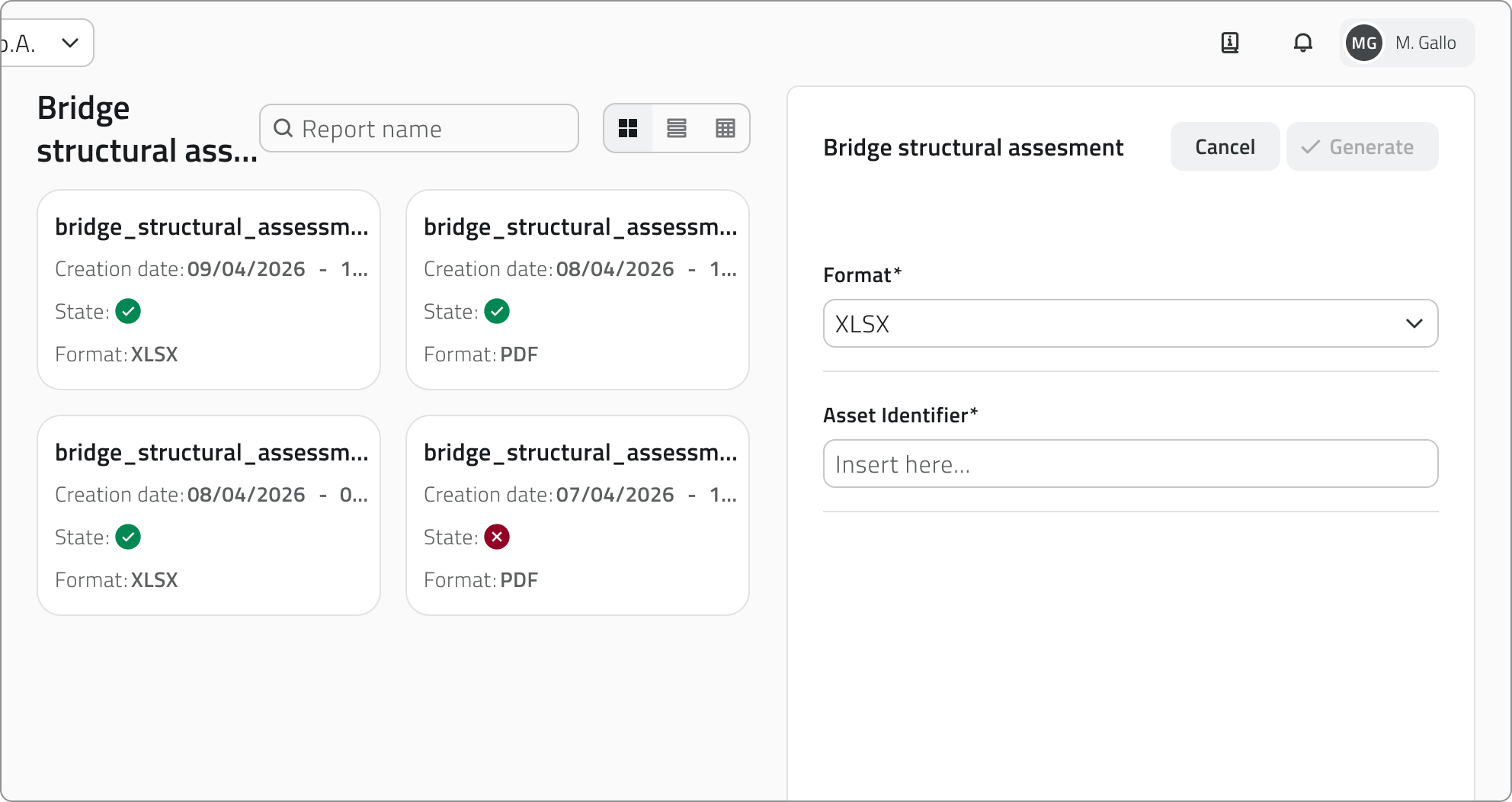
**5.** A configuration panel opens on the right side of the page, requiring:

- the selection of **a format** from those available, configured in the Backoffice;
- the completion of any **filters**, which vary depending on the selected template and refine the report content.  
    Some filters may be mandatory.

[![Parameters panel.png](https://wiki.eaglearca.com/uploads/images/gallery/2026-05/scaled-1680-/Sixparameters-panel.png)](https://wiki.eaglearca.com/uploads/images/gallery/2026-05/Sixparameters-panel.png)
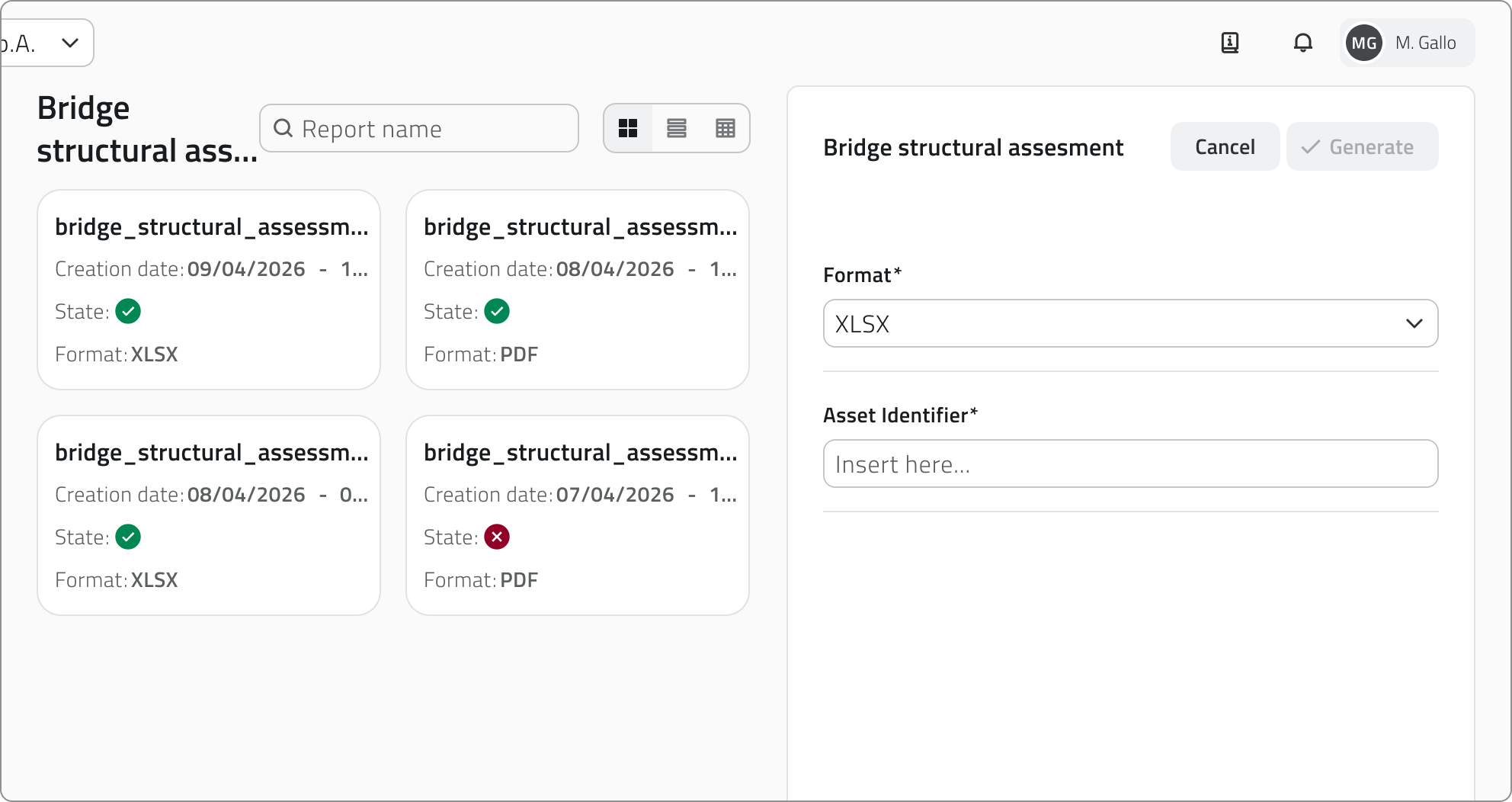
**6.** Click **Confirm** to start the generation, or **Cancel** to close the window without proceeding.

<p class="callout info">The **Confirm** button is disabled until all mandatory filters have been filled in.</p>

<p class="callout warning">Report generation takes a few moments. **Do not leave the page during the process.** The progress status is visible directly in the report row, where the download button shows a spinner until completion.</p>

---

### Report information

Once generation has started, the following information is shown for each element in the page:

- **Name** of the report
- **Creation date** (empty until generation is complete)
- **Status** (success or error; empty if generation has not yet concluded)
- **Selected format**
- **Filters** entered during configuration

---

### Downloading and viewing a report

Once generation is complete, the report can be **downloaded** using the download button on the element row. Alternatively, clicking the **blue Open button** that appears when hovering over the element opens the **report details**, which shows all associated information.

[![Report details.png](https://wiki.eaglearca.com/uploads/images/gallery/2026-05/scaled-1680-/SXsreport-details.png)](https://wiki.eaglearca.com/uploads/images/gallery/2026-05/SXsreport-details.png)

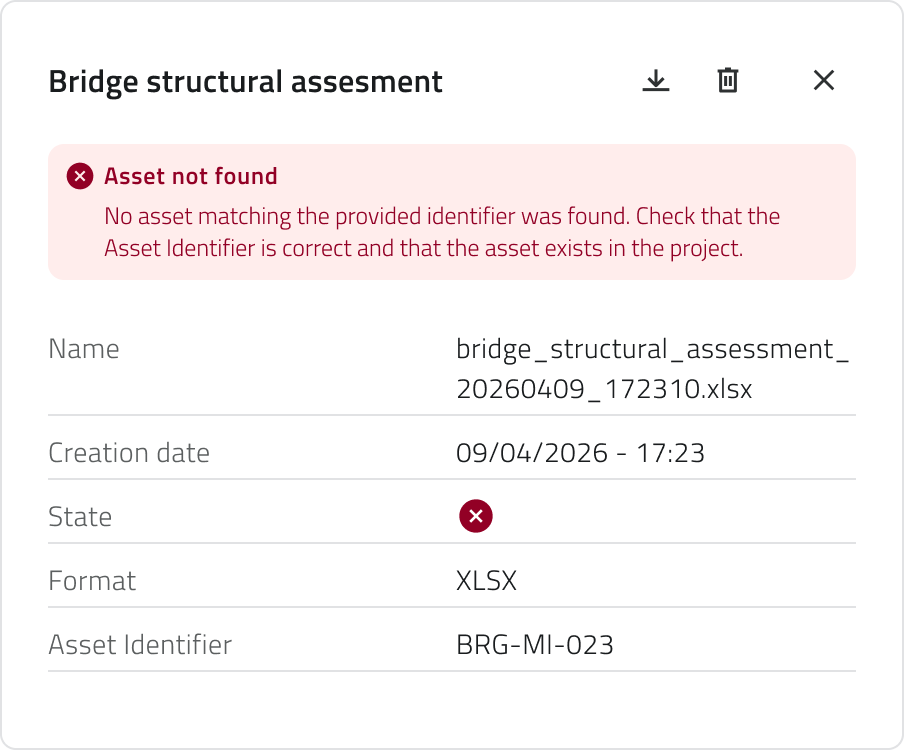
If generation did not complete successfully, the error message is visible at the top of the report details.

[![Report error.png](https://wiki.eaglearca.com/uploads/images/gallery/2026-05/scaled-1680-/Ejsreport-error.png)](https://wiki.eaglearca.com/uploads/images/gallery/2026-05/Ejsreport-error.png)
<p class="callout warning">Reports **cannot** be edited after generation.</p>

---

### Deleting a report

To delete a report, open the **report details** and click the **Delete** button, then confirm the operation. Alternatively, select one or more reports from the list: the **Delete** button will appear in the top-right corner of the page.

<p class="callout warning">Generating and deleting global reports is only available if you have **edit permissions** for that report template.</p>

---

### Links

- *[Managing reports in the project](https://wiki.eaglearca.com/books/app-features/page/managing-reports-in-the-project "Managing reports in the project")*

---

<span id="bkmrk-%C2%A0italian-version%C2%A0-1">![flag-italy-1f1ee-1f1f9.png](https://wiki.eaglearca.com/uploads/images/gallery/2026-05/aiMflag-italy-1f1ee-1f1f9.png) **Italian version** </span>

I Report Globali sono report indipendenti dai progetti, disponibili a livello di organizzazione. I dati raccolti per ogni report fanno riferimento a tutti i progetti presenti in piattaforma, oppure a dati che prescindono dai progetti, come ad esempio gli accessi degli utenti.

Vengono generati a partire da template predefiniti e possono essere scaricati nei formati disponibili.

<p class="callout info">Per generare e visualizzare i report sono necessari i permessi di accesso all'**App** e i **permessi di visualizzazione o modifica** per quel template.</p>

---

### Generare un report globale

**1.** Dalla schermata iniziale, seleziona l'app della tua organizzazione per accedere all'ambiente di lavoro.

[![1 - Organization selection.png](https://wiki.eaglearca.com/uploads/images/gallery/2026-03/CET1-organization-selection.png)](https://wiki.eaglearca.com/uploads/images/gallery/2026-03/1-organization-selection.png)

**2.** Dal menu laterale sinistro, clicca su **Report** per visualizzare tutti i template disponibili.

![Report icon.png](https://wiki.eaglearca.com/uploads/images/gallery/2026-05/scaled-1680-/report-icon.png)

**3.** Seleziona il template desiderato dalla lista per aprire la **pagina Report**. Puoi filtrare i report usando la **barra di ricerca** in alto. Gli elementi possono essere visualizzati in modalità **griglia, lista o tabella**.

[![Report page.png](https://wiki.eaglearca.com/uploads/images/gallery/2026-05/scaled-1680-/1TWreport-page.png)](https://wiki.eaglearca.com/uploads/images/gallery/2026-05/1TWreport-page.png)

**4.** Clicca sul pulsante **Genera report** in alto a destra.

[![Generate Report.png](https://wiki.eaglearca.com/uploads/images/gallery/2026-05/scaled-1680-/generate-report.png)](https://wiki.eaglearca.com/uploads/images/gallery/2026-05/generate-report.png)

**5.** Si apre un pannello di configurazione sul lato destro della pagina, che richiede:

- la scelta di **un formato** tra quelli disponibili, configurati nel Backoffice;
- la compilazione degli eventuali **filtri**, che variano in base al template selezionato e affinano il contenuto del report. Alcuni filtri possono essere obbligatori.

[![Parameters panel.png](https://wiki.eaglearca.com/uploads/images/gallery/2026-05/Sixparameters-panel.png)](https://wiki.eaglearca.com/uploads/images/gallery/2026-05/parameters-panel.png)
**6.** Clicca **Conferma** per avviare la generazione, oppure **Annulla** per chiudere la finestra senza procedere.

<p class="callout info">Il pulsante **Conferma** è disabilitato finché tutti i filtri obbligatori non sono stati compilati.</p>

<p class="callout warning">La generazione del report richiede alcuni istanti. **Non lasciare la pagina durante il processo.** Lo stato di avanzamento è visibile direttamente nella riga del report, dove il pulsante di download mostra uno spinner fino al completamento.</p>

---

### Informazioni del report

Una volta avviata la generazione, nella pagina vengono mostrate le seguenti informazioni per ogni elemento:

- **Nome** del report
- **Data di creazione** (vuota fino al completamento della generazione)
- **Stato** (successo o errore; vuoto se la generazione non è ancora conclusa)
- **Formato selezionato**
- **Filtri** inseriti in fase di configurazione

---

### Scaricare e consultare un report

Al termine della generazione il report può essere **scaricato** tramite il pulsante di download presente sulla riga dell'elemento. In alternativa, cliccando sul **pulsante blu Apri** che compare al passaggio del mouse sull'elemento si apre il **dettaglio report**, che mostra tutte le informazioni associate.

[![Report details.png](https://wiki.eaglearca.com/uploads/images/gallery/2026-05/scaled-1680-/SXsreport-details.png)](https://wiki.eaglearca.com/uploads/images/gallery/2026-05/SXsreport-details.png)

Se la generazione non è andata a buon fine, il messaggio di errore è visibile in cima al dettaglio del report.

[![Report error.png](https://wiki.eaglearca.com/uploads/images/gallery/2026-05/scaled-1680-/Ejsreport-error.png)](https://wiki.eaglearca.com/uploads/images/gallery/2026-05/Ejsreport-error.png)

<p class="callout warning">I report **non** possono essere modificati dopo la generazione.</p>

---

### Eliminare un report

Per eliminare un report apri il **dettaglio report** e clicca il **pulsante Elimina**, quindi conferma l'operazione. In alternativa, seleziona uno o più report dalla lista: comparirà il pulsante **Elimina** in alto a destra della pagina.

<p class="callout warning">La generazione e l'eliminazione dei report globali sono disponibili solo se si dispone dei **permessi di modifica** per quel template di report.</p>

---

### Collegamenti

- *[Gestire i report nel progetto](https://wiki.eaglearca.com/books/app-features/page/managing-reports-in-the-project "Managing reports in the project")*

---

***Last update:** 11 June 2026*

# Navigating between views

The project offers several views for interacting with objects and data: 2D Map, 3D Map, Inventory and Streaming.

<div id="bkmrk-english-italiano" style="display: flex; gap: 8px; margin-bottom: 20px;">[<button id="bkmrk-btn-italiano" style="display: flex; align-items: center; gap: 6px; padding: 6px 14px; border: 1px solid #DEDFE0; border-radius: 6px; cursor: pointer; background: #EFF1F3; color: #333; font-weight: 600; line-height: 1;">![Bandiera italiana](https://wiki.eaglearca.com/uploads/images/gallery/2026-05/flag-italy-1f1ee-1f1f9.png) Italian version ↓</button>](https://wiki.eaglearca.com/link/153#bkmrk-%C2%A0italian-version%C2%A0)</div>---

<div id="bkmrk--1" style="display: flex; gap: 8px; margin-bottom: 20px;"></div><span id="bkmrk-italiano-1"> ![jQPeng.png](https://wiki.eaglearca.com/uploads/images/gallery/2026-05/KKPjqpeng.png) **English version**</span>

The project offers several **views** for interacting with objects and data: **2D Map**, **3D Map**, **Inventory, Reports** and **Streaming**.

---

### Opening and closing views

When a project is opened, some views open automatically. Clicking the **Layers** icon in the left sidebar opens the corresponding panel, from which you can show or hide individual views and object classes using the eye icon.

[![1 - Tab Layers.png](https://wiki.eaglearca.com/uploads/images/gallery/2026-03/scaled-1680-/kEy1-tab-layers.png)](https://wiki.eaglearca.com/uploads/images/gallery/2026-03/kEy1-tab-layers.png)


---

### Navigation and object display

Vector objects are visible in both the **2D** and **3D** views, regardless of where they were created. In both views, objects are **georeferenced** and maintain the same geographic position within the workspace. Objects displayed in the 2D map are represented as flat elements on a plane, while in the 3D view they are placed in three-dimensional space.

<p class="callout info">Some automatically created objects may only be visible in the 2D view.</p>

You can quickly locate a position in the **2D map** by hovering over the view: the toolbar will appear, from which you can click the **Search** button (magnifying glass icon).

A **search bar** will open where you can type an **address** or the name of a **city**. As you type, the system automatically shows suggested results.

[![2 - Search Results.png](https://wiki.eaglearca.com/uploads/images/gallery/2026-03/Vq32-search-results.png)](https://wiki.eaglearca.com/uploads/images/gallery/2026-03/2-search-results.png)
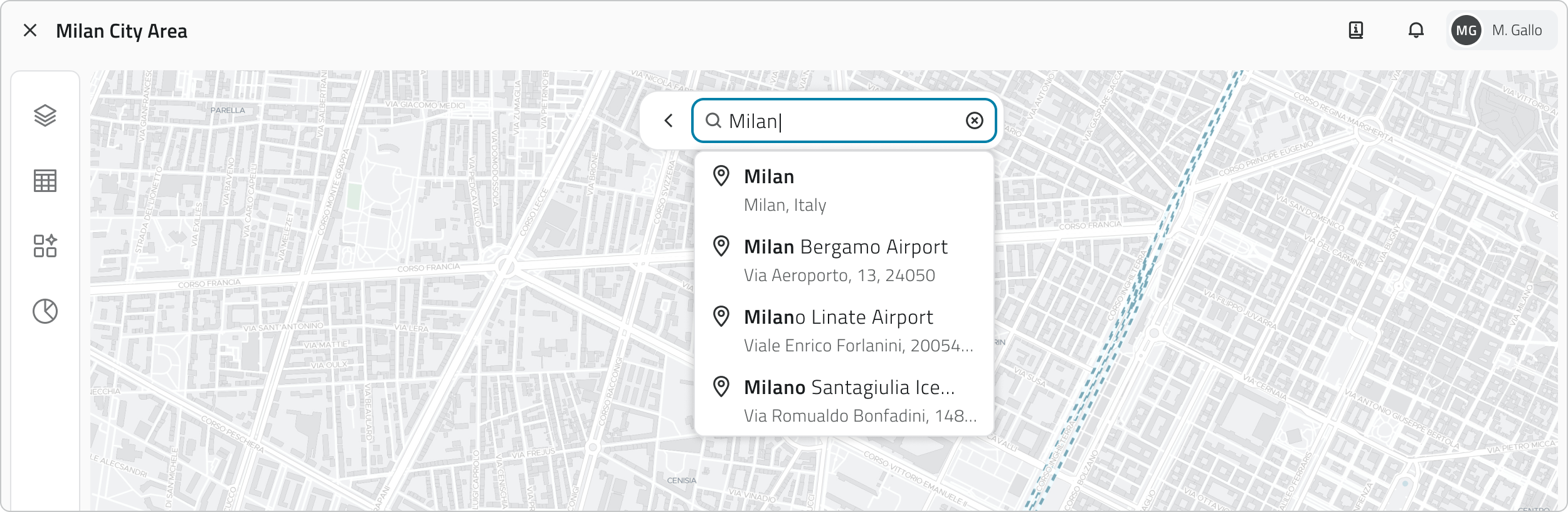
Select one of the suggested results to centre the map on the chosen location.

---

### 2D GIS View

Shows the **georeferenced map** of the project and its objects.

Useful for territorial exploration and verifying the position of assets.

[![3 - Vista GIS 2d.png](https://wiki.eaglearca.com/uploads/images/gallery/2026-03/1qs3-vista-gis-2d.png)](https://wiki.eaglearca.com/uploads/images/gallery/2026-03/Dv72-vista-gis-2d.png)
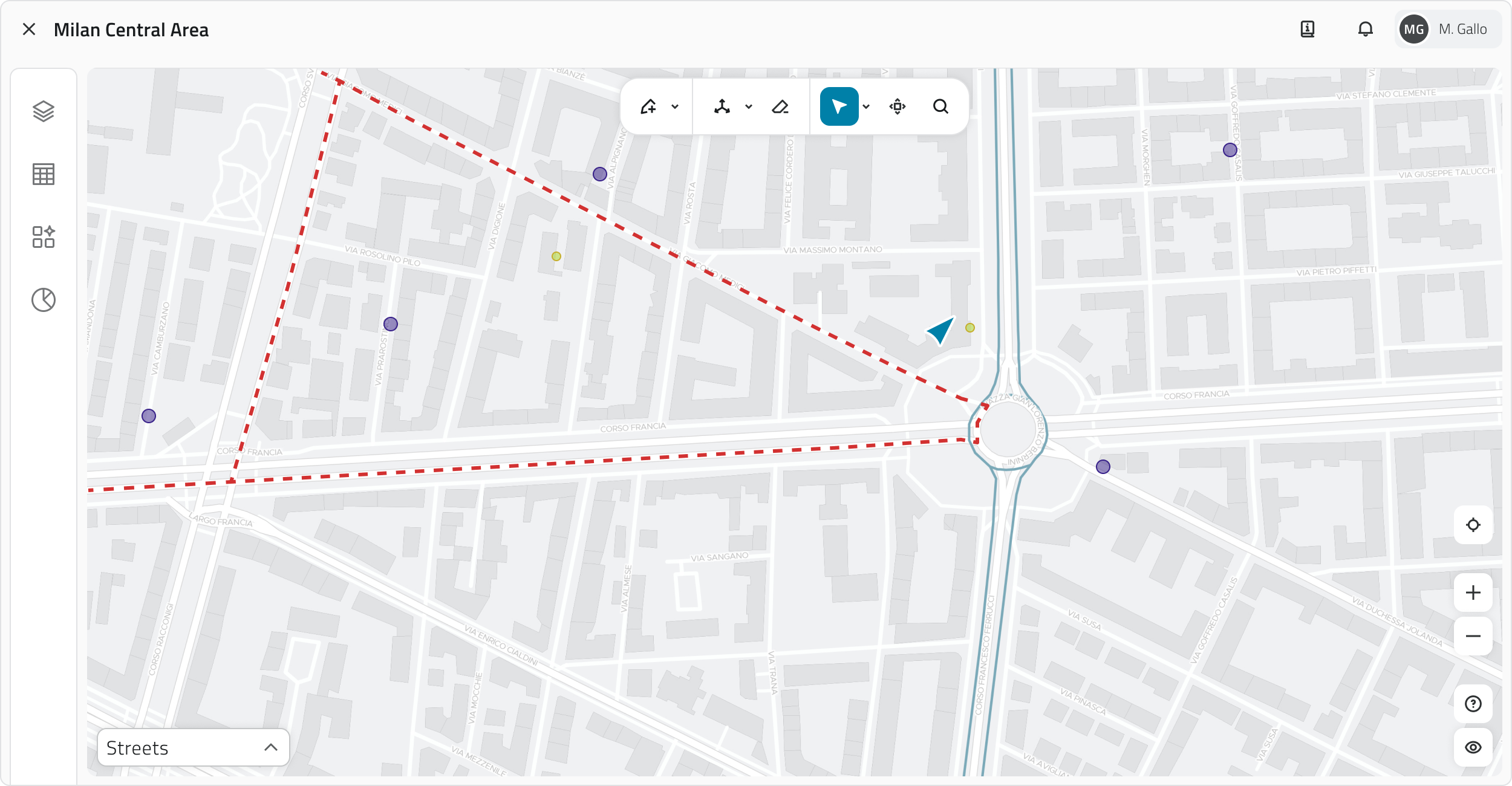
<p class="callout info">The **position indicator**, shown in blue on the 2D map, displays the point where the 3D view camera is oriented.</p>


#### Navigation

<table border="1" id="bkmrk-azione-controllo-zoo" style="border-collapse: collapse; width: 100%; border-style: solid; height: 183.059px;"><thead><tr style="height: 29.8785px;"><td style="width: 29.2263%; height: 29.8785px;">**Action**</td><td style="width: 70.8929%; height: 29.8785px;">**Control**</td></tr></thead><tbody><tr style="height: 29.8785px;"><td style="width: 29.2263%; height: 29.8785px;">**Zoom in/out**</td><td style="width: 70.8929%; height: 29.8785px;">Mouse wheel / **+** and **–** buttons at the bottom right</td></tr><tr style="height: 29.8785px;"><td style="width: 29.2263%; height: 29.8785px;">**Pan**</td><td style="width: 70.8929%; height: 29.8785px;">Hold and drag the left mouse button / mouse wheel</td></tr><tr style="height: 33.6667px;"><td style="width: 29.2263%; height: 33.6667px;">**Move 3D view**</td><td style="width: 70.8929%; height: 33.6667px;">**Move 3D View** button

</td></tr><tr style="height: 29.8785px;"><td style="width: 29.2263%; height: 29.8785px;">**Base map**</td><td style="width: 70.8929%; height: 29.8785px;">Selector at the bottom left (satellite, street, etc.)</td></tr><tr style="height: 29.8785px;"><td style="width: 29.2263%; height: 29.8785px;">**Hide view**</td><td style="width: 70.8929%; height: 29.8785px;">Button with eye icon at the bottom right</td></tr></tbody></table>

####   
Toolbar  


Hover over the 2D view to reveal the toolbar at the top of the view. The **available tools** are:

<table border="1" id="bkmrk-strumento-funzione-d" style="border-collapse: collapse; width: 100%; border-style: solid; height: 149.392px;"><thead><tr style="height: 29.8785px;"><td style="width: 30.1549%; height: 29.8785px;">**Tool**</td><td style="width: 69.8451%; height: 29.8785px;">**Function**</td></tr></thead><tbody><tr style="height: 29.8785px;"><td style="width: 30.1549%; height: 29.8785px;">**Draw**</td><td style="width: 69.8451%; height: 29.8785px;">Select the desired object class to draw a new object</td></tr><tr style="height: 29.8785px;"><td style="width: 30.1549%; height: 29.8785px;">**Measure**</td><td style="width: 69.8451%; height: 29.8785px;">Choose the measurement type to measure distances or areas</td></tr><tr style="height: 29.8785px;"><td style="width: 30.1549%; height: 29.8785px;">**Select**</td><td style="width: 69.8451%; height: 29.8785px;">Choose the selection mode to select one or more objects</td></tr><tr style="height: 29.8785px;"><td style="width: 30.1549%; height: 29.8785px;">**Move 3D view**</td><td style="width: 69.8451%; height: 29.8785px;">Position the position indicator at the desired point to move the 3D camera</td></tr><tr><td style="width: 30.1549%;">**Search**</td><td style="width: 69.8451%;">Search for an address or city to centre the map on that location</td></tr></tbody></table>

####   


#### Object selection

Use the **Select** tool (active by default in **Cursor** mode on opening). Click the arrow next to the **Select** button to access the available modes.

<table border="1" id="bkmrk-modalit%C3%A0-azioni-curs" style="border-collapse: collapse; width: 100%; border-style: solid; height: 234.635px;"><thead><tr style="height: 29.8785px;"><td style="width: 25.5121%; height: 29.8785px;">**Mode**</td><td style="width: 74.4879%; height: 29.8785px;">**Action**</td></tr></thead><tbody><tr style="height: 68.802px;"><td style="width: 25.5121%; height: 68.802px;">**Cursor**</td><td style="width: 74.4879%; height: 68.802px;">Click with the left mouse button to select a single object. Hold **SHIFT** and click to add or remove objects from the selection. Right-click to manage overlapping objects: if present, a window listing them all will open.  
</td></tr><tr style="height: 34.8438px;"><td style="width: 25.5121%; height: 34.8438px;">**Bounding Box**</td><td style="width: 74.4879%; height: 34.8438px;">Click and drag with the left mouse button to select all objects within the drawn rectangle.</td></tr><tr style="height: 54.4444px;"><td style="width: 25.5121%; height: 54.4444px;">**Polygon**</td><td style="width: 74.4879%; height: 54.4444px;">Click with the left mouse button to place the polygon vertices. Right-click to close it and select all objects inside.</td></tr><tr style="height: 46.6667px;"><td style="width: 25.5121%; height: 46.6667px;">**Existing polygon**</td><td style="width: 74.4879%; height: 46.6667px;">Click with the left mouse button on an existing polygon on the map to select it along with all objects contained within it.</td></tr></tbody></table>

#### Opening object details

To open the **Attribute details** panel for an object, select it on the map: an **info card** will appear showing the object class, the **main attribute** and a label indicating the creation view. Click the **Expand** button (double arrow icon) to open the full panel.

---

### 3D view

Allows you to navigate in a **three-dimensional environment**, viewing point clouds, meshes and 360° photos.

[![4 - Vista 3D.png](https://wiki.eaglearca.com/uploads/images/gallery/2026-03/aft4-vista-3d.png)](https://wiki.eaglearca.com/uploads/images/gallery/2026-03/q1l3-vista-3d.png)

#### Navigation

<table border="1" id="bkmrk-action-control-rotat" style="border-collapse: collapse; width: 100%; border-style: solid; height: 230.547px;"><thead><tr style="height: 29.875px;"><td style="width: 29.2263%; height: 29.875px;">**Action**</td><td style="width: 70.8929%; height: 29.875px;">**Control**</td></tr></thead><tbody><tr style="height: 29.7969px;"><td style="width: 29.2263%; height: 29.7969px;">**Rotate view**</td><td style="width: 70.8929%; height: 29.7969px;">Hold and drag the left mouse button</td></tr><tr style="height: 29.875px;"><td style="width: 29.2263%; height: 29.875px;">**Zoom in/out**</td><td style="width: 70.8929%; height: 29.875px;">Mouse wheel</td></tr><tr style="height: 47.5938px;"><td style="width: 29.2263%; height: 47.5938px;">**Movement** (Forward/Backward/Left/Right)</td><td style="width: 70.8929%; height: 47.5938px;">**W A S D** keys</td></tr><tr style="height: 33.6562px;"><td style="width: 29.2263%; height: 33.6562px;">**Movement** (Up/Down)</td><td style="width: 70.8929%; height: 33.6562px;">Arrow keys

</td></tr><tr style="height: 29.875px;"><td style="width: 29.2263%; height: 29.875px;">**Lateral pan**</td><td style="width: 70.8929%; height: 29.875px;">Hold and drag the right mouse button / mouse wheel</td></tr><tr style="height: 29.875px;"><td style="width: 29.2263%; height: 29.875px;">**Hide view**</td><td style="width: 70.8929%; height: 29.875px;">Button with eye icon at the bottom right</td></tr></tbody></table>


💡 **Tip:** combine mouse and keyboard when navigating the 3D view for more precise movement.

####   
Toolbar

Hover over the 3D view to reveal the toolbar at the top of the view. The available tools are:

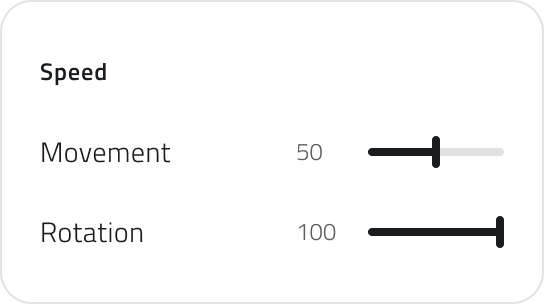
<table border="1" id="bkmrk-tool-function-draw-s" style="border-collapse: collapse; width: 100%; border-style: solid; height: 149.392px;"><thead><tr style="height: 29.8785px;"><td style="width: 30.1549%; height: 29.8785px;">**Tool**</td><td style="width: 69.8451%; height: 29.8785px;">**Function**</td></tr></thead><tbody><tr style="height: 29.8785px;"><td style="width: 30.1549%; height: 29.8785px;">**Draw**</td><td style="width: 69.8451%; height: 29.8785px;">Select the desired object class to draw a new object</td></tr><tr style="height: 29.8785px;"><td style="width: 30.1549%; height: 29.8785px;">**Measure**</td><td style="width: 69.8451%; height: 29.8785px;">Choose the measurement type to measure distances or areas</td></tr><tr><td style="width: 30.1549%;">**Export point cloud**</td><td style="width: 69.8451%;">Select a section of the point cloud and export it</td></tr><tr style="height: 29.8785px;"><td style="width: 30.1549%; height: 29.8785px;">**Style**</td><td style="width: 69.8451%; height: 29.8785px;">Modify the scene display style</td></tr><tr style="height: 29.8785px;"><td style="width: 30.1549%; height: 29.8785px;">**Settings**</td><td style="width: 69.8451%; height: 29.8785px;">Modify the navigation speed in the 3D view</td></tr><tr><td style="width: 30.1549%;">**Select**</td><td style="width: 69.8451%;">Choose the selection mode to select one or more objects</td></tr></tbody></table>

The **Style** and **Settings** tools are useful for *[customising the 3D View](https://wiki.eaglearca.com/books/app-features/page/customize-the-3d-view "Customize the 3D view")*.

####   


#### Object selection

Use the **Select** tool (active by default on opening).

<table border="1" id="bkmrk-modalit%C3%A0-azioni-curs-1" style="border-collapse: collapse; width: 100%; border-style: solid; height: 148.984px;"><thead><tr style="height: 29.7969px;"><td style="width: 25.5121%; height: 29.7969px;">**Mode**</td><td style="width: 74.4879%; height: 29.7969px;">**Actions**</td></tr></thead><tbody><tr style="height: 29.7969px;"><td style="width: 25.5121%; height: 29.7969px;">**Cursor**</td><td style="width: 74.4879%; height: 29.7969px;">Click with the left mouse button to select a single object. Hold **SHIFT** and click to add or remove objects from the selection.  
</td></tr></tbody></table>

#### Opening object details

To open the **Attribute details** panel for an object, select it on the map: an **info card** will appear showing the object class, the **main attribute** and a label indicating the creation view. Click the **Expand** button (double arrow icon) to open the full panel.

---

### Inventory view

Shows the **list of all objects** of a specific class. Useful for viewing attributes, searching and comparing data.

[![4 - Inventory.png](https://wiki.eaglearca.com/uploads/images/gallery/2025-12/scaled-1680-/q2N4-inventory.png)](https://wiki.eaglearca.com/uploads/images/gallery/2025-12/q2N4-inventory.png)

<p class="callout info">When one or more objects are selected in any view, a **selection bar** appears above the Inventory view. For each object class involved in the selection, a **label** appears showing the count of selected elements. Clicking the label opens the Inventory view filtered on that class; clicking **X** deselects all objects of the corresponding class.</p>

#### Filtering and sorting

<table border="1" id="bkmrk-strumento-funzione-v" style="border-collapse: collapse; width: 100%; border-style: solid; height: 166.156px;"><thead><tr style="height: 29.875px;"><td style="width: 24.199%; height: 29.875px;">**Tool**</td><td style="width: 75.801%; height: 29.875px;">**Function**</td></tr></thead><tbody><tr style="height: 29.875px;"><td style="width: 24.199%; height: 29.875px;">**View**</td><td style="width: 75.801%; height: 29.875px;">Switch the display mode between card, list or table</td></tr><tr style="height: 29.875px;"><td style="width: 24.199%; height: 29.875px;">**Search**</td><td style="width: 75.801%; height: 29.875px;">Search objects by name or attribute using the search bar to filter in real time</td></tr><tr style="height: 29.875px;"><td style="width: 24.199%; height: 29.875px;">**Filter by selection**</td><td style="width: 75.801%; height: 29.875px;">To show only the objects currently selected in the project, enable **Show selected**</td></tr><tr style="height: 46.6562px;"><td style="width: 24.199%; height: 46.6562px;">**Sorting**</td><td style="width: 75.801%; height: 46.6562px;">Sort objects by attribute value by clicking the column headers in table view</td></tr></tbody></table>

#### Functionality

<table border="1" id="bkmrk-strumento-funzione-d-2" style="border-collapse: collapse; width: 100%; border-style: solid; height: 228.059px;"><thead><tr style="height: 29.8785px;"><td style="width: 24.199%; height: 29.8785px;">**Tool**</td><td style="width: 75.801%; height: 29.8785px;">**Function**</td></tr></thead><tbody><tr style="height: 78.6667px;"><td style="width: 24.199%; height: 78.6667px;">**New Object**</td><td style="width: 75.801%; height: 78.6667px;">Create an instance of the object class (available only for **Form**-type classes and with edit permissions)</td></tr><tr style="height: 29.8785px;"><td style="width: 24.199%; height: 29.8785px;">**Download**</td><td style="width: 75.801%; height: 29.8785px;">Download a CSV file of the list</td></tr><tr style="height: 29.8785px;"><td style="width: 24.199%; height: 29.8785px;">**Delete**</td><td style="width: 75.801%; height: 29.8785px;">Delete the selected objects (available only with edit permissions)</td></tr><tr style="height: 29.8785px;"><td style="width: 24.199%; height: 29.8785px;">**Locate**</td><td style="width: 75.801%; height: 29.8785px;">Highlight the object in the 2D and 3D views (available only for **vector** object classes)</td></tr><tr style="height: 29.8785px;"><td style="width: 24.199%; height: 29.8785px;">**Go to**</td><td style="width: 75.801%; height: 29.8785px;">Center the view on the object in the 2D and 3D views (available only for **vector** object classes)</td></tr></tbody></table>

#### Object selection

<table border="1" id="bkmrk-modalit%C3%A0-azioni-sing" style="border-collapse: collapse; width: 100%; border-style: solid; height: 136.302px;"><thead><tr style="height: 29.8785px;"><td style="width: 25.5066%; height: 29.8785px;">**Mode**</td><td style="width: 74.4934%; height: 29.8785px;">**Actions**</td></tr></thead><tbody><tr style="height: 46.6667px;"><td style="width: 25.5066%; height: 46.6667px;">**Single object**</td><td style="width: 74.4934%; height: 46.6667px;">Click with the left mouse button.  
</td></tr><tr style="height: 29.8785px;"><td style="width: 25.5066%; height: 29.8785px;">**Multiple objects** (card/list/table)</td><td style="width: 74.4934%; height: 29.8785px;">Hold **CTRL** and click the desired objects.</td></tr><tr style="height: 29.8785px;"><td style="width: 25.5066%; height: 29.8785px;">**Multiple objects** (table only)</td><td style="width: 74.4934%; height: 29.8785px;">Click an object, hold **SHIFT** and click another: all elements between the two are selected.</td></tr></tbody></table>

#### Opening object details

To open the **Attribute details** panel for an object, click the **blue Open button** that appears when hovering over the element.

💡 **Tips:**

- To quickly compare a larger number of elements, use the table display.
- If you have applied filters or searches, the exported CSV file will only contain the elements currently displayed.

---

### Reports view

Shows the list of all elements generated by a specific **report template**. Useful for downloading, browsing and analysing the data collected in the project.

[![7 - Vista Report.png](https://wiki.eaglearca.com/uploads/images/gallery/2026-05/scaled-1680-/7-vista-report.png)](https://wiki.eaglearca.com/uploads/images/gallery/2026-05/7-vista-report.png)

#### Filtering and sorting

<div class="overflow-x-auto w-full px-2 mb-6" id="bkmrk-tool-function-view-s"><table border="1" class="min-w-full border-collapse text-sm leading-[1.7] whitespace-normal" style="border-collapse: collapse; width: 100%; border-style: solid;"><thead><tr><td class="text-text-100 border-b-0.5 border-border-300/60 py-2 pr-4 align-top font-bold" style="width: 49.947%;">**Tool**</td><td class="text-text-100 border-b-0.5 border-border-300/60 py-2 pr-4 align-top font-bold" style="width: 49.947%;">**Function**</td></tr></thead><tbody><tr><td style="width: 49.947%; height: 29.875px;">**View**</td><td class="border-b-0.5 border-border-300/30 py-2 pr-4 align-top" style="width: 49.947%;">Switch the display mode between card, list or table</td></tr><tr><td style="width: 49.947%; height: 29.875px;">**Search**</td><td class="border-b-0.5 border-border-300/30 py-2 pr-4 align-top" style="width: 49.947%;">Search reports by name or attribute using the search bar to filter in real time</td></tr><tr><td style="width: 49.947%; height: 29.875px;">**Filter by selection**</td><td class="border-b-0.5 border-border-300/30 py-2 pr-4 align-top" style="width: 49.947%;">To show only the reports currently selected in the project, enable **Show selected**</td></tr><tr><td style="width: 49.947%; height: 46.6562px;">**Sorting**</td><td class="border-b-0.5 border-border-300/30 py-2 pr-4 align-top" style="width: 49.947%;">Sort reports by attribute value by clicking the column headers in table view</td></tr></tbody></table>

</div>#### Functionality

<div class="overflow-x-auto w-full px-2 mb-6" id="bkmrk-tool-function-downlo"><table border="1" class="min-w-full border-collapse text-sm leading-[1.7] whitespace-normal" style="border-collapse: collapse; width: 100%; border-style: solid;"><thead><tr><td class="text-text-100 border-b-0.5 border-border-300/60 py-2 pr-4 align-top font-bold">**Tool**</td><td class="text-text-100 border-b-0.5 border-border-300/60 py-2 pr-4 align-top font-bold">**Function**</td></tr></thead><tbody><tr><td class="border-b-0.5 border-border-300/30 py-2 pr-4 align-top">**Download**</td><td class="border-b-0.5 border-border-300/30 py-2 pr-4 align-top">Downloads the report file; the button is present on every row of the list</td></tr><tr><td>**Download selected reports**</td><td>Downloads the files of all selected reports</td></tr><tr><td class="border-b-0.5 border-border-300/30 py-2 pr-4 align-top">**Generate report**</td><td class="border-b-0.5 border-border-300/30 py-2 pr-4 align-top">Generates a new report from the template (requires edit permissions)</td></tr><tr><td class="border-b-0.5 border-border-300/30 py-2 pr-4 align-top">**Delete**</td><td class="border-b-0.5 border-border-300/30 py-2 pr-4 align-top">Deletes the selected reports (appears only after selecting one or more elements; requires edit permissions)</td></tr></tbody></table>

</div>#### Report selection

<div class="overflow-x-auto w-full px-2 mb-6" id="bkmrk-mode-actions-single-"><table border="1" class="min-w-full border-collapse text-sm leading-[1.7] whitespace-normal" style="border-collapse: collapse; width: 100%; border-style: solid;"><thead><tr><td style="width: 25.5099%; height: 29.8785px;">**Mode**</td><td style="width: 74.5033%; height: 29.8785px;">**Actions**</td></tr></thead><tbody><tr><td style="width: 25.5099%; height: 46.6667px;">**Single object**</td><td style="width: 74.5033%; height: 46.6667px;">Click with the left mouse button.  
</td></tr><tr><td style="width: 25.5099%; height: 29.8785px;">**Multiple objects** (card/list/table)</td><td style="width: 74.5033%; height: 29.8785px;">Hold **CTRL** and click the desired objects.</td></tr><tr><td style="width: 25.5099%; height: 29.8785px;">**Multiple objects** (table only)</td><td style="width: 74.5033%; height: 29.8785px;">Click an object, hold **SHIFT** and click another: all elements between the two are selected.</td></tr></tbody></table>

</div>#### Report Details

To open the **details** **of a report**, click the **blue Open button** that appears when hovering over the element.

---

### Streaming view

Plays **video streams** from robots (Mission Units) and connected add-ons. Useful for following missions in **real time**, recording video and taking photos.

[![6 - Streaming.png](https://wiki.eaglearca.com/uploads/images/gallery/2026-03/CjN6-streaming.png)](https://wiki.eaglearca.com/uploads/images/gallery/2026-03/JaG5-streaming.png)

#### Functionality

<table border="1" id="bkmrk-tool-function-pause%2F" style="border-collapse: collapse; width: 100%; border-style: solid; height: 119.514px;"><thead><tr style="height: 29.8785px;"><td style="width: 24.199%; height: 29.8785px;">**Tool**</td><td style="width: 75.801%; height: 29.8785px;">**Function**</td></tr></thead><tbody><tr style="height: 29.8785px;"><td style="width: 24.199%; height: 29.8785px;">**Pause/Resume**</td><td style="width: 75.801%; height: 29.8785px;">Pauses and resumes playback from the same point</td></tr><tr style="height: 29.8785px;"><td style="width: 24.199%; height: 29.8785px;">**Streaming time**</td><td style="width: 75.801%; height: 29.8785px;">Shows the duration of the current stream</td></tr><tr style="height: 29.8785px;"><td style="width: 24.199%; height: 29.8785px;">**Real Time**</td><td style="width: 75.801%; height: 29.8785px;">Use the progress bar to return to live immediately after a pause</td></tr><tr><td style="width: 24.199%;">**Audio**</td><td style="width: 75.801%;">Adjusts the streaming volume</td></tr><tr><td style="width: 24.199%;">**Expand**</td><td style="width: 75.801%;">Enables full screen or picture in picture mode</td></tr></tbody></table>

💡 **Tip:** To return to live immediately after a pause, drag the progress bar to the end.

---

### Object Details

The **Attribute details** panel shows the complete list of attributes for an object and their values. The panel can be **moved** and **resized** on screen to continue working in the views without closing it.

[![6 - Attributes Details.png](https://wiki.eaglearca.com/uploads/images/gallery/2025-12/scaled-1680-/ATS6-attributes-details.png)](https://wiki.eaglearca.com/uploads/images/gallery/2025-12/ATS6-attributes-details.png)

At the top left you will find the **Expand button**, which brings the panel to full screen, the **Locate button**, which highlights the object in the 2D and 3D views, and the **Go to button**, which centres the view on the object. If the object is of vector type, a **creation label** also appears indicating the view in which it was created (2D or 3D). The label is also present for automatically created objects, both vector and form type. This is followed by the **name of the object class** the object belongs to.

On the right you will find the **Edit button**, to update attribute values, the **Download button**, to export the details as a CSV file, the **Delete button**, to remove the object from the project, and the **Close button**, to close the panel.


<p class="callout warning">Edit, create and delete actions are only available **if you have edit permissions** for that object class.</p>


Below the header there is a **search bar** to quickly filter attributes by name. Below that is the **attribute list**: the first is always the main attribute, followed by the others in the configured order.

When the panel is expanded to full screen, attributes are arranged in **two columns** and, if the object has associated charts, these are displayed in a column on the right.

#### Functionality

<table border="1" id="bkmrk-tool-function-expand" style="border-collapse: collapse; width: 100%; border-style: solid; height: 238.688px;"><thead><tr style="height: 29.875px;"><td style="width: 24.199%; height: 29.875px;">**Tool**</td><td style="width: 75.801%; height: 29.875px;">**Function**</td></tr></thead><tbody><tr style="height: 29.875px;"><td style="width: 24.199%; height: 29.875px;">**Expand**</td><td style="width: 75.801%; height: 29.875px;">Brings the panel to full screen, with attributes in two columns and charts on the right</td></tr><tr style="height: 29.875px;"><td style="width: 24.199%; height: 29.875px;">**Locate**</td><td style="width: 75.801%; height: 29.875px;">Highlights the object in the 2D and 3D views</td></tr><tr style="height: 29.875px;"><td style="width: 24.199%; height: 29.875px;">**Go to**</td><td style="width: 75.801%; height: 29.875px;">Centres the 2D and 3D view on the object</td></tr><tr style="height: 29.7969px;"><td style="width: 24.199%; height: 29.7969px;">**Edit**</td><td style="width: 75.801%; height: 29.7969px;">Edit attribute values (requires edit permissions)</td></tr><tr style="height: 29.7969px;"><td style="width: 24.199%; height: 29.7969px;">**Download**</td><td style="width: 75.801%; height: 29.7969px;">Download the details as a CSV file</td></tr><tr style="height: 29.7969px;"><td style="width: 24.199%; height: 29.7969px;">**Delete**</td><td style="width: 75.801%; height: 29.7969px;">Removes the object from the project (requires edit permissions)</td></tr><tr style="height: 29.7969px;"><td style="width: 24.199%; height: 29.7969px;">**Close**</td><td style="width: 75.801%; height: 29.7969px;">Closes the panel</td></tr></tbody></table>

---

### Links

- [*Create and manage Projects*](https://wiki.eaglearca.com/books/backoffice/page/create-and-manage-projects "Create and manage Projects")
- [Managing objects in the project](https://wiki.eaglearca.com/books/app-features/page/managing-objects-in-the-project "Managing objects in the project")
- [Robot Dog - Tracking a live mission](https://wiki.eaglearca.com/books/mission-planner-wR9/page/robot-dog-tracking-a-live-mission "Robot Dog - Tracking a live mission")
- [Drone - Tracking a live mission](https://wiki.eaglearca.com/books/mission-planner-wR9/page/drone-tracking-a-live-mission "Drone - Tracking a live mission")

---

<span id="bkmrk-%C2%A0italian-version%C2%A0-1">![flag-italy-1f1ee-1f1f9.png](https://wiki.eaglearca.com/uploads/images/gallery/2026-05/aiMflag-italy-1f1ee-1f1f9.png) **Italian version** </span>

Il progetto offre diverse **viste** per interagire con gli oggetti e i dati: **Mappa 2D**, **Mappa 3D**, **Inventory, Report** e **Streaming**.

---

### Apertura e chiusura delle viste

All'avvio del progetto alcune viste si aprono automaticamente. Cliccando sull'icona **Layers** nella barra laterale sinistra si apre il pannello omonimo, dal quale è possibile attivare o disattivare la visualizzazione delle singole viste e delle classi oggetto tramite l'icona dell'occhio.

[![1 - Tab Layers.png](https://wiki.eaglearca.com/uploads/images/gallery/2026-03/scaled-1680-/kEy1-tab-layers.png)](https://wiki.eaglearca.com/uploads/images/gallery/2026-03/kEy1-tab-layers.png)


---

### Navigazione e visualizzazione degli oggetti

Gli oggetti vettoriali sono visibili sia nella vista **2D** che nella vista **3D**, indipendentemente da dove vengono creati. In entrambe le viste gli oggetti sono **georeferenziati** e mantengono la stessa posizione geografica all'interno dello spazio di lavoro. Gli oggetti visualizzati nella mappa 2D sono rappresentati come elementi piatti su un piano, mentre nella vista 3D sono collocati nello spazio tridimensionale.

<p class="callout info">Alcuni oggetti creati in modo automatico potrebbero essere visibili solo nella vista 2D.</p>

Puoi localizzare rapidamente una posizione nella **mappa 2D** passando con il mouse sopra la vista: comparirà la barra degli strumenti, dalla quale puoi cliccare il pulsante **Cerca** (icona della lente di ingrandimento).

Si aprirà una **barra di ricerca** in cui puoi digitare un **indirizzo** o il nome di una **città**. Durante la digitazione il sistema mostra automaticamente i risultati suggeriti.

[![2 - Search Results.png](https://wiki.eaglearca.com/uploads/images/gallery/2026-03/Vq32-search-results.png)](https://wiki.eaglearca.com/uploads/images/gallery/2026-03/2-search-results.png)

Seleziona uno dei risultati proposti per centrare la mappa sulla posizione scelta.

---

### Vista GIS 2D

Mostra la **mappa georeferenziata** del progetto e degli oggetti.

Utile per l'esplorazione territoriale e la verifica della posizione degli asset.

[![3 - Vista GIS 2d.png](https://wiki.eaglearca.com/uploads/images/gallery/2026-03/1qs3-vista-gis-2d.png)](https://wiki.eaglearca.com/uploads/images/gallery/2026-03/Dv72-vista-gis-2d.png)

<p class="callout info">L'**indicatore di posizione,** visibile in blu nella mappa 2D, mostra il punto in cui è orientata la camera nella vista 3D.</p>


#### Navigazione

<table border="1" id="bkmrk-azione-controllo-zoo-1" style="border-collapse: collapse; width: 100%; border-style: solid; height: 183.059px;"><thead><tr style="height: 29.8785px;"><td style="width: 29.2263%; height: 29.8785px;">**Azione**</td><td style="width: 70.8929%; height: 29.8785px;">**Controllo**</td></tr></thead><tbody><tr style="height: 29.8785px;"><td style="width: 29.2263%; height: 29.8785px;">**Zoom in/out**</td><td style="width: 70.8929%; height: 29.8785px;">Rotellina del mouse / Bottoni + e - in basso a destra</td></tr><tr style="height: 29.8785px;"><td style="width: 29.2263%; height: 29.8785px;">**Spostamento**</td><td style="width: 70.8929%; height: 29.8785px;">Tieni premuto il tasto sinistro/la rotellina del mouse e trascina</td></tr><tr style="height: 33.6667px;"><td style="width: 29.2263%; height: 33.6667px;">**Sposta vista 3D**</td><td style="width: 70.8929%; height: 33.6667px;">Pulsante **Sposta Vista 3D**

</td></tr><tr style="height: 29.8785px;"><td style="width: 29.2263%; height: 29.8785px;">**Mappa di base**</td><td style="width: 70.8929%; height: 29.8785px;">Selettore in basso a sinistra (satellitare, stradale, ecc.)</td></tr><tr style="height: 29.8785px;"><td style="width: 29.2263%; height: 29.8785px;">**Nascondi vista**</td><td style="width: 70.8929%; height: 29.8785px;">Pulsante con icona occhio in basso a destra</td></tr></tbody></table>

####   
Barra degli strumenti

Passando con il mouse sopra la vista 2D compare la barra degli strumenti nella parte alta della vista. Gli **strumenti disponibili** sono:

<table border="1" id="bkmrk-strumento-funzione-d-1" style="border-collapse: collapse; width: 100%; border-style: solid; height: 149.392px;"><thead><tr style="height: 29.8785px;"><td style="width: 30.1549%; height: 29.8785px;">**Strumento**</td><td style="width: 69.8451%; height: 29.8785px;">**Funzione**</td></tr></thead><tbody><tr style="height: 29.8785px;"><td style="width: 30.1549%; height: 29.8785px;">**Disegna**</td><td style="width: 69.8451%; height: 29.8785px;">Seleziona la classe oggetto desiderata per disegnare un nuovo oggetto</td></tr><tr style="height: 29.8785px;"><td style="width: 30.1549%; height: 29.8785px;">**Misura**</td><td style="width: 69.8451%; height: 29.8785px;">Scegli il tipo di misura per misurare distanze o aree </td></tr><tr style="height: 29.8785px;"><td style="width: 30.1549%; height: 29.8785px;">**Seleziona**</td><td style="width: 69.8451%; height: 29.8785px;">Scegli la modalità di selezione per selezionare uno o più oggetti </td></tr><tr style="height: 29.8785px;"><td style="width: 30.1549%; height: 29.8785px;">**Sposta vista 3D**</td><td style="width: 69.8451%; height: 29.8785px;">Posiziona l'indicatore di posizione nel punto desiderato per spostare la telecamera 3D </td></tr><tr><td style="width: 30.1549%;">**Cerca**</td><td style="width: 69.8451%;">Cerca un indirizzo o una città per centrare la mappa sulla posizione</td></tr></tbody></table>

####   
Selezione degli oggetti

Utilizza lo strumento **Seleziona** (attivo di default in modalità **Cursore** all'apertura). Clicca la freccia accanto al pulsante **Seleziona** per accedere alle modalità.

<table border="1" id="bkmrk-modalit%C3%A0-azioni-curs-2" style="border-collapse: collapse; width: 100%; border-style: solid; height: 234.635px;"><thead><tr style="height: 29.8785px;"><td style="width: 25.5121%; height: 29.8785px;">**Modalità**</td><td style="width: 74.4879%; height: 29.8785px;">**Azioni**</td></tr></thead><tbody><tr style="height: 68.802px;"><td style="width: 25.5121%; height: 68.802px;">**Cursore**</td><td style="width: 74.4879%; height: 68.802px;">Clicca con il tasto sinistro per selezionare un singolo oggetto. Tieni premuto **SHIFT** e clicca per aggiungere o rimuovere oggetti dalla selezione. Clicca con il tasto destro per gestire gli oggetti sovrapposti: se presenti, si apre una finestra che li elenca tutti.  
</td></tr><tr style="height: 34.8438px;"><td style="width: 25.5121%; height: 34.8438px;">**Bounding Box**</td><td style="width: 74.4879%; height: 34.8438px;">Clicca e trascina con il tasto sinistro per selezionare tutti gli oggetti compresi nel rettangolo disegnato.</td></tr><tr style="height: 54.4444px;"><td style="width: 25.5121%; height: 54.4444px;">**Poligono**</td><td style="width: 74.4879%; height: 54.4444px;">Clicca con il tasto sinistro per inserire i vertici del poligono. Clicca con il tasto destro per chiuderlo e selezionare tutti gli oggetti al suo interno.</td></tr><tr style="height: 46.6667px;"><td style="width: 25.5121%; height: 46.6667px;">**Poligono esistente**</td><td style="width: 74.4879%; height: 46.6667px;">Clicca con il tasto sinistro su un poligono già presente in mappa per selezionarlo insieme a tutti gli oggetti contenuti al suo interno.</td></tr></tbody></table>

####   
Aprire i dettagli di un oggetto  


Per aprire il **Dettaglio attributi** di un oggetto, selezionalo sulla mappa: comparirà un'**info card** con la classe oggetto, l'**attributo principale** e un'etichetta che indica la vista di creazione. Clicca il pulsante **Espandi** (icona con due frecce) per aprire il pannello completo.

---

### Vista 3D

Permette di navigare in un **ambiente tridimensionale**, visualizzando nuvole di punti, mesh e foto 360°.

[![4 - Vista 3D.png](https://wiki.eaglearca.com/uploads/images/gallery/2026-03/aft4-vista-3d.png)](https://wiki.eaglearca.com/uploads/images/gallery/2026-03/q1l3-vista-3d.png)

#### Navigazione

<table border="1" id="bkmrk-azione-controllo-rot" style="border-collapse: collapse; width: 100%; border-style: solid;"><thead><tr><td style="width: 36.012%;">**Azione**</td><td style="width: 64.1072%;">**Controllo**</td></tr></thead><tbody><tr><td style="width: 36.012%;">**Rotazione visuale**</td><td style="width: 64.1072%;">Tieni premuto il tasto sinistro del mouse e trascina</td></tr><tr><td style="width: 36.012%;">**Zoom in/out**</td><td style="width: 64.1072%;">Rotellina del mouse</td></tr><tr><td style="width: 36.012%;">**Movimento** (Avanti/Indietro/Sinistra/Destra)</td><td style="width: 64.1072%;">Tasti **W A S D**</td></tr><tr><td style="width: 36.012%;">**Movimento** (Su/Giù)</td><td style="width: 64.1072%;">Frecce della tastiera</td></tr><tr><td style="width: 36.012%;">**Spostamento Trasversale** (Pan)</td><td style="width: 64.1072%;">Tieni premuto il tasto destro/la rotellina del mouse e trascina</td></tr><tr><td style="width: 36.012%;">**Nascondi vista**</td><td style="width: 64.1072%;">Pulsante con icona occhio in basso a destra</td></tr></tbody></table>


💡 **Suggerimento:** nella navigazione 3D combina mouse e tastiera per spostarti con più precisione.

####   
Barra degli strumenti

Passando con il mouse sopra la vista 3D compare la barra degli strumenti nella parte alta della vista. Gli strumenti disponibili sono:

<table border="1" id="bkmrk-strumento-funzione-d-3" style="border-collapse: collapse; width: 100%; border-style: solid; height: 209.149px;"><thead><tr style="height: 29.8785px;"><td style="width: 30.1786%; height: 29.8785px;">**Strumento**</td><td style="width: 69.9405%; height: 29.8785px;">**Funzione**</td></tr></thead><tbody><tr style="height: 29.8785px;"><td style="width: 30.1786%; height: 29.8785px;">**Disegna**</td><td style="width: 69.9405%; height: 29.8785px;">Seleziona la classe oggetto desiderata per disegnare un nuovo oggetto</td></tr><tr style="height: 29.8785px;"><td style="width: 30.1786%; height: 29.8785px;">**Misura**</td><td style="width: 69.9405%; height: 29.8785px;">Scegli il tipo di misura per misurare distanze o aree </td></tr><tr style="height: 29.8785px;"><td style="width: 30.1786%; height: 29.8785px;">**Esporta nuvola di punti**</td><td style="width: 69.9405%; height: 29.8785px;">Seleziona una sezione della nuvola di punti ed esportala</td></tr><tr style="height: 29.8785px;"><td style="width: 30.1786%; height: 29.8785px;">**Stile**</td><td style="width: 69.9405%; height: 29.8785px;">Modifica lo stile di visualizzazione della scena</td></tr><tr style="height: 29.8785px;"><td style="width: 30.1786%; height: 29.8785px;">**Impostazioni**</td><td style="width: 69.9405%; height: 29.8785px;">Modifica la velocità di navigazione nella vista 3D</td></tr><tr style="height: 29.8785px;"><td style="width: 30.1786%; height: 29.8785px;">**Seleziona**</td><td style="width: 69.9405%; height: 29.8785px;">Scegli la modalità di selezione per selezionare uno o più oggetti </td></tr></tbody></table>

Gli strumenti **Stile** e **Impostazioni** sono utili per *[personalizzare la Vista 3D](https://wiki.eaglearca.com/books/app-features/page/customize-the-3d-view "Customize the 3D view")*.

####   
Selezione degli oggetti

Utilizza lo strumento **Seleziona** (attivo di default all'apertura).

<table border="1" id="bkmrk-modalit%C3%A0-azioni-curs-3" style="border-collapse: collapse; width: 100%; border-style: solid; height: 148.984px;"><thead><tr style="height: 29.7969px;"><td style="width: 25.5121%; height: 29.7969px;">**Modalità**</td><td style="width: 74.4879%; height: 29.7969px;">**Azioni**</td></tr></thead><tbody><tr style="height: 29.7969px;"><td style="width: 25.5121%; height: 29.7969px;">**Cursore**</td><td style="width: 74.4879%; height: 29.7969px;">Clicca con il tasto sinistro per selezionare un singolo oggetto. Tieni premuto **SHIFT** e clicca per aggiungere o rimuovere oggetti dalla selezione.  
</td></tr></tbody></table>

#### Aprire i dettagli di un oggetto

Per aprire il **Dettaglio attributi** di un oggetto, selezionalo sulla mappa: comparirà un'**info card** con la classe oggetto, l'**attributo principale** e un'etichetta che indica la vista di creazione. Clicca il pulsante **Espandi** (icona con due frecce) per aprire il pannello completo.

---

### Vista Inventory

Mostra l’**elenco di tutti gli oggetti** di una specifica classe. Utile per visualizzare attributi, cercare e confrontare dati.

[![4 - Inventory.png](https://wiki.eaglearca.com/uploads/images/gallery/2025-12/scaled-1680-/q2N4-inventory.png)](https://wiki.eaglearca.com/uploads/images/gallery/2025-12/q2N4-inventory.png)

<p class="callout info">Selezionando uno o più oggetti, in qualsiasi vista, compare una **barra di selezione** sopra la vista Inventory. Per ogni classe oggetto coinvolta nella selezione appare **un'etichetta** con il conteggio degli elementi selezionati. Cliccando sull'etichetta si apre la vista Inventory filtrata su quella classe; cliccando la **X** si deselezionano tutti gli oggetti della classe corrispondente.</p>

#### Filtro e ordinamento

<table border="1" id="bkmrk-strumento-funzione-v-1" style="border-collapse: collapse; width: 100%; border-style: solid; height: 242.531px;"><thead><tr style="height: 29.875px;"><td style="width: 24.199%; height: 29.875px;">**Strumento**</td><td style="width: 75.801%; height: 29.875px;">**Funzione**</td></tr></thead><tbody><tr style="height: 29.875px;"><td style="width: 24.199%; height: 29.875px;">**Visualizzazione**</td><td style="width: 75.801%; height: 29.875px;">Cambia la modalità di visualizzazione in card, lista o tabella</td></tr><tr style="height: 29.875px;"><td style="width: 24.199%; height: 29.875px;">**Ricerca** </td><td style="width: 75.801%; height: 29.875px;">Cerca oggetti per nome o attributo tramite la barra di ricerca per filtrare in tempo reale</td></tr><tr style="height: 29.875px;"><td style="width: 24.199%; height: 29.875px;">**Filtra per selezione**</td><td style="width: 75.801%; height: 29.875px;">Per visualizzare solo gli oggetti selezionati attivamente nel progetto, attiva **Mostra selezionati**</td></tr><tr style="height: 46.6406px;"><td style="width: 24.199%; height: 46.6406px;">**Ordinamento**</td><td style="width: 75.801%; height: 46.6406px;">Ordina gli oggetti in base al valore dell'attributo cliccando sulle intestazioni di colonna nella vista a tabella</td></tr></tbody></table>

#### Funzionalità

<table border="1" id="bkmrk-strumento-funzione-d-4" style="border-collapse: collapse; width: 100%; border-style: solid; height: 212.688px;"><thead><tr style="height: 29.875px;"><td style="width: 24.199%; height: 29.875px;">**Strumento**</td><td style="width: 75.801%; height: 29.875px;">**Funzione**</td></tr></thead><tbody><tr style="height: 46.5938px;"><td style="width: 24.199%; height: 46.5938px;">**Nuovo oggetto**</td><td style="width: 75.801%; height: 46.5938px;">Crea un'istanza per la classe oggetto (disponibile solo per le classi di tipo **Form** e con permessi di modifica)</td></tr><tr style="height: 29.875px;"><td style="width: 24.199%; height: 29.875px;">**Download**</td><td style="width: 75.801%; height: 29.875px;">Scarica un file CSV dell'elenco</td></tr><tr style="height: 46.5938px;"><td style="width: 24.199%; height: 46.5938px;">**Elimina**</td><td style="width: 75.801%; height: 46.5938px;">Elimina gli oggetti selezionati (disponibile solo con permessi di modifica)</td></tr><tr style="height: 29.875px;"><td style="width: 24.199%; height: 29.875px;">**Individua**</td><td style="width: 75.801%; height: 29.875px;">Evidenzia l'oggetto nelle viste 2D e 3D (disponibile solo per le classi oggetto **vettoriali**)</td></tr><tr style="height: 29.875px;"><td style="width: 24.199%; height: 29.875px;">**Vai a**</td><td style="width: 75.801%; height: 29.875px;">Centra la visuale sull'oggetto nelle viste 2D e 3D (disponibile solo per le classi oggetto **vettoriali**)</td></tr></tbody></table>

#### Selezione degli oggetti

<table border="1" id="bkmrk-modalit%C3%A0-azioni-sing-1" style="border-collapse: collapse; width: 100%; border-style: solid; height: 136.302px;"><thead><tr style="height: 29.8785px;"><td style="width: 25.5066%; height: 29.8785px;">**Modalità**</td><td style="width: 74.4934%; height: 29.8785px;">**Azioni**</td></tr></thead><tbody><tr style="height: 46.6667px;"><td style="width: 25.5066%; height: 46.6667px;">**Singolo oggetto**</td><td style="width: 74.4934%; height: 46.6667px;">Clicca il tasto sinistro del mouse.  
</td></tr><tr style="height: 29.8785px;"><td style="width: 25.5066%; height: 29.8785px;">**Oggetti multipli** (card/lista/tabella)</td><td style="width: 74.4934%; height: 29.8785px;">Tieni premuto **CTRL** e clicca sugli oggetti desiderati.</td></tr><tr style="height: 29.8785px;"><td style="width: 25.5066%; height: 29.8785px;">**Oggetti multipli** (solo tabella)</td><td style="width: 74.4934%; height: 29.8785px;">Clicca su un oggetto, tieni premuto **SHIFT** e clicca su un altro: vengono selezionati tutti gli elementi compresi tra i due.</td></tr></tbody></table>

#### Aprire i dettagli di un oggetto

Per aprire il **Dettaglio attributi** di un oggetto, clicca il **pulsante blu Apri** che compare al passaggio del mouse sull'elemento.

💡 **Suggerimenti:**

- Se vuoi confrontare rapidamente un maggior numero di elementi usa la visualizzazione a tabella.
- Se hai applicato filtri o ricerche, il file CSV esportato conterrà soltanto gli elementi attualmente visualizzati.

---

### Vista Report

Mostra l'elenco di tutti gli elementi generati da uno specifico **template di report**. Utile per scaricare, consultare e analizzare i dati raccolti nel progetto.

[![7 - Vista Report.png](https://wiki.eaglearca.com/uploads/images/gallery/2026-05/scaled-1680-/7-vista-report.png)](https://wiki.eaglearca.com/uploads/images/gallery/2026-05/7-vista-report.png)


#### Filtro e ordinamento

<div class="overflow-x-auto w-full px-2 mb-6" id="bkmrk-strumento-funzione-v-2"><table border="1" class="min-w-full border-collapse text-sm leading-[1.7] whitespace-normal" style="border-collapse: collapse; width: 100%; border-style: solid;"><thead><tr><td class="text-text-100 border-b-0.5 border-border-300/60 py-2 pr-4 align-top font-bold">**Strumento**</td><td class="text-text-100 border-b-0.5 border-border-300/60 py-2 pr-4 align-top font-bold">**Funzione**</td></tr></thead><tbody><tr><td class="border-b-0.5 border-border-300/30 py-2 pr-4 align-top">**Visualizzazione**</td><td class="border-b-0.5 border-border-300/30 py-2 pr-4 align-top">Cambia la modalità di visualizzazione in card, lista o tabella</td></tr><tr><td class="border-b-0.5 border-border-300/30 py-2 pr-4 align-top">**Ricerca**</td><td class="border-b-0.5 border-border-300/30 py-2 pr-4 align-top">Cerca report per nome o attributo tramite la barra di ricerca per filtrare in tempo reale</td></tr><tr><td class="border-b-0.5 border-border-300/30 py-2 pr-4 align-top">**Filtra per selezione**</td><td class="border-b-0.5 border-border-300/30 py-2 pr-4 align-top">Per visualizzare solo i report selezionati attivamente nel progetto, attiva **Mostra selezionati**</td></tr><tr><td class="border-b-0.5 border-border-300/30 py-2 pr-4 align-top">**Ordinamento**</td><td class="border-b-0.5 border-border-300/30 py-2 pr-4 align-top">Ordina i report in base al valore dell'attributo cliccando sulle intestazioni di colonna nella vista a tabella</td></tr></tbody></table>

</div>#### Funzionalità

<div class="overflow-x-auto w-full px-2 mb-6" id="bkmrk-strumento-funzione-d-5"><table border="1" class="min-w-full border-collapse text-sm leading-[1.7] whitespace-normal" style="border-collapse: collapse; width: 100%; border-style: solid;"><thead><tr><td class="text-text-100 border-b-0.5 border-border-300/60 py-2 pr-4 align-top font-bold">**Strumento**</td><td class="text-text-100 border-b-0.5 border-border-300/60 py-2 pr-4 align-top font-bold">**Funzione**</td></tr></thead><tbody><tr><td class="border-b-0.5 border-border-300/30 py-2 pr-4 align-top">**Download**</td><td class="border-b-0.5 border-border-300/30 py-2 pr-4 align-top">Scarica il file del report; il pulsante è presente su ogni riga dell'elenco</td></tr><tr><td>**Download report selezionati**</td><td>Scarica i file di tutti i report selezionati</td></tr><tr><td class="border-b-0.5 border-border-300/30 py-2 pr-4 align-top">**Genera report**</td><td class="border-b-0.5 border-border-300/30 py-2 pr-4 align-top">Genera un nuovo report dal template (richiede permessi di modifica)</td></tr><tr><td class="border-b-0.5 border-border-300/30 py-2 pr-4 align-top">**Elimina**</td><td class="border-b-0.5 border-border-300/30 py-2 pr-4 align-top">Elimina i report selezionati (compare solo dopo aver selezionato uno o più elementi; richiede permessi di modifica)</td></tr></tbody></table>

</div>#### Selezione dei report

<div class="overflow-x-auto w-full px-2 mb-6" id="bkmrk-modalit%C3%A0-azioni-sing-2"><table border="1" class="min-w-full border-collapse text-sm leading-[1.7] whitespace-normal" style="border-collapse: collapse; width: 100%; border-style: solid;"><thead><tr><td class="text-text-100 border-b-0.5 border-border-300/60 py-2 pr-4 align-top font-bold">**Modalità**</td><td class="text-text-100 border-b-0.5 border-border-300/60 py-2 pr-4 align-top font-bold">**Azioni**</td></tr></thead><tbody><tr><td class="border-b-0.5 border-border-300/30 py-2 pr-4 align-top">**Singolo oggetto**</td><td class="border-b-0.5 border-border-300/30 py-2 pr-4 align-top">Clicca il tasto sinistro del mouse.</td></tr><tr><td class="border-b-0.5 border-border-300/30 py-2 pr-4 align-top">**Oggetti multipli** (card/lista/tabella)</td><td class="border-b-0.5 border-border-300/30 py-2 pr-4 align-top">Tieni premuto **CTRL** e clicca sugli oggetti desiderati.</td></tr><tr><td class="border-b-0.5 border-border-300/30 py-2 pr-4 align-top">**Oggetti multipli** (solo tabella)</td><td class="border-b-0.5 border-border-300/30 py-2 pr-4 align-top">Clicca su un oggetto, tieni premuto **SHIFT** e clicca su un altro: vengono selezionati tutti gli elementi compresi tra i due.</td></tr></tbody></table>

</div>#### Dettagli dei report

Per aprire i **dettagli di un report**, clicca il **pulsante blu Apri** che compare al passaggio del mouse sull'elemento.

---

### Vista Streaming

Riproduce **flussi video** da robot (Mission Units) e add-on connessi. Utile per seguire missioni in **tempo reale**, registrare video e scattare foto.

[![6 - Streaming.png](https://wiki.eaglearca.com/uploads/images/gallery/2026-03/CjN6-streaming.png)](https://wiki.eaglearca.com/uploads/images/gallery/2026-03/JaG5-streaming.png)

#### Funzionalità

<table border="1" id="bkmrk-strumento-funzione-p" style="border-collapse: collapse; width: 100%; border-style: solid; height: 178.781px;"><thead><tr style="height: 29.7969px;"><td style="height: 29.7969px; width: 28.126%;">**Strumento**</td><td style="height: 29.7969px; width: 71.874%;">**Funzione**</td></tr></thead><tbody><tr style="height: 29.7969px;"><td style="height: 29.7969px; width: 28.126%;">**Pausa/Riprendi**</td><td style="height: 29.7969px; width: 71.874%;">Mette in pausa e riprende la riproduzione dallo stesso punto</td></tr><tr style="height: 29.7969px;"><td style="height: 29.7969px; width: 28.126%;">**Tempo di Streaming**</td><td style="height: 29.7969px; width: 71.874%;">Mostra la durata dello streaming in corso</td></tr><tr style="height: 29.7969px;"><td style="height: 29.7969px; width: 28.126%;">**Real Time**</td><td style="height: 29.7969px; width: 71.874%;">Usa la barra di avanzamento per tornare subito al live dopo una pausa</td></tr><tr style="height: 29.7969px;"><td style="height: 29.7969px; width: 28.126%;">**Audio**</td><td style="height: 29.7969px; width: 71.874%;">Regola il volume dello streaming</td></tr><tr style="height: 29.7969px;"><td style="height: 29.7969px; width: 28.126%;">**Espansione**</td><td style="height: 29.7969px; width: 71.874%;">Attiva la modalità a schermo intero o picture in picture</td></tr></tbody></table>

💡 **Suggerimento:** Per tornare subito al live dopo una pausa, porta la barra di avanzamento fino alla fine.

---

### Dettagli di un Oggetto

Il menu **Dettaglio attributi** mostra l'elenco completo degli attributi di un oggetto e i relativi valori.  
Il menu può essere **spostato** e **ridimensionato** sullo schermo per continuare a lavorare sulle viste senza doverlo chiudere.

[![6 - Attributes Details.png](https://wiki.eaglearca.com/uploads/images/gallery/2025-12/scaled-1680-/ATS6-attributes-details.png)](https://wiki.eaglearca.com/uploads/images/gallery/2025-12/ATS6-attributes-details.png)

In alto a sinistra si trovano il **pulsante Espandi**, che porta il pannello a schermo intero, il **pulsante Individua**, che evidenzia l'oggetto nelle viste 2D e 3D, e il **pulsante Vai a**, che centra la visuale sull'oggetto. Se l'oggetto è di tipo vettoriale, compare inoltre un'**etichetta di creazione** che indica la vista in cui è stato creato (2D o 3D). L'etichetta è presente anche per gli oggetti creati automaticamente, sia vettoriali che di tipo form. Segue il **nome della classe oggetto** a cui appartiene l'oggetto.

Sulla destra si trovano il **pulsante Modifica**, per aggiornare i valori degli attributi, il **pulsante Download**, per esportare i dettagli in formato CSV, il **pulsante Elimina**, per rimuovere l'oggetto dal progetto, e il **pulsante Chiudi**, per chiudere il pannello.


<p class="callout warning">Le azioni di modifica, creazione ed eliminazione sono disponibili **solo se si dispone dei permessi di modifica** per quella classe oggetto.</p>


Sotto l'intestazione è presente una **barra di ricerca** per filtrare rapidamente gli attributi per nome. Al di sotto si trova l'**elenco degli attributi**: il primo è sempre l'attributo principale, seguito dagli altri nell'ordine configurato.

Espandendo il pannello a schermo intero, gli attributi vengono distribuiti su **due colonne** e, se l'oggetto ha grafici associati, questi vengono visualizzati in una colonna sulla destra.

#### Funzionalità

<table border="1" id="bkmrk-funzione-dettagli-co" style="width: 100%; border-collapse: collapse; border-style: solid; height: 178.781px;"><thead><tr style="height: 29.7969px;"><td style="width: 22.8828%; height: 29.7969px;">**Strumento**</td><td style="width: 77.1172%; height: 29.7969px;">**Funzione**</td></tr></thead><tbody><tr><td style="width: 22.8828%;">**Espandi**</td><td style="width: 77.1172%;">Porta il pannello a schermo intero, con attributi su due colonne e grafici a destra</td></tr><tr><td style="width: 22.8828%;">**Individua**</td><td style="width: 77.1172%;">Evidenzia l'oggetto nelle viste 2D e 3D</td></tr><tr><td style="width: 22.8828%;">**Vai a**</td><td style="width: 77.1172%;">Centra la visuale del 2D e 3D sull'oggetto</td></tr><tr style="height: 29.7969px;"><td style="width: 22.8828%; height: 29.7969px;">**Modifica**</td><td style="width: 77.1172%; height: 29.7969px;">Modifica i valori degli attributi (richiede permessi di modifica)</td></tr><tr style="height: 29.7969px;"><td style="width: 22.8828%; height: 29.7969px;">**Download**</td><td style="width: 77.1172%; height: 29.7969px;">Scarica i dettagli in formato CSV</td></tr><tr style="height: 29.7969px;"><td style="width: 22.8828%; height: 29.7969px;">**Elimina**</td><td style="width: 77.1172%; height: 29.7969px;">Elimina l'oggetto dal progetto (richiede permessi di modifica)</td></tr><tr><td style="width: 22.8828%;">**Chiudi**</td><td style="width: 77.1172%;">Chiude il pannello</td></tr></tbody></table>

---

### Collegamenti

- *[Creare e gestire i Progetti](https://wiki.eaglearca.com/books/backoffice/page/creare-e-gestire-i-progetti "Create and manage Projects")*
- *[Gestire gli oggetti nel progetto](https://wiki.eaglearca.com/books/app-features/page/managing-objects-in-the-project "Managing objects in the project")*
- [*Robot Dog - Monitorare una missione live*](https://wiki.eaglearca.com/books/mission-planner-wR9/page/robot-dog-tracking-a-live-mission "Robot Dog - Tracking a live mission")
- [*Drone - Monitorare una missione live*](https://wiki.eaglearca.com/books/mission-planner-wR9/page/drone-tracking-a-live-mission "Drone - Tracking a live mission")

---


***Last update:** 20 May 2026*

# Using panels

This section provides guidance on the use and functionality of the main project management and analysis panels.

<div id="bkmrk-english-italiano" style="display: flex; gap: 8px; margin-bottom: 20px;">[<button id="bkmrk-btn-italiano" style="display: flex; align-items: center; gap: 6px; padding: 6px 14px; border: 1px solid #DEDFE0; border-radius: 6px; cursor: pointer; background: #EFF1F3; color: #333; font-weight: 600; line-height: 1;">![Bandiera italiana](https://wiki.eaglearca.com/uploads/images/gallery/2026-05/flag-italy-1f1ee-1f1f9.png) Italian version ↓</button>](https://wiki.eaglearca.com/link/154#bkmrk-%C2%A0italian-version%C2%A0)</div>---

<div id="bkmrk--1" style="display: flex; gap: 8px; margin-bottom: 20px;"></div><span id="bkmrk-italiano-1"> ![jQPeng.png](https://wiki.eaglearca.com/uploads/images/gallery/2026-05/KKPjqpeng.png) **English version**</span>

This section provides guidance on the use and functionality of the main project management and analysis panels.

---

### Layers Panel

The **Layers Panel** (icon with three overlapping panels) allows you to manage the visibility, locking, labels and snap of the object classes and resources in the project.

[![1 - Tab Layers.png](https://wiki.eaglearca.com/uploads/images/gallery/2026-03/scaled-1680-/zyX1-tab-layers.png)](https://wiki.eaglearca.com/uploads/images/gallery/2026-03/zyX1-tab-layers.png)

#### Interaction modes

To switch between modes, click the icons in the selector next to the name of the mode you are in. The available modes are:

<table border="1" id="bkmrk-modalit%C3%A0-funzione-in" style="border-collapse: collapse; width: 100%; border-style: solid; height: 316.953px;"><thead><tr style="height: 29.7969px;"><td style="width: 23.7187%; height: 29.7969px;">**Mode**</td><td style="width: 21.4541%; height: 29.7969px;">**Function**</td><td style="width: 21.4541%; height: 29.7969px;">**Interaction**</td><td style="width: 33.3731%; height: 29.7969px;">**Note**</td></tr></thead><tbody><tr style="height: 80.1875px;"><td style="width: 23.7187%; height: 80.1875px;">**Visibility**</td><td style="width: 21.4541%; height: 80.1875px;">Show or hide instances in the 2D and 3D views.</td><td style="width: 21.4541%; height: 80.1875px;">Click the eye icon next to the name of the Object Class.</td><td style="width: 33.3731%; height: 80.1875px;">Visibility is **separate** between 2D and 3D.  
</td></tr><tr style="height: 80.1875px;"><td style="width: 23.7187%; height: 80.1875px;">**Lock**</td><td style="width: 21.4541%; height: 80.1875px;">Prevent interactions on instances in the 2D and 3D views, **instances remain visible**.</td><td style="width: 21.4541%; height: 80.1875px;">Click the lock icon next to the name of the Object Class.</td><td style="width: 33.3731%; height: 80.1875px;">All layers are unlocked by default.</td></tr><tr style="height: 63.3906px;"><td style="width: 23.7187%; height: 63.3906px;">**Label**</td><td style="width: 21.4541%; height: 63.3906px;">Show a label above each instance in the 2D and 3D views.</td><td style="width: 21.4541%; height: 63.3906px;">Click the text icon next to the name of the Object Class.</td><td style="width: 33.3731%; height: 63.3906px;">Disabled by default.</td></tr><tr style="height: 63.3906px;"><td style="width: 23.7187%; height: 63.3906px;">**Snap**</td><td style="width: 21.4541%; height: 63.3906px;">Disable automatic snap on instances in the 2D and 3D views.</td><td style="width: 21.4541%; height: 63.3906px;">Click the magnet icon next to the name of the Object Class.</td><td style="width: 33.3731%; height: 63.3906px;">Snap is active by default on all classes.</td></tr></tbody></table>

💡 **Tips:**

- Enable locking on layers that should not be modified to avoid unwanted selections or interactions.
- Enable labels only for the classes you want to identify quickly, to avoid overloading the map.
- If snap interferes with drawing geometries or taking measurements, disable it on classes with many objects.

---

### Inventory Panel

The **Inventory Panel** (table-shaped icon) is the dedicated tool for managing and browsing the object classes in the project.

[![2 - Tab Inventory + Inventory View.png](https://wiki.eaglearca.com/uploads/images/gallery/2026-03/scaled-1680-/2-tab-inventory-inventory-view.png)](https://wiki.eaglearca.com/uploads/images/gallery/2026-03/2-tab-inventory-inventory-view.png)

Clicking on the name of an object class in the list opens the corresponding **Inventory view**. Next to each class name, the style applied to the objects on the map is shown, useful for identifying them more easily. For **Form** type classes, which have no geometry on the map, the **Form** icon appears instead: these classes can only be accessed and browsed from the Inventory panel. For classes that have the **automatic object creation** function enabled, the corresponding icon is shown at the end of the row.

To quickly filter object classes without scrolling through the full list, use the search bar at the top of the panel.

[![2 - panel.png](https://wiki.eaglearca.com/uploads/images/gallery/2026-05/scaled-1680-/2-panel.png)](https://wiki.eaglearca.com/uploads/images/gallery/2026-05/2-panel.png)

---

### Dashboard Panel

<p class="callout info">Available only with **sensors configured in advance**.</p>

The **Dashboard Panel** (pie chart icon) allows you to view the charts associated with selected objects and is the dedicated tool for data analysis.

[![3 - Tab Dashboard.png](https://wiki.eaglearca.com/uploads/images/gallery/2026-03/scaled-1680-/3-tab-dashboard.png)](https://wiki.eaglearca.com/uploads/images/gallery/2026-03/3-tab-dashboard.png)
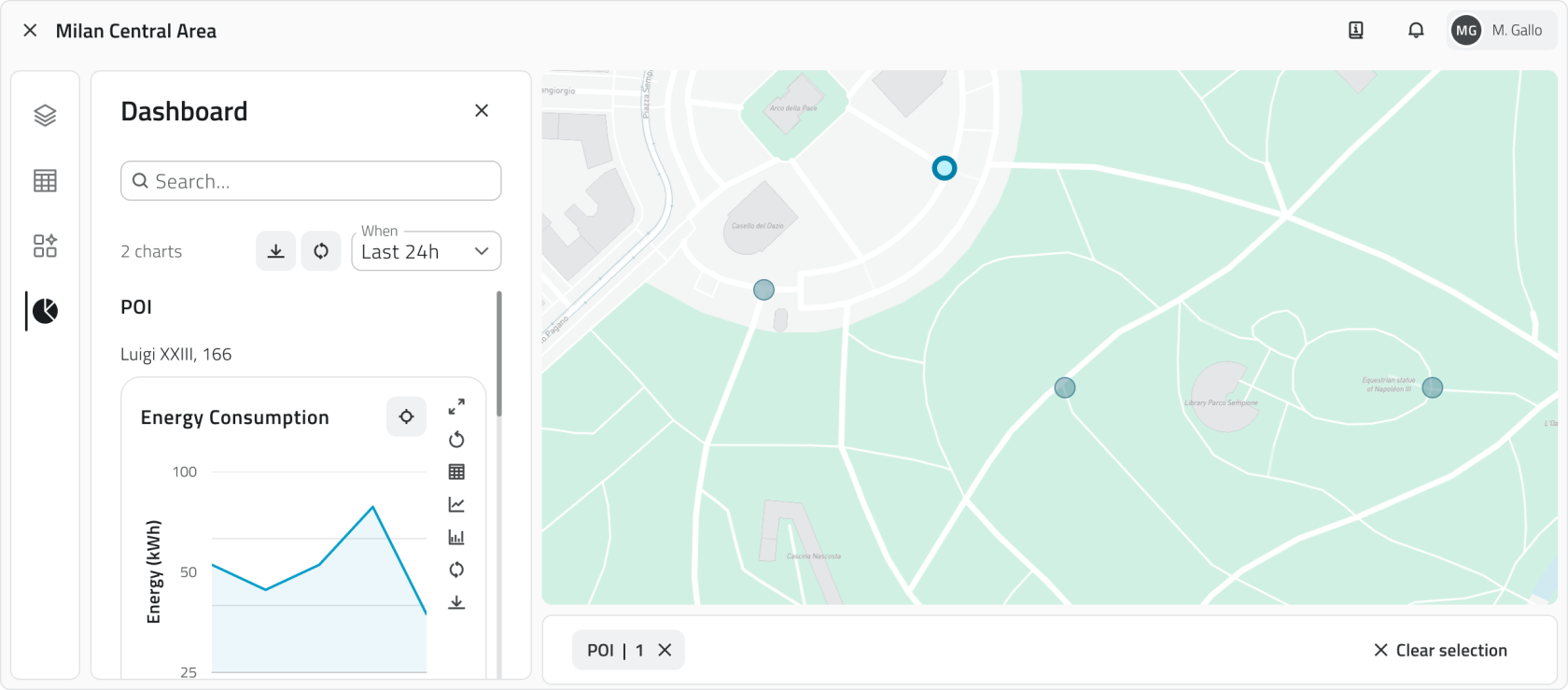
When no objects are selected, the panel is empty. It populates when **one or more objects are selected** from the 2D, 3D or Inventory view, provided they have **chart-type attributes**.

The charts are displayed in a column and grouped by object: above each group the **main attribute** of the object appears, followed by the **charts associated with it**. The process repeats for each selected object.

💡 **Tip:** By selecting multiple objects at once you can compare the charts of various objects.

---

### Report Panel

The **Report Panel** (document-shaped icon) is the dedicated tool for browsing the reports configured for the project.

[![5 - Tab Reports.png](https://wiki.eaglearca.com/uploads/images/gallery/2026-05/scaled-1680-/5-tab-reports.png)](https://wiki.eaglearca.com/uploads/images/gallery/2026-05/5-tab-reports.png)
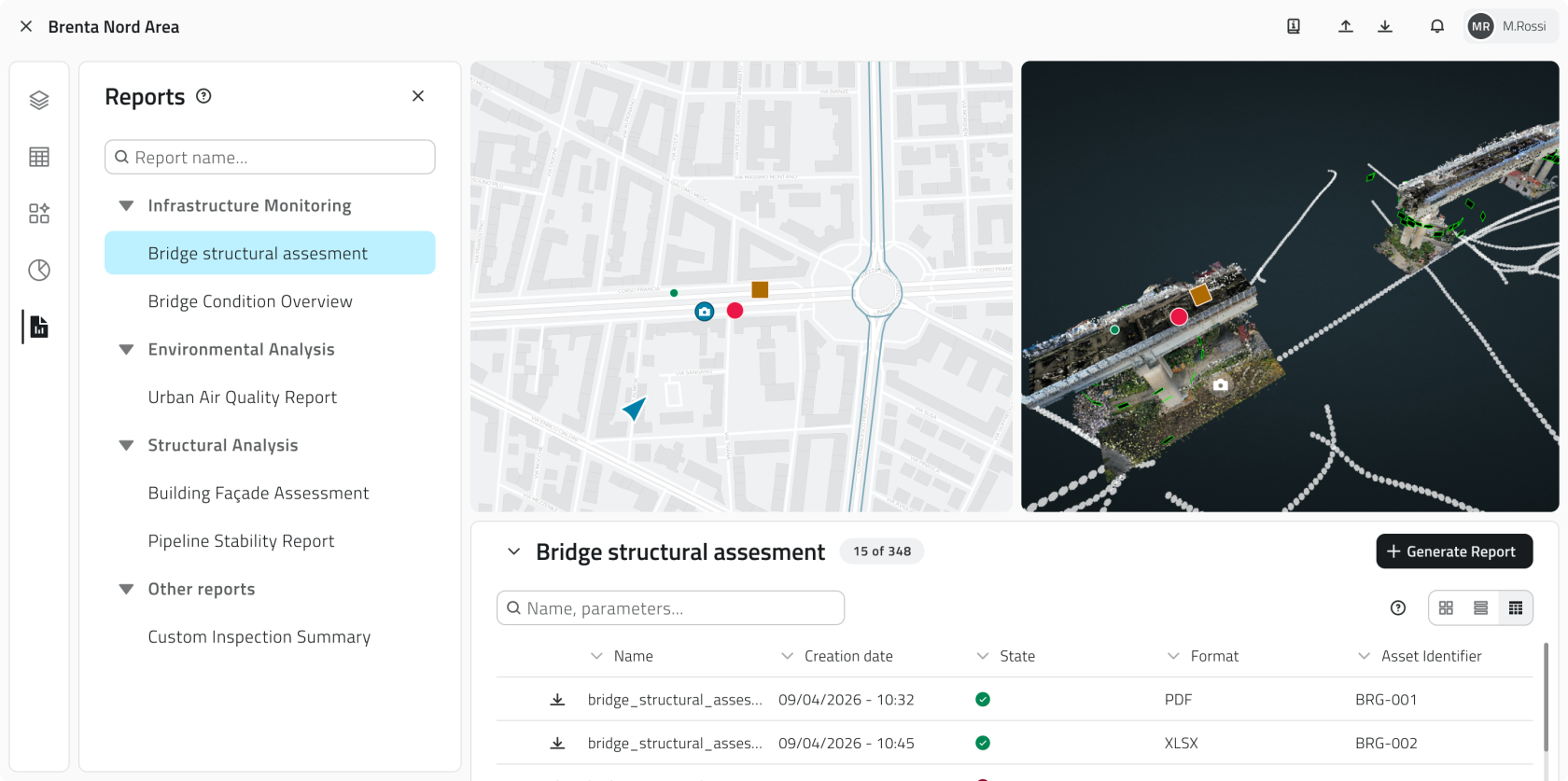
Clicking on the name of a report in the list opens the corresponding **Report view**. The available reports are grouped by category, making it easier to find the one of interest.

To quickly filter reports without scrolling through the full list, use the search bar at the top of the panel.

---

### Links

- *[Managing objects in the project](https://wiki.eaglearca.com/books/app-features/page/managing-objects-in-the-project "Managing objects in the project")*
- [*Navigating between views*](https://wiki.eaglearca.com/books/app-features/page/navigating-between-views "Navigating between views")

---

<span id="bkmrk-%C2%A0italian-version%C2%A0-1">![flag-italy-1f1ee-1f1f9.png](https://wiki.eaglearca.com/uploads/images/gallery/2026-05/aiMflag-italy-1f1ee-1f1f9.png) **Italian version** </span>

Questa sezione fornisce indicazioni sull'utilizzo e le funzionalità dei principali pannelli di gestione e analisi del progetto.

---

### Pannello Layers

Il **Pannello Layers** (icona con tre pannelli sovrapposti) permette di gestire la visibilità, il blocco, le etichette e lo snap delle classi oggetto e delle risorse presenti nel progetto.

[![1 - Tab Layers.png](https://wiki.eaglearca.com/uploads/images/gallery/2026-03/scaled-1680-/zyX1-tab-layers.png)](https://wiki.eaglearca.com/uploads/images/gallery/2026-03/zyX1-tab-layers.png)

#### Modalità di interazione

Per passare da una modalità all'altra clicca sulle icone nel selettore, accanto al nome della modalità in cui ti trovi. Le modalità disponibili sono:

<table border="1" id="bkmrk-modalit%C3%A0-funzione-in-1" style="border-collapse: collapse; width: 100%; border-style: solid; height: 316.953px;"><thead><tr style="height: 29.7969px;"><td style="width: 23.7187%; height: 29.7969px;">**Modalità**</td><td style="width: 21.4541%; height: 29.7969px;">**Funzione**</td><td style="width: 21.4541%; height: 29.7969px;">**Interazione**</td><td style="width: 33.3731%; height: 29.7969px;">**Nota**</td></tr></thead><tbody><tr style="height: 80.1875px;"><td style="width: 23.7187%; height: 80.1875px;">**Visualizzazione**</td><td style="width: 21.4541%; height: 80.1875px;">Mostrare o nascondere istanze nelle viste 2D e 3D.</td><td style="width: 21.4541%; height: 80.1875px;">Clicca sull'icona dell'occhio accanto al nome della Classe Oggetto.</td><td style="width: 33.3731%; height: 80.1875px;">La visibilità è **separata** tra 2D e 3D.  
</td></tr><tr style="height: 80.1875px;"><td style="width: 23.7187%; height: 80.1875px;">**Blocco**</td><td style="width: 21.4541%; height: 80.1875px;">Impedire interazioni sulle istanze nelle viste 2D e 3D, **le istanze restano visibili**.</td><td style="width: 21.4541%; height: 80.1875px;">Clicca sull'icona del lucchetto accanto al nome della Classe Oggetto.</td><td style="width: 33.3731%; height: 80.1875px;">Tutti i livelli sono sbloccati di default.</td></tr><tr style="height: 63.3906px;"><td style="width: 23.7187%; height: 63.3906px;">**Etichetta**</td><td style="width: 21.4541%; height: 63.3906px;">Mostrare un’etichetta sopra ogni istanza nelle viste 2D e 3D.</td><td style="width: 21.4541%; height: 63.3906px;">Clicca sull'icona del testo accanto al nome della Classe Oggetto.</td><td style="width: 33.3731%; height: 63.3906px;">Disattivate di default.</td></tr><tr style="height: 63.3906px;"><td style="width: 23.7187%; height: 63.3906px;">**Snap**</td><td style="width: 21.4541%; height: 63.3906px;">Disattivare lo snap automatico sulle istanze nelle viste 2D e 3D.</td><td style="width: 21.4541%; height: 63.3906px;">Clicca sull'icona della calamita accanto al nome della Classe Oggetto.</td><td style="width: 33.3731%; height: 63.3906px;">Lo snap è attivo di default su tutte le classi.</td></tr></tbody></table>

💡 **Suggerimenti:**

- Attiva il blocco sui livelli che non devono essere modificati per evitare selezioni o interazioni non volute.
- Abilita le etichette solo per le classi che ti interessa identificare rapidamente, per non sovraccaricare la mappa.
- Se lo snap interferisce con il disegno delle geometrie o con le misure, disattivalo sulle classi con molti oggetti.


---

### Pannello Inventory

Il **Pannello Inventory** (icona a forma di tabella) è lo strumento dedicato alla gestione e consultazione delle classi oggetto presenti nel progetto.

[![2 - Tab Inventory + Inventory View.png](https://wiki.eaglearca.com/uploads/images/gallery/2026-03/scaled-1680-/2-tab-inventory-inventory-view.png)](https://wiki.eaglearca.com/uploads/images/gallery/2026-03/2-tab-inventory-inventory-view.png)

Cliccando sul nome di una classe oggetto nella lista si apre la relativa **vista Inventory**. Accanto al nome di ciascuna classe è mostrato lo stile applicato agli oggetti in mappa, utile per riconoscerli più facilmente. Per le classi di tipo **Form**, prive di geometria in mappa, compare invece l'icona **Form**: queste classi sono accessibili e consultabili solo dal pannello Inventory. Per le classi che hanno la funzione di **creazione automatica degli oggetti** attiva, è presente a fine riga l'icona corrispondente.

Per filtrare rapidamente le classi oggetto senza scorrere la lista completa, usa la barra di ricerca in cima al pannello.

[![2 - panel.png](https://wiki.eaglearca.com/uploads/images/gallery/2026-05/scaled-1680-/2-panel.png)](https://wiki.eaglearca.com/uploads/images/gallery/2026-05/2-panel.png)

---

### Pannello Dashboard

<p class="callout info">Disponibile solo con **sensori configurati in precedenza**.  
</p>

Il **Pannello Dashboard** (icona a forma di grafico a torta) permette di visualizzare i grafici associati agli oggetti selezionati ed è lo strumento dedicato all'analisi dei dati.

[![3 - Tab Dashboard.png](https://wiki.eaglearca.com/uploads/images/gallery/2026-03/scaled-1680-/3-tab-dashboard.png)](https://wiki.eaglearca.com/uploads/images/gallery/2026-03/3-tab-dashboard.png)

Quando non ci sono oggetti selezionati il pannello è vuoto. Si popola **selezionando uno o più oggetti** dalla vista 2D, 3D o Inventory, a condizione che abbiano **attributi di tipo grafico**.

I grafici vengono presentati incolonnati e raggruppati per oggetto: sopra ogni gruppo compare l'**attributo principale** dell'oggetto, seguito dai **grafici a esso associati**. Il processo si ripete per ciascun oggetto selezionato.

💡 **Suggerimento:** Selezionando più oggetti contemporaneamente puoi confrontare i grafici di vari oggetti.

---

### Pannello Report

Il **Pannello Report** (icona a forma di documento) è lo strumento dedicato alla consultazione dei report configurati per il progetto.

[![5 - Tab Reports.png](https://wiki.eaglearca.com/uploads/images/gallery/2026-05/scaled-1680-/5-tab-reports.png)](https://wiki.eaglearca.com/uploads/images/gallery/2026-05/5-tab-reports.png)

Cliccando sul nome di un report nella lista si apre la relativa **vista Report**. I report disponibili sono raggruppati per categoria, rendendo più semplice individuare quello di interesse.

Per filtrare rapidamente i report senza scorrere la lista completa, usa la barra di ricerca in cima al pannello.

---

### Collegamenti

- *[Gestire gli oggetti nel progetto](https://wiki.eaglearca.com/books/app-features/page/managing-objects-in-the-project "Managing objects in the project")*
- [*Navigare tra le viste*](https://wiki.eaglearca.com/books/app-features/page/navigating-between-views "Navigating between views")

---

***Last update:** 21 May 2026*

# Managing objects in the project

This section explains how to create objects within the project. Objects can be vector geometries, such as points, lines or polygons, or non-vector objects, known as forms.

<div id="bkmrk-english-italiano" style="display: flex; gap: 8px; margin-bottom: 20px;">[<button id="bkmrk-btn-italiano" style="display: flex; align-items: center; gap: 6px; padding: 6px 14px; border: 1px solid #DEDFE0; border-radius: 6px; cursor: pointer; background: #EFF1F3; color: #333; font-weight: 600; line-height: 1;">![Bandiera italiana](https://wiki.eaglearca.com/uploads/images/gallery/2026-05/flag-italy-1f1ee-1f1f9.png) Italian version ↓</button>](https://wiki.eaglearca.com/link/158#bkmrk-%C2%A0italian-version%C2%A0)</div>---

<div id="bkmrk--1" style="display: flex; gap: 8px; margin-bottom: 20px;"></div><span id="bkmrk-italiano-1"> ![jQPeng.png](https://wiki.eaglearca.com/uploads/images/gallery/2026-05/KKPjqpeng.png) **English version**</span>

This section explains how to create objects within the project. Objects can be **vector geometries**, such as points, lines or polygons, or **non-vector objects**, known as forms.

---

### Object types


In the project you can create different types of objects:

- **Points** Single elements that can be placed in the 2D and 3D views, such as sensors or markers.
- **Lines** Sequences of connected points forming paths, such as infrastructure routes.
- **Polygons** Areas delimited by multiple vertices, such as work zones or perimeters.
- **Forms** Non-vector objects, without geometry, used to enter data through attributes, such as information forms.

<p class="callout info">Any data entered in the platform is managed on an on-premise cloud infrastructure, **unless different agreements have been made with the provider**. It is always possible to download all project data locally and delete any associated media at any time. **For further support on data management, contact helpdesk@eaglearca.it**</p>

---

### Creating objects

#### Form (non-vector objects)

**1.** Open the **Inventory view** of the desired object class.

[![1 - Inventory View.png](https://wiki.eaglearca.com/uploads/images/gallery/2025-12/scaled-1680-/5uP1-inventory-view.png)](https://wiki.eaglearca.com/uploads/images/gallery/2025-12/5uP1-inventory-view.png)
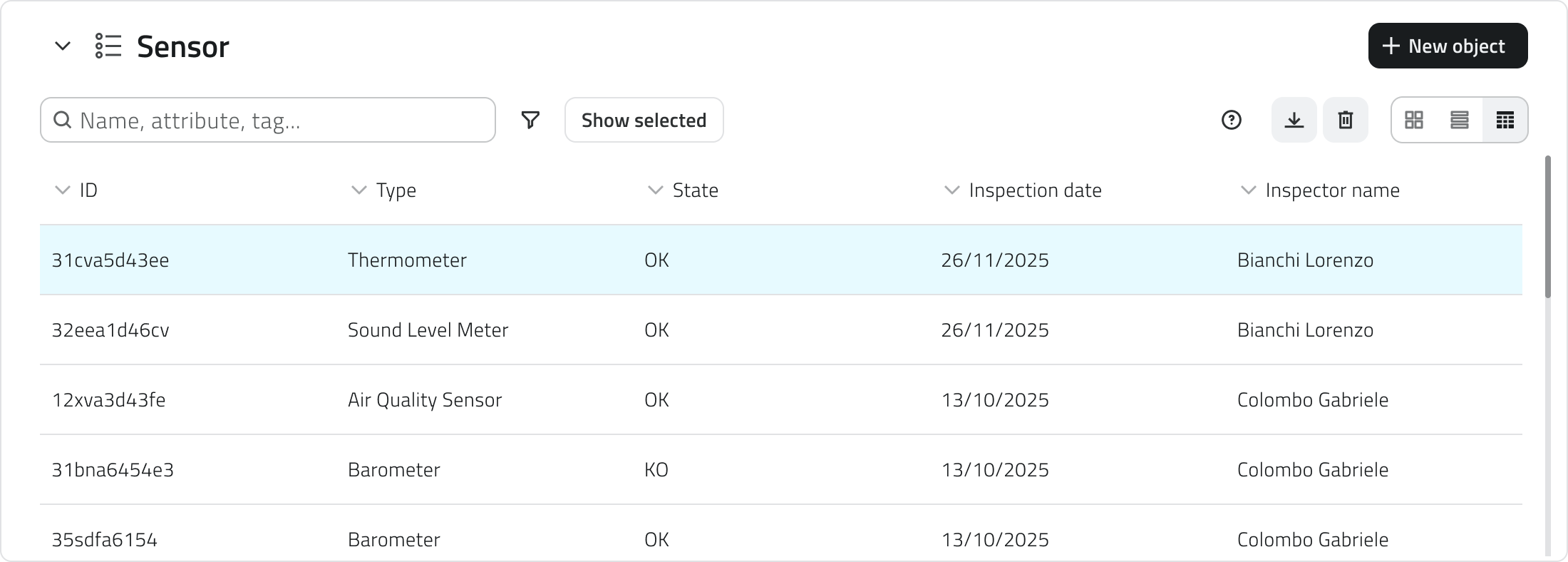
**2.** Click the **New object** button in the top-right corner.

**3.** The **attribute panel** opens for data entry.

<div id="bkmrk-compilazione-degli-a" style="display: flex; gap: 8px; margin-bottom: 20px;">[<button id="bkmrk-compilazione-degli-a-1" style="display: flex; align-items: center; gap: 6px; padding: 6px 14px; border: 1px solid #DEDFE0; border-radius: 6px; cursor: pointer; background: #EFF1F3; color: #333; font-weight: 600; line-height: 1;">Filling in attributes ↓</button>](https://wiki.eaglearca.com/link/158#bkmrk-compilazione-degli-a)</div>#### Geometries (vector objects)

**1.** Hover over the 2D or 3D view to reveal the toolbar, then select the **Draw** tool.

**2.** To **choose the object class**, click the arrow next to the tool. Use the search bar at the top of the list to filter quickly, you can see a style preview to help with the selection.

[![2 - Tool Draw.png](https://wiki.eaglearca.com/uploads/images/gallery/2026-03/scaled-1680-/2-tool-draw.png)](https://wiki.eaglearca.com/uploads/images/gallery/2026-03/2-tool-draw.png)
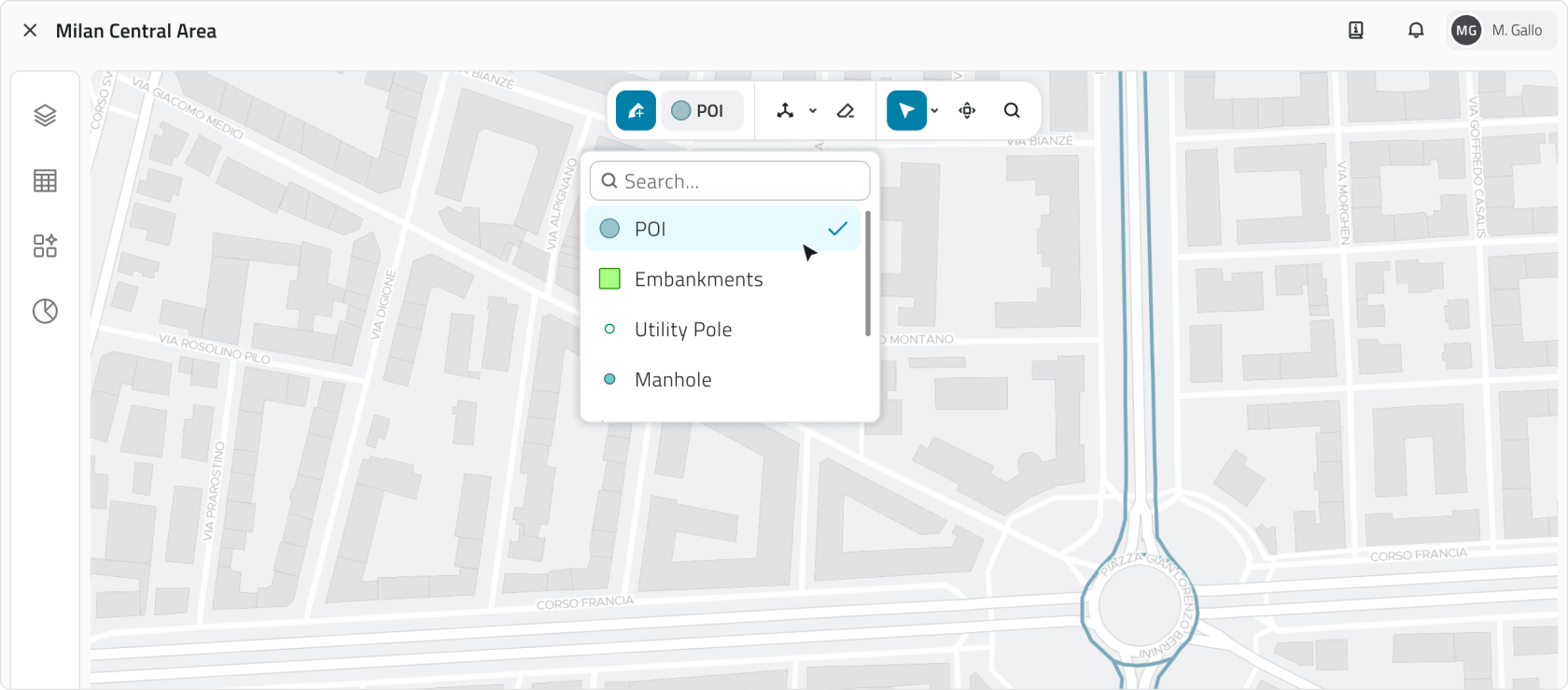
**3. Draw the object** on the map:

- **Point** Click with the **left mouse button**.
- **Line** To **add vertices**, click with the **left mouse button**; to **close the geometry**, click with the **right mouse button**.
- **Polygon Polygon** To **add vertices**, click with the **left mouse button**; after the third vertex the polygon preview appears. To **close the geometry**, click with the **right mouse button**.

<p class="callout warning">n the **3D view**, objects must be created on the **surface of the mesh or point cloud**.</p>

**4. Once the geometry is confirmed,** the **attribute panel** opens.

[<button id="bkmrk-filling-in-attribute-1" style="display: flex; align-items: center; gap: 6px; padding: 6px 14px; border: 1px solid #DEDFE0; border-radius: 6px; cursor: pointer; background: #EFF1F3; color: #333; font-weight: 600; line-height: 1;">Filling in attributes ↓</button>](https://wiki.eaglearca.com/link/158#bkmrk-compilazione-degli-a)

#### Automatic object creation

Some object classes can be configured from the Backoffice to create objects automatically.

When this function is active, it is indicated by a **dedicated icon** in the following places:

- At the end of the row in the object class list in the **Inventory panel**;

[![inventory automatic creation.png](https://wiki.eaglearca.com/uploads/images/gallery/2026-05/scaled-1680-/inventory-automatic-creation.png)](https://wiki.eaglearca.com/uploads/images/gallery/2026-05/inventory-automatic-creation.png)
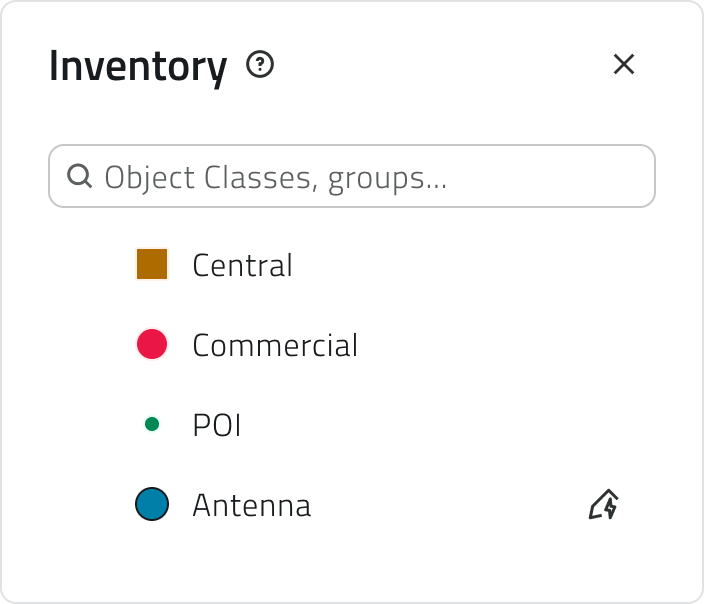
- At the top of the **Inventory view** of the class;
- On **each automatically created element** in the Inventory view list;

[![inventory view automatic creation.png](https://wiki.eaglearca.com/uploads/images/gallery/2026-05/scaled-1680-/inventory-view-automatic-creation.png)](https://wiki.eaglearca.com/uploads/images/gallery/2026-05/inventory-view-automatic-creation.png)
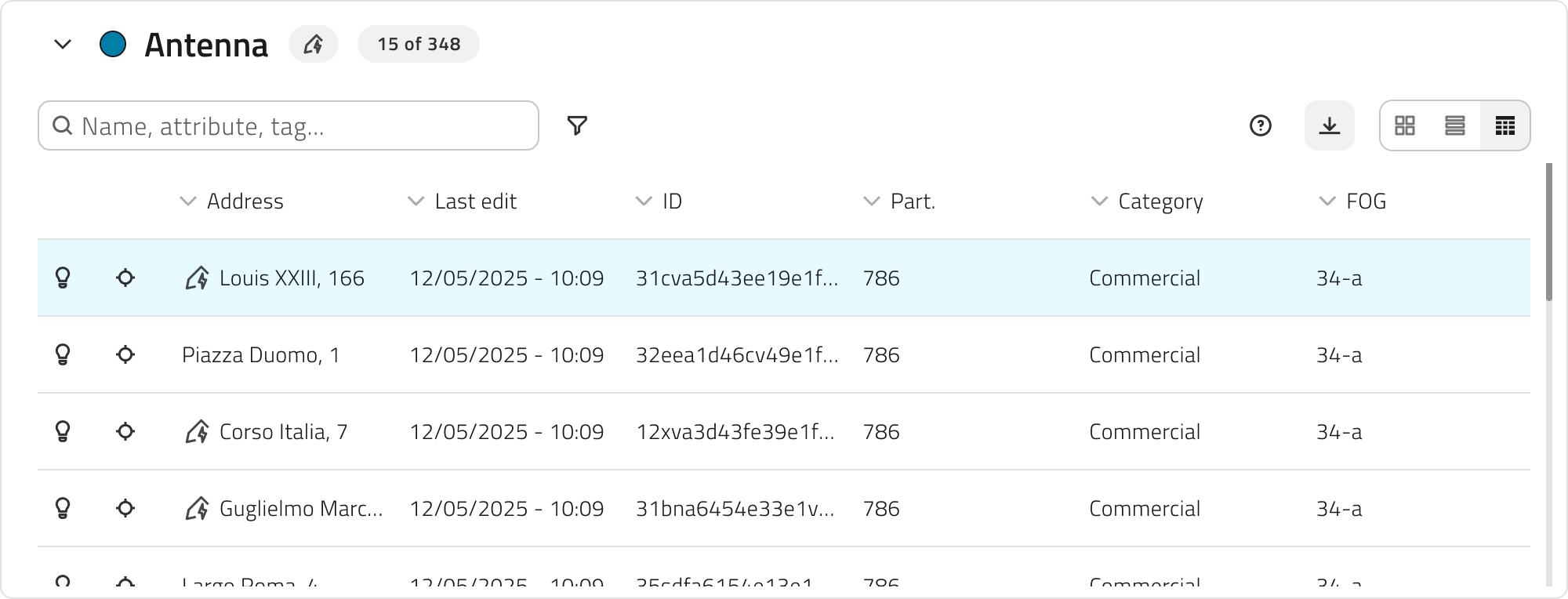
- In the label within the **info card** and the **attribute details**, for vector objects next to the 2D or 3D text. In the case of automatic creation, the label, showing **only the icon**, will also be available for **Form objects**.

[![chip automatic creation.png](https://wiki.eaglearca.com/uploads/images/gallery/2026-05/scaled-1680-/chip-automatic-creation.png)](https://wiki.eaglearca.com/uploads/images/gallery/2026-05/chip-automatic-creation.png)
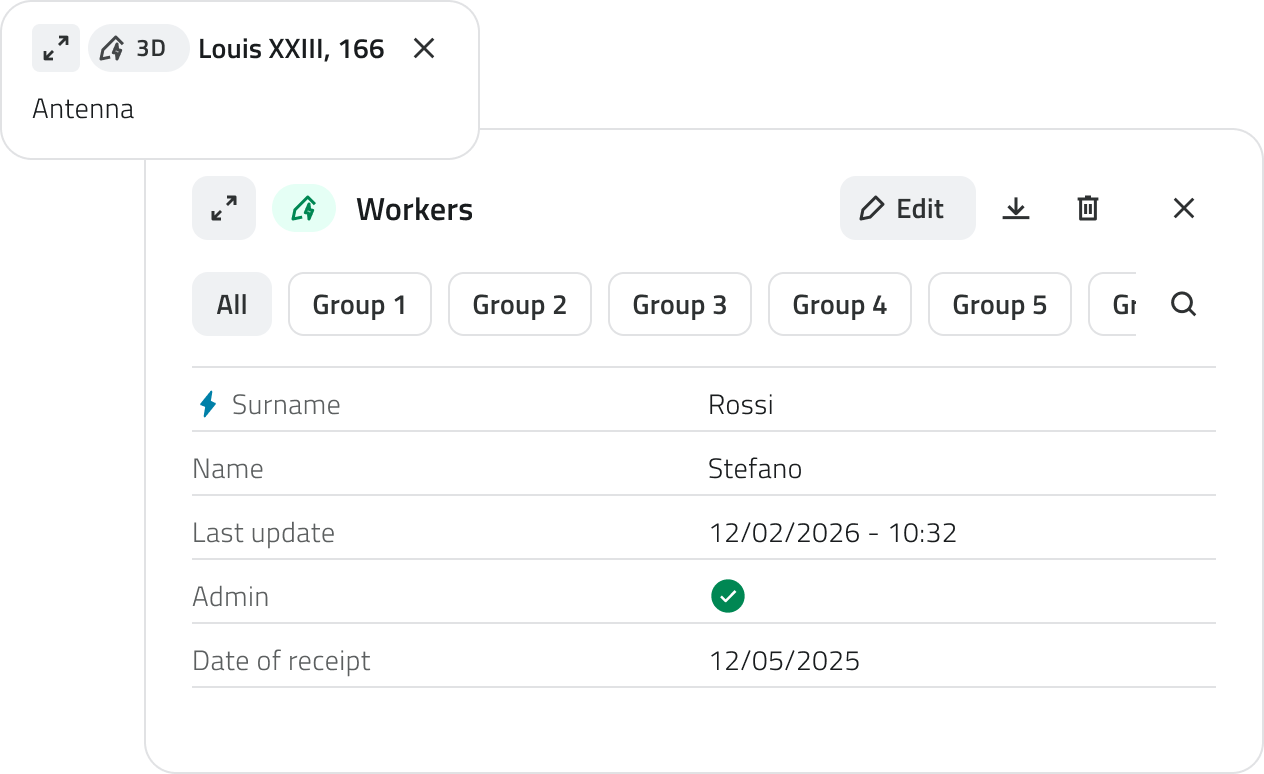
<p class="callout info">Automatically created objects can be edited and, if needed, also created manually within the same object class.</p>

---

### Filling in attributes

After creation, the **attribute panel** allows you to enter the required information.

<p class="callout info">The object cannot be saved until all **required fields** have been filled in.</p>

At the top left is the **Expand button** to open the panel in full screen. The **Cancel** and **Save** buttons are positioned at the top right.

If the object class has attributes organised into **groups**, tabs appear at the top of the panel that allow you to **filter attributes by category**. Clicking on a tab shows only the attributes belonging to that group. Next to the groups there is a button to expand the **search bar**.

[![3 - Obj Details.png](https://wiki.eaglearca.com/uploads/images/gallery/2026-05/scaled-1680-/J0b3-obj-details.png)](https://wiki.eaglearca.com/uploads/images/gallery/2026-05/J0b3-obj-details.png)
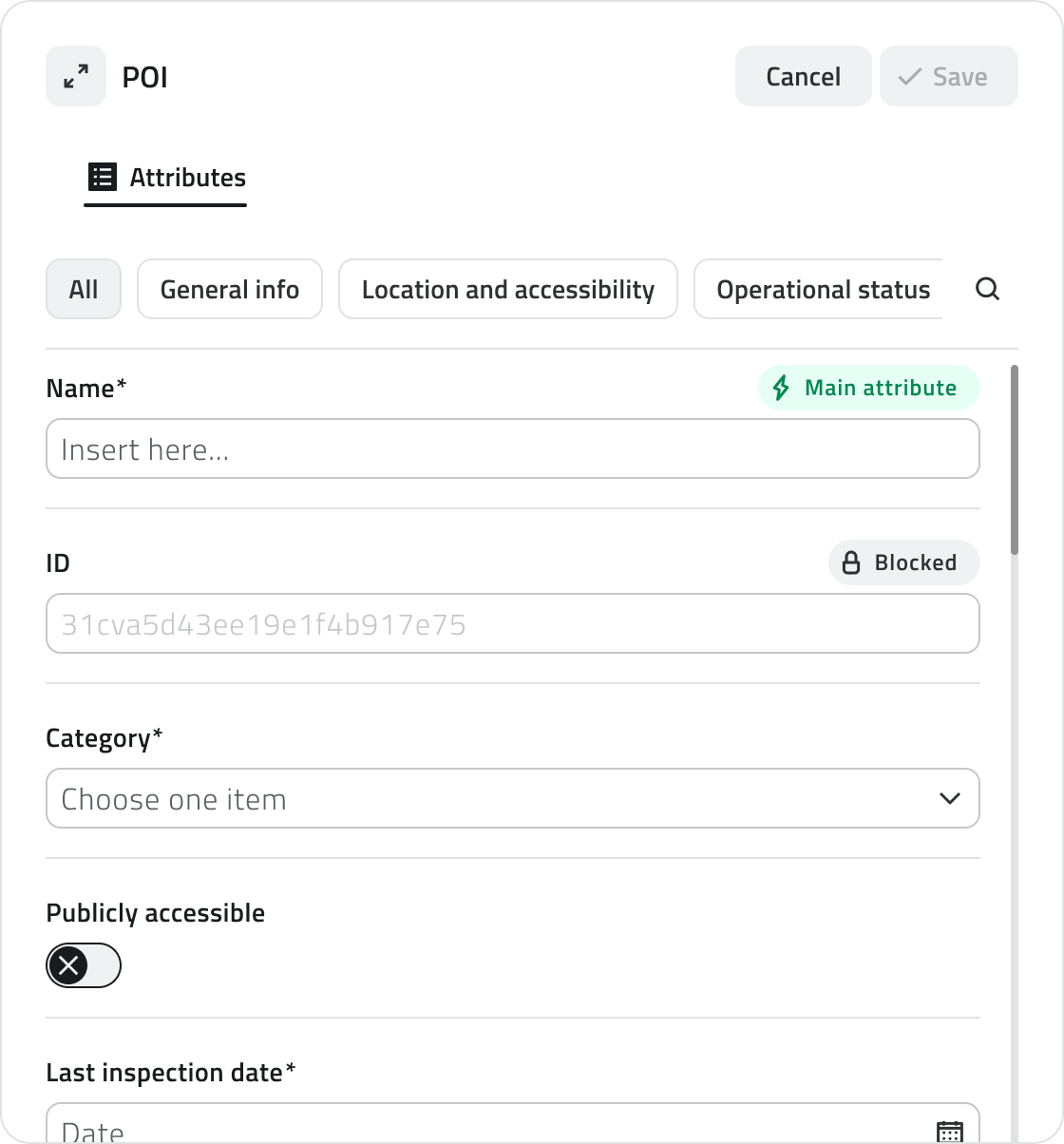
#### Attribute types

Objects can have the following attribute types:

- **Text:** Letters and numbers (possible maximum length).

[![4 - Text Box.png](https://wiki.eaglearca.com/uploads/images/gallery/2025-12/scaled-1680-/4-text-box.png)](https://wiki.eaglearca.com/uploads/images/gallery/2025-12/4-text-box.png)
- **Numbers:** Numeric values (possible predefined range).

[![5 - Numbers.png](https://wiki.eaglearca.com/uploads/images/gallery/2025-12/scaled-1680-/5-numbers.png)](https://wiki.eaglearca.com/uploads/images/gallery/2025-12/5-numbers.png)
- **Value list:** Selection of one or more values from a dropdown menu.

[![6 - Value List.png](https://wiki.eaglearca.com/uploads/images/gallery/2025-12/scaled-1680-/6-value-list.png)](https://wiki.eaglearca.com/uploads/images/gallery/2025-12/6-value-list.png)
- **Date:** Selection of a date or date and time.

[![7 - Date.png](https://wiki.eaglearca.com/uploads/images/gallery/2025-12/scaled-1680-/7-date.png)](https://wiki.eaglearca.com/uploads/images/gallery/2025-12/7-date.png)

- **Attachments:** Upload of images, documents or videos.

[![8 - Attachments.png](https://wiki.eaglearca.com/uploads/images/gallery/2025-12/scaled-1680-/8-attachments.png)](https://wiki.eaglearca.com/uploads/images/gallery/2025-12/8-attachments.png)

- **Size:** (Vector only) Automatically calculated by the system (coordinates/length/area).

[![9 - Size.png](https://wiki.eaglearca.com/uploads/images/gallery/2025-12/scaled-1680-/9-size.png)](https://wiki.eaglearca.com/uploads/images/gallery/2025-12/9-size.png)

- **True/False:** Choice between the two true/false values.

[![10 - True or False.png](https://wiki.eaglearca.com/uploads/images/gallery/2025-12/scaled-1680-/10-true-or-false.png)](https://wiki.eaglearca.com/uploads/images/gallery/2025-12/10-true-or-false.png)

- **Object list:** Addition of related sub-attributes (can be of type Text, Numbers, Value list, Date, True/False).

[![11 - Obj List.png](https://wiki.eaglearca.com/uploads/images/gallery/2025-12/scaled-1680-/11-obj-list.png)](https://wiki.eaglearca.com/uploads/images/gallery/2025-12/11-obj-list.png)
- ***[Relation](https://wiki.eaglearca.com/books/app-features/page/manage-object-relations "Manage object relations")*:** link to one or more objects of another object class. Allows you to represent logical connections between project elements (e.g. a road linked to the lighting poles along its route).

[![Relations.png](https://wiki.eaglearca.com/uploads/images/gallery/2026-05/scaled-1680-/1jyrelations.png)](https://wiki.eaglearca.com/uploads/images/gallery/2026-05/1jyrelations.png)

<p class="callout info">Some attributes may be pre-filled with a default value: in this case they may already be ready for saving or locked and not editable.</p>

💡 **Tip:** use the search bar in the attribute panel to quickly find the desired field. Make sure that any pre-filled values in mandatory fields are correct before saving.

#### Attribute properties

<table border="1" class="min-w-full border-collapse text-sm leading-[1.7] whitespace-normal" id="bkmrk-icon%2Findicator-prope" style="border-collapse: collapse; width: 100%; border-style: solid;"><thead><tr><td class="text-text-100 border-b-0.5 border-border-300/60 py-2 pr-4 align-top font-bold">**Icon/Indicator**</td><td class="text-text-100 border-b-0.5 border-border-300/60 py-2 pr-4 align-top font-bold">**Property**</td><td class="text-text-100 border-b-0.5 border-border-300/60 py-2 pr-4 align-top font-bold">**Description**</td></tr></thead><tbody><tr><td class="border-b-0.5 border-border-300/30 py-2 pr-4 align-top">**\*** (Asterisk)</td><td class="border-b-0.5 border-border-300/30 py-2 pr-4 align-top">**Mandatory**</td><td class="border-b-0.5 border-border-300/30 py-2 pr-4 align-top">The field must be filled in to save the object. It may have an editable **pre-filled value**.</td></tr><tr><td class="border-b-0.5 border-border-300/30 py-2 pr-4 align-top">**🔒** (Padlock)</td><td class="border-b-0.5 border-border-300/30 py-2 pr-4 align-top">**Locked**</td><td class="border-b-0.5 border-border-300/30 py-2 pr-4 align-top">The field cannot be edited.</td></tr><tr><td class="border-b-0.5 border-border-300/30 py-2 pr-4 align-top">**⚡** (Blue lightning)</td><td class="border-b-0.5 border-border-300/30 py-2 pr-4 align-top">**Main attribute**</td><td class="border-b-0.5 border-border-300/30 py-2 pr-4 align-top">It is mandatory and helps to quickly identify the instance.</td></tr></tbody></table>

---

### Assigning a data source to an object


<p class="callout info">Available only with sensors already associated with the project.</p>

A data source is a source that collects data over time; associated with an object, it allows you to display that data as charts in the Attribute details panel.

[![12 - Data Sources.png](https://wiki.eaglearca.com/uploads/images/gallery/2025-12/scaled-1680-/12-data-sources.png)](https://wiki.eaglearca.com/uploads/images/gallery/2025-12/12-data-sources.png)
It is possible to **assign a data source** at two different points: during **object creation** or **afterwards** by editing an existing object.

#### Assignment during creation

**1.** During object insertion, the attribute details panel opens in configuration mode.

**2.** Navigate to the **Data Sources** section.

**3.** Click the selection field and choose one of the available options from the list.

#### Assignment during editing

**1.** Open the **Attribute details** panel of the object by clicking the **blue Open button** that appears when hovering over the element in the Inventory view, or select it in the 2D or 3D view and click **Expand** in the info card.

**2.** Click the **Edit** button.

**3.** Navigate to the **Data Sources** section.

**4.** Click the selection field and choose one of the available options from the list.

---

### Managing and editing objects in the 2D view

This section provides guidance on moving, rotating, editing vertices and deleting objects.

####   
Moving an object  


The **Move** tool allows you to reposition selected objects with precision.

[![13 - Tool Move.png](https://wiki.eaglearca.com/uploads/images/gallery/2026-03/scaled-1680-/13-tool-move.png)](https://wiki.eaglearca.com/uploads/images/gallery/2026-03/13-tool-move.png)
**1.** Select one or more objects.

**2.** Click the **Move** button in the toolbar.

**3.** Grab and freely move the object; snap with other objects on the map is supported.

**4.** To save the new position click **Confirm**. If the object has not been moved the button remains disabled. To restore the original position click **Cancel**.

#### Rotating an object

Rotation modifies the orientation of **Line** or **Polygon** objects.

[![14 - Rotate.png](https://wiki.eaglearca.com/uploads/images/gallery/2026-03/scaled-1680-/14-rotate.png)](https://wiki.eaglearca.com/uploads/images/gallery/2026-03/14-rotate.png)
**1.** Select one or more objects.

**2.** Click the **Rotate** button in the toolbar. A rectangle with a handle appears around the object.

**3.** Drag the handle to rotate the object. Multiple rotation occurs around the central pivot point.

**4.** To save the new orientation click **Confirm**. If the object has not been rotated the button remains disabled. To restore the original orientation click **Cancel**.


####   
Editing object vertices  


This tool allows you to move, add or correct the vertices of **Lines** and **Polygons**.

[![15 - Edit Vertex.png](https://wiki.eaglearca.com/uploads/images/gallery/2026-03/scaled-1680-/15-edit-vertex.png)](https://wiki.eaglearca.com/uploads/images/gallery/2026-03/15-edit-vertex.png)
**1.** Select a line or polygon.

**2.** Click the **Edit vertices** button in the toolbar. All vertices become visible.

**3.** Drag an existing vertex to move it. To add a new vertex, click the midpoint that appears along the segment. Snap with other geometries is supported.

**4.** To save the changes click **Confirm**. If the object has not been modified the button remains disabled. To restore the original shape click **Cancel**.


---

### Deleting an object

This function permanently deletes the selected objects in all views.

**1.** Select one or more objects in the 2D, 3D or Inventory view.

**2.** Click the **Delete** button: in the 2D and 3D views it is located in the toolbar, in the Inventory view at the top right.

**3.** A window opens with the list of object classes involved in the selection, each with a checkbox.

[![16 - Delete.png](https://wiki.eaglearca.com/uploads/images/gallery/2025-12/scaled-1680-/16-delete.png)](https://wiki.eaglearca.com/uploads/images/gallery/2025-12/16-delete.png)
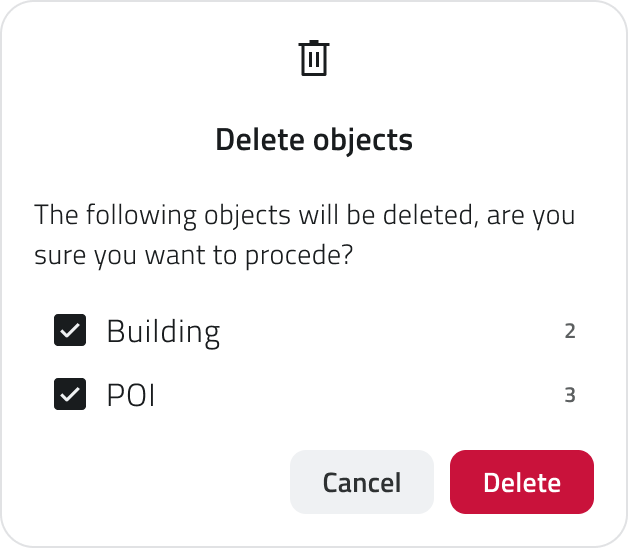
**4.** Select the checkboxes corresponding to the objects to delete.

**5.** Click **Confirm** to proceed, or **Cancel** to close the window without making any changes. The **Confirm** button is disabled if all checkboxes are deselected.

<p class="callout info">At the end of the operation a **notification** appears at the bottom left with the **outcome of the deletion**.</p>

💡 **Tip:** always check the checkboxes in the confirmation window before proceeding to avoid deleting unwanted objects.

---

### Links

- *[Create and manage Object Classes](https://wiki.eaglearca.com/books/backoffice/page/create-and-manage-object-classes "Create and manage Object Classes")*
- *[Introduction to Object Classes](https://wiki.eaglearca.com/books/access-and-overview/page/introduction-to-object-classes "Introduction to Object Classes")*
- [Navigating between views](https://wiki.eaglearca.com/books/app-features/page/navigating-between-views "Navigating between views")

---

<span id="bkmrk-%C2%A0italian-version%C2%A0-1">![flag-italy-1f1ee-1f1f9.png](https://wiki.eaglearca.com/uploads/images/gallery/2026-05/aiMflag-italy-1f1ee-1f1f9.png) **Italian version** </span>

Questa sezione spiega come creare oggetti all’interno del progetto. Gli oggetti possono essere **geometrie vettoriali**, come punti, linee o poligoni, oppure **oggetti non vettoriali**, detti form.

---

### Tipi di oggetti

Nel progetto puoi creare diverse tipologie di oggetti:

- **Punti** Elementi singoli posizionabili nelle viste 2D e 3D, come sensori o segnaposto.
- **Linee** Sequenze di punti collegati per formare percorsi, come tracciati di infrastrutture.
- **Poligoni** Aree delimitate da più vertici, come zone di lavoro o perimetri.
- **Form** Oggetti non vettoriali, senza geometria, usati per inserire dati tramite attributi, come moduli informativi.

<p class="callout info"><span data-teams="true">Qualsiasi dato immesso in piattaforma viene gestito su un’infrastruttura cloud on-premise, **a meno di differenti accordi con il fornitore**. È sempre possibile scaricare in locale tutti i dati del progetto ed eliminare qualsiasi media associato in qualsiasi momento. **Per ulteriore supporto alla gestione dati, contatta l'indirizzo helpdesk@eaglearca.it**</span></p>

---

### Creazione di Oggetti

#### Form (Oggetti non vettoriali)

**1.** Apri la **vista Inventory** della classe oggetto desiderata.

[![1 - Inventory View.png](https://wiki.eaglearca.com/uploads/images/gallery/2025-12/scaled-1680-/5uP1-inventory-view.png)](https://wiki.eaglearca.com/uploads/images/gallery/2025-12/5uP1-inventory-view.png)

**2.** Clicca sul pulsante **Nuovo oggetto** in alto a destra.

**3.** Si apre il **pannello attributi** per la compilazione dei dati.

<div id="bkmrk-compilazione-degli-a-2" style="display: flex; gap: 8px; margin-bottom: 20px;">[<button id="bkmrk-compilazione-degli-a-3" style="display: flex; align-items: center; gap: 6px; padding: 6px 14px; border: 1px solid #DEDFE0; border-radius: 6px; cursor: pointer; background: #EFF1F3; color: #333; font-weight: 600; line-height: 1;">Compilazione degli Attributi ↓</button>](https://wiki.eaglearca.com/link/158#bkmrk-compilazione-degli-a)</div>#### Geometrie (Oggetti vettoriali)

**1.** Passa con il mouse sulla vista 2D o 3D per far comparire la barra degli strumenti, quindi seleziona lo strumento **Disegna**.

**2.** Per **scegliere la classe oggetto** clicca sulla freccia accanto allo strumento. Usa la barra di ricerca in cima alla lista per filtrare rapidamente, puoi vedere l'anteprima dello stile per facilitare la selezione.

[![2 - Tool Draw.png](https://wiki.eaglearca.com/uploads/images/gallery/2026-03/scaled-1680-/2-tool-draw.png)](https://wiki.eaglearca.com/uploads/images/gallery/2026-03/2-tool-draw.png)

**3. Disegna l’oggetto** sulla mappa:

- **Punto** Clicca con il **tasto sinistro** del mouse.
- **Linea** Per **inserire i vertici**, clicca con il **tasto sinistro** del mouse, per **chiudere la geometria**, clicca con il **tasto destro**.
- **Poligono** Per **inserire i vertici**, clicca con il **tasto sinistro** del mouse, dopo il terzo vertice appare l'anteprima del poligono. Per **chiudere la geometria**, clicca con il **tasto destro**.

<p class="callout warning">Nella **vista 3D** gli oggetti devono essere creati necessariamente sulla **superficie della mesh o della nuvola di punti**.</p>

**4. Confermata la geometria,** si apre il **pannello attributi**.

[<button id="bkmrk-compilazione-degli-a-6" style="display: flex; align-items: center; gap: 6px; padding: 6px 14px; border: 1px solid #DEDFE0; border-radius: 6px; cursor: pointer; background: #EFF1F3; color: #333; font-weight: 600; line-height: 1;">Compilazione degli Attributi ↓</button>](https://wiki.eaglearca.com/link/158#bkmrk-compilazione-degli-a)

#### Creazione automatica degli oggetti

Alcune classi oggetto possono essere configurate dal Backoffice per creare oggetti in automatico.

Quando questa funzione è attiva, è segnalata da un'**icona dedicata** individuabile nei seguenti punti:

- A fine riga nella lista delle classi oggetto nel **pannello Inventory**;

[![inventory automatic creation.png](https://wiki.eaglearca.com/uploads/images/gallery/2026-05/scaled-1680-/inventory-automatic-creation.png)](https://wiki.eaglearca.com/uploads/images/gallery/2026-05/inventory-automatic-creation.png)

- In cima alla **vista Inventory** della classe;
- Su **ogni elemento** creato automaticamente nell'elenco della vista Inventory;

[![inventory view automatic creation.png](https://wiki.eaglearca.com/uploads/images/gallery/2026-05/scaled-1680-/inventory-view-automatic-creation.png)](https://wiki.eaglearca.com/uploads/images/gallery/2026-05/inventory-view-automatic-creation.png)

- Nell'etichetta all'interno dell'**info card** e del **dettaglio attributi,** per gli oggetti vettoriali accanto alla scritta 2D o 3D.  
    In caso di creazione automatica, l'etichetta, con **solo l'icona**, sarà disponibile anche per **oggetti di tipo Form**.

[![chip automatic creation.png](https://wiki.eaglearca.com/uploads/images/gallery/2026-05/scaled-1680-/chip-automatic-creation.png)](https://wiki.eaglearca.com/uploads/images/gallery/2026-05/chip-automatic-creation.png)

<p class="callout info">Gli oggetti creati automaticamente possono essere modificati e, se necessario, creati anche manualmente nella stessa classe oggetto.</p>

---

### Compilazione degli Attributi

Dopo la creazione, il **pannello attributi** permette di inserire le informazioni richieste.

<p class="callout info">L'oggetto non può essere salvato finché tutti i **campi obbligatori** non sono compilati.</p>

####   


In alto a sinistra si trova il **pulsante Espandi** per aprire il pannello a schermo intero. I bottoni **Annulla** e **Salva** sono posizionati in alto a destra.

Se la classe oggetto ha attributi organizzati in **gruppi**, nella parte superiore del pannello compaiono delle schede che permettono di **filtrare gli attributi per categoria**. Cliccando su una scheda vengono mostrati solo gli attributi appartenenti a quel gruppo. Accanto ai gruppi è presente un pulsante per espandere la **barra di ricerca**.

[![3 - Obj Details.png](https://wiki.eaglearca.com/uploads/images/gallery/2026-05/scaled-1680-/J0b3-obj-details.png)](https://wiki.eaglearca.com/uploads/images/gallery/2026-05/J0b3-obj-details.png)

#### Tipi di Attributi

Gli oggetti possono avere i seguenti tipi di attributi:

- **Testo**: Lettere e numeri (possibile lunghezza massima).

[![4 - Text Box.png](https://wiki.eaglearca.com/uploads/images/gallery/2025-12/scaled-1680-/4-text-box.png)](https://wiki.eaglearca.com/uploads/images/gallery/2025-12/4-text-box.png)

- **Numeri**: Valori numerici (possibile *range* predefinito).

[![5 - Numbers.png](https://wiki.eaglearca.com/uploads/images/gallery/2025-12/scaled-1680-/5-numbers.png)](https://wiki.eaglearca.com/uploads/images/gallery/2025-12/5-numbers.png)

- **Lista valori**: Selezione di uno o più valori da un menu a tendina.

[![6 - Value List.png](https://wiki.eaglearca.com/uploads/images/gallery/2025-12/scaled-1680-/6-value-list.png)](https://wiki.eaglearca.com/uploads/images/gallery/2025-12/6-value-list.png)

- **Data**: Scelta di una data o data e ora.

[![7 - Date.png](https://wiki.eaglearca.com/uploads/images/gallery/2025-12/scaled-1680-/7-date.png)](https://wiki.eaglearca.com/uploads/images/gallery/2025-12/7-date.png)

- **Allegati**: Caricamento di immagini, documenti o video.

[![8 - Attachments.png](https://wiki.eaglearca.com/uploads/images/gallery/2025-12/scaled-1680-/8-attachments.png)](https://wiki.eaglearca.com/uploads/images/gallery/2025-12/8-attachments.png)

- **Dimensione**: (Solo vettoriali) Calcolata automaticamente dal sistema (coordinate/lunghezza/area).

[![9 - Size.png](https://wiki.eaglearca.com/uploads/images/gallery/2025-12/scaled-1680-/9-size.png)](https://wiki.eaglearca.com/uploads/images/gallery/2025-12/9-size.png)

- **Vero/Falso**: Scelta tra i due valori vero/falso.

[![10 - True or False.png](https://wiki.eaglearca.com/uploads/images/gallery/2025-12/scaled-1680-/10-true-or-false.png)](https://wiki.eaglearca.com/uploads/images/gallery/2025-12/10-true-or-false.png)

- **Lista oggetti**: Aggiunta di sotto-attributi correlati (possono essere di tipo Testo, Numeri, Lista valori, Data, Vero/Falso).

[![11 - Obj List.png](https://wiki.eaglearca.com/uploads/images/gallery/2025-12/scaled-1680-/11-obj-list.png)](https://wiki.eaglearca.com/uploads/images/gallery/2025-12/11-obj-list.png)

- ***[Relazione](https://wiki.eaglearca.com/books/app-features/page/manage-object-relations "Manage object relations")*:** collegamento a uno o più oggetti di un'altra classe oggetto. Permette di rappresentare legami logici tra elementi del progetto (es. una strada collegata ai pali dell'illuminazione lungo il suo tracciato).

[![Relations.png](https://wiki.eaglearca.com/uploads/images/gallery/2026-05/scaled-1680-/1jyrelations.png)](https://wiki.eaglearca.com/uploads/images/gallery/2026-05/1jyrelations.png)

<p class="callout info">Alcuni attributi possono essere precompilati con un valore di default: in questo caso potrebbero essere già pronti per il salvataggio oppure bloccati e non modificabili.</p>

💡 **Suggerimento:** usa la barra di ricerca nel pannello attributi per trovare rapidamente il campo desiderato. Verifica che i valori precompilati nei campi obbligatori siano corretti prima di salvare.

#### Proprietà degli Attributi

<table border="1" id="bkmrk-icona%2Findicatore-pro" style="border-collapse: collapse; width: 100%; border-style: solid;"><thead><tr><td>**Icona/Indicatore**</td><td>**Proprietà**</td><td>**Descrizione**</td></tr></thead><tbody><tr><td>**\*** (Asterisco)</td><td>**Obbligatorio**</td><td>Il campo deve essere compilato per salvare l’oggetto. Può avere un **valore precompilato** modificabile.</td></tr><tr><td>**🔒** (Lucchetto)</td><td>**Bloccato**</td><td>Il campo non è modificabile.</td></tr><tr><td>**⚡** (Fulmine azzurro)</td><td>**Attributo principale**</td><td>È obbligatorio e aiuta a riconoscere rapidamente l’istanza.</td></tr></tbody></table>

---

### Assegnare Sorgenti dati ad un oggetto

<p class="callout info">Disponibile solo con sensori già associati al progetto.</p>

Una sorgente dati è una fonte che raccoglie dati nel tempo; associata a un oggetto, consente di visualizzare tali dati come grafici nel pannello Dettaglio attributi.

[![12 - Data Sources.png](https://wiki.eaglearca.com/uploads/images/gallery/2025-12/scaled-1680-/12-data-sources.png)](https://wiki.eaglearca.com/uploads/images/gallery/2025-12/12-data-sources.png)

È possibile **assegnare una sorgente dati** in due momenti distinti: durante la **creazione dell'oggetto** oppure in un **secondo momento** modificando un oggetto già esistente.

#### Assegnazione in creazione

**1.** Durante l'inserimento dell'oggetto si apre il dettaglio attributi in configurazione.

**2.** Spostati nella sezione **Sorgente dati**.

**3.** Clicca nel campo di selezione e scegli una delle opzioni disponibili dall'elenco.

#### Assegnazione in modifica

**1.** Apri il pannello **Dettaglio attributi** dell'oggetto cliccando il **pulsante blu Apri** che compare al passaggio del mouse sull'elemento nella vista Inventory, oppure selezionalo nella vista 2D o 3D e clicca **Espandi** nell'info card.

**2.** Clicca sul pulsante **Modifica.**

**3.** Spostati nella sezione **Sorgente dati.**

**4.** Clicca nel campo di selezione e scegli una delle opzioni disponibili dall'elenco.

---

### Gestione e modifica di oggetti nella vista 2D

Questa sezione fornisce le indicazioni relative allo spostamento, alla rotazione, alla modifica dei vertici e all'eliminazione degli oggetti.

####   
Spostare un oggetto

Lo strumento **Sposta** consente di riposizionare con precisione gli oggetti selezionati.

[![13 - Tool Move.png](https://wiki.eaglearca.com/uploads/images/gallery/2026-03/scaled-1680-/13-tool-move.png)](https://wiki.eaglearca.com/uploads/images/gallery/2026-03/13-tool-move.png)

**1.** Seleziona uno o più oggetti.

**2.** Clicca sul pulsante **Sposta** nella barra degli strumenti.

**3.** Afferra e sposta liberamente l'oggetto; è supportato lo snap con altri oggetti sulla mappa.

**4.** Per salvare la nuova posizione clicca **Conferma**. Se l'oggetto non è stato spostato il pulsante rimane disabilitato. Per ripristinare la posizione originale clicca **Annulla**.


####   
Ruotare un oggetto

La rotazione modifica l'orientamento di oggetti di tipo **Linea** o **Poligono**.

[![14 - Rotate.png](https://wiki.eaglearca.com/uploads/images/gallery/2026-03/scaled-1680-/14-rotate.png)](https://wiki.eaglearca.com/uploads/images/gallery/2026-03/14-rotate.png)

**1.** Seleziona uno o più oggetti.

**2.** Clicca sul pulsante **Ruota** nella barra degli strumenti. Appare un rettangolo con una maniglia attorno all'oggetto.

**3.** Trascina la maniglia per ruotare l'oggetto. La rotazione multipla avviene attorno al punto di pivot centrale.

**4.** Per salvare il nuovo orientamento clicca **Conferma**. Se l'oggetto non è stato ruotato il pulsante rimane disabilitato. Per ripristinare l'orientamento originale clicca **Annulla**.


####   
Modificare i vertici di un oggetto

Questo strumento consente di spostare, aggiungere o correggere i vertici di **Linee** e **Poligoni**.

[![15 - Edit Vertex.png](https://wiki.eaglearca.com/uploads/images/gallery/2026-03/scaled-1680-/15-edit-vertex.png)](https://wiki.eaglearca.com/uploads/images/gallery/2026-03/15-edit-vertex.png)

**1.** Seleziona una linea o un poligono.

**2.** Clicca sul pulsante **Modifica vertici** nella barra degli strumenti. Tutti i vertici diventano visibili.

**3.** Trascina un vertice esistente per spostarlo. Per aggiungere un nuovo vertice, clicca sul punto intermedio che compare lungo il segmento. È possibile usare lo snap con altre geometrie.

**4.** Per salvare la modifica clicca **Conferma**. Se l'oggetto non è stato modificato il pulsante rimane disabilitato. Per ripristinare la forma originale clicca **Annulla**.


---

### Eliminare un Oggetto

Questa funzione elimina definitivamente gli oggetti selezionati in tutte le viste.

**1.** Seleziona uno o più oggetti nella vista 2D, 3D o Inventory.

**2.** Clicca sul pulsante **Elimina**: nelle viste 2D e 3D si trova nella barra degli strumenti, nella vista Inventory in alto a destra.

**3.** Si apre una finestra con l'elenco delle classi oggetto coinvolte nella selezione, ciascuna con una casella di spunta.

[![16 - Delete.png](https://wiki.eaglearca.com/uploads/images/gallery/2025-12/scaled-1680-/16-delete.png)](https://wiki.eaglearca.com/uploads/images/gallery/2025-12/16-delete.png)

**4.** Seleziona le caselle corrispondenti agli oggetti da eliminare.

**5.** Clicca **Conferma** per procedere, oppure **Annulla** per chiudere la finestra senza apportare modifiche.  
Il pulsante **Conferma** è disabilitato se tutte le caselle sono deselezionate.

<p class="callout info">Al termine dell'operazione compare una **notifica** in basso a sinistra con l'**esito dell'eliminazione**.</p>

💡 **Suggerimento:** controlla sempre le caselle nella finestra di conferma prima di procedere per evitare di eliminare oggetti non desiderati.

---

### Collegamenti

- *[Creare e gestire le Classi Oggetto](https://wiki.eaglearca.com/books/backoffice/page/create-and-manage-object-classes "Create and manage Object Classes")*
- *[Introduzione alle Classi Oggetto](https://wiki.eaglearca.com/books/access-and-overview/page/introduction-to-object-classes "Introduction to Object Classes")*
- [*Navigare tra le viste*](https://wiki.eaglearca.com/books/app-features/page/navigating-between-views "Navigating between views")

---

***Last update:** 22 May 2026*

# Manage object relations

Relations are a type of attribute that allows you to link an object to one or more objects belonging to another object class. They are used to represent logical connections between project elements: for example, a road linked to the lighting poles along its route, or an inspection associated with the infrastructure it refers to.

<div id="bkmrk-english-italiano" style="display: flex; gap: 8px; margin-bottom: 20px;">[<button id="bkmrk-btn-italiano" style="display: flex; align-items: center; gap: 6px; padding: 6px 14px; border: 1px solid #DEDFE0; border-radius: 6px; cursor: pointer; background: #EFF1F3; color: #333; font-weight: 600; line-height: 1;">![Bandiera italiana](https://wiki.eaglearca.com/uploads/images/gallery/2026-05/flag-italy-1f1ee-1f1f9.png) Italian version ↓</button>](https://wiki.eaglearca.com/link/144#bkmrk-%C2%A0italian-version%C2%A0)</div>---

<div id="bkmrk--1" style="display: flex; gap: 8px; margin-bottom: 20px;"></div><span id="bkmrk-italiano-1"> ![jQPeng.png](https://wiki.eaglearca.com/uploads/images/gallery/2026-05/KKPjqpeng.png) **English version**</span>

**Relations** are a type of attribute that allows you to link an object to one or more objects belonging to another object class. They are used to represent logical connections between project elements: for example, a road linked to the lighting poles along its route, or an inspection associated with the infrastructure it refers to.

#### Creating an object

When you create a new object using the **Draw** tool, the system indicates if the object class requires mandatory relations.

In the object class selection menu, a relation icon appears next to classes that require mandatory links. Hovering over the icon shows a summary of the classes to be linked.

[![6 - Tool Draw.png](https://wiki.eaglearca.com/uploads/images/gallery/2026-03/scaled-1680-/6-tool-draw.png)](https://wiki.eaglearca.com/uploads/images/gallery/2026-03/scaled-1680-/p6rtoolbar.png)

#### Attribute details

In projects, relations between objects are visible in the **Attribute details** panel.

They are displayed as relation-type attributes, identifiable by the double arrow icon, and show the objects linked to the one whose details you are viewing.

[![6 - Object Details (with relations).png](https://wiki.eaglearca.com/uploads/images/gallery/2026-03/scaled-1680-/UAd6-object-details-with-relations.png)](https://wiki.eaglearca.com/uploads/images/gallery/2026-03/scaled-1680-/y6V6-object-details-with-relations.png)

For each relation, the **display name** of the linked object, its **main attribute** and any **additional attributes** configured in the Backoffice are shown.

If the relation is of type **1:N** or **N:N**, a list of related objects is displayed.

---

### Linking objects

To link an object to another through a relation, locate the relation-type attribute in the attribute panel during object creation or editing.

You can select the object to link using the **dropdown menu** or, for vector objects, by clicking the **Select on map** button to choose directly from the map or from the Inventory view. The selection is synchronised between the two views.

[![7 - Edit Relations.png](https://wiki.eaglearca.com/uploads/images/gallery/2026-03/scaled-1680-/d9h7-edit-relations.png)](https://wiki.eaglearca.com/uploads/images/gallery/2026-03/scaled-1680-/7-edit-relations.png)

[![8 - Select on map.png](https://wiki.eaglearca.com/uploads/images/gallery/2026-03/scaled-1680-/8-select-on-map.png)](https://wiki.eaglearca.com/uploads/images/gallery/2026-03/scaled-1680-/9-select-on-map.png)

The **Save** button becomes available only after at least one valid object has been selected.

💡 **Tip:** for vector objects, selecting from the map is often faster than searching the list. Make sure that objects of the class to be linked exist before proceeding.

#### Mandatory relations

When a relation is configured as **mandatory**, an object **cannot exist without being linked** to at least one object of the other class. This has some operational implications:

- Both object classes involved must be **included in the project configuration**;
- **It is not possible to save** an object without having selected at least one related object;
- Deleting an object required for the existence of another linked object will cause the system to **automatically delete** the latter as well.

[![Attributes Detail - D.png](https://wiki.eaglearca.com/uploads/images/gallery/2026-05/scaled-1680-/attributes-detail-d.png)](https://wiki.eaglearca.com/uploads/images/gallery/2026-05/attributes-detail-d.png)

---

### Editing relations

To edit an existing relation, open the **Attribute details** panel of the object and click **Edit**. The available actions depend on the type of relation configured:

- If the relation is **not mandatory** for either class, you can freely add, replace or remove linked objects;
- If the relation is **mandatory for the object you are editing**, you can replace the linked object but not remove it without adding another one, as the object cannot exist without that link;
- If the relation is **mandatory for the linked object**, the link cannot be removed: the linked object could not exist without this connection. To dissolve it, the linked object must be deleted directly.

---

### Links

- *[Managing objects in the project](https://wiki.eaglearca.com/books/app-features/page/managing-objects-in-the-project "Managing objects in the project")*

---

<span id="bkmrk-%C2%A0italian-version%C2%A0-1">![flag-italy-1f1ee-1f1f9.png](https://wiki.eaglearca.com/uploads/images/gallery/2026-05/aiMflag-italy-1f1ee-1f1f9.png) **Italian version** </span>

Le **relazioni** sono un tipo di attributo che permette di collegare un oggetto ad uno o più oggetti appartenenti a un'altra classe oggetto. Servono a rappresentare legami logici tra elementi del progetto: ad esempio, una strada collegata ai pali dell'illuminazione lungo il suo tracciato, o un'ispezione associata all'infrastruttura a cui si riferisce.


#### Creazione di un oggetto 

Quando crei un nuovo oggetto utilizzando lo strumento **Disegna**, il sistema segnala se la classe oggetto richiede relazioni obbligatorie.

Nel menu di selezione delle classi oggetto compare un'icona di relazione accanto alle classi che richiedono collegamenti obbligatori. Passando il cursore sull'icona viene mostrato un riepilogo delle classi da collegare.

[![6 - Tool Draw.png](https://wiki.eaglearca.com/uploads/images/gallery/2026-03/scaled-1680-/6-tool-draw.png)](https://wiki.eaglearca.com/uploads/images/gallery/2026-03/scaled-1680-/p6rtoolbar.png)

#### Dettaglio attributi

Nei progetti, le relazioni tra oggetti sono visibili nel pannello **Dettaglio attributi**.

Vengono mostrate come attributi di tipo relazione, identificabili dall'icona con la doppia freccia, e mostrano gli oggetti collegati a quello di cui stai visualizzando i dettagli.

[![6 - Object Details (with relations).png](https://wiki.eaglearca.com/uploads/images/gallery/2026-03/scaled-1680-/UAd6-object-details-with-relations.png)](https://wiki.eaglearca.com/uploads/images/gallery/2026-03/scaled-1680-/y6V6-object-details-with-relations.png)

Per ogni relazione vengono mostrati il **nome visualizzato** dell'oggetto collegato, il suo **attributo principale** ed eventuali **attributi aggiuntivi** configurati nel Backoffice.

Se la relazione è di tipo **1:N** o **N:N**, viene mostrata una lista di oggetti relazionati.

---

### Relazionare gli oggetti

Per collegare un oggetto ad un altro tramite una relazione, individua l'attributo di tipo relazione nel pannello attributi durante la creazione o la modifica dell'oggetto.

Puoi selezionare l'oggetto da collegare tramite il **menu a tendina** oppure, per gli oggetti vettoriali, cliccando sul pulsante **Seleziona da mappa** per scegliere direttamente dalla mappa o dalla vista Inventory. La selezione è sincronizzata tra le due viste.

[![7 - Edit Relations.png](https://wiki.eaglearca.com/uploads/images/gallery/2026-03/scaled-1680-/d9h7-edit-relations.png)](https://wiki.eaglearca.com/uploads/images/gallery/2026-03/scaled-1680-/7-edit-relations.png)

[![8 - Select on map.png](https://wiki.eaglearca.com/uploads/images/gallery/2026-03/scaled-1680-/8-select-on-map.png)](https://wiki.eaglearca.com/uploads/images/gallery/2026-03/scaled-1680-/9-select-on-map.png)

Il pulsante **Salva** diventa disponibile solo dopo aver selezionato almeno un oggetto valido.

💡 **Suggerimento:** Per oggetti vettoriali la selezione da mappa è spesso più rapida rispetto alla ricerca nella lista. Assicurati che esistano oggetti della classe da collegare prima di procedere con la modifica.

#### Relazioni obbligatorie

Quando una relazione è configurata come **obbligatoria**, un oggetto **non può esistere senza essere collegato** ad almeno un oggetto dell'altra classe. Questo comporta alcune implicazioni operative:

- Entrambe le classi oggetto coinvolte devono essere **incluse nella configurazione del progetto**;
- **Non è possibile salvare** un oggetto senza aver selezionato almeno un oggetto relazionato;
- Eliminando un oggetto necessario per l'esistenza di un altro oggetto collegato, il sistema **elimina automaticamente** anche quest'ultimo.

[![Attributes Detail - D.png](https://wiki.eaglearca.com/uploads/images/gallery/2026-05/scaled-1680-/attributes-detail-d.png)](https://wiki.eaglearca.com/uploads/images/gallery/2026-05/attributes-detail-d.png)

---

### Modificare le relazioni

Per modificare una relazione esistente, apri il pannello **Dettaglio attributi** dell'oggetto e clicca su **Modifica**.

Le possibilità di intervento dipendono dalla tipologia di relazione configurata:

- Se la relazione **non è obbligatoria** per nessuna delle due classi, puoi liberamente aggiungere, sostituire o rimuovere gli oggetti collegati;
- Se la relazione è **obbligatoria per l'oggetto che stai modificando**, puoi sostituire l'oggetto collegato ma non rimuoverlo senza aggiungerne un altro, poiché l'oggetto non può esistere senza quel collegamento;
- Se la relazione è **obbligatoria per l'oggetto collegato**, non è possibile rimuovere il collegamento: l'oggetto collegato non potrebbe esistere senza questo legame. Per scioglierlo è necessario eliminare direttamente l'oggetto collegato.

---

### Collegamenti

- *[Gestire gli oggetti nel progetto](https://wiki.eaglearca.com/books/app-features/page/managing-objects-in-the-project "Managing objects in the project")*

---

***Last update:** 22 May 2026*

# Measuring in 2D and 3D views

The Measure function, accessible from the toolbar by hovering over the view, allows you to calculate coordinates, distances, areas, angles and heights in both 2D and 3D environments.

<div id="bkmrk-english-italiano" style="display: flex; gap: 8px; margin-bottom: 20px;">[<button id="bkmrk-btn-italiano" style="display: flex; align-items: center; gap: 6px; padding: 6px 14px; border: 1px solid #DEDFE0; border-radius: 6px; cursor: pointer; background: #EFF1F3; color: #333; font-weight: 600; line-height: 1;">![Bandiera italiana](https://wiki.eaglearca.com/uploads/images/gallery/2026-05/flag-italy-1f1ee-1f1f9.png) Italian version ↓</button>](https://wiki.eaglearca.com/link/155#bkmrk-%C2%A0italian-version%C2%A0)</div>---

<div id="bkmrk--1" style="display: flex; gap: 8px; margin-bottom: 20px;"></div><span id="bkmrk-italiano-1"> ![jQPeng.png](https://wiki.eaglearca.com/uploads/images/gallery/2026-05/KKPjqpeng.png) **English version**</span>

The **Measure** function, accessible from the toolbar by hovering over the view, allows you to calculate coordinates, distances, areas, angles and heights in both 2D and 3D environments.

<p class="callout info">For **Coordinate**, **Distance**, and **Polygon Area** measurements, object class snapping is enabled for better accuracy.</p>

---

### Measuring in the 2D View

Measurements in the **2D View** calculate georeferenced measures directly on the map.

[![1 - Measure 2D.png](https://wiki.eaglearca.com/uploads/images/gallery/2026-06/scaled-1680-/1-measure-2d.png)](https://wiki.eaglearca.com/uploads/images/gallery/2026-06/1-measure-2d.png)
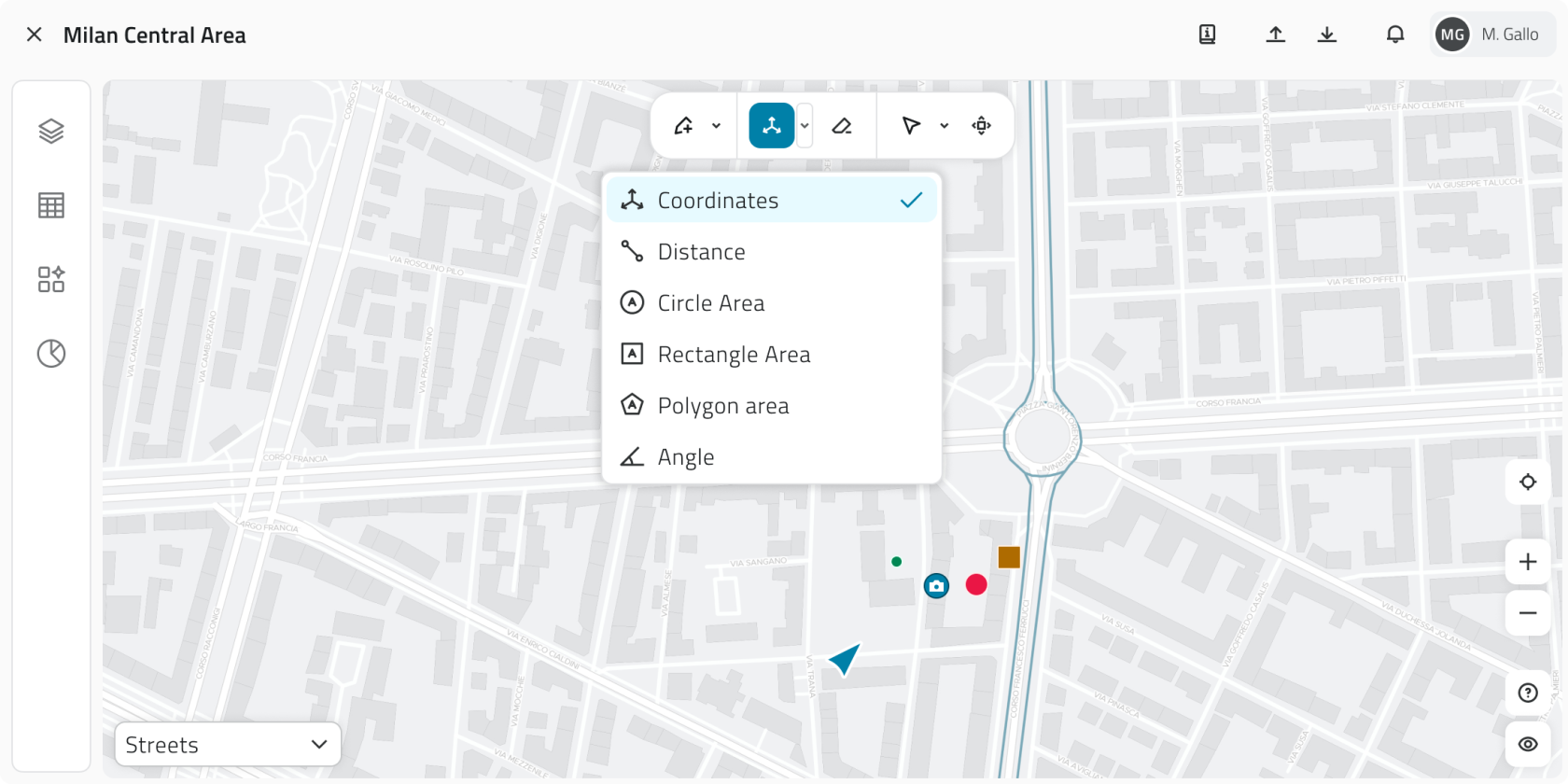
<table border="1" class="min-w-full border-collapse text-sm leading-[1.7] whitespace-normal" id="bkmrk-measurement-type-act" style="border-collapse: collapse; width: 100%; border-style: solid;"><thead><tr><td class="text-text-100 border-b-0.5 border-border-300/60 py-2 pr-4 align-top font-bold">**Measurement type**</td><td class="text-text-100 border-b-0.5 border-border-300/60 py-2 pr-4 align-top font-bold">**Action**</td><td class="text-text-100 border-b-0.5 border-border-300/60 py-2 pr-4 align-top font-bold">**Result**</td></tr></thead><tbody><tr><td class="border-b-0.5 border-border-300/30 py-2 pr-4 align-top">**Coordinates**</td><td class="border-b-0.5 border-border-300/30 py-2 pr-4 align-top">**Left-click** to fix the point.</td><td class="border-b-0.5 border-border-300/30 py-2 pr-4 align-top">Point coordinates.</td></tr><tr><td class="border-b-0.5 border-border-300/30 py-2 pr-4 align-top">**Distance**</td><td class="border-b-0.5 border-border-300/30 py-2 pr-4 align-top">**Left-click** to add points, **right-click** to close.</td><td class="border-b-0.5 border-border-300/30 py-2 pr-4 align-top">Total length and length of each segment.</td></tr><tr><td class="border-b-0.5 border-border-300/30 py-2 pr-4 align-top">**Circle area**</td><td class="border-b-0.5 border-border-300/30 py-2 pr-4 align-top">**Left-click** and drag.</td><td class="border-b-0.5 border-border-300/30 py-2 pr-4 align-top">Area.</td></tr><tr><td class="border-b-0.5 border-border-300/30 py-2 pr-4 align-top">**Rectangle area**</td><td class="border-b-0.5 border-border-300/30 py-2 pr-4 align-top">**Left-click** and drag.</td><td class="border-b-0.5 border-border-300/30 py-2 pr-4 align-top">Area and length of each side.</td></tr><tr><td class="border-b-0.5 border-border-300/30 py-2 pr-4 align-top">**Polygon area**</td><td class="border-b-0.5 border-border-300/30 py-2 pr-4 align-top">**Left-click** to add points, **right-click** to close.</td><td class="border-b-0.5 border-border-300/30 py-2 pr-4 align-top">Area and length of the segments.</td></tr><tr><td class="border-b-0.5 border-border-300/30 py-2 pr-4 align-top">**Angle**</td><td class="border-b-0.5 border-border-300/30 py-2 pr-4 align-top">**Three left-clicks** to fix the measurement.</td><td class="border-b-0.5 border-border-300/30 py-2 pr-4 align-top">Measurement in degrees.</td></tr></tbody></table>

To **delete a measurement** click the **X** next to its label.  
If you want to **remove all measurements** from the view, click the **Clear measurements button** in the toolbar.

---

### Measuring in the 3D View

Measurements in the **3D View** calculate measures in three-dimensional space. They only work if the measurement is taken on top of the point cloud or mesh.

[![2 - Measure 3D.png](https://wiki.eaglearca.com/uploads/images/gallery/2026-05/2-measure-3d.png)](https://wiki.eaglearca.com/uploads/images/gallery/2026-05/2-measure-3d.png)

<table border="1" class="min-w-full border-collapse text-sm leading-[1.7] whitespace-normal" id="bkmrk-measurement-type-act-1" style="border-collapse: collapse; width: 100%; border-style: solid;"><thead><tr><td class="text-text-100 border-b-0.5 border-border-300/60 py-2 pr-4 align-top font-bold">**Measurement type**</td><td class="text-text-100 border-b-0.5 border-border-300/60 py-2 pr-4 align-top font-bold">**Action**</td><td class="text-text-100 border-b-0.5 border-border-300/60 py-2 pr-4 align-top font-bold">**Result**</td></tr></thead><tbody><tr><td class="border-b-0.5 border-border-300/30 py-2 pr-4 align-top">**Coordinates**</td><td class="border-b-0.5 border-border-300/30 py-2 pr-4 align-top">**Left-click** to fix the point.</td><td class="border-b-0.5 border-border-300/30 py-2 pr-4 align-top">Point coordinates.</td></tr><tr><td class="border-b-0.5 border-border-300/30 py-2 pr-4 align-top">**Distance**</td><td class="border-b-0.5 border-border-300/30 py-2 pr-4 align-top">**Left-click** to add points, **right-click** to close.</td><td class="border-b-0.5 border-border-300/30 py-2 pr-4 align-top">Total length and length of each segment.</td></tr><tr><td class="border-b-0.5 border-border-300/30 py-2 pr-4 align-top">**Height**</td><td class="border-b-0.5 border-border-300/30 py-2 pr-4 align-top">**Two left-clicks** (start and end point).</td><td class="border-b-0.5 border-border-300/30 py-2 pr-4 align-top">Difference in elevation between the two points.</td></tr><tr><td class="border-b-0.5 border-border-300/30 py-2 pr-4 align-top">**Polygon area**</td><td class="border-b-0.5 border-border-300/30 py-2 pr-4 align-top">**Left-click** to add points, **right-click** to close.</td><td class="border-b-0.5 border-border-300/30 py-2 pr-4 align-top">Area.</td></tr></tbody></table>

To delete a measurement click the **X** next to its label; if you want to remove all measurements from the view, click the **Clear measurements button** in the toolbar.

💡 **Tip:** use the **Height** measurement to compare elevations or detect level differences between elements in the 3D scene.

<p class="callout warning">Measurements are not permanently saved, refreshing the page will cause all measurements to be lost.</p>

---

#### Links

- *[Navigating between views](https://wiki.eaglearca.com/books/app-features/page/navigating-between-views "Navigating between views")*

---

<span id="bkmrk-%C2%A0italian-version%C2%A0-1">![flag-italy-1f1ee-1f1f9.png](https://wiki.eaglearca.com/uploads/images/gallery/2026-05/aiMflag-italy-1f1ee-1f1f9.png) **Italian version** </span>

La funzione **Misura**, accessibile dalla barra degli strumenti passando con il mouse sulla vista, permette di calcolare coordinate, distanze, aree, angoli e altezze in entrambi gli ambienti 2D e 3D.

<p class="callout info">Nelle misurazioni di tipo **Coordinate**, **Distanza** e **Area poligono** è attivo lo snap sulle classi oggetto per una maggiore precisione.</p>

---

### Misurare nella Vista 2D

La misurazione nella **Vista 2D** calcola misure georeferenziate direttamente sulla mappa.

[![1 - Measure 2D.png](https://wiki.eaglearca.com/uploads/images/gallery/2026-05/scaled-1680-/1-measure-2d.png)](https://wiki.eaglearca.com/uploads/images/gallery/2026-05/1-measure-2d.png)

<table border="1" id="bkmrk-tipo-di-misurazione-" style="width: 100%; border-collapse: collapse; border-style: solid; height: 224px;"><thead><tr style="height: 29.6px;"><td style="width: 18.6076%; height: 29.6px;">**Tipo di Misurazione**</td><td style="width: 49.8734%; height: 29.6px;">**Azione**</td><td style="width: 31.519%; height: 29.6px;">**Risultato**</td></tr></thead><tbody><tr style="height: 29.6px;"><td style="width: 18.6076%; height: 29.6px;">**Coordinate**</td><td style="width: 49.8734%; height: 29.6px;">**Clic tasto sinistro** per fissare il punto.</td><td style="width: 31.519%; height: 29.6px;">Coordinate del punto.</td></tr><tr style="height: 46.4px;"><td style="width: 18.6076%; height: 46.4px;">**Distanza**</td><td style="width: 49.8734%; height: 46.4px;">**Clic tasto sinistro** per aggiungere punti, **clic tasto destro** per chiudere.</td><td style="width: 31.519%; height: 46.4px;">Lunghezza totale e di ogni segmento.</td></tr><tr style="height: 29.6px;"><td style="width: 18.6076%; height: 29.6px;">**Area cerchio**</td><td style="width: 49.8734%; height: 29.6px;">**Clic tasto sinistro** e trascina.</td><td style="width: 31.519%; height: 29.6px;">Area.</td></tr><tr style="height: 29.6px;"><td style="width: 18.6076%; height: 29.6px;">**Area rettangolo**</td><td style="width: 49.8734%; height: 29.6px;">**Clic tasto sinistro** e trascina.</td><td style="width: 31.519%; height: 29.6px;">Area e lunghezza di ogni lato.</td></tr><tr style="height: 29.6px;"><td style="width: 18.6076%; height: 29.6px;">**Area poligono**</td><td style="width: 49.8734%; height: 29.6px;">**Clic tasto sinistro** per punti, **clic tasto destro** per chiudere.</td><td style="width: 31.519%; height: 29.6px;">Area e lunghezza dei segmenti.</td></tr><tr style="height: 29.6px;"><td style="width: 18.6076%; height: 29.6px;">**Angolo**</td><td style="width: 49.8734%; height: 29.6px;">**Tre clic tasto sinistro** per fissare la misura.</td><td style="width: 31.519%; height: 29.6px;">Misura in gradi.</td></tr></tbody></table>


Per **eliminare una misura** clicca sulla **X** accanto alla sua etichetta.  
Se invece vuoi **rimuovere tutte le misure** dalla vista, clicca sul **pulsante Cancella misure** nella barra degli strumenti.

---

### Misurare nella Vista 3D

La misurazione nella **Vista 3D** calcola misure nello spazio tridimensionale. Funziona solo se la misura è eseguita sopra la nuvola di punti o la mesh.

[![2 - Measure 3D.png](https://wiki.eaglearca.com/uploads/images/gallery/2026-05/scaled-1680-/2-measure-3d.png)](https://wiki.eaglearca.com/uploads/images/gallery/2026-05/2-measure-3d.png)

<table border="1" id="bkmrk-tipo-di-misurazione--1" style="border-collapse: collapse; width: 100%; border-style: solid;"><thead><tr><td>**Tipo di Misurazione**</td><td>**Azione**</td><td>**Risultato**</td></tr></thead><tbody><tr><td>**Coordinate**</td><td>**Clic tasto sinistro** per fissare il punto.</td><td>Coordinate del punto.</td></tr><tr><td>**Distanza**</td><td>**Clic tasto sinistro** per punti, **Clic tasto destro** per chiudere.</td><td>Lunghezza totale e di ogni segmento.</td></tr><tr><td>**Altezza**</td><td>**Due clic tasto sinistro** (punto iniziale e finale).</td><td>Differenza di quota (altezza) tra i due punti.</td></tr><tr><td>**Area poligono**</td><td>**Clic tasto sinistro** per punti, **Clic tasto destro** per chiudere.</td><td>Area.</td></tr></tbody></table>

Per eliminare una misura clicca sulla **X** accanto alla sua etichetta; se invece vuoi rimuovere tutte le misure dalla vista, clicca sul **pulsante Cancella misure** nella barra degli strumenti.

💡 **Suggerimento:** usa la misura **Altezza** per confrontare quote o rilevare differenze di livello tra elementi nella scena 3D.

<p class="callout warning">Le misurazioni non vengono salvate in modo permanente, aggiornando la pagina tutte le misure andranno perse.</p>

---

### Collegamenti

- *[Navigare tra le viste](https://wiki.eaglearca.com/books/app-features/page/navigating-between-views "Navigating between views")*

---

***Last update:** 21 May 2026*

# Customize the 3D view

The Style and Settings functions allow you to customise the visual appearance, orientation and navigation dynamics of the three-dimensional scene. Both are accessible from the toolbar by hovering over the 3D view.

<div id="bkmrk-english-italiano" style="display: flex; gap: 8px; margin-bottom: 20px;">[<button id="bkmrk-btn-italiano" style="display: flex; align-items: center; gap: 6px; padding: 6px 14px; border: 1px solid #DEDFE0; border-radius: 6px; cursor: pointer; background: #EFF1F3; color: #333; font-weight: 600; line-height: 1;">![Bandiera italiana](https://wiki.eaglearca.com/uploads/images/gallery/2026-05/flag-italy-1f1ee-1f1f9.png) Italian version ↓</button>](https://wiki.eaglearca.com/link/156#bkmrk-%C2%A0italian-version%C2%A0)</div>---

<div id="bkmrk--1" style="display: flex; gap: 8px; margin-bottom: 20px;"></div><span id="bkmrk-italiano-1"> ![jQPeng.png](https://wiki.eaglearca.com/uploads/images/gallery/2026-05/KKPjqpeng.png) **English version**</span>

The **Style** and **Settings** functions allow you to customise the visual appearance, orientation and navigation dynamics of the three-dimensional scene. Both are accessible from the toolbar by hovering over the 3D view.

---

### Modifying the 3D View Style

The **Style** function (bucket icon) allows you to adjust point colours, background, element visibility and background grid parameters.

![1 - Icon Style.png](https://wiki.eaglearca.com/uploads/images/gallery/2025-12/scaled-1680-/1-icon-style.png)

<p class="callout info">At the top there is a **Reset** button that restores all Style settings to their default values</p>

#### Points

Applicable only when **point clouds** are present.

[![2 - Section Points.png](https://wiki.eaglearca.com/uploads/images/gallery/2026-05/2-section-points.png)](https://wiki.eaglearca.com/uploads/images/gallery/2025-12/5Bk2-section-points.png)
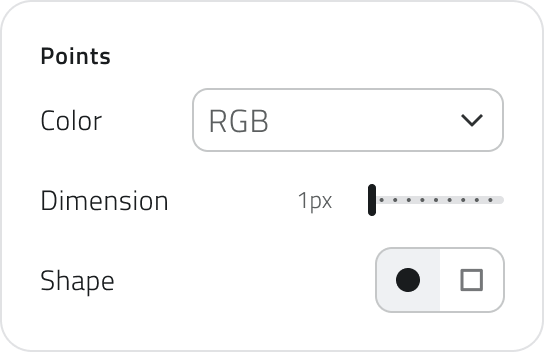
<table border="1" class="min-w-full border-collapse text-sm leading-[1.7] whitespace-normal" id="bkmrk-parameter-customisat" style="border-collapse: collapse; width: 100%; border-style: solid;"><thead><tr><td class="text-text-100 border-b-0.5 border-border-300/60 py-2 pr-4 align-top font-bold">**Parameter**</td><td class="text-text-100 border-b-0.5 border-border-300/60 py-2 pr-4 align-top font-bold">**Customisation details**</td></tr></thead><tbody><tr><td class="border-b-0.5 border-border-300/30 py-2 pr-4 align-top">**Colour**</td><td class="border-b-0.5 border-border-300/30 py-2 pr-4 align-top">Various modes available (e.g. RGB, Depth, Elevation, Intensity, Normal, Composite).</td></tr><tr><td class="border-b-0.5 border-border-300/30 py-2 pr-4 align-top">**Size**</td><td class="border-b-0.5 border-border-300/30 py-2 pr-4 align-top">Adjustable between **1 and 10 pixels**.</td></tr><tr><td class="border-b-0.5 border-border-300/30 py-2 pr-4 align-top">**Shape**</td><td class="border-b-0.5 border-border-300/30 py-2 pr-4 align-top">Choose between **circles** and **squares**.</td></tr></tbody></table>

#### General

[![3 - Section General.png](https://wiki.eaglearca.com/uploads/images/gallery/2026-05/scaled-1680-/O7n3-section-general.png)](https://wiki.eaglearca.com/uploads/images/gallery/2026-05/O7n3-section-general.png)

<table border="1" class="min-w-full border-collapse text-sm leading-[1.7] whitespace-normal" id="bkmrk-parameter-customisat-1" style="border-collapse: collapse; width: 100%; border-style: solid;"><thead><tr><td class="text-text-100 border-b-0.5 border-border-300/60 py-2 pr-4 align-top font-bold">**Parameter**</td><td class="text-text-100 border-b-0.5 border-border-300/60 py-2 pr-4 align-top font-bold">**Customisation details**</td></tr></thead><tbody><tr><td class="border-b-0.5 border-border-300/30 py-2 pr-4 align-top">**Background**</td><td class="border-b-0.5 border-border-300/30 py-2 pr-4 align-top">Set a **panoramic background** or a **solid colour**.</td></tr><tr><td class="border-b-0.5 border-border-300/30 py-2 pr-4 align-top">**Intensity** (panoramic background)</td><td class="border-b-0.5 border-border-300/30 py-2 pr-4 align-top">Sets the intensity of the background image in a range between 1 and 0 (black).</td></tr><tr><td class="border-b-0.5 border-border-300/30 py-2 pr-4 align-top">**Colour** (solid colour)</td><td class="border-b-0.5 border-border-300/30 py-2 pr-4 align-top">Choose from 4 background colours.</td></tr></tbody></table>

#### Visibility

Adjusts the **transparency percentage** for the various elements in the scene.

[![4 - Section Visibility.png](https://wiki.eaglearca.com/uploads/images/gallery/2026-05/scaled-1680-/4-section-visibility.png)](https://wiki.eaglearca.com/uploads/images/gallery/2026-05/4-section-visibility.png)

#### Grid

[![5 - Section Grid.png](https://wiki.eaglearca.com/uploads/images/gallery/2026-05/scaled-1680-/5-section-grid.png)](https://wiki.eaglearca.com/uploads/images/gallery/2026-05/5-section-grid.png)

<table border="1" class="min-w-full border-collapse text-sm leading-[1.7] whitespace-normal" id="bkmrk-function-%2F-parameter" style="border-collapse: collapse; width: 100%; border-style: solid;"><thead><tr><td class="text-text-100 border-b-0.5 border-border-300/60 py-2 pr-4 align-top font-bold">**Function / Parameter**</td><td class="text-text-100 border-b-0.5 border-border-300/60 py-2 pr-4 align-top font-bold">**Action**</td></tr></thead><tbody><tr><td class="border-b-0.5 border-border-300/30 py-2 pr-4 align-top">**Grid visible** (Enable/Disable)</td><td class="border-b-0.5 border-border-300/30 py-2 pr-4 align-top">Enables or disables the grid display.</td></tr><tr><td class="border-b-0.5 border-border-300/30 py-2 pr-4 align-top">**Opacity**</td><td class="border-b-0.5 border-border-300/30 py-2 pr-4 align-top">Adjusts the transparency percentage of the grid.</td></tr><tr><td class="border-b-0.5 border-border-300/30 py-2 pr-4 align-top">**Scale**</td><td class="border-b-0.5 border-border-300/30 py-2 pr-4 align-top">Adjusts the size of the grid.</td></tr></tbody></table>

---

### Modifying the 3D View Settings

This function, accessible via the **Settings** icon, allows you to adjust the movement and rotation speed of the 3D view.

#### ![6 - Icon Settings.png](https://wiki.eaglearca.com/uploads/images/gallery/2025-12/scaled-1680-/6-icon-settings.png)

<p class="callout info">At the top there is a **Reset** button that restores all Settings to their default values.</p>

#### Speed

[![7 - Menu Settings.png](https://wiki.eaglearca.com/uploads/images/gallery/2026-05/scaled-1680-/7-menu-settings.png)](https://wiki.eaglearca.com/uploads/images/gallery/2026-05/7-menu-settings.png)

<table border="1" class="min-w-full border-collapse text-sm leading-[1.7] whitespace-normal" id="bkmrk-parameter-adjustment" style="border-collapse: collapse; width: 100%; border-style: solid;"><thead><tr><td class="text-text-100 border-b-0.5 border-border-300/60 py-2 pr-4 align-top font-bold">**Parameter**</td><td class="text-text-100 border-b-0.5 border-border-300/60 py-2 pr-4 align-top font-bold">**Adjustment range**</td><td class="text-text-100 border-b-0.5 border-border-300/60 py-2 pr-4 align-top font-bold">**Purpose**</td></tr></thead><tbody><tr><td class="border-b-0.5 border-border-300/30 py-2 pr-4 align-top">**Movement**</td><td class="border-b-0.5 border-border-300/30 py-2 pr-4 align-top">Between **40 and 500**.</td><td class="border-b-0.5 border-border-300/30 py-2 pr-4 align-top">Adjusts how quickly you move through the scene.</td></tr><tr><td class="border-b-0.5 border-border-300/30 py-2 pr-4 align-top">**Rotation**</td><td class="border-b-0.5 border-border-300/30 py-2 pr-4 align-top">Between **100 and 500**.</td><td class="border-b-0.5 border-border-300/30 py-2 pr-4 align-top">Adjusts the speed at which the 3D view rotates.</td></tr></tbody></table>

---

### Links

- *[Navigating between views](https://wiki.eaglearca.com/books/app-features/page/navigating-between-views "Navigating between views")*

---

<span id="bkmrk-%C2%A0italian-version%C2%A0-1">![flag-italy-1f1ee-1f1f9.png](https://wiki.eaglearca.com/uploads/images/gallery/2026-05/aiMflag-italy-1f1ee-1f1f9.png) **Italian version** </span>

Le funzioni di **Stile** e **Impostazioni** ti permettono di personalizzare l'aspetto visivo, l'orientamento e la dinamica di navigazione della scena tridimensionale. Entrambe sono accessibili dalla barra degli strumenti passando con il mouse sulla vista 3D.

---

### Modificare lo Stile della Vista 3D

La funzione **Stile** (icona del secchiello) permette di regolare i colori dei punti, lo sfondo, la visibilità degli elementi e i parametri della griglia di sfondo.

![1 - Icon Style.png](https://wiki.eaglearca.com/uploads/images/gallery/2025-12/scaled-1680-/1-icon-style.png)

<p class="callout info">In alto è presente il pulsante di **Reset**, che riporta tutte le voci dello Stile ai valori di default.</p>


#### Punti

Applicabile solo in presenza di **nuvole di punti**.

[![2 - Section Points.png](https://wiki.eaglearca.com/uploads/images/gallery/2026-05/2-section-points.png)](https://wiki.eaglearca.com/uploads/images/gallery/2025-12/5Bk2-section-points.png)

<table border="1" id="bkmrk-parametro-dettagli-d" style="border-collapse: collapse; width: 100%; border-style: solid;"><thead><tr><td style="width: 21.9644%;">**Parametro**</td><td style="width: 78.1548%;">**Dettagli di Personalizzazione**</td></tr></thead><tbody><tr><td style="width: 21.9644%;">**Colore**</td><td style="width: 78.1548%;">Varie modalità disponibili (es. RGB, Profondità, Elevazione, Intensità, Normale, Composto).</td></tr><tr><td style="width: 21.9644%;">**Dimensione**</td><td style="width: 78.1548%;">Regolabile tra **1 e 10 pixel**.</td></tr><tr><td style="width: 21.9644%;">**Forma**</td><td style="width: 78.1548%;">Scegli tra **cerchi** e **quadrati**.</td></tr></tbody></table>

#### Generale

[![3 - Section General.png](https://wiki.eaglearca.com/uploads/images/gallery/2026-05/scaled-1680-/O7n3-section-general.png)](https://wiki.eaglearca.com/uploads/images/gallery/2026-05/O7n3-section-general.png)

<table border="1" id="bkmrk-parametro-dettagli-d-1" style="border-collapse: collapse; width: 100%; border-style: solid; height: 152.781px;"><thead><tr style="height: 29.7969px;"><td style="width: 21.8453%; height: 29.7969px;">**Parametro**</td><td style="width: 78.2739%; height: 29.7969px;">**Dettagli di Personalizzazione**</td></tr></thead><tbody><tr style="height: 46.5938px;"><td style="width: 21.8453%; height: 46.5938px;">**Sfondo**</td><td style="width: 78.2739%; height: 46.5938px;">Imposta uno **sfondo panoramico** o una **tinta unita**.</td></tr><tr style="height: 46.5938px;"><td style="width: 21.8453%; height: 46.5938px;">**Intensità** (sfondo panoramico)</td><td style="width: 78.2739%; height: 46.5938px;">Imposta l'intensità dell'immagine di sfondo in un range tra 1 e 0 (nero).</td></tr><tr style="height: 29.7969px;"><td style="width: 21.8453%; height: 29.7969px;">**Colore** (tinta unita)</td><td style="width: 78.2739%; height: 29.7969px;">Scegli tra 4 colori di sfondo.</td></tr></tbody></table>

#### Visibilità

Regola la **percentuale di trasparenza** per i vari elementi della scena.

[![4 - Section Visibility.png](https://wiki.eaglearca.com/uploads/images/gallery/2026-05/scaled-1680-/4-section-visibility.png)](https://wiki.eaglearca.com/uploads/images/gallery/2026-05/4-section-visibility.png)

#### Griglia

[![5 - Section Grid.png](https://wiki.eaglearca.com/uploads/images/gallery/2026-05/scaled-1680-/5-section-grid.png)](https://wiki.eaglearca.com/uploads/images/gallery/2026-05/5-section-grid.png)

<table border="1" id="bkmrk-funzione-%2F-parametro" style="border-collapse: collapse; width: 100%; border-style: solid; height: 169.578px;"><thead><tr style="height: 29.7969px;"><td style="height: 29.7969px; width: 50.0596%;">**Funzione / Parametro**</td><td style="height: 29.7969px; width: 50.0596%;">**Azione**</td></tr></thead><tbody><tr style="height: 46.5938px;"><td style="height: 46.5938px; width: 50.0596%;">**Griglia visibile** (Attiva/Disattiva)</td><td style="height: 46.5938px; width: 50.0596%;">Attiva o disattiva la visualizzazione della griglia.</td></tr><tr style="height: 46.5938px;"><td style="height: 46.5938px; width: 50.0596%;">**Opacità**</td><td style="height: 46.5938px; width: 50.0596%;">Regola la percentuale di trasparenza della griglia.</td></tr><tr style="height: 46.5938px;"><td style="height: 46.5938px; width: 50.0596%;">**Scala**</td><td style="height: 46.5938px; width: 50.0596%;">Regola la dimensione della griglia.</td></tr></tbody></table>

---

### Modificare le Impostazioni della Vista 3D

Questa funzione, accessibile tramite l'icona **Impostazioni**, ti permette di regolare la velocità di movimento e rotazione della visuale 3D.

#### ![6 - Icon Settings.png](https://wiki.eaglearca.com/uploads/images/gallery/2025-12/scaled-1680-/6-icon-settings.png)

<p class="callout info">In alto è presente il pulsante di **Reset**, che riporta tutte le voci delle Impostazioni ai valori di default.</p>


#### Velocità

[![7 - Menu Settings.png](https://wiki.eaglearca.com/uploads/images/gallery/2026-05/scaled-1680-/7-menu-settings.png)](https://wiki.eaglearca.com/uploads/images/gallery/2026-05/7-menu-settings.png)

<table border="1" id="bkmrk-parametro-intervallo" style="border-collapse: collapse; width: 100%; border-style: solid; height: 122.984px;"><thead><tr style="height: 29.7969px;"><td style="height: 29.7969px;">**Parametro**</td><td style="height: 29.7969px;">**Intervallo di Regolazione**</td><td style="height: 29.7969px;">**Scopo**</td></tr></thead><tbody><tr style="height: 46.5938px;"><td style="height: 46.5938px;">**Movimento**</td><td style="height: 46.5938px;">Tra **40 e 500**.</td><td style="height: 46.5938px;">Regola quanto rapidamente ci si muove nella scena.</td></tr><tr style="height: 46.5938px;"><td style="height: 46.5938px;">**Rotazione**</td><td style="height: 46.5938px;">Tra **100 e 500**.</td><td style="height: 46.5938px;">Regola la velocità con cui ruota la visuale 3D.</td></tr></tbody></table>

---

### Collegamenti

- *[Navigare tra le viste](https://wiki.eaglearca.com/books/app-features/page/navigating-between-views "Navigating between views")*

---

***Last update:** 21 May 2026*

# Import shape files

The Upload Shape tool allows you to import geographic data in Shapefile format and automatically create new objects within an object class in the project.

<div id="bkmrk-english-italiano" style="display: flex; gap: 8px; margin-bottom: 20px;">[<button id="bkmrk-btn-italiano" style="display: flex; align-items: center; gap: 6px; padding: 6px 14px; border: 1px solid #DEDFE0; border-radius: 6px; cursor: pointer; background: #EFF1F3; color: #333; font-weight: 600; line-height: 1;">![Bandiera italiana](https://wiki.eaglearca.com/uploads/images/gallery/2026-05/flag-italy-1f1ee-1f1f9.png) Italian version ↓</button>](https://wiki.eaglearca.com/link/157#bkmrk-%C2%A0italian-version%C2%A0)</div>---

<div id="bkmrk--1" style="display: flex; gap: 8px; margin-bottom: 20px;"></div><span id="bkmrk-italiano-1"> ![jQPeng.png](https://wiki.eaglearca.com/uploads/images/gallery/2026-05/KKPjqpeng.png) **English version**</span>

The **Upload Shape** tool allows you to import geographic data in **Shapefile** format and automatically create new objects within an object class in the project.

During the import, the geometries in the shapefile are converted into objects of the selected object class and the attributes are filled in using the values present in the file.

---

### Preparing the Shapefile

The file must be uploaded in **ZIP** format and must contain the main shapefile components:

- `.shp`
- `.dbf`
- `.shx`
- `.prj`

All files must have **the same name**.

The maximum ZIP file size is **10 MB**.

[![1 - Shapefile Structure.png](https://wiki.eaglearca.com/uploads/images/gallery/2026-03/s8U1-shapefile-structure.png)](https://wiki.eaglearca.com/uploads/images/gallery/2026-03/1-shapefile-structure.png)

<p class="callout info">**Only one Shape file can be uploaded at a time.**  
Each upload allows you to create objects for **one object class only.**</p>

---

### Importing a Shapefile

To import a shapefile:

**1)** Open the **Tools** section of the project.

<button class="bg-bg-300 border-border-300 font-ui text-text-300 inline-block grid h-32 w-40 items-center justify-items-center rounded-xl border p-4">![1 - Icon Tools.png](https://wiki.eaglearca.com/uploads/images/gallery/2026-03/scaled-1680-/1-icon-tools.png)</button>

**2)** Click the **Upload Shape** button.
<button class="bg-bg-300 border-border-300 font-ui text-text-300 inline-block grid h-32 w-40 items-center justify-items-center rounded-xl border p-4">![2 - Card Upload Shape.png](https://wiki.eaglearca.com/uploads/images/gallery/2026-03/scaled-1680-/2-card-upload-shape.png)</button>

**3)** Select the **ZIP** file containing the shapefile.

**4)** Select the **object class** to import the data into and click the **Validate** button to verify that the uploaded file meets the necessary requirements.
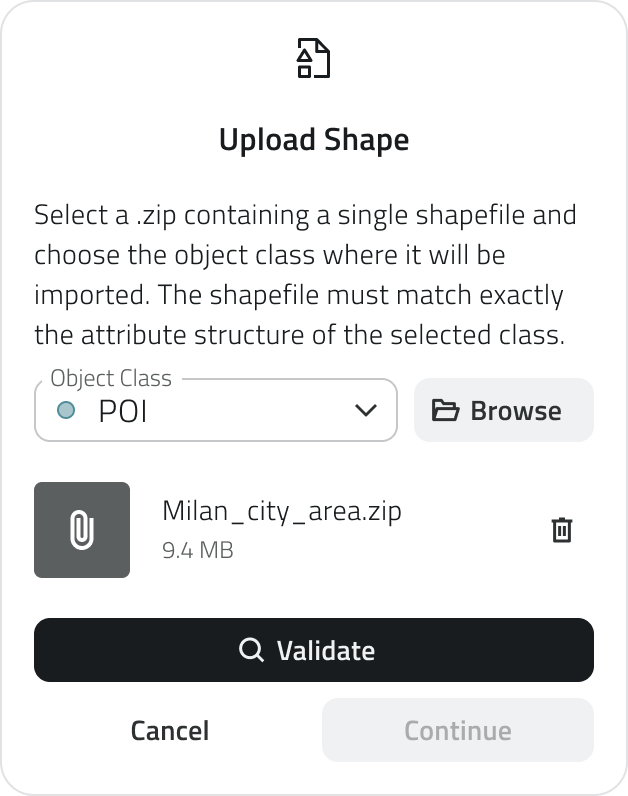
<button class="bg-bg-300 border-border-300 font-ui text-text-300 inline-block grid h-32 w-40 items-center justify-items-center rounded-xl border p-4">![3 - Dialog Upload Shape.png](https://wiki.eaglearca.com/uploads/images/gallery/2026-03/h9R3-dialog-upload-shape.png)</button>

During this phase the system automatically performs some checks.

In particular it verifies that:

- the geometry type of the shapefile is compatible with the selected object class
- the shapefile contains sufficient attributes to fill in the **mandatory** ones of the object class

If the checks are passed, you can proceed with the import configuration.

#### Coordinate systems

The platform is compatible with the following coordinate systems:

<div class="overflow-x-auto w-full px-2 mb-6" id="bkmrk-epsg-code-name-type-"><table border="1" class="min-w-full border-collapse text-sm leading-[1.7] whitespace-normal" style="width: 100%; height: 595.938px; border-collapse: collapse; border-style: solid;"><thead><tr style="height: 29.7969px;"><td class="text-text-100 border-b-0.5 border-border-300/60 py-2 pr-4 align-top font-bold" style="width: 18.2017%; height: 29.7969px;">**EPSG code**</td><td class="text-text-100 border-b-0.5 border-border-300/60 py-2 pr-4 align-top font-bold" style="width: 63.6663%; height: 29.7969px;">**Name**</td><td class="text-text-100 border-b-0.5 border-border-300/60 py-2 pr-4 align-top font-bold" style="width: 17.926%; height: 29.7969px;">**Type**</td></tr></thead><tbody><tr style="height: 29.7969px;"><td class="border-b-0.5 border-border-300/30 py-2 pr-4 align-top" style="width: 18.2017%; height: 29.7969px;">EPSG:4326</td><td class="border-b-0.5 border-border-300/30 py-2 pr-4 align-top" style="width: 63.6663%; height: 29.7969px;">WGS 84</td><td class="border-b-0.5 border-border-300/30 py-2 pr-4 align-top" style="width: 17.926%; height: 29.7969px;">Geographic</td></tr><tr style="height: 29.7969px;"><td class="border-b-0.5 border-border-300/30 py-2 pr-4 align-top" style="width: 18.2017%; height: 29.7969px;">EPSG:3857</td><td class="border-b-0.5 border-border-300/30 py-2 pr-4 align-top" style="width: 63.6663%; height: 29.7969px;">Web Mercator</td><td class="border-b-0.5 border-border-300/30 py-2 pr-4 align-top" style="width: 17.926%; height: 29.7969px;">Projected</td></tr><tr style="height: 29.7969px;"><td class="border-b-0.5 border-border-300/30 py-2 pr-4 align-top" style="width: 18.2017%; height: 29.7969px;">EPSG:3003</td><td class="border-b-0.5 border-border-300/30 py-2 pr-4 align-top" style="width: 63.6663%; height: 29.7969px;">Monte Mario / Italy zone 1 (Gauss-Boaga Ovest)</td><td class="border-b-0.5 border-border-300/30 py-2 pr-4 align-top" style="width: 17.926%; height: 29.7969px;">Projected</td></tr><tr style="height: 29.7969px;"><td class="border-b-0.5 border-border-300/30 py-2 pr-4 align-top" style="width: 18.2017%; height: 29.7969px;">EPSG:3004</td><td class="border-b-0.5 border-border-300/30 py-2 pr-4 align-top" style="width: 63.6663%; height: 29.7969px;">Monte Mario / Italy zone 2 (Gauss-Boaga Est)</td><td class="border-b-0.5 border-border-300/30 py-2 pr-4 align-top" style="width: 17.926%; height: 29.7969px;">Projected</td></tr><tr style="height: 29.7969px;"><td class="border-b-0.5 border-border-300/30 py-2 pr-4 align-top" style="width: 18.2017%; height: 29.7969px;">EPSG:6707</td><td class="border-b-0.5 border-border-300/30 py-2 pr-4 align-top" style="width: 63.6663%; height: 29.7969px;">RDN2008 / Italy zone (E-N) — TM32</td><td class="border-b-0.5 border-border-300/30 py-2 pr-4 align-top" style="width: 17.926%; height: 29.7969px;">Projected</td></tr><tr style="height: 29.7969px;"><td class="border-b-0.5 border-border-300/30 py-2 pr-4 align-top" style="width: 18.2017%; height: 29.7969px;">EPSG:6708</td><td class="border-b-0.5 border-border-300/30 py-2 pr-4 align-top" style="width: 63.6663%; height: 29.7969px;">RDN2008 / Italy zone (E-N) — TM33</td><td class="border-b-0.5 border-border-300/30 py-2 pr-4 align-top" style="width: 17.926%; height: 29.7969px;">Projected</td></tr><tr style="height: 29.7969px;"><td class="border-b-0.5 border-border-300/30 py-2 pr-4 align-top" style="width: 18.2017%; height: 29.7969px;">EPSG:25832</td><td class="border-b-0.5 border-border-300/30 py-2 pr-4 align-top" style="width: 63.6663%; height: 29.7969px;">ETRS89 / UTM zone 32N</td><td class="border-b-0.5 border-border-300/30 py-2 pr-4 align-top" style="width: 17.926%; height: 29.7969px;">Projected</td></tr><tr style="height: 29.7969px;"><td class="border-b-0.5 border-border-300/30 py-2 pr-4 align-top" style="width: 18.2017%; height: 29.7969px;">EPSG:25833</td><td class="border-b-0.5 border-border-300/30 py-2 pr-4 align-top" style="width: 63.6663%; height: 29.7969px;">ETRS89 / UTM zone 33N</td><td class="border-b-0.5 border-border-300/30 py-2 pr-4 align-top" style="width: 17.926%; height: 29.7969px;">Projected</td></tr><tr style="height: 29.7969px;"><td class="border-b-0.5 border-border-300/30 py-2 pr-4 align-top" style="width: 18.2017%; height: 29.7969px;">EPSG:32632</td><td class="border-b-0.5 border-border-300/30 py-2 pr-4 align-top" style="width: 63.6663%; height: 29.7969px;">WGS 84 / UTM zone 32N</td><td class="border-b-0.5 border-border-300/30 py-2 pr-4 align-top" style="width: 17.926%; height: 29.7969px;">Projected</td></tr><tr style="height: 29.7969px;"><td class="border-b-0.5 border-border-300/30 py-2 pr-4 align-top" style="width: 18.2017%; height: 29.7969px;">EPSG:32633</td><td class="border-b-0.5 border-border-300/30 py-2 pr-4 align-top" style="width: 63.6663%; height: 29.7969px;">WGS 84 / UTM zone 33N</td><td class="border-b-0.5 border-border-300/30 py-2 pr-4 align-top" style="width: 17.926%; height: 29.7969px;">Projected</td></tr><tr style="height: 29.7969px;"><td class="border-b-0.5 border-border-300/30 py-2 pr-4 align-top" style="width: 18.2017%; height: 29.7969px;">EPSG:23032</td><td class="border-b-0.5 border-border-300/30 py-2 pr-4 align-top" style="width: 63.6663%; height: 29.7969px;">ED50 / UTM zone 32N</td><td class="border-b-0.5 border-border-300/30 py-2 pr-4 align-top" style="width: 17.926%; height: 29.7969px;">Projected</td></tr><tr style="height: 29.7969px;"><td class="border-b-0.5 border-border-300/30 py-2 pr-4 align-top" style="width: 18.2017%; height: 29.7969px;">EPSG:23033</td><td class="border-b-0.5 border-border-300/30 py-2 pr-4 align-top" style="width: 63.6663%; height: 29.7969px;">ED50 / UTM zone 33N</td><td class="border-b-0.5 border-border-300/30 py-2 pr-4 align-top" style="width: 17.926%; height: 29.7969px;">Projected</td></tr><tr style="height: 29.7969px;"><td class="border-b-0.5 border-border-300/30 py-2 pr-4 align-top" style="width: 18.2017%; height: 29.7969px;">EPSG:28992</td><td class="border-b-0.5 border-border-300/30 py-2 pr-4 align-top" style="width: 63.6663%; height: 29.7969px;">Amersfoort / RD New (Netherlands)</td><td class="border-b-0.5 border-border-300/30 py-2 pr-4 align-top" style="width: 17.926%; height: 29.7969px;">Projected</td></tr><tr style="height: 29.7969px;"><td class="border-b-0.5 border-border-300/30 py-2 pr-4 align-top" style="width: 18.2017%; height: 29.7969px;">EPSG:27700</td><td class="border-b-0.5 border-border-300/30 py-2 pr-4 align-top" style="width: 63.6663%; height: 29.7969px;">OSGB36 / British National Grid</td><td class="border-b-0.5 border-border-300/30 py-2 pr-4 align-top" style="width: 17.926%; height: 29.7969px;">Projected</td></tr><tr style="height: 29.7969px;"><td class="border-b-0.5 border-border-300/30 py-2 pr-4 align-top" style="width: 18.2017%; height: 29.7969px;">EPSG:2154</td><td class="border-b-0.5 border-border-300/30 py-2 pr-4 align-top" style="width: 63.6663%; height: 29.7969px;">RGF93 / Lambert-93</td><td class="border-b-0.5 border-border-300/30 py-2 pr-4 align-top" style="width: 17.926%; height: 29.7969px;">Projected</td></tr><tr style="height: 29.7969px;"><td class="border-b-0.5 border-border-300/30 py-2 pr-4 align-top" style="width: 18.2017%; height: 29.7969px;">EPSG:4258</td><td class="border-b-0.5 border-border-300/30 py-2 pr-4 align-top" style="width: 63.6663%; height: 29.7969px;">ETRS89 (geographic)</td><td class="border-b-0.5 border-border-300/30 py-2 pr-4 align-top" style="width: 17.926%; height: 29.7969px;">Geographic</td></tr><tr style="height: 29.7969px;"><td class="border-b-0.5 border-border-300/30 py-2 pr-4 align-top" style="width: 18.2017%; height: 29.7969px;">EPSG:4269</td><td class="border-b-0.5 border-border-300/30 py-2 pr-4 align-top" style="width: 63.6663%; height: 29.7969px;">NAD83 (geographic)</td><td class="border-b-0.5 border-border-300/30 py-2 pr-4 align-top" style="width: 17.926%; height: 29.7969px;">Geographic</td></tr><tr style="height: 29.7969px;"><td class="border-b-0.5 border-border-300/30 py-2 pr-4 align-top" style="width: 18.2017%; height: 29.7969px;">EPSG:4267</td><td class="border-b-0.5 border-border-300/30 py-2 pr-4 align-top" style="width: 63.6663%; height: 29.7969px;">NAD27 (geographic)</td><td class="border-b-0.5 border-border-300/30 py-2 pr-4 align-top" style="width: 17.926%; height: 29.7969px;">Geographic</td></tr><tr style="height: 29.7969px;"><td class="border-b-0.5 border-border-300/30 py-2 pr-4 align-top" style="width: 18.2017%; height: 29.7969px;">EPSG:4230</td><td class="border-b-0.5 border-border-300/30 py-2 pr-4 align-top" style="width: 63.6663%; height: 29.7969px;">ED50 (geographic)</td><td class="border-b-0.5 border-border-300/30 py-2 pr-4 align-top" style="width: 17.926%; height: 29.7969px;">Geographic</td></tr></tbody></table>

</div>---

### Mapping shapefile attributes

After the file has been validated, a screen is displayed that allows you to **manually configure the attribute mappings**. The system automatically suggests an initial match between the **attributes in the shapefile** and those of the **object class**.

The screen is organised in two columns:

- **left:** attributes present in the shapefile
- **right:** attributes of the object class

<button class="bg-bg-300 border-border-300 font-ui text-text-300 inline-block grid h-32 w-40 items-center justify-items-center rounded-xl border p-4">![4 - Map Attributes.png](https://wiki.eaglearca.com/uploads/images/gallery/2026-03/lIR4-map-attributes.png)</button>

For each attribute of the object class you can select which shapefile attribute to use.

During configuration, some visual indicators are shown to help complete the mapping correctly.

In particular:

- **Mandatory** attributes of the selected object class that have not yet been filled in are highlighted in **red**.
- Shapefile attributes that have already been used are shown as **linked** and highlighted in **green**.
- A **counter** shows how many shapefile attributes have **not yet been mapped**.

Only attributes of the **same type** can be mapped together.

If a shapefile attribute is reused, the previous mapping is automatically removed.

The **Import** button becomes available only when all mandatory attributes have been mapped.

---

### Starting the import

When you confirm the import by clicking **Import**, the system starts the upload process.

During this phase:

- The **object class instances** are created automatically
- Geometries are imported from the shapefile
- Attribute values are filled in according to the configured mappings

<p class="callout warning">Leaving the project or refreshing the browser page will interrupt all ongoing uploads.</p>

---

### Monitoring the import status

In the page header, the **Upload** menu is available, which allows you to monitor the **status**, the **import progress** of shapefiles and the **outcome of the last completed operation**.

Information about the last upload remains visible for **4 hours from the start of the import**.

[![Import status tracking.png](https://wiki.eaglearca.com/uploads/images/gallery/2026-05/scaled-1680-/import-status-tracking.png)](https://wiki.eaglearca.com/uploads/images/gallery/2026-05/import-status-tracking.png)
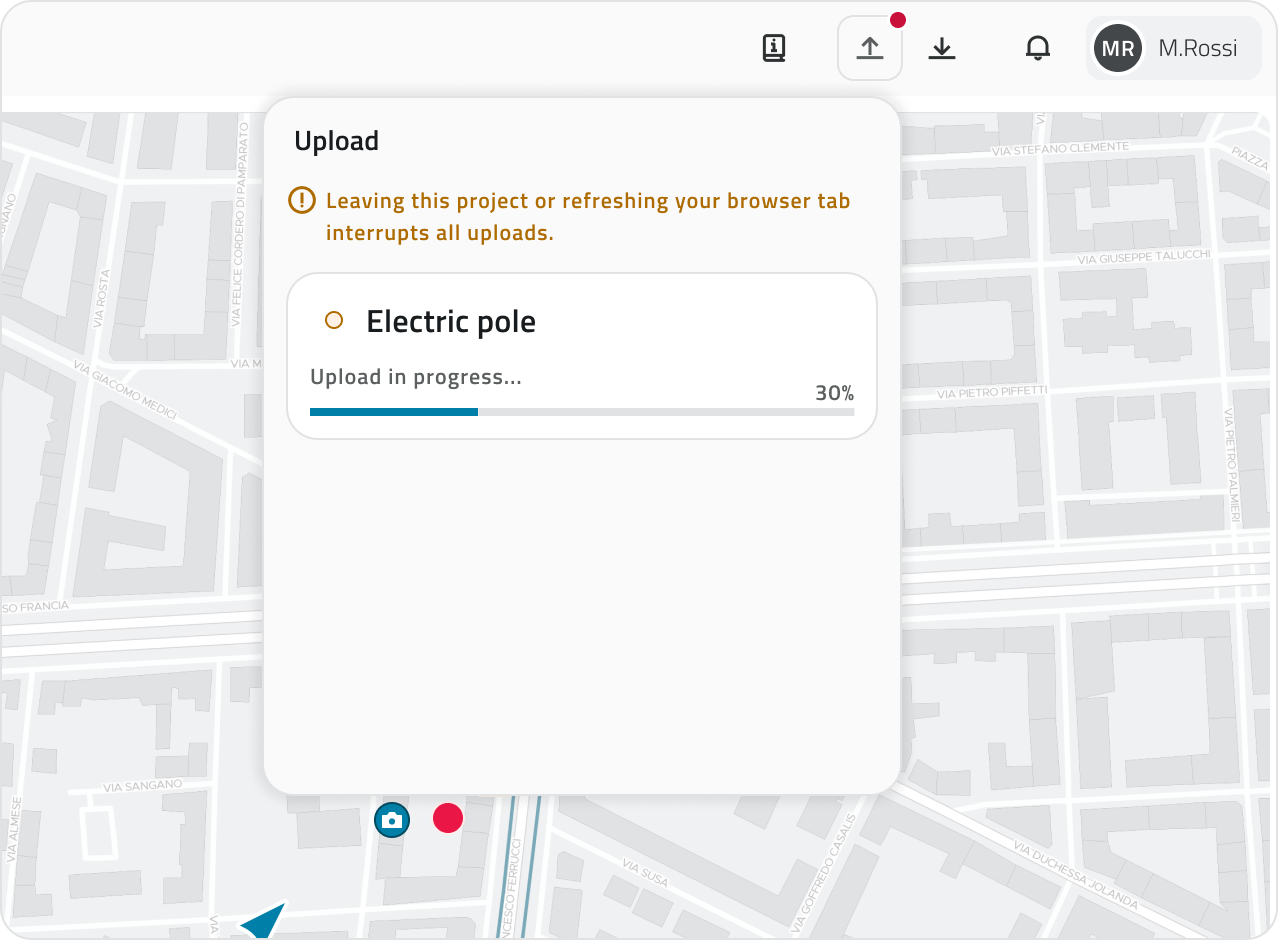
<p class="callout warning">**Only one Shape file can be uploaded at a time.**  
If necessary, the ongoing upload **can be** **cancelled** using the **Cancel** button.</p>

---

### Import completed

At the end of the import, the shapefile geometries are created in the selected object class. If some geometries are **invalid** or **incomplete**, they may not be imported.

The upload card shows the number of geometries created relative to the total present in the file.

Once the operation is complete, you can always download the **import report**, which contains a summary of the processed elements and any issues encountered.

[![download report upload.png](https://wiki.eaglearca.com/uploads/images/gallery/2026-05/scaled-1680-/download-report-upload.png)](https://wiki.eaglearca.com/uploads/images/gallery/2026-05/download-report-upload.png)
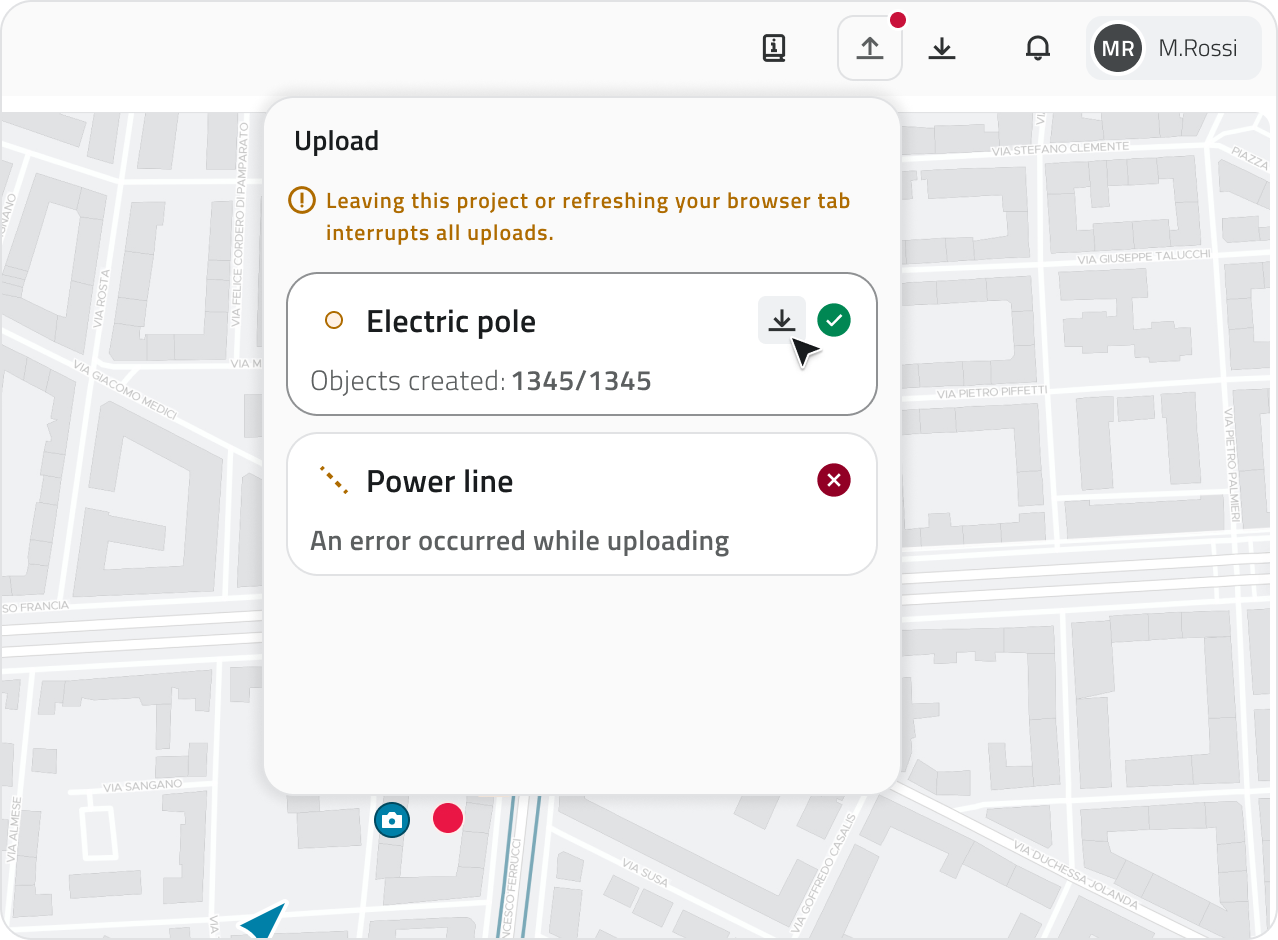
💡 **Tip:** Use the report to check for any issues: if the import is partial, the report allows you to identify the geometries that were not imported.

---

#### Links

- [Create and manage Object Classes](https://wiki.eaglearca.com/books/backoffice/page/create-and-manage-object-classes "Create and manage Object Classes")
- [Navigating between views](https://wiki.eaglearca.com/books/app-features/page/navigating-between-views "Navigating between views")

---

<span id="bkmrk-%C2%A0italian-version%C2%A0-1">![flag-italy-1f1ee-1f1f9.png](https://wiki.eaglearca.com/uploads/images/gallery/2026-05/aiMflag-italy-1f1ee-1f1f9.png) **Italian version** </span>

Lo strumento **Upload Shape** permette di importare dati geografici in formato **Shapefile** e creare automaticamente nuovi oggetti all’interno di una classe oggetto del progetto.

Durante l’importazione, le geometrie presenti nello shapefile vengono convertite in oggetti della classe oggetto selezionata e gli attributi vengono compilati utilizzando i valori presenti nel file.

---

### Preparare il file Shapefile

Il file deve essere caricato in formato **ZIP** e deve contenere i principali componenti dello shapefile:

- `.shp`
- `.dbf`
- `.shx`
- `.prj`

Tutti i file devono avere **lo stesso nome**.

La dimensione massima del file ZIP è **10 MB**.

[![1 - Shapefile Structure.png](https://wiki.eaglearca.com/uploads/images/gallery/2026-03/s8U1-shapefile-structure.png)](https://wiki.eaglearca.com/uploads/images/gallery/2026-03/1-shapefile-structure.png)

<p class="callout info">**È possibile caricare un solo file Shape alla volta.**  
Ogni caricamento permette di creare oggetti per **una sola classe oggetto**.</p>

---

### Importare uno Shapefile

Per importare uno shapefile:

**1)** Apri la sezione **Strumenti** del progetto.

![1 - Icon Tools.png](https://wiki.eaglearca.com/uploads/images/gallery/2026-03/scaled-1680-/1-icon-tools.png)

**2)** Clicca sul pulsante **Carica Shape**.

![2 - Card Upload Shape.png](https://wiki.eaglearca.com/uploads/images/gallery/2026-03/scaled-1680-/2-card-upload-shape.png)

**3)** Seleziona il file **ZIP** contenente lo shapefile.

**4)** Seleziona la **classe oggetto** in cui importare i dati e clicca sul pulsante **Valida** per verificare che il file caricato rispetti i requisiti necessari.

![3 - Dialog Upload Shape.png](https://wiki.eaglearca.com/uploads/images/gallery/2026-03/h9R3-dialog-upload-shape.png)

Durante questa fase il sistema esegue automaticamente alcune verifiche.

In particolare controlla che:

- il tipo di geometria dello shapefile sia compatibile con la classe oggetto selezionata
- lo shapefile contenga attributi sufficienti per compilare quelli **obbligatori** della classe oggetto

Se i controlli sono superati è possibile continuare con la configurazione dell’importazione.

#### Sistemi di coordinate

La piattaforma è compatibile con i seguenti sistemi di coordinate:

<table border="1" id="bkmrk-codice-epsg-nome-tip" style="width: 100%; height: 595.938px; border-collapse: collapse; border-style: solid;"><thead><tr style="height: 29.7969px;"><td style="width: 19.4857%; height: 29.7969px;">**Codice EPSG**

</td><td style="width: 63.1539%; height: 29.7969px;">**Nome**

</td><td style="width: 17.0649%; height: 29.7969px;">**Tipo**

</td></tr></thead><tbody><tr style="height: 29.7969px;"><td style="width: 19.4857%; height: 29.7969px;">EPSG:4326

</td><td style="width: 63.1539%; height: 29.7969px;">WGS 84

</td><td style="width: 17.0649%; height: 29.7969px;">Geografico

</td></tr><tr style="height: 29.7969px;"><td style="width: 19.4857%; height: 29.7969px;">EPSG:3857

</td><td style="width: 63.1539%; height: 29.7969px;">Web Mercator

</td><td style="width: 17.0649%; height: 29.7969px;">Proiettato

</td></tr><tr style="height: 29.7969px;"><td style="width: 19.4857%; height: 29.7969px;">EPSG:3003

</td><td style="width: 63.1539%; height: 29.7969px;">Monte Mario / Italy zone 1 (Gauss-Boaga Ovest)

</td><td style="width: 17.0649%; height: 29.7969px;">Proiettato

</td></tr><tr style="height: 29.7969px;"><td style="width: 19.4857%; height: 29.7969px;">EPSG:3004

</td><td style="width: 63.1539%; height: 29.7969px;">Monte Mario / Italy zone 2 (Gauss-Boaga Est)

</td><td style="width: 17.0649%; height: 29.7969px;">Proiettato

</td></tr><tr style="height: 29.7969px;"><td style="width: 19.4857%; height: 29.7969px;">EPSG:6707

</td><td style="width: 63.1539%; height: 29.7969px;">RDN2008 / Italy zone (E-N) — TM32

</td><td style="width: 17.0649%; height: 29.7969px;">Proiettato

</td></tr><tr style="height: 29.7969px;"><td style="width: 19.4857%; height: 29.7969px;">EPSG:6708

</td><td style="width: 63.1539%; height: 29.7969px;">RDN2008 / Italy zone (E-N) — TM33

</td><td style="width: 17.0649%; height: 29.7969px;">Proiettato

</td></tr><tr style="height: 29.7969px;"><td style="width: 19.4857%; height: 29.7969px;">EPSG:25832

</td><td style="width: 63.1539%; height: 29.7969px;">ETRS89 / UTM zone 32N

</td><td style="width: 17.0649%; height: 29.7969px;">Proiettato

</td></tr><tr style="height: 29.7969px;"><td style="width: 19.4857%; height: 29.7969px;">EPSG:25833

</td><td style="width: 63.1539%; height: 29.7969px;">ETRS89 / UTM zone 33N

</td><td style="width: 17.0649%; height: 29.7969px;">Proiettato

</td></tr><tr style="height: 29.7969px;"><td style="width: 19.4857%; height: 29.7969px;">EPSG:32632

</td><td style="width: 63.1539%; height: 29.7969px;">WGS 84 / UTM zone 32N

</td><td style="width: 17.0649%; height: 29.7969px;">Proiettato

</td></tr><tr style="height: 29.7969px;"><td style="width: 19.4857%; height: 29.7969px;">EPSG:32633

</td><td style="width: 63.1539%; height: 29.7969px;">WGS 84 / UTM zone 33N

</td><td style="width: 17.0649%; height: 29.7969px;">Proiettato

</td></tr><tr style="height: 29.7969px;"><td style="width: 19.4857%; height: 29.7969px;">EPSG:23032

</td><td style="width: 63.1539%; height: 29.7969px;">ED50 / UTM zone 32N

</td><td style="width: 17.0649%; height: 29.7969px;">Proiettato

</td></tr><tr style="height: 29.7969px;"><td style="width: 19.4857%; height: 29.7969px;">EPSG:23033

</td><td style="width: 63.1539%; height: 29.7969px;">ED50 / UTM zone 33N

</td><td style="width: 17.0649%; height: 29.7969px;">Proiettato

</td></tr><tr style="height: 29.7969px;"><td style="width: 19.4857%; height: 29.7969px;">EPSG:28992

</td><td style="width: 63.1539%; height: 29.7969px;">Amersfoort / RD New (Netherlands)

</td><td style="width: 17.0649%; height: 29.7969px;">Proiettato

</td></tr><tr style="height: 29.7969px;"><td style="width: 19.4857%; height: 29.7969px;">EPSG:27700

</td><td style="width: 63.1539%; height: 29.7969px;">OSGB36 / British National Grid

</td><td style="width: 17.0649%; height: 29.7969px;">Proiettato

</td></tr><tr style="height: 29.7969px;"><td style="width: 19.4857%; height: 29.7969px;">EPSG:2154

</td><td style="width: 63.1539%; height: 29.7969px;">RGF93 / Lambert-93

</td><td style="width: 17.0649%; height: 29.7969px;">Proiettato

</td></tr><tr style="height: 29.7969px;"><td style="width: 19.4857%; height: 29.7969px;">EPSG:4258

</td><td style="width: 63.1539%; height: 29.7969px;">ETRS89 (geographic)

</td><td style="width: 17.0649%; height: 29.7969px;">Geografico

</td></tr><tr style="height: 29.7969px;"><td style="width: 19.4857%; height: 29.7969px;">EPSG:4269

</td><td style="width: 63.1539%; height: 29.7969px;">NAD83 (geographic)

</td><td style="width: 17.0649%; height: 29.7969px;">Geografico

</td></tr><tr style="height: 29.7969px;"><td style="width: 19.4857%; height: 29.7969px;">EPSG:4267

</td><td style="width: 63.1539%; height: 29.7969px;">NAD27 (geographic)

</td><td style="width: 17.0649%; height: 29.7969px;">Geografico

</td></tr><tr style="height: 29.7969px;"><td style="width: 19.4857%; height: 29.7969px;">EPSG:4230

</td><td style="width: 63.1539%; height: 29.7969px;">ED50 (geographic)

</td><td style="width: 17.0649%; height: 29.7969px;">Geografico

</td></tr></tbody></table>

---

### Associare gli attributi dello shapefile

Dopo la verifica del file, viene visualizzata una schermata che consente di **configurare manualmente le associazioni** tra gli attributi. Il sistema propone automaticamente una prima corrispondenza tra gli **attributi presenti nello shapefile** e quelli della **classe oggetto**.

La schermata è organizzata in due colonne:

- **sinistra:** attributi presenti nello shapefile
- **destra:** attributi della classe oggetto

![4 - Map Attributes.png](https://wiki.eaglearca.com/uploads/images/gallery/2026-03/lIR4-map-attributes.png)

Per ogni attributo della classe oggetto puoi selezionare quale attributo dello shapefile utilizzare.

Durante la configurazione vengono mostrati alcuni indicatori visivi che aiutano a completare correttamente l’associazione.

In particolare:

- Gli attributi **obbligatori** della classe oggetto selezionata che non sono ancora compilati vengono evidenziati in **rosso**.
- Gli attributi dello shapefile già utilizzati risultano **collegati** e vengono evidenziati in **verde**.
- Un **contatore** indica quanti attributi dello shapefile **non sono ancora** **associati**.

È possibile associare solo **attributi dello stesso tipo**.

Se un attributo dello shapefile viene riutilizzato, l’associazione precedente viene automaticamente rimossa.

Il pulsante **Importa** diventa disponibile solo quando tutti gli attributi obbligatori sono stati associati.

---

### Avviare l’importazione

Quando confermi l’importazione cliccando su **Importa**, il sistema avvia il processo di caricamento.

Durante questa fase:

- Vengono create automaticamente le **istanze della classe oggetto**
- Le geometrie vengono importate dallo shapefile
- I valori degli attributi vengono compilati secondo le associazioni configurate

<p class="callout warning">Lasciare il progetto o aggiornare la pagina del browser, comporta l'interruzione di tutti i caricamenti.</p>

---

### Monitorare lo stato dell’importazione

Nell'intestazione della pagina è disponibile il menu dell' **Upload**, che consente di monitorare lo **stato**, il **progresso** di **importazione** degli shapefile e l’**esito dell’ultima operazione completata.**

Le informazioni relative all’ultimo upload restano visibili per **4 ore dall'avvio dell'importazione.**

[![Import status tracking.png](https://wiki.eaglearca.com/uploads/images/gallery/2026-05/scaled-1680-/import-status-tracking.png)](https://wiki.eaglearca.com/uploads/images/gallery/2026-05/import-status-tracking.png)

<p class="callout warning">È possibile **caricare un solo file Shape alla volta**.   
Se necessario, il caricamento in corso **può essere** **annullato** tramite il pulsante **Cancella**.</p>

---

### Importazione completata

Al termine dell’importazione le geometrie dello shapefile vengono create nella classe oggetto selezionata. Se alcune geometrie risultano **non valide** o **incomplete**, potrebbero non essere importate.

La card dell’upload mostra il numero di geometrie create rispetto al totale presente nel file.

Al termine dell’operazione è sempre possibile scaricare il **report dell’importazione**, che contiene il riepilogo degli elementi elaborati e di eventuali problemi riscontrati.

[![download report upload.png](https://wiki.eaglearca.com/uploads/images/gallery/2026-05/scaled-1680-/download-report-upload.png)](https://wiki.eaglearca.com/uploads/images/gallery/2026-05/download-report-upload.png)

**💡Suggerimento:** Usa il report per verificare eventuali problemi: se l'importazione è parziale, ti permette di identificare le geometrie che non sono state importate.

---

### Collegamenti

- [Creare e gestire le Classi Oggetto](https://wiki.eaglearca.com/books/backoffice/page/create-and-manage-object-classes "Create and manage Object Classes")
- [Navigare tra le viste](https://wiki.eaglearca.com/books/app-features/page/navigating-between-views "Navigating between views")

---

***Last update:** 22 May 2026*

# Managing reports in the project

This section explains how to generate, view and manage reports within the project. Reports are produced from predefined templates and can be downloaded in the available formats.

<div id="bkmrk-english-italiano" style="display: flex; gap: 8px; margin-bottom: 20px;">[<button id="bkmrk-btn-italiano" style="display: flex; align-items: center; gap: 6px; padding: 6px 14px; border: 1px solid #DEDFE0; border-radius: 6px; cursor: pointer; background: #EFF1F3; color: #333; font-weight: 600; line-height: 1;">![Bandiera italiana](https://wiki.eaglearca.com/uploads/images/gallery/2026-05/flag-italy-1f1ee-1f1f9.png) Italian version ↓</button>](https://wiki.eaglearca.com/link/159#bkmrk-%C2%A0italian-version%C2%A0)</div>---

<div id="bkmrk--1" style="display: flex; gap: 8px; margin-bottom: 20px;"></div><span id="bkmrk-italiano-1"> ![jQPeng.png](https://wiki.eaglearca.com/uploads/images/gallery/2026-05/KKPjqpeng.png) **English version**</span>

This section explains how to generate, view and manage reports within the project. Reports are produced from **predefined templates** and can be downloaded in the available formats.

<p class="callout info">Generating and deleting reports is only available if you have **edit permissions** for that template.</p>

---

### Generating a report

**1.** From the left-side menu, click the **Report** icon (file-shaped icon) to open the dedicated section.

![Report icon.png](https://wiki.eaglearca.com/uploads/images/gallery/2026-05/scaled-1680-/report-icon.png)

**2.** Select the desired template from the list to open the **Report view**.

[![Report View.png](https://wiki.eaglearca.com/uploads/images/gallery/2026-05/scaled-1680-/report-view.png)](https://wiki.eaglearca.com/uploads/images/gallery/2026-05/report-view.png)
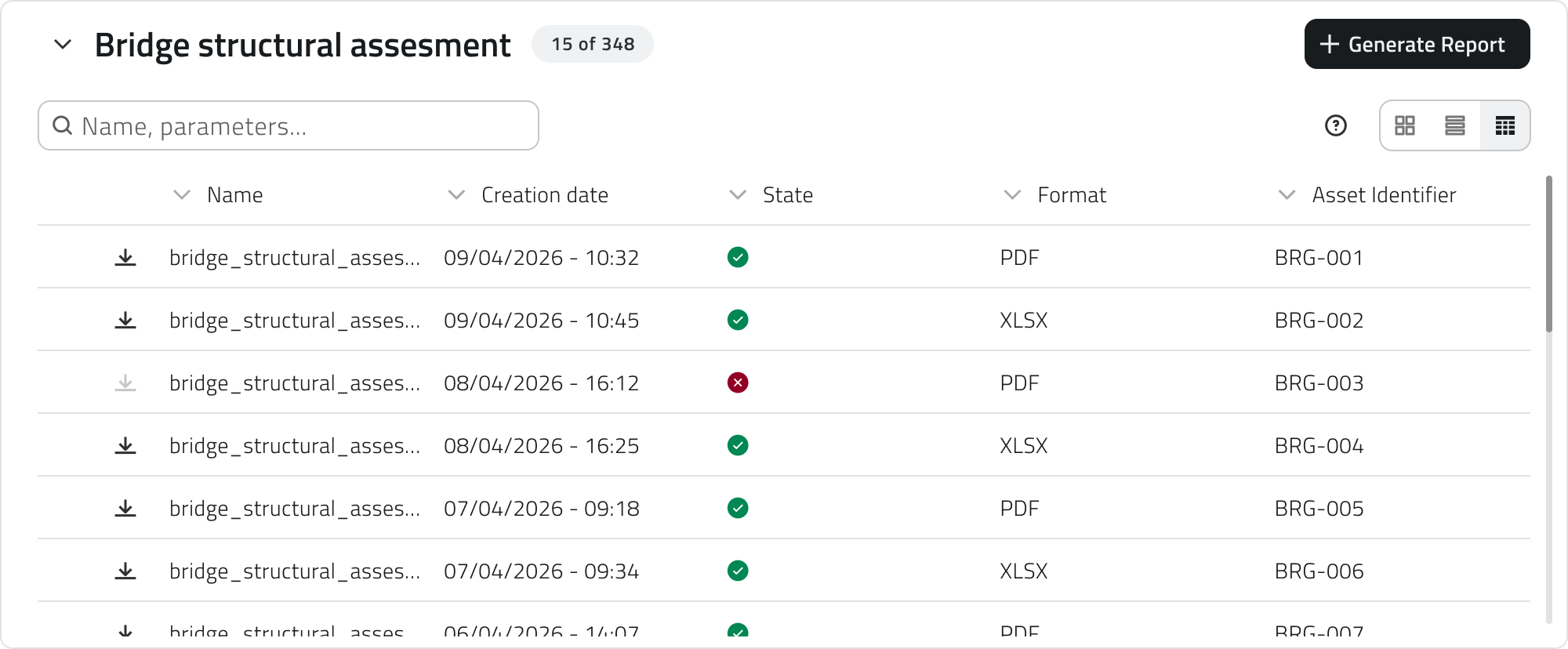
**3.** Click the **Generate report** button in the top-right corner.

[![Generate Report.png](https://wiki.eaglearca.com/uploads/images/gallery/2026-05/scaled-1680-/generate-report.png)](https://wiki.eaglearca.com/uploads/images/gallery/2026-05/generate-report.png)

**4.** A configuration window opens requiring:

- the selection of **a format** from those available, configured in the Backoffice;
- the completion of any **filters**, which vary depending on the selected template and refine the report content.  
    Some filters may be mandatory.

[![Report configuration.png](https://wiki.eaglearca.com/uploads/images/gallery/2026-05/scaled-1680-/4aBreport-configuration.png)](https://wiki.eaglearca.com/uploads/images/gallery/2026-05/4aBreport-configuration.png)
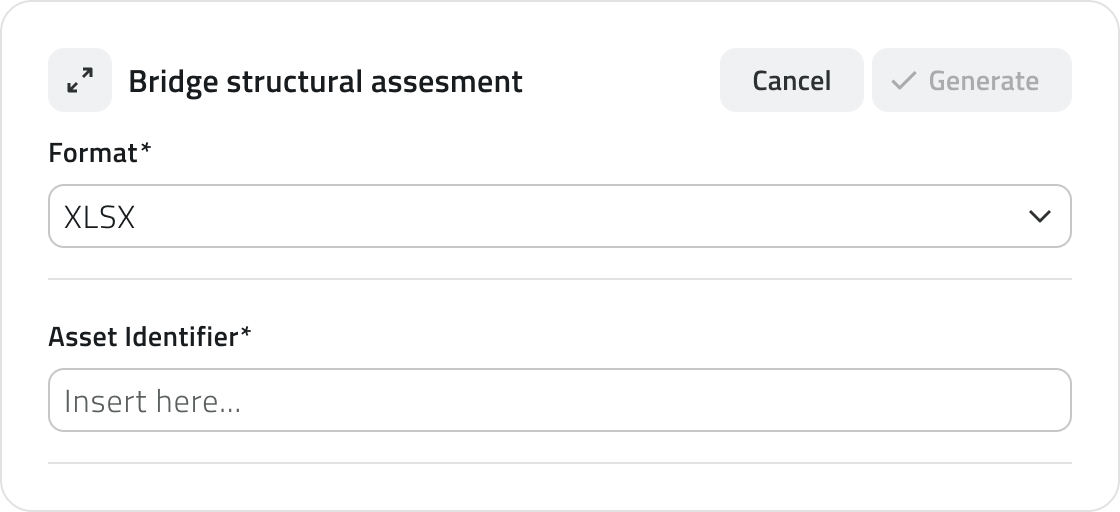
**5.** Click **Confirm** to start the generation, or **Cancel** to close the window without proceeding.

<p class="callout info">The **Confirm** button is disabled until all mandatory filters have been filled in.</p>

<p class="callout warning">Report generation takes a few moments. **Do not leave the page during the process.** The progress status is visible directly in the report row, where the download button shows a spinner until completion.</p>

---

### Report information

Once generation has started, the following information is shown for each element in the Report view:

- **Name** of the report
- **Creation date** (empty until generation is complete)
- **Status** (success or error; empty if generation has not yet concluded)
- **Selected** **format**
- **Filters** entered during configuration

---

### Downloading and viewing a report

Once generation is complete, the report can be **downloaded** using the download button on the element row. Alternatively, clicking the **blue Open button** that appears when hovering over the element opens the **report details**, which shows all associated information.

[![Report Details.png](https://wiki.eaglearca.com/uploads/images/gallery/2026-05/scaled-1680-/sKxreport-details.png)](https://wiki.eaglearca.com/uploads/images/gallery/2026-05/sKxreport-details.png)
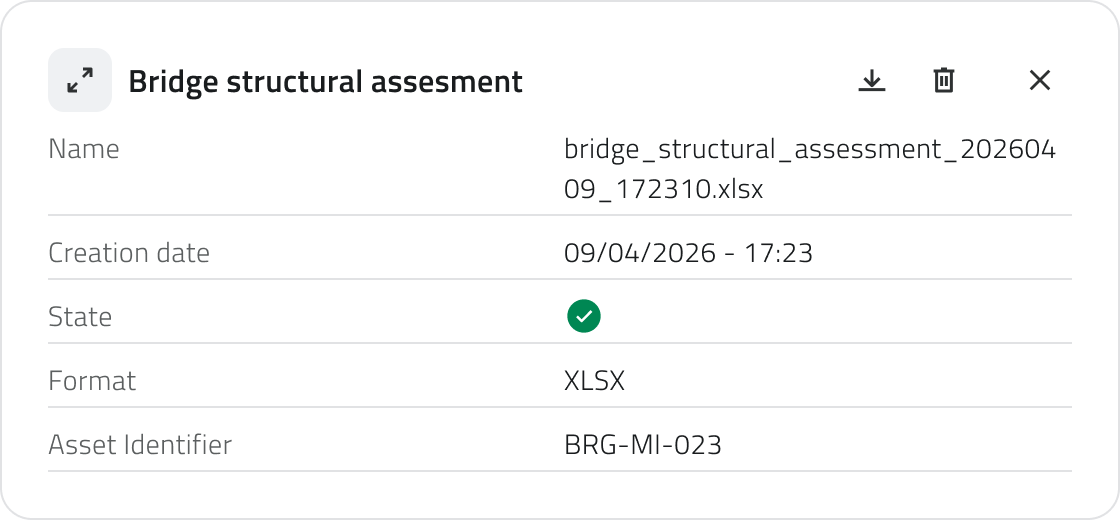
If generation did not complete successfully, the error message is visible at the top of the report details.

[![Report error.png](https://wiki.eaglearca.com/uploads/images/gallery/2026-05/scaled-1680-/report-error.png)](https://wiki.eaglearca.com/uploads/images/gallery/2026-05/report-error.png)
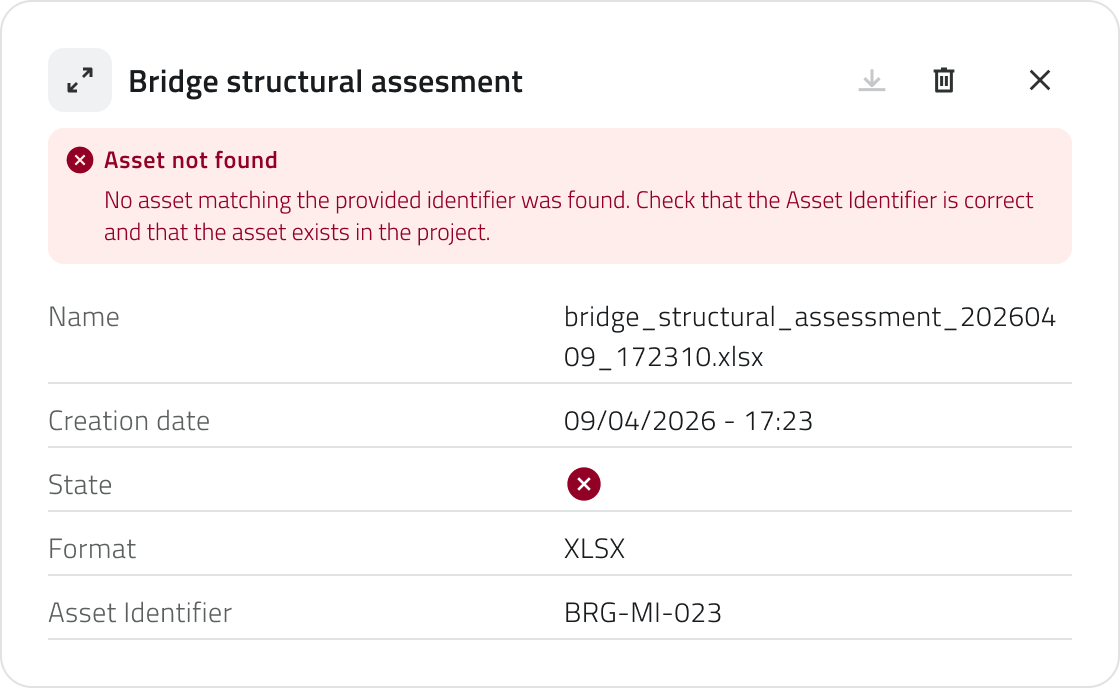
<p class="callout warning">Reports **cannot** be edited after generation.</p>

---

### Deleting a report

To delete a report, open the **report details** and click the **Delete** button, then confirm the operation. Alternatively, select one or more reports from the list: the **Delete** button will appear in the top-right corner of the view.

---

##### Links

- *[Navigating between views](https://wiki.eaglearca.com/books/app-features/page/navigating-between-views "Navigating between views")*
- *[Managing objects in the project](https://wiki.eaglearca.com/books/app-features/page/managing-objects-in-the-project "Managing objects in the project")*

---

<span id="bkmrk-%C2%A0italian-version%C2%A0-1">![flag-italy-1f1ee-1f1f9.png](https://wiki.eaglearca.com/uploads/images/gallery/2026-05/aiMflag-italy-1f1ee-1f1f9.png) **Italian version** </span>

Questa sezione spiega come generare, consultare e gestire i report all'interno del progetto. I report vengono prodotti a partire da **template predefiniti** e possono essere scaricati nei formati disponibili.

<p class="callout info">La generazione e l'eliminazione dei report sono disponibili solo se si dispone dei **permessi di modifica** per quel template.</p>

---

### Generare un report

**1.** Dal menu laterale sinistro, clicca sull'icona **Report** (icona a forma di file) per aprire la sezione dedicata.

![Report icon.png](https://wiki.eaglearca.com/uploads/images/gallery/2026-05/scaled-1680-/report-icon.png)

**2.** Seleziona il template desiderato dalla lista per aprire la **vista Report**.

[![Report View.png](https://wiki.eaglearca.com/uploads/images/gallery/2026-05/scaled-1680-/report-view.png)](https://wiki.eaglearca.com/uploads/images/gallery/2026-05/report-view.png)

**3.** Clicca sul pulsante **Genera report** in alto a destra.

[![Generate Report.png](https://wiki.eaglearca.com/uploads/images/gallery/2026-05/scaled-1680-/generate-report.png)](https://wiki.eaglearca.com/uploads/images/gallery/2026-05/generate-report.png)

**4.** Si apre una finestra di configurazione che richiede:

- la scelta di **un formato** tra quelli disponibili, configurati nel Backoffice;
- la compilazione degli eventuali **filtri**, che variano in base al template selezionato e affinano il contenuto del report.  
    Alcuni filtri possono essere obbligatori.

[![Report configuration.png](https://wiki.eaglearca.com/uploads/images/gallery/2026-05/scaled-1680-/4aBreport-configuration.png)](https://wiki.eaglearca.com/uploads/images/gallery/2026-05/4aBreport-configuration.png)

**5.** Clicca **Conferma** per avviare la generazione, oppure **Annulla** per chiudere la finestra senza procedere.

<p class="callout info">Il pulsante **Conferma** è disabilitato finché tutti i filtri obbligatori non sono stati compilati.</p>

<p class="callout warning">La generazione del report richiede alcuni istanti. **Non lasciare la pagina durante il processo.**   
Lo stato di avanzamento è visibile direttamente nella riga del report, dove il pulsante di download mostra uno spinner fino al completamento.</p>

---

### Informazioni del report

Una volta avviata la generazione, nella vista Report vengono mostrate le seguenti informazioni per ogni elemento:

- **Nome** del report
- **Data di creazione** (vuota fino al completamento della generazione)
- **Stato** (successo o errore; vuoto se la generazione non è ancora conclusa)
- **Formato** **selezionato**
- **Filtri** inseriti in fase di configurazione

---

### Scaricare e consultare un report

Al termine della generazione il report può essere **scaricato** tramite il pulsante di download presente sulla riga dell'elemento. In alternativa, cliccando sul **pulsante blu Apri** che compare al passaggio del mouse sull'elemento si apre il **dettaglio report**, che mostra tutte le informazioni associate.

[![Report Details.png](https://wiki.eaglearca.com/uploads/images/gallery/2026-05/scaled-1680-/sKxreport-details.png)](https://wiki.eaglearca.com/uploads/images/gallery/2026-05/sKxreport-details.png)

Se la generazione non è andata a buon fine, il messaggio di errore è visibile in cima al dettaglio del report.

[![Report error.png](https://wiki.eaglearca.com/uploads/images/gallery/2026-05/scaled-1680-/report-error.png)](https://wiki.eaglearca.com/uploads/images/gallery/2026-05/report-error.png)

<p class="callout warning">I report **non** possono essere modificati dopo la generazione.</p>

---

### Eliminare un report

Per eliminare un report apri il **dettaglio report** e clicca il pulsante **Elimina**, quindi conferma l'operazione. In alternativa, seleziona uno o più report dalla lista: comparirà il pulsante **Elimina** in alto a destra della vista.

---

#### Collegamenti

- *[Navigare tra le viste](https://wiki.eaglearca.com/books/app-features/page/navigating-between-views "Navigating between views")*
- *[Gestire gli oggetti nel progetto](https://wiki.eaglearca.com/books/app-features/page/managing-objects-in-the-project "Managing objects in the project")*

---

***Last update:** 11 June 2026*