To generate and view reports, you need access permissions for the **App** and **view or edit permissions** for that template.
--- ### Generate a global report **1.** From the home screen, select your organization's app to access the workspace. [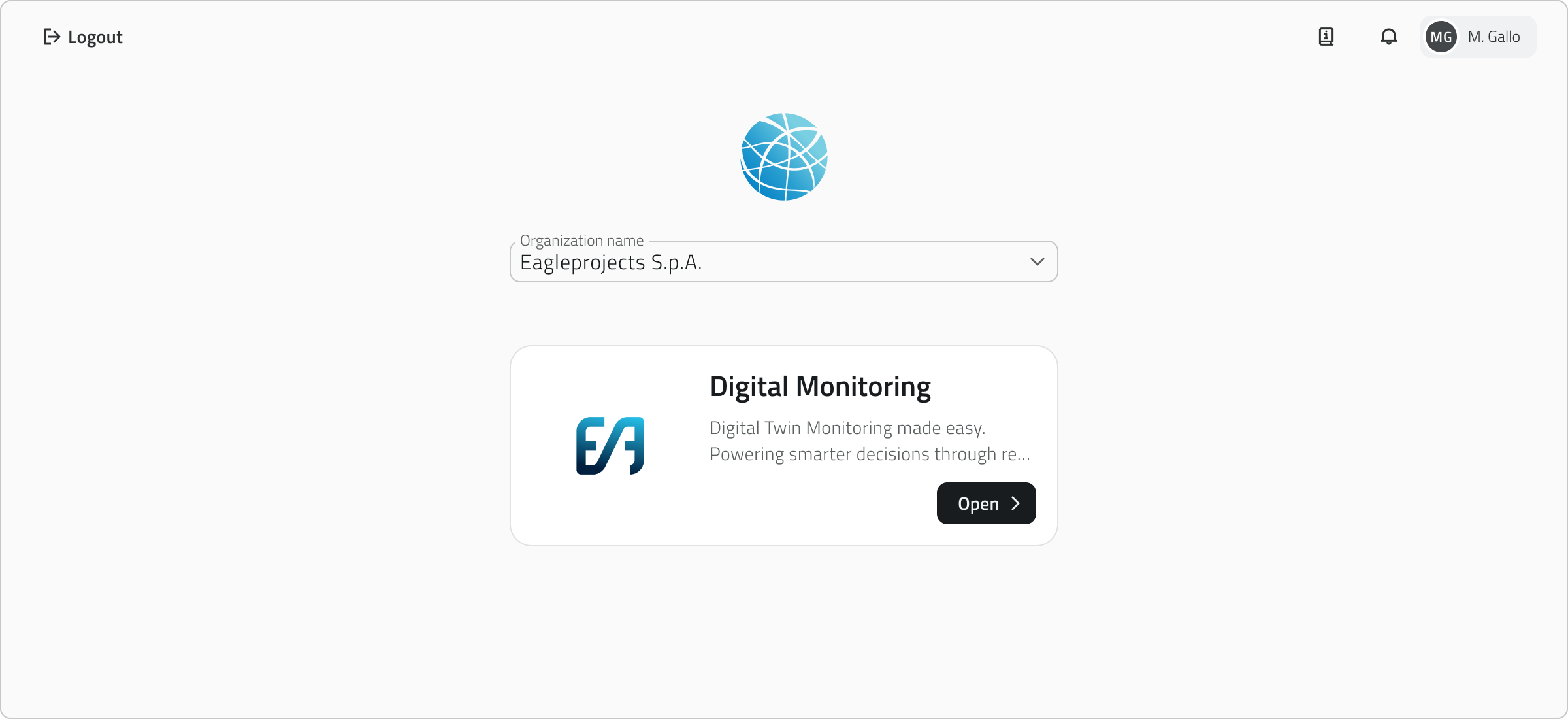](https://wiki.eaglearca.com/uploads/images/gallery/2026-03/1-organization-selection.png) **2.** From the left-side menu, click **Reports** to view all available report templates.  **3.** Select the desired template from the list to open the **Report page**. You can filter reports using the **search bar** at the top. Elements can be displayed in **grid, list or table** mode. [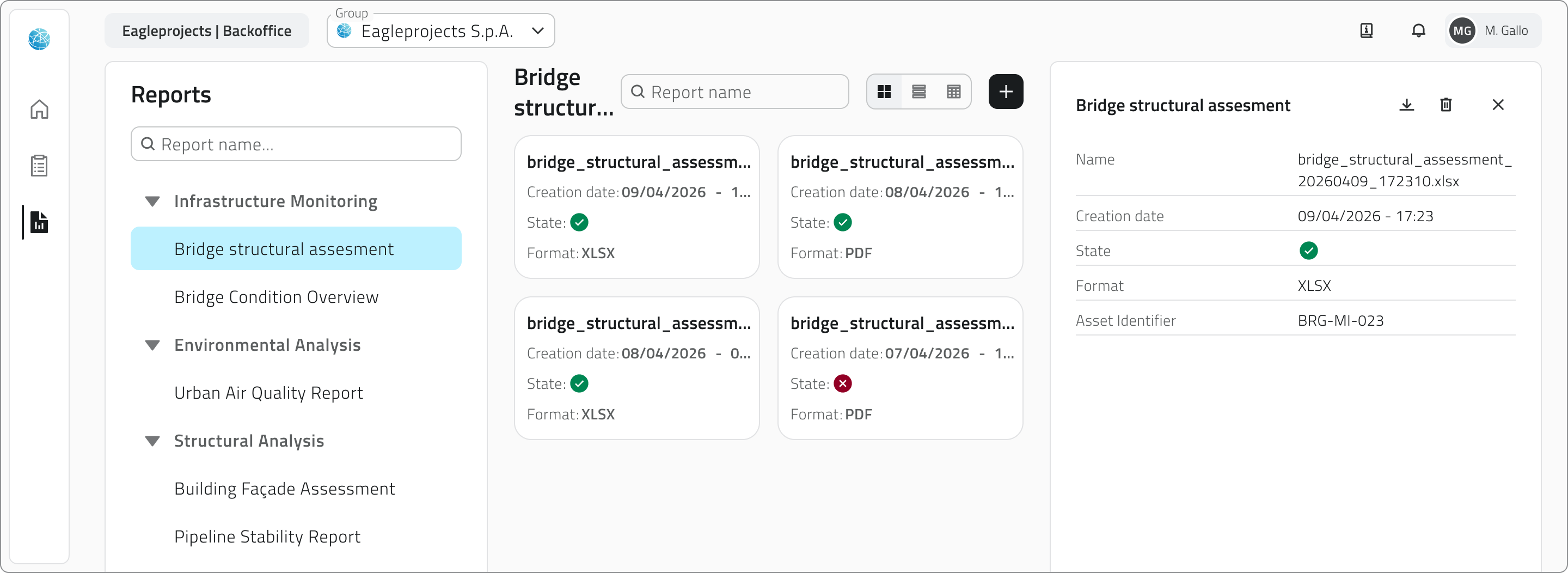](https://wiki.eaglearca.com/uploads/images/gallery/2026-05/1TWreport-page.png) **4.** Click the **Generate report** button in the top-right corner. [](https://wiki.eaglearca.com/uploads/images/gallery/2026-05/generate-report.png) **5.** A configuration panel opens on the right side of the page, requiring: - the selection of **a format** from those available, configured in the Backoffice; - the completion of any **filters**, which vary depending on the selected template and refine the report content. Some filters may be mandatory. [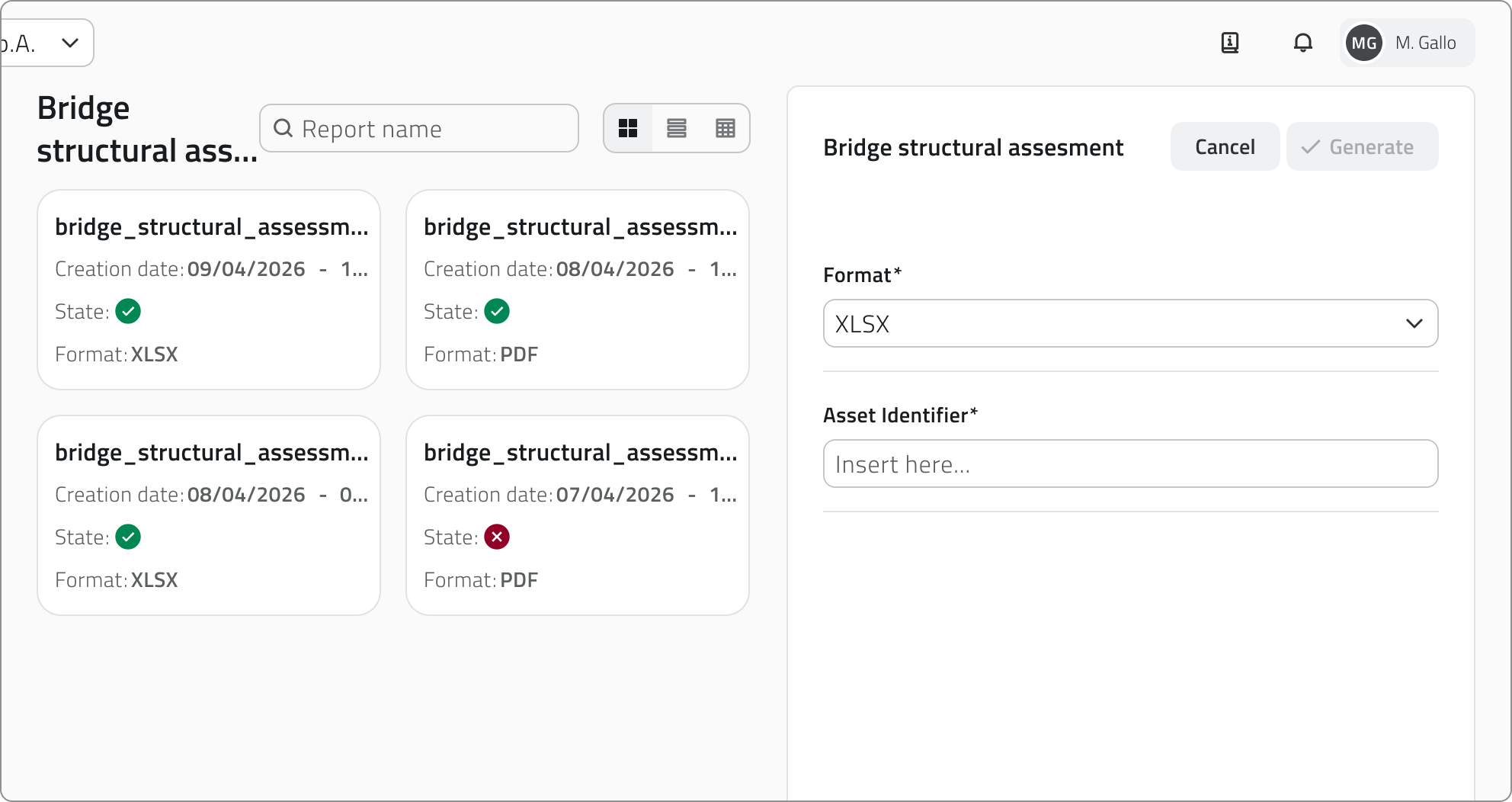](https://wiki.eaglearca.com/uploads/images/gallery/2026-05/Sixparameters-panel.png) **6.** Click **Confirm** to start the generation, or **Cancel** to close the window without proceeding.The **Confirm** button is disabled until all mandatory filters have been filled in.
Report generation takes a few moments. **Do not leave the page during the process.** The progress status is visible directly in the report row, where the download button shows a spinner until completion.
--- ### Report information Once generation has started, the following information is shown for each element in the page: - **Name** of the report - **Creation date** (empty until generation is complete) - **Status** (success or error; empty if generation has not yet concluded) - **Selected format** - **Filters** entered during configuration --- ### Downloading and viewing a report Once generation is complete, the report can be **downloaded** using the download button on the element row. Alternatively, clicking the **blue Open button** that appears when hovering over the element opens the **report details**, which shows all associated information. [](https://wiki.eaglearca.com/uploads/images/gallery/2026-05/SXsreport-details.png) If generation did not complete successfully, the error message is visible at the top of the report details. [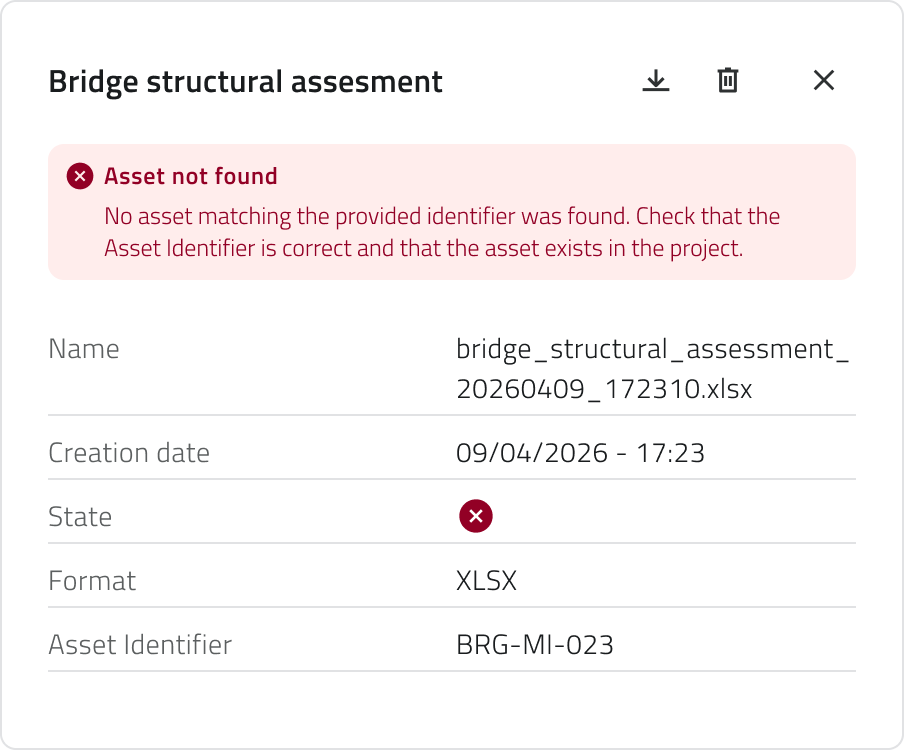](https://wiki.eaglearca.com/uploads/images/gallery/2026-05/Ejsreport-error.png)Reports **cannot** be edited after generation.
--- ### Deleting a report To delete a report, open the **report details** and click the **Delete** button, then confirm the operation. Alternatively, select one or more reports from the list: the **Delete** button will appear in the top-right corner of the page. Hold **CTRL** and click to add reports to the selection or remove them from it.Generating and deleting global reports is only available if you have **edit permissions** for that report template.
--- ### Links - *[Managing reports in the project](https://wiki.eaglearca.com/books/app-features/page/managing-reports-in-the-project "Managing reports in the project")* ---Per generare e visualizzare i report sono necessari i permessi di accesso all'**App** e i **permessi di visualizzazione o modifica** per quel template.
--- ### Generare un report globale **1.** Dalla schermata iniziale, seleziona l'app della tua organizzazione per accedere all'ambiente di lavoro. [](https://wiki.eaglearca.com/uploads/images/gallery/2026-03/1-organization-selection.png) **2.** Dal menu laterale sinistro, clicca su **Report** per visualizzare tutti i template disponibili.  **3.** Seleziona il template desiderato dalla lista per aprire la **pagina Report**. Puoi filtrare i report usando la **barra di ricerca** in alto. Gli elementi possono essere visualizzati in modalità **griglia, lista o tabella**. [](https://wiki.eaglearca.com/uploads/images/gallery/2026-05/1TWreport-page.png) **4.** Clicca sul pulsante **Genera report** in alto a destra. [](https://wiki.eaglearca.com/uploads/images/gallery/2026-05/generate-report.png) **5.** Si apre un pannello di configurazione sul lato destro della pagina, che richiede: - la scelta di **un formato** tra quelli disponibili, configurati nel Backoffice; - la compilazione degli eventuali **filtri**, che variano in base al template selezionato e affinano il contenuto del report. Alcuni filtri possono essere obbligatori. [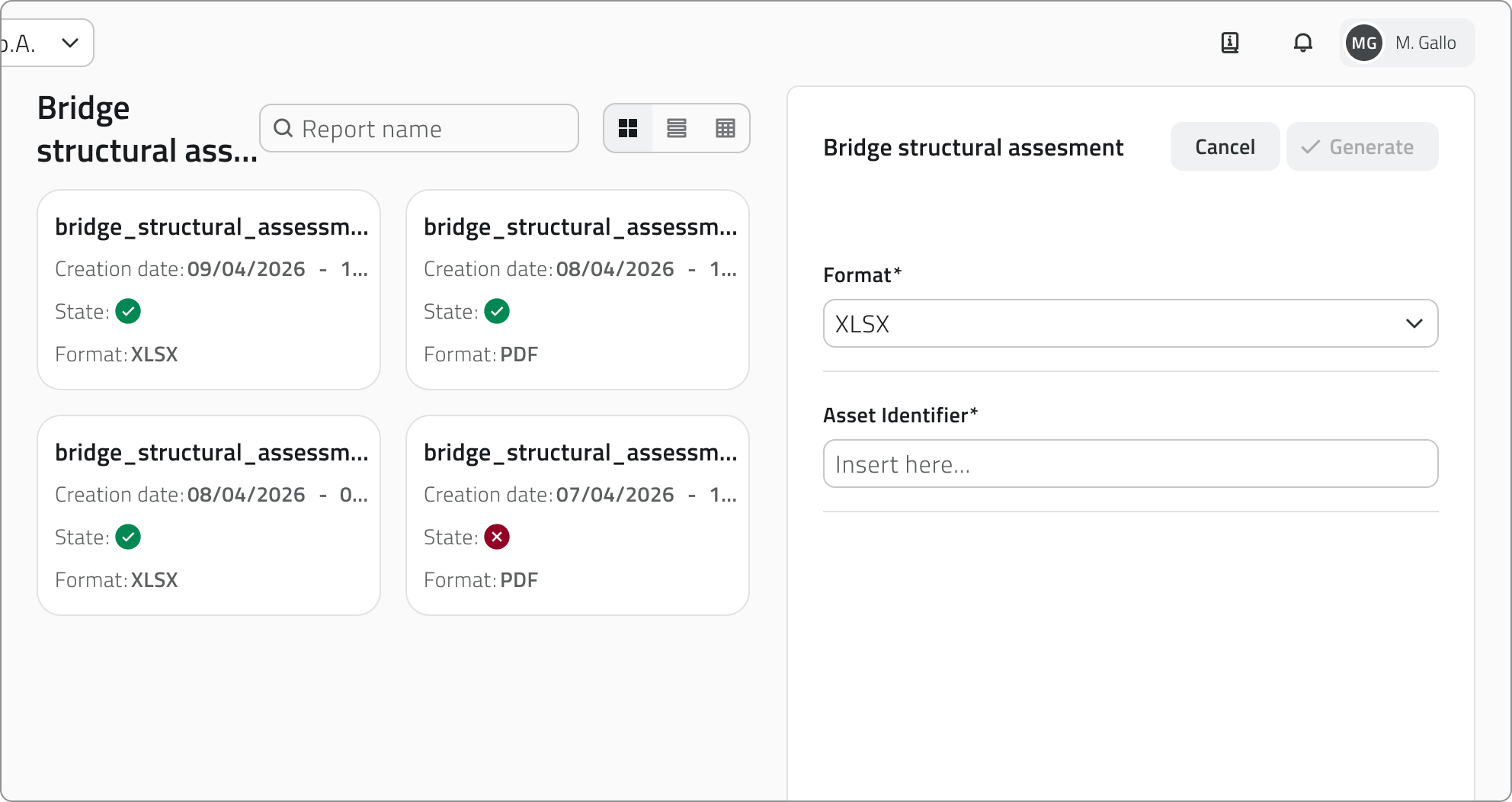](https://wiki.eaglearca.com/uploads/images/gallery/2026-05/parameters-panel.png) **6.** Clicca **Conferma** per avviare la generazione, oppure **Annulla** per chiudere la finestra senza procedere.Il pulsante **Conferma** è disabilitato finché tutti i filtri obbligatori non sono stati compilati.
La generazione del report richiede alcuni istanti. **Non lasciare la pagina durante il processo.** Lo stato di avanzamento è visibile direttamente nella riga del report, dove il pulsante di download mostra uno spinner fino al completamento.
--- ### Informazioni del report Una volta avviata la generazione, nella pagina vengono mostrate le seguenti informazioni per ogni elemento: - **Nome** del report - **Data di creazione** (vuota fino al completamento della generazione) - **Stato** (successo o errore; vuoto se la generazione non è ancora conclusa) - **Formato selezionato** - **Filtri** inseriti in fase di configurazione --- ### Scaricare e consultare un report Al termine della generazione il report può essere **scaricato** tramite il pulsante di download presente sulla riga dell'elemento. In alternativa, cliccando sul **pulsante blu Apri** che compare al passaggio del mouse sull'elemento si apre il **dettaglio report**, che mostra tutte le informazioni associate. [](https://wiki.eaglearca.com/uploads/images/gallery/2026-05/SXsreport-details.png) Se la generazione non è andata a buon fine, il messaggio di errore è visibile in cima al dettaglio del report. [](https://wiki.eaglearca.com/uploads/images/gallery/2026-05/Ejsreport-error.png)I report **non** possono essere modificati dopo la generazione.
--- ### Eliminare un report Per eliminare un report apri il **dettaglio report** e clicca il **pulsante Elimina**, quindi conferma l'operazione. In alternativa, seleziona uno o più report dalla lista: comparirà il pulsante **Elimina** in alto a destra della pagina. Tieni premuto **CTRL** e clicca per aggiungere report alla selezione o toglierli.La generazione e l'eliminazione dei report globali sono disponibili solo se si dispone dei **permessi di modifica** per quel template di report.
--- ### Collegamenti - *[Gestire i report nel progetto](https://wiki.eaglearca.com/books/app-features/page/managing-reports-in-the-project "Managing reports in the project")* --- ***Last update:** 11 June 2026*