# Import shape files

The Upload Shape tool allows you to import geographic data in Shapefile format and automatically create new objects within an object class in the project.

<div id="bkmrk-english-italiano" style="display: flex; gap: 8px; margin-bottom: 20px;">[<button id="bkmrk-btn-italiano" style="display: flex; align-items: center; gap: 6px; padding: 6px 14px; border: 1px solid #DEDFE0; border-radius: 6px; cursor: pointer; background: #EFF1F3; color: #333; font-weight: 600; line-height: 1;">![Bandiera italiana](https://wiki.eaglearca.com/uploads/images/gallery/2026-05/flag-italy-1f1ee-1f1f9.png) Italian version ↓</button>](https://wiki.eaglearca.com/link/157#bkmrk-%C2%A0italian-version%C2%A0)</div>---

<div id="bkmrk--1" style="display: flex; gap: 8px; margin-bottom: 20px;"></div><span id="bkmrk-italiano-1"> ![jQPeng.png](https://wiki.eaglearca.com/uploads/images/gallery/2026-05/KKPjqpeng.png) **English version**</span>

The **Upload Shape** tool allows you to import geographic data in **Shapefile** format and automatically create new objects within an object class in the project.

During the import, the geometries in the shapefile are converted into objects of the selected object class and the attributes are filled in using the values present in the file.

---

### Preparing the Shapefile

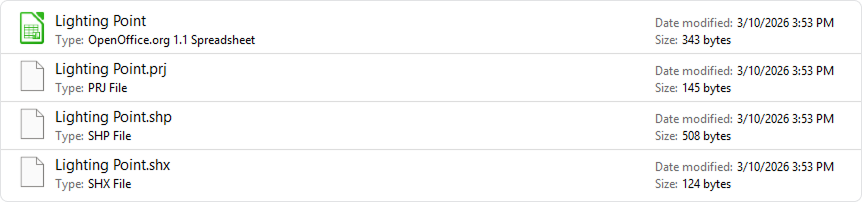
The file must be uploaded in **ZIP** format and must contain the main shapefile components:

- `.shp`
- `.dbf`
- `.shx`
- `.prj`

All files must have **the same name**.

The maximum ZIP file size is **10 MB**.

[![1 - Shapefile Structure.png](https://wiki.eaglearca.com/uploads/images/gallery/2026-03/s8U1-shapefile-structure.png)](https://wiki.eaglearca.com/uploads/images/gallery/2026-03/1-shapefile-structure.png)

<p class="callout info">**Only one Shape file can be uploaded at a time.**  
Each upload allows you to create objects for **one object class only.**</p>

---

### Importing a Shapefile

To import a shapefile:

**1)** Open the **Tools** section of the project.

<button class="bg-bg-300 border-border-300 font-ui text-text-300 inline-block grid h-32 w-40 items-center justify-items-center rounded-xl border p-4">![1 - Icon Tools.png](https://wiki.eaglearca.com/uploads/images/gallery/2026-03/scaled-1680-/1-icon-tools.png)</button>

**2)** Click the **Upload Shape** button.

<button class="bg-bg-300 border-border-300 font-ui text-text-300 inline-block grid h-32 w-40 items-center justify-items-center rounded-xl border p-4">![2 - Card Upload Shape.png](https://wiki.eaglearca.com/uploads/images/gallery/2026-03/scaled-1680-/2-card-upload-shape.png)</button>

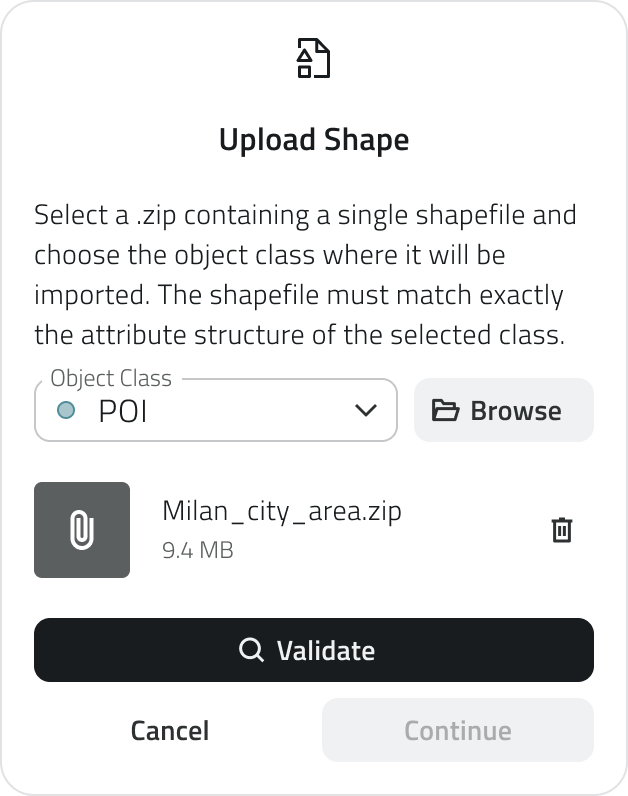
**3)** Select the **ZIP** file containing the shapefile.

**4)** Select the **object class** to import the data into and click the **Validate** button to verify that the uploaded file meets the necessary requirements.

<button class="bg-bg-300 border-border-300 font-ui text-text-300 inline-block grid h-32 w-40 items-center justify-items-center rounded-xl border p-4">![3 - Dialog Upload Shape.png](https://wiki.eaglearca.com/uploads/images/gallery/2026-03/h9R3-dialog-upload-shape.png)</button>

During this phase the system automatically performs some checks.

In particular it verifies that:

- the geometry type of the shapefile is compatible with the selected object class
- the shapefile contains sufficient attributes to fill in the **mandatory** ones of the object class

If the checks are passed, you can proceed with the import configuration.

#### Coordinate systems

The platform is compatible with the following coordinate systems:

<div class="overflow-x-auto w-full px-2 mb-6" id="bkmrk-epsg-code-name-type-"><table border="1" class="min-w-full border-collapse text-sm leading-[1.7] whitespace-normal" style="width: 100%; height: 595.938px; border-collapse: collapse; border-style: solid;"><thead><tr style="height: 29.7969px;"><td class="text-text-100 border-b-0.5 border-border-300/60 py-2 pr-4 align-top font-bold" style="width: 18.2017%; height: 29.7969px;">**EPSG code**</td><td class="text-text-100 border-b-0.5 border-border-300/60 py-2 pr-4 align-top font-bold" style="width: 63.6663%; height: 29.7969px;">**Name**</td><td class="text-text-100 border-b-0.5 border-border-300/60 py-2 pr-4 align-top font-bold" style="width: 17.926%; height: 29.7969px;">**Type**</td></tr></thead><tbody><tr style="height: 29.7969px;"><td class="border-b-0.5 border-border-300/30 py-2 pr-4 align-top" style="width: 18.2017%; height: 29.7969px;">EPSG:4326</td><td class="border-b-0.5 border-border-300/30 py-2 pr-4 align-top" style="width: 63.6663%; height: 29.7969px;">WGS 84</td><td class="border-b-0.5 border-border-300/30 py-2 pr-4 align-top" style="width: 17.926%; height: 29.7969px;">Geographic</td></tr><tr style="height: 29.7969px;"><td class="border-b-0.5 border-border-300/30 py-2 pr-4 align-top" style="width: 18.2017%; height: 29.7969px;">EPSG:3857</td><td class="border-b-0.5 border-border-300/30 py-2 pr-4 align-top" style="width: 63.6663%; height: 29.7969px;">Web Mercator</td><td class="border-b-0.5 border-border-300/30 py-2 pr-4 align-top" style="width: 17.926%; height: 29.7969px;">Projected</td></tr><tr style="height: 29.7969px;"><td class="border-b-0.5 border-border-300/30 py-2 pr-4 align-top" style="width: 18.2017%; height: 29.7969px;">EPSG:3003</td><td class="border-b-0.5 border-border-300/30 py-2 pr-4 align-top" style="width: 63.6663%; height: 29.7969px;">Monte Mario / Italy zone 1 (Gauss-Boaga Ovest)</td><td class="border-b-0.5 border-border-300/30 py-2 pr-4 align-top" style="width: 17.926%; height: 29.7969px;">Projected</td></tr><tr style="height: 29.7969px;"><td class="border-b-0.5 border-border-300/30 py-2 pr-4 align-top" style="width: 18.2017%; height: 29.7969px;">EPSG:3004</td><td class="border-b-0.5 border-border-300/30 py-2 pr-4 align-top" style="width: 63.6663%; height: 29.7969px;">Monte Mario / Italy zone 2 (Gauss-Boaga Est)</td><td class="border-b-0.5 border-border-300/30 py-2 pr-4 align-top" style="width: 17.926%; height: 29.7969px;">Projected</td></tr><tr style="height: 29.7969px;"><td class="border-b-0.5 border-border-300/30 py-2 pr-4 align-top" style="width: 18.2017%; height: 29.7969px;">EPSG:6707</td><td class="border-b-0.5 border-border-300/30 py-2 pr-4 align-top" style="width: 63.6663%; height: 29.7969px;">RDN2008 / Italy zone (E-N) — TM32</td><td class="border-b-0.5 border-border-300/30 py-2 pr-4 align-top" style="width: 17.926%; height: 29.7969px;">Projected</td></tr><tr style="height: 29.7969px;"><td class="border-b-0.5 border-border-300/30 py-2 pr-4 align-top" style="width: 18.2017%; height: 29.7969px;">EPSG:6708</td><td class="border-b-0.5 border-border-300/30 py-2 pr-4 align-top" style="width: 63.6663%; height: 29.7969px;">RDN2008 / Italy zone (E-N) — TM33</td><td class="border-b-0.5 border-border-300/30 py-2 pr-4 align-top" style="width: 17.926%; height: 29.7969px;">Projected</td></tr><tr style="height: 29.7969px;"><td class="border-b-0.5 border-border-300/30 py-2 pr-4 align-top" style="width: 18.2017%; height: 29.7969px;">EPSG:25832</td><td class="border-b-0.5 border-border-300/30 py-2 pr-4 align-top" style="width: 63.6663%; height: 29.7969px;">ETRS89 / UTM zone 32N</td><td class="border-b-0.5 border-border-300/30 py-2 pr-4 align-top" style="width: 17.926%; height: 29.7969px;">Projected</td></tr><tr style="height: 29.7969px;"><td class="border-b-0.5 border-border-300/30 py-2 pr-4 align-top" style="width: 18.2017%; height: 29.7969px;">EPSG:25833</td><td class="border-b-0.5 border-border-300/30 py-2 pr-4 align-top" style="width: 63.6663%; height: 29.7969px;">ETRS89 / UTM zone 33N</td><td class="border-b-0.5 border-border-300/30 py-2 pr-4 align-top" style="width: 17.926%; height: 29.7969px;">Projected</td></tr><tr style="height: 29.7969px;"><td class="border-b-0.5 border-border-300/30 py-2 pr-4 align-top" style="width: 18.2017%; height: 29.7969px;">EPSG:32632</td><td class="border-b-0.5 border-border-300/30 py-2 pr-4 align-top" style="width: 63.6663%; height: 29.7969px;">WGS 84 / UTM zone 32N</td><td class="border-b-0.5 border-border-300/30 py-2 pr-4 align-top" style="width: 17.926%; height: 29.7969px;">Projected</td></tr><tr style="height: 29.7969px;"><td class="border-b-0.5 border-border-300/30 py-2 pr-4 align-top" style="width: 18.2017%; height: 29.7969px;">EPSG:32633</td><td class="border-b-0.5 border-border-300/30 py-2 pr-4 align-top" style="width: 63.6663%; height: 29.7969px;">WGS 84 / UTM zone 33N</td><td class="border-b-0.5 border-border-300/30 py-2 pr-4 align-top" style="width: 17.926%; height: 29.7969px;">Projected</td></tr><tr style="height: 29.7969px;"><td class="border-b-0.5 border-border-300/30 py-2 pr-4 align-top" style="width: 18.2017%; height: 29.7969px;">EPSG:23032</td><td class="border-b-0.5 border-border-300/30 py-2 pr-4 align-top" style="width: 63.6663%; height: 29.7969px;">ED50 / UTM zone 32N</td><td class="border-b-0.5 border-border-300/30 py-2 pr-4 align-top" style="width: 17.926%; height: 29.7969px;">Projected</td></tr><tr style="height: 29.7969px;"><td class="border-b-0.5 border-border-300/30 py-2 pr-4 align-top" style="width: 18.2017%; height: 29.7969px;">EPSG:23033</td><td class="border-b-0.5 border-border-300/30 py-2 pr-4 align-top" style="width: 63.6663%; height: 29.7969px;">ED50 / UTM zone 33N</td><td class="border-b-0.5 border-border-300/30 py-2 pr-4 align-top" style="width: 17.926%; height: 29.7969px;">Projected</td></tr><tr style="height: 29.7969px;"><td class="border-b-0.5 border-border-300/30 py-2 pr-4 align-top" style="width: 18.2017%; height: 29.7969px;">EPSG:28992</td><td class="border-b-0.5 border-border-300/30 py-2 pr-4 align-top" style="width: 63.6663%; height: 29.7969px;">Amersfoort / RD New (Netherlands)</td><td class="border-b-0.5 border-border-300/30 py-2 pr-4 align-top" style="width: 17.926%; height: 29.7969px;">Projected</td></tr><tr style="height: 29.7969px;"><td class="border-b-0.5 border-border-300/30 py-2 pr-4 align-top" style="width: 18.2017%; height: 29.7969px;">EPSG:27700</td><td class="border-b-0.5 border-border-300/30 py-2 pr-4 align-top" style="width: 63.6663%; height: 29.7969px;">OSGB36 / British National Grid</td><td class="border-b-0.5 border-border-300/30 py-2 pr-4 align-top" style="width: 17.926%; height: 29.7969px;">Projected</td></tr><tr style="height: 29.7969px;"><td class="border-b-0.5 border-border-300/30 py-2 pr-4 align-top" style="width: 18.2017%; height: 29.7969px;">EPSG:2154</td><td class="border-b-0.5 border-border-300/30 py-2 pr-4 align-top" style="width: 63.6663%; height: 29.7969px;">RGF93 / Lambert-93</td><td class="border-b-0.5 border-border-300/30 py-2 pr-4 align-top" style="width: 17.926%; height: 29.7969px;">Projected</td></tr><tr style="height: 29.7969px;"><td class="border-b-0.5 border-border-300/30 py-2 pr-4 align-top" style="width: 18.2017%; height: 29.7969px;">EPSG:4258</td><td class="border-b-0.5 border-border-300/30 py-2 pr-4 align-top" style="width: 63.6663%; height: 29.7969px;">ETRS89 (geographic)</td><td class="border-b-0.5 border-border-300/30 py-2 pr-4 align-top" style="width: 17.926%; height: 29.7969px;">Geographic</td></tr><tr style="height: 29.7969px;"><td class="border-b-0.5 border-border-300/30 py-2 pr-4 align-top" style="width: 18.2017%; height: 29.7969px;">EPSG:4269</td><td class="border-b-0.5 border-border-300/30 py-2 pr-4 align-top" style="width: 63.6663%; height: 29.7969px;">NAD83 (geographic)</td><td class="border-b-0.5 border-border-300/30 py-2 pr-4 align-top" style="width: 17.926%; height: 29.7969px;">Geographic</td></tr><tr style="height: 29.7969px;"><td class="border-b-0.5 border-border-300/30 py-2 pr-4 align-top" style="width: 18.2017%; height: 29.7969px;">EPSG:4267</td><td class="border-b-0.5 border-border-300/30 py-2 pr-4 align-top" style="width: 63.6663%; height: 29.7969px;">NAD27 (geographic)</td><td class="border-b-0.5 border-border-300/30 py-2 pr-4 align-top" style="width: 17.926%; height: 29.7969px;">Geographic</td></tr><tr style="height: 29.7969px;"><td class="border-b-0.5 border-border-300/30 py-2 pr-4 align-top" style="width: 18.2017%; height: 29.7969px;">EPSG:4230</td><td class="border-b-0.5 border-border-300/30 py-2 pr-4 align-top" style="width: 63.6663%; height: 29.7969px;">ED50 (geographic)</td><td class="border-b-0.5 border-border-300/30 py-2 pr-4 align-top" style="width: 17.926%; height: 29.7969px;">Geographic</td></tr></tbody></table>

</div>---

### Mapping shapefile attributes

After the file has been validated, a screen is displayed that allows you to **manually configure the attribute mappings**. The system automatically suggests an initial match between the **attributes in the shapefile** and those of the **object class**.

The screen is organised in two columns:

- **left:** attributes present in the shapefile
- **right:** attributes of the object class

<button class="bg-bg-300 border-border-300 font-ui text-text-300 inline-block grid h-32 w-40 items-center justify-items-center rounded-xl border p-4">![4 - Map Attributes.png](https://wiki.eaglearca.com/uploads/images/gallery/2026-03/lIR4-map-attributes.png)</button>

For each attribute of the object class you can select which shapefile attribute to use.

During configuration, some visual indicators are shown to help complete the mapping correctly.

In particular:

- **Mandatory** attributes of the selected object class that have not yet been filled in are highlighted in **red**.
- Shapefile attributes that have already been used are shown as **linked** and highlighted in **green**.
- A **counter** shows how many shapefile attributes have **not yet been mapped**.

Only attributes of the **same type** can be mapped together.

If a shapefile attribute is reused, the previous mapping is automatically removed.

The **Import** button becomes available only when all mandatory attributes have been mapped.

---

### Starting the import

When you confirm the import by clicking **Import**, the system starts the upload process.

During this phase:

- The **object class instances** are created automatically
- Geometries are imported from the shapefile
- Attribute values are filled in according to the configured mappings

<p class="callout warning">Leaving the project or refreshing the browser page will interrupt all ongoing uploads.</p>

---

### Monitoring the import status

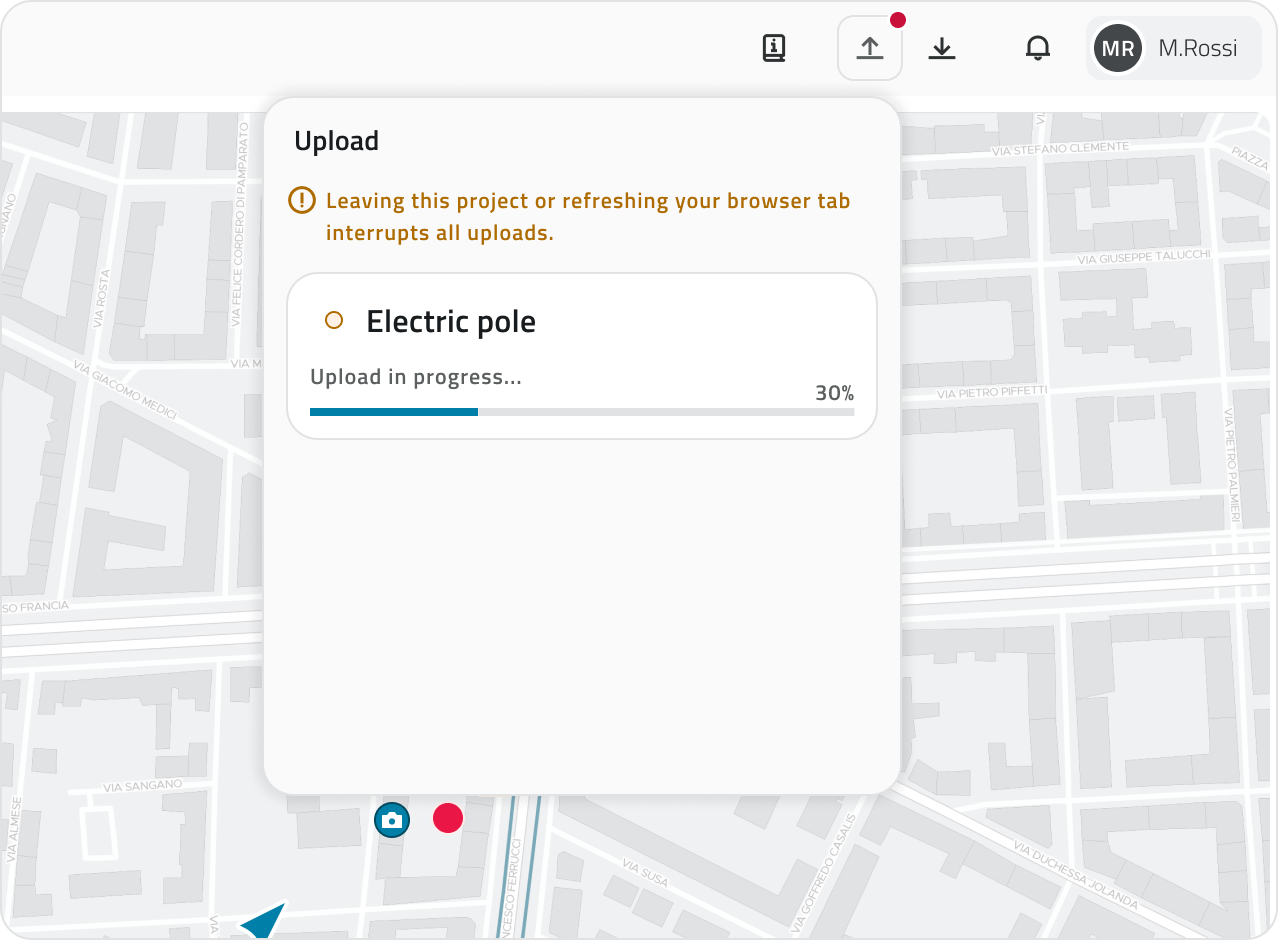
In the page header, the **Upload** menu is available, which allows you to monitor the **status**, the **import progress** of shapefiles and the **outcome of the last completed operation**.

Information about the last upload remains visible for **4 hours from the start of the import**.

[![Import status tracking.png](https://wiki.eaglearca.com/uploads/images/gallery/2026-05/scaled-1680-/import-status-tracking.png)](https://wiki.eaglearca.com/uploads/images/gallery/2026-05/import-status-tracking.png)
<p class="callout warning">**Only one Shape file can be uploaded at a time.**  
If necessary, the ongoing upload **can be** **cancelled** using the **Cancel** button.</p>

---

### Import completed

At the end of the import, the shapefile geometries are created in the selected object class. If some geometries are **invalid** or **incomplete**, they may not be imported.

The upload card shows the number of geometries created relative to the total present in the file.

Once the operation is complete, you can always download the **import report**, which contains a summary of the processed elements and any issues encountered.

[![download report upload.png](https://wiki.eaglearca.com/uploads/images/gallery/2026-05/scaled-1680-/download-report-upload.png)](https://wiki.eaglearca.com/uploads/images/gallery/2026-05/download-report-upload.png)
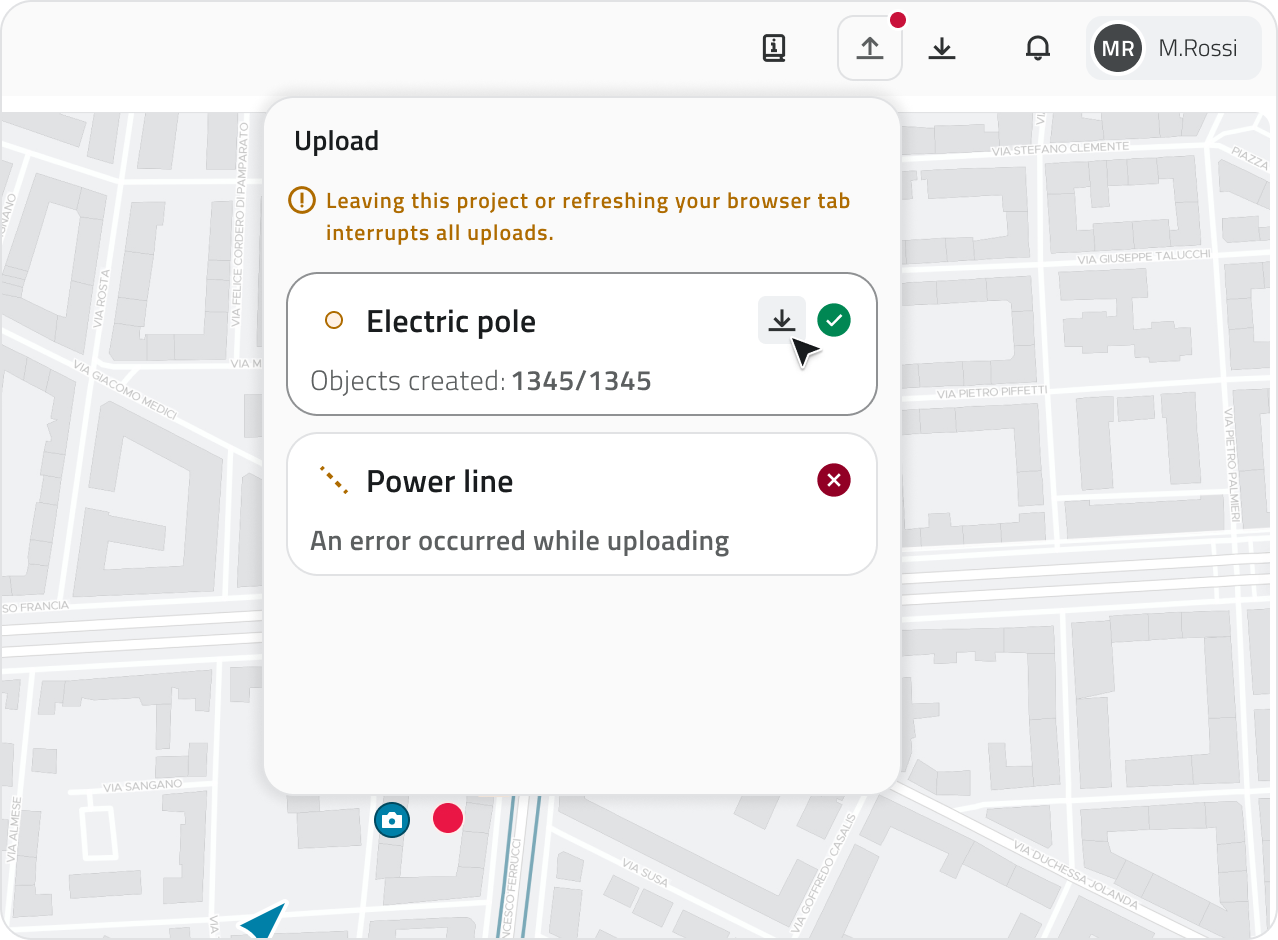
💡 **Tip:** Use the report to check for any issues: if the import is partial, the report allows you to identify the geometries that were not imported.

---

#### Links

- [Create and manage Object Classes](https://wiki.eaglearca.com/books/backoffice/page/create-and-manage-object-classes "Create and manage Object Classes")
- [Navigating between views](https://wiki.eaglearca.com/books/app-features/page/navigating-between-views "Navigating between views")

---

<span id="bkmrk-%C2%A0italian-version%C2%A0-1">![flag-italy-1f1ee-1f1f9.png](https://wiki.eaglearca.com/uploads/images/gallery/2026-05/aiMflag-italy-1f1ee-1f1f9.png) **Italian version** </span>

Lo strumento **Upload Shape** permette di importare dati geografici in formato **Shapefile** e creare automaticamente nuovi oggetti all’interno di una classe oggetto del progetto.

Durante l’importazione, le geometrie presenti nello shapefile vengono convertite in oggetti della classe oggetto selezionata e gli attributi vengono compilati utilizzando i valori presenti nel file.

---

### Preparare il file Shapefile

Il file deve essere caricato in formato **ZIP** e deve contenere i principali componenti dello shapefile:

- `.shp`
- `.dbf`
- `.shx`
- `.prj`

Tutti i file devono avere **lo stesso nome**.

La dimensione massima del file ZIP è **10 MB**.

[![1 - Shapefile Structure.png](https://wiki.eaglearca.com/uploads/images/gallery/2026-03/s8U1-shapefile-structure.png)](https://wiki.eaglearca.com/uploads/images/gallery/2026-03/1-shapefile-structure.png)
<p class="callout info">**È possibile caricare un solo file Shape alla volta.**  
Ogni caricamento permette di creare oggetti per **una sola classe oggetto**.</p>

---

### Importare uno Shapefile

Per importare uno shapefile:

**1)** Apri la sezione **Strumenti** del progetto.

![1 - Icon Tools.png](https://wiki.eaglearca.com/uploads/images/gallery/2026-03/scaled-1680-/1-icon-tools.png)

**2)** Clicca sul pulsante **Carica Shape**.

![2 - Card Upload Shape.png](https://wiki.eaglearca.com/uploads/images/gallery/2026-03/scaled-1680-/2-card-upload-shape.png)

**3)** Seleziona il file **ZIP** contenente lo shapefile.

**4)** Seleziona la **classe oggetto** in cui importare i dati e clicca sul pulsante **Valida** per verificare che il file caricato rispetti i requisiti necessari.
![3 - Dialog Upload Shape.png](https://wiki.eaglearca.com/uploads/images/gallery/2026-03/h9R3-dialog-upload-shape.png)

Durante questa fase il sistema esegue automaticamente alcune verifiche.

In particolare controlla che:

- il tipo di geometria dello shapefile sia compatibile con la classe oggetto selezionata
- lo shapefile contenga attributi sufficienti per compilare quelli **obbligatori** della classe oggetto

Se i controlli sono superati è possibile continuare con la configurazione dell’importazione.

#### Sistemi di coordinate

La piattaforma è compatibile con i seguenti sistemi di coordinate:

<table border="1" id="bkmrk-codice-epsg-nome-tip" style="width: 100%; height: 595.938px; border-collapse: collapse; border-style: solid;"><thead><tr style="height: 29.7969px;"><td style="width: 19.4857%; height: 29.7969px;">**Codice EPSG**

</td><td style="width: 63.1539%; height: 29.7969px;">**Nome**

</td><td style="width: 17.0649%; height: 29.7969px;">**Tipo**

</td></tr></thead><tbody><tr style="height: 29.7969px;"><td style="width: 19.4857%; height: 29.7969px;">EPSG:4326

</td><td style="width: 63.1539%; height: 29.7969px;">WGS 84

</td><td style="width: 17.0649%; height: 29.7969px;">Geografico

</td></tr><tr style="height: 29.7969px;"><td style="width: 19.4857%; height: 29.7969px;">EPSG:3857

</td><td style="width: 63.1539%; height: 29.7969px;">Web Mercator

</td><td style="width: 17.0649%; height: 29.7969px;">Proiettato

</td></tr><tr style="height: 29.7969px;"><td style="width: 19.4857%; height: 29.7969px;">EPSG:3003

</td><td style="width: 63.1539%; height: 29.7969px;">Monte Mario / Italy zone 1 (Gauss-Boaga Ovest)

</td><td style="width: 17.0649%; height: 29.7969px;">Proiettato

</td></tr><tr style="height: 29.7969px;"><td style="width: 19.4857%; height: 29.7969px;">EPSG:3004

</td><td style="width: 63.1539%; height: 29.7969px;">Monte Mario / Italy zone 2 (Gauss-Boaga Est)

</td><td style="width: 17.0649%; height: 29.7969px;">Proiettato

</td></tr><tr style="height: 29.7969px;"><td style="width: 19.4857%; height: 29.7969px;">EPSG:6707

</td><td style="width: 63.1539%; height: 29.7969px;">RDN2008 / Italy zone (E-N) — TM32

</td><td style="width: 17.0649%; height: 29.7969px;">Proiettato

</td></tr><tr style="height: 29.7969px;"><td style="width: 19.4857%; height: 29.7969px;">EPSG:6708

</td><td style="width: 63.1539%; height: 29.7969px;">RDN2008 / Italy zone (E-N) — TM33

</td><td style="width: 17.0649%; height: 29.7969px;">Proiettato

</td></tr><tr style="height: 29.7969px;"><td style="width: 19.4857%; height: 29.7969px;">EPSG:25832

</td><td style="width: 63.1539%; height: 29.7969px;">ETRS89 / UTM zone 32N

</td><td style="width: 17.0649%; height: 29.7969px;">Proiettato

</td></tr><tr style="height: 29.7969px;"><td style="width: 19.4857%; height: 29.7969px;">EPSG:25833

</td><td style="width: 63.1539%; height: 29.7969px;">ETRS89 / UTM zone 33N

</td><td style="width: 17.0649%; height: 29.7969px;">Proiettato

</td></tr><tr style="height: 29.7969px;"><td style="width: 19.4857%; height: 29.7969px;">EPSG:32632

</td><td style="width: 63.1539%; height: 29.7969px;">WGS 84 / UTM zone 32N

</td><td style="width: 17.0649%; height: 29.7969px;">Proiettato

</td></tr><tr style="height: 29.7969px;"><td style="width: 19.4857%; height: 29.7969px;">EPSG:32633

</td><td style="width: 63.1539%; height: 29.7969px;">WGS 84 / UTM zone 33N

</td><td style="width: 17.0649%; height: 29.7969px;">Proiettato

</td></tr><tr style="height: 29.7969px;"><td style="width: 19.4857%; height: 29.7969px;">EPSG:23032

</td><td style="width: 63.1539%; height: 29.7969px;">ED50 / UTM zone 32N

</td><td style="width: 17.0649%; height: 29.7969px;">Proiettato

</td></tr><tr style="height: 29.7969px;"><td style="width: 19.4857%; height: 29.7969px;">EPSG:23033

</td><td style="width: 63.1539%; height: 29.7969px;">ED50 / UTM zone 33N

</td><td style="width: 17.0649%; height: 29.7969px;">Proiettato

</td></tr><tr style="height: 29.7969px;"><td style="width: 19.4857%; height: 29.7969px;">EPSG:28992

</td><td style="width: 63.1539%; height: 29.7969px;">Amersfoort / RD New (Netherlands)

</td><td style="width: 17.0649%; height: 29.7969px;">Proiettato

</td></tr><tr style="height: 29.7969px;"><td style="width: 19.4857%; height: 29.7969px;">EPSG:27700

</td><td style="width: 63.1539%; height: 29.7969px;">OSGB36 / British National Grid

</td><td style="width: 17.0649%; height: 29.7969px;">Proiettato

</td></tr><tr style="height: 29.7969px;"><td style="width: 19.4857%; height: 29.7969px;">EPSG:2154

</td><td style="width: 63.1539%; height: 29.7969px;">RGF93 / Lambert-93

</td><td style="width: 17.0649%; height: 29.7969px;">Proiettato

</td></tr><tr style="height: 29.7969px;"><td style="width: 19.4857%; height: 29.7969px;">EPSG:4258

</td><td style="width: 63.1539%; height: 29.7969px;">ETRS89 (geographic)

</td><td style="width: 17.0649%; height: 29.7969px;">Geografico

</td></tr><tr style="height: 29.7969px;"><td style="width: 19.4857%; height: 29.7969px;">EPSG:4269

</td><td style="width: 63.1539%; height: 29.7969px;">NAD83 (geographic)

</td><td style="width: 17.0649%; height: 29.7969px;">Geografico

</td></tr><tr style="height: 29.7969px;"><td style="width: 19.4857%; height: 29.7969px;">EPSG:4267

</td><td style="width: 63.1539%; height: 29.7969px;">NAD27 (geographic)

</td><td style="width: 17.0649%; height: 29.7969px;">Geografico

</td></tr><tr style="height: 29.7969px;"><td style="width: 19.4857%; height: 29.7969px;">EPSG:4230

</td><td style="width: 63.1539%; height: 29.7969px;">ED50 (geographic)

</td><td style="width: 17.0649%; height: 29.7969px;">Geografico

</td></tr></tbody></table>

---

### Associare gli attributi dello shapefile

Dopo la verifica del file, viene visualizzata una schermata che consente di **configurare manualmente le associazioni** tra gli attributi. Il sistema propone automaticamente una prima corrispondenza tra gli **attributi presenti nello shapefile** e quelli della **classe oggetto**.

La schermata è organizzata in due colonne:

- **sinistra:** attributi presenti nello shapefile
- **destra:** attributi della classe oggetto

![4 - Map Attributes.png](https://wiki.eaglearca.com/uploads/images/gallery/2026-03/lIR4-map-attributes.png)

Per ogni attributo della classe oggetto puoi selezionare quale attributo dello shapefile utilizzare.

Durante la configurazione vengono mostrati alcuni indicatori visivi che aiutano a completare correttamente l’associazione.

In particolare:

- Gli attributi **obbligatori** della classe oggetto selezionata che non sono ancora compilati vengono evidenziati in **rosso**.
- Gli attributi dello shapefile già utilizzati risultano **collegati** e vengono evidenziati in **verde**.
- Un **contatore** indica quanti attributi dello shapefile **non sono ancora** **associati**.

È possibile associare solo **attributi dello stesso tipo**.

Se un attributo dello shapefile viene riutilizzato, l’associazione precedente viene automaticamente rimossa.

Il pulsante **Importa** diventa disponibile solo quando tutti gli attributi obbligatori sono stati associati.

---

### Avviare l’importazione

Quando confermi l’importazione cliccando su **Importa**, il sistema avvia il processo di caricamento.

Durante questa fase:

- Vengono create automaticamente le **istanze della classe oggetto**
- Le geometrie vengono importate dallo shapefile
- I valori degli attributi vengono compilati secondo le associazioni configurate

<p class="callout warning">Lasciare il progetto o aggiornare la pagina del browser, comporta l'interruzione di tutti i caricamenti.</p>

---

### Monitorare lo stato dell’importazione

Nell'intestazione della pagina è disponibile il menu dell' **Upload**, che consente di monitorare lo **stato**, il **progresso** di **importazione** degli shapefile e l’**esito dell’ultima operazione completata.**

Le informazioni relative all’ultimo upload restano visibili per **4 ore dall'avvio dell'importazione.**

[![Import status tracking.png](https://wiki.eaglearca.com/uploads/images/gallery/2026-05/scaled-1680-/import-status-tracking.png)](https://wiki.eaglearca.com/uploads/images/gallery/2026-05/import-status-tracking.png)

<p class="callout warning">È possibile **caricare un solo file Shape alla volta**.   
Se necessario, il caricamento in corso **può essere** **annullato** tramite il pulsante **Cancella**.</p>

---

### Importazione completata

Al termine dell’importazione le geometrie dello shapefile vengono create nella classe oggetto selezionata. Se alcune geometrie risultano **non valide** o **incomplete**, potrebbero non essere importate.

La card dell’upload mostra il numero di geometrie create rispetto al totale presente nel file.

Al termine dell’operazione è sempre possibile scaricare il **report dell’importazione**, che contiene il riepilogo degli elementi elaborati e di eventuali problemi riscontrati.

[![download report upload.png](https://wiki.eaglearca.com/uploads/images/gallery/2026-05/scaled-1680-/download-report-upload.png)](https://wiki.eaglearca.com/uploads/images/gallery/2026-05/download-report-upload.png)

**💡Suggerimento:** Usa il report per verificare eventuali problemi: se l'importazione è parziale, ti permette di identificare le geometrie che non sono state importate.

---

### Collegamenti

- [Creare e gestire le Classi Oggetto](https://wiki.eaglearca.com/books/backoffice/page/create-and-manage-object-classes "Create and manage Object Classes")
- [Navigare tra le viste](https://wiki.eaglearca.com/books/app-features/page/navigating-between-views "Navigating between views")

---

***Last update:** 22 May 2026*