# Create and manage Object Classes

#### [![image.png](https://wiki.eaglearca.com/uploads/images/gallery/2026-05/scaled-1680-/XVWimage.png)](https://wiki.eaglearca.com/uploads/images/gallery/2026-05/XVWimage.png) [IT](https://wiki.eaglearca.com/link/136#bkmrk-italiano)

---

#### [![eng.png](https://wiki.eaglearca.com/uploads/images/gallery/2026-05/scaled-1680-/jQPeng.png)](https://wiki.eaglearca.com/uploads/images/gallery/2026-05/jQPeng.png) **English**


**Creating an Object Class** allows you to define the data structure and geometric nature of the objects that will be used in EagleArca projects.

<p class="callout info">Available only to users with `backoffice` permission.</p>

---

### Create the Class

**1. Access the Backoffice** and navigate to **Object Classes**.

![1 - Tab Button Object Class.png](https://wiki.eaglearca.com/uploads/images/gallery/2025-12/scaled-1680-/STI1-tab-button-object-class.png)

**2.** Click the **New Object** button.

![2 - Button New Object.png](https://wiki.eaglearca.com/uploads/images/gallery/2025-12/scaled-1680-/yCJ2-button-new-object.png)

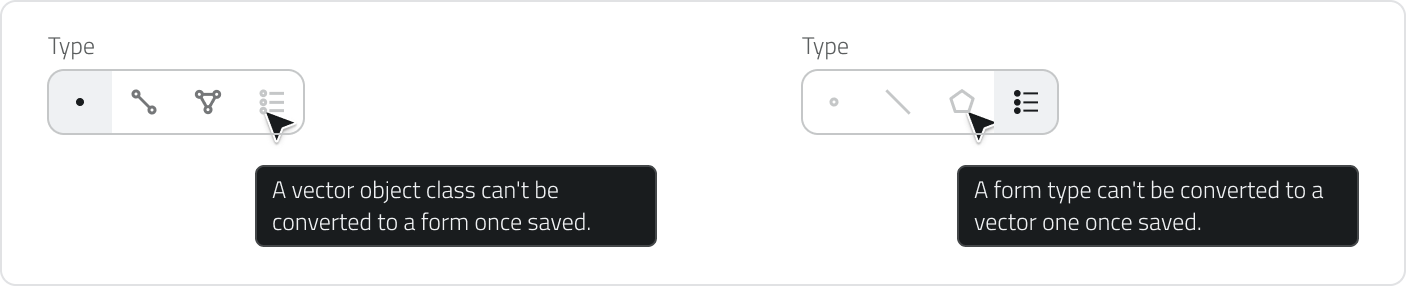
**3. Enter the Name** (unique) and choose the object **Type**:

[![3 - Type.png](https://wiki.eaglearca.com/uploads/images/gallery/2025-12/scaled-1680-/XNw3-type.png)](https://wiki.eaglearca.com/uploads/images/gallery/2025-12/XNw3-type.png)
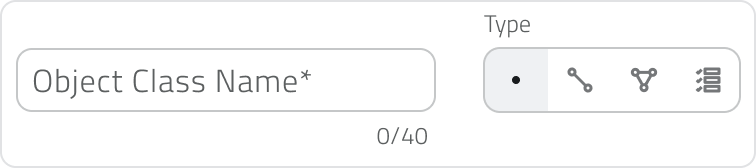
<section class="text-token-text-primary w-full focus:outline-none [--shadow-height:45px] has-data-writing-block:pointer-events-none has-data-writing-block:-mt-(--shadow-height) has-data-writing-block:pt-(--shadow-height) [&:has([data-writing-block])>*]:pointer-events-auto R6Vx5W_threadScrollVars scroll-mb-[calc(var(--scroll-root-safe-area-inset-bottom,0px)+var(--thread-response-height))] scroll-mt-(--header-height)" data-scroll-anchor="false" data-testid="conversation-turn-47" data-turn="user" data-turn-id="b414230d-514e-4fbc-b3f1-1996510b17b6" dir="auto" id="bkmrk--6"></section><section class="text-token-text-primary w-full focus:outline-none [--shadow-height:45px] has-data-writing-block:pointer-events-none has-data-writing-block:-mt-(--shadow-height) has-data-writing-block:pt-(--shadow-height) [&:has([data-writing-block])>*]:pointer-events-auto [content-visibility:auto] supports-[content-visibility:auto]:[contain-intrinsic-size:auto_100lvh] R6Vx5W_threadScrollVars scroll-mb-[calc(var(--scroll-root-safe-area-inset-bottom,0px)+var(--thread-response-height))] scroll-mt-[calc(var(--header-height)+min(200px,max(70px,20svh)))]" data-scroll-anchor="false" data-testid="conversation-turn-48" data-turn="assistant" data-turn-id="request-WEB:729ccfe4-fab6-4102-a484-0deda3d9c4aa-23" dir="auto" id="bkmrk-point%3A-vector-object"><div class="text-base my-auto mx-auto pb-10 [--thread-content-margin:var(--thread-content-margin-xs,calc(var(--spacing)*4))] @w-sm/main:[--thread-content-margin:var(--thread-content-margin-sm,calc(var(--spacing)*6))] @w-lg/main:[--thread-content-margin:var(--thread-content-margin-lg,calc(var(--spacing)*16))] px-(--thread-content-margin)"><div class="[--thread-content-max-width:40rem] @w-lg/main:[--thread-content-max-width:48rem] mx-auto max-w-(--thread-content-max-width) flex-1 group/turn-messages focus-visible:outline-hidden relative flex w-full min-w-0 flex-col agent-turn"><div class="flex max-w-full flex-col gap-4 grow"><div class="min-h-8 text-message relative flex w-full flex-col items-end gap-2 text-start break-words whitespace-normal outline-none keyboard-focused:focus-ring [.text-message+&]:mt-1" data-message-author-role="assistant" data-message-id="61103da6-859d-4121-a276-64246df07e66" data-message-model-slug="gpt-5-5-thinking" data-turn-start-message="true" dir="auto" tabindex="0"><div class="flex w-full flex-col gap-1 empty:hidden"><div class="markdown prose dark:prose-invert wrap-break-word w-full dark markdown-new-styling">- **Point:** Vector object, defined by coordinates.
- **Line:** Vector object, defined by length.
- **Polygon:** Vector object, defined by area.
- **Form:** Non-vector object, with no position on the map and no style.

</div></div></div></div></div></div>#### Advanced Settings

Depending on the selected object type, additional configuration options may be available.

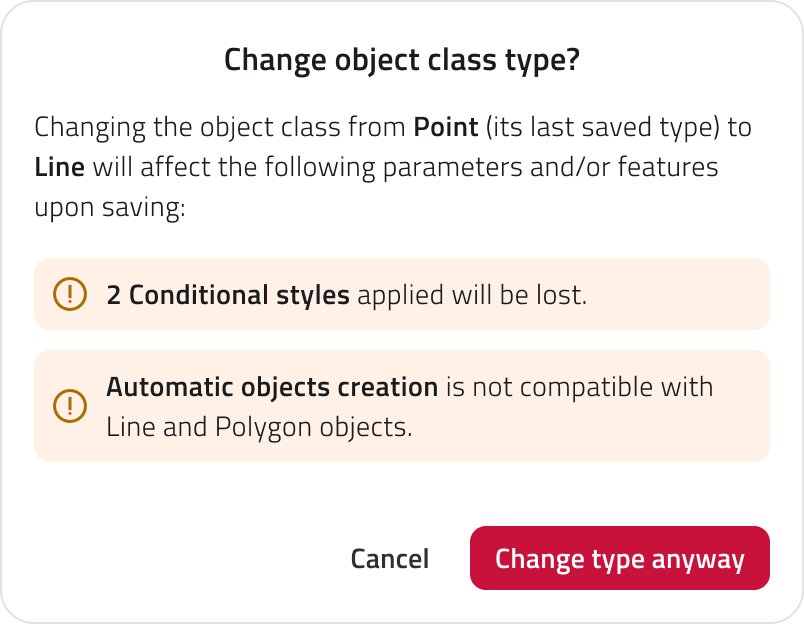
If the type is **Point**, you can enable **Oriented Point** to store and represent the object direction on the map. This option automatically adds a **non-editable system attribute**.

If the type is **Form**, you can enable **Global Form** to create objects that can be linked to any project and managed from the **Global List** section.

---

### Configure the Default Style (Vector Objects Only)

The defined style is the **default style** inherited by all instances.

</section>[![5 - Object Style.png](https://wiki.eaglearca.com/uploads/images/gallery/2025-12/scaled-1680-/mLD5-object-style.png)](https://wiki.eaglearca.com/uploads/images/gallery/2025-12/mLD5-object-style.png)

<table border="1" id="bkmrk-tipo-oggetto-proprie" style="border-collapse: collapse; width: 100%; border-style: solid; height: 223.734px;"><thead><tr style="height: 29.7969px;"><td style="height: 29.7969px; width: 50.0596%;">**Object Type**</td><td style="height: 29.7969px; width: 50.0596%;">**Key Properties**</td></tr></thead><tbody><tr style="height: 63.375px;"><td style="height: 63.375px; width: 50.0596%;">**Point**</td><td style="height: 63.375px; width: 50.0596%;">Shape, Size, Stroke, Fill, Orientation</td></tr><tr style="height: 46.5938px;"><td style="height: 46.5938px; width: 50.0596%;">**Line**</td><td style="height: 46.5938px; width: 50.0596%;">Style (solid, dashed, dotted), Thickness, Stroke</td></tr><tr style="height: 46.5938px;"><td style="height: 46.5938px; width: 50.0596%;">**Polygon**</td><td style="height: 46.5938px; width: 50.0596%;">Fill, Stroke</td></tr><tr style="height: 37.375px;"><td style="height: 37.375px; width: 50.0596%;">**All vector objects**</td><td style="height: 37.375px; width: 50.0596%;">Map visibility</td></tr></tbody></table>

💡 **Tip**: Maintain the visual hierarchy, for example by using thicker main lines than secondary lines and a semi-transparent fill for the polygons.

---

### Add and Configure Attributes

The system attribute **ID / Unique Identifier** is locked and cannot be deleted.

To create a new attribute, click the **Add attribute** button in the upper-right corner.

![5 - Button Add Attribute](https://wiki.eaglearca.com/uploads/images/gallery/2026-01/5-button-add-attribute.png)

For each attribute, enter the **System Nam**e (required) and, if necessary, the **Display Name** (optional). Then select the attribute type and choose or create an **Attribute Group**.

After setting up the main fields, configure the properties available for the selected type. Each attribute type can have specific settings and different properties.

<table border="1" id="bkmrk-attribute-type-funct" style="border-collapse: collapse; width: 100%;"><thead><tr><th>Attribute type</th><th>Function</th><th>Attribute properties</th><th>Object Class properties</th></tr></thead><tbody><tr><td>**Text field**</td><td>Allows you to enter letters, numbers, or text descriptions.</td><td>Can be set as **Required** or **Blocked**. A **maximum text length** can be defined.</td><td>Can be set as **Main Attribute** or **Group By Attribute**.</td></tr><tr><td>**Numeric field**</td><td>Allows you to enter numeric values, quantities, or measurements.</td><td>Can be set as **Required** or **Blocked**. You can choose between **integer** or **real** numbers and define a **value range**.</td><td>Can be set as **Main Attribute** or **Group By Attribute**.</td></tr><tr><td>**Value list**</td><td>Allows you to select one or more values from a predefined list.</td><td>Can be set as **Required** or **Blocked**. The selection can be configured as **single answer** or **multiple answers**.</td><td>Can be set as **Main Attribute** or **Group By Attribute**.</td></tr><tr><td>**Date**</td><td>Allows you to enter a date or a date with time.</td><td>Can be set as **Required** or **Blocked**. You can choose between **date only** or **date and time**.</td><td>Can be set as **Main Attribute** or **Group By Attribute**.</td></tr><tr><td>**Attachments**</td><td>Allows you to upload files associated with the object.</td><td>Can be set as **Required**. You can define which file types can be uploaded: **images**, **videos**, or **documents**.</td><td>No Object Class properties are available.</td></tr><tr><td>**Size**</td><td>Automatically records the object’s geometric information, such as coordinates, length, or area.</td><td>No specific attribute properties are available.</td><td>Can be set as **Main Attribute**.</td></tr><tr><td>**True/False**</td><td>Allows you to choose between two boolean values.</td><td>Can be set as **Blocked**.</td><td>Can be set as **Group By Attribute**.</td></tr><tr><td>**Object list**</td><td>Allows you to create a list of related sub-attributes, useful for repeated groups of information.</td><td>Can be set as **Blocked**.</td><td>No Object Class properties are available.</td></tr></tbody></table>

[![6 - Attribute Configuration.png](https://wiki.eaglearca.com/uploads/images/gallery/2025-12/scaled-1680-/0dj6-attribute-configuration.png)](https://wiki.eaglearca.com/uploads/images/gallery/2025-12/0dj6-attribute-configuration.png)

You can reorder the attributes by dragging the cards to the desired position.

💡**Tip**: Use a meaningful Primary Attribute, choosing a unique attribute to quickly identify instances.

---

### Configure Conditional Styles *(Optional)*

Conditional styles automatically change the appearance or visibility of objects based on attribute values.

[![13 - Conditional Styles.png](https://wiki.eaglearca.com/uploads/images/gallery/2025-12/scaled-1680-/JiD13-conditional-styles.png)](https://wiki.eaglearca.com/uploads/images/gallery/2025-12/JiD13-conditional-styles.png)

#### A. Classic Style (for Categories/Statuses)

Ideal for highlighting distinct statuses, such as **Verified / To be verified**.

**1.** Click **Add style**.

![7 - Add Style.png](https://wiki.eaglearca.com/uploads/images/gallery/2025-12/scaled-1680-/DoL7-add-style.png)

**2.** Click **Add condition** and define **Attribute + Value**.

[![8 - Add Condition.png](https://wiki.eaglearca.com/uploads/images/gallery/2025-12/scaled-1680-/y3p8-add-condition.png)](https://wiki.eaglearca.com/uploads/images/gallery/2025-12/y3p8-add-condition.png)

**3.** Choose the logic between conditions: **Every condition** or **At least 1 condition**.

[![9 - The Style Apply.png](https://wiki.eaglearca.com/uploads/images/gallery/2025-12/scaled-1680-/MVP9-the-style-apply.png)](https://wiki.eaglearca.com/uploads/images/gallery/2025-12/MVP9-the-style-apply.png)

**4. Edit the style** to apply, such as geometry, color, or pattern.

### B. Value Range Style (for Continuous Values)

Ideal for representing a continuous trend, such as height or index.

**1.** Click **Add value range**.

![10 - Add value range.png](https://wiki.eaglearca.com/uploads/images/gallery/2025-12/scaled-1680-/Lq410-add-value-range.png)

**2.** Select the **attribute** (numeric, date, or size).

**3.** Define the **stop values** (min/max) and customize the style for each stop (color, transparency, etc.).

[![11 - Gradient Stop.png](https://wiki.eaglearca.com/uploads/images/gallery/2025-12/scaled-1680-/11-gradient-stop.png)](https://wiki.eaglearca.com/uploads/images/gallery/2025-12/11-gradient-stop.png)

**4.** Check the transition using the **slider in the preview**.

[![12 - Preview.png](https://wiki.eaglearca.com/uploads/images/gallery/2025-12/scaled-1680-/xZR12-preview.png)](https://wiki.eaglearca.com/uploads/images/gallery/2025-12/xZR12-preview.png)

💡 **Tip**: Use conditional styles if you want the style change to be immediately obvious, or to highlight states and thresholds.

---

<section class="text-token-text-primary w-full focus:outline-none [--shadow-height:45px] has-data-writing-block:pointer-events-none has-data-writing-block:-mt-(--shadow-height) has-data-writing-block:pt-(--shadow-height) [&:has([data-writing-block])>*]:pointer-events-auto [content-visibility:auto] supports-[content-visibility:auto]:[contain-intrinsic-size:auto_100lvh] R6Vx5W_threadScrollVars scroll-mb-[calc(var(--scroll-root-safe-area-inset-bottom,0px)+var(--thread-response-height))] scroll-mt-[calc(var(--header-height)+min(200px,max(70px,20svh)))]" data-scroll-anchor="false" data-testid="conversation-turn-92" data-turn="assistant" data-turn-id="request-WEB:729ccfe4-fab6-4102-a484-0deda3d9c4aa-45" dir="auto" id="bkmrk-other-object-class-c">### Other Object Class Configurations

In addition to the main structure and attributes, an Object Class can include additional configurations available from the dedicated tabs in the edit page.

From these sections, you can configure [*relationships with other Object Classes*](https://wiki.eaglearca.com/books/backoffice/page/configure-relations-between-objects "Configure relations between objects"), associate [*Data Sources and charts*](https://wiki.eaglearca.com/books/backoffice/page/configure-data-sources-and-charts "Configure Data Sources and Charts") to display data collected over time, and define settings for the [*automatic creation of objects*](https://wiki.eaglearca.com/books/backoffice/page/configure-automatic-object-creation "Configure automatic object creation").

</section>---

### <span role="text">Save the Object Class</span>

<span role="text">Click the **Save** button in the top-right corner of the page.  
</span>Saving is disabled until all required fields are completed.

When saving for the first time, a **permission setup modal** opens.

- Select the **default permission** to assign to the Object Class.
- The selected permission is applied to **all existing roles**.
- These settings can be **modified later** from the **Roles page** in the Backoffice.

Click **Save** to confirm and complete the class creation.

---

### Viewing and Editing Object Classes

**To edit an Object Class**, click the blue button with the arrow icon, which appears when hovering over the element.

**To duplicate an Object Class**, select an element from the list. After selection, the **Duplicate** button appears.

**To delete one or more Object Classes**, select one or more elements from the list. After selection, the **Delete** button appears.

---

### Links

- *[Introduction to Object Classes](https://wiki.eaglearca.com/books/access-and-overview/page/introduction-to-object-classes "Introduction to Object Classes")*
- *[Creare e gestire i progetti](https://wiki.eaglearca.com/books/backoffice/page/creare-e-gestire-i-progetti "Creare e gestire i progetti")*

---

#### [![ita.png](https://wiki.eaglearca.com/uploads/images/gallery/2026-05/scaled-1680-/ita.png)](https://wiki.eaglearca.com/uploads/images/gallery/2026-05/ita.png) **Italiano**

**Creare una Classe Oggetto** consente di definire la struttura dati e la natura geometrica degli oggetti che verranno utilizzati nei progetti di EagleArca.

<p class="callout info">Disponibile solo per utenti con permesso `backoffice`.</p>

---

### Creare la Classe

**1.** Accedi **al Backoffice** e naviga in **Classi Oggetto**.

![1 - Tab Button Object Class.png](https://wiki.eaglearca.com/uploads/images/gallery/2025-12/scaled-1680-/STI1-tab-button-object-class.png)

**2.** Clicca sul bottone **Nuovo oggetto**.

![2 - Button New Object.png](https://wiki.eaglearca.com/uploads/images/gallery/2025-12/scaled-1680-/yCJ2-button-new-object.png)

**3. Inserisci il Nome** (univoco) e **scegli il Tipo** di oggetto:

[![3 - Type.png](https://wiki.eaglearca.com/uploads/images/gallery/2025-12/scaled-1680-/XNw3-type.png)](https://wiki.eaglearca.com/uploads/images/gallery/2025-12/XNw3-type.png)

**Punto**: Vettoriale, caratterizzato da coordinate.

**Linea**: Vettoriale, caratterizzata da lunghezza.

**Poligono**: Vettoriale, caratterizzata da area.

**Form**: Non vettoriale, senza posizione in mappa e stile.

#### Impostazioni Avanzate

In base al tipo di oggetto selezionato, possono essere disponibili configurazioni aggiuntive.

Se il tipo è **Punto**, puoi attivare **Punto orientato** per memorizzare e rappresentare la direzione dell’oggetto in mappa. L’opzione aggiunge automaticamente un **attributo di sistema non modificabile**.

Se il tipo è **Form**, puoi attivare **Form globale** per creare oggetti collegabili a qualsiasi progetto e gestibili dalla sezione **Liste Globali**.

---

### Configurare lo Stile di Default (Solo Vettoriali)

Lo stile definito è lo **stile di default** che tutte le istanze ereditano.

[![5 - Object Style.png](https://wiki.eaglearca.com/uploads/images/gallery/2025-12/scaled-1680-/mLD5-object-style.png)](https://wiki.eaglearca.com/uploads/images/gallery/2025-12/mLD5-object-style.png)

<table border="1" id="bkmrk-tipo-oggetto-proprie-1" style="border-collapse: collapse; width: 100%; border-style: solid; height: 223.734px;"><thead><tr style="height: 29.7969px;"><td style="height: 29.7969px; width: 50.0596%;">**Tipo Oggetto**</td><td style="height: 29.7969px; width: 50.0596%;">**Proprietà Chiave**</td></tr></thead><tbody><tr style="height: 63.375px;"><td style="height: 63.375px; width: 50.0596%;">**Punto**</td><td style="height: 63.375px; width: 50.0596%;">Forma, Dimensione, Contorno (stroke), Riempimento (fill), Orientamento</td></tr><tr style="height: 46.5938px;"><td style="height: 46.5938px; width: 50.0596%;">**Linea**</td><td style="height: 46.5938px; width: 50.0596%;">Stile (continua, a tratti, puntinata), Spessore, Contorno (stroke)</td></tr><tr style="height: 46.5938px;"><td style="height: 46.5938px; width: 50.0596%;">**Poligono**</td><td style="height: 46.5938px; width: 50.0596%;">Riempimento (fill), Contorno (stroke)</td></tr><tr style="height: 37.375px;"><td style="height: 37.375px; width: 50.0596%;">**Tutti i vettoriali**</td><td style="height: 37.375px; width: 50.0596%;">Visibilità in mappa</td></tr></tbody></table>

💡 **Suggerimento**: Mantieni la gerarchia visiva, ad esempio utilizzando linee principali più spesse delle secondarie e un *fill* semi-trasparente per i poligoni.

---

### Aggiungere e Configurare gli Attributi

L'attributo di sistema **ID / Identificatore Unico** è bloccato e non eliminabile.

Per creare un nuovo attributo, clicca sul bottone **Aggiungi attributo** in alto a destra.

![5 - Button Add Attribute](https://wiki.eaglearca.com/uploads/images/gallery/2026-01/5-button-add-attribute.png)

Per ogni attributo inserisci il **Nome di sistema** (obbligatorio) e, se lo ritieni necessario necessario, il **Nome in visualizzazione** (facoltativo). Seleziona poi il tipo di attributo e scegli o crea un **Gruppo attributi**.

Dopo aver impostato i campi principali, configura le proprietà disponibili per la tipologia scelta. Ogni tipo di attributo può avere impostazioni specifiche e proprietà diverse.

<table border="1" id="bkmrk-tipo-di-attributo-fu" style="border-collapse: collapse; width: 100%; border-style: solid; height: 704.891px;"><thead><tr style="height: 46.5938px;"><th style="height: 46.5938px;">Tipo di attributo</th><th style="height: 46.5938px;">Funzione</th><th style="height: 46.5938px;">Proprietà dell’attributo</th><th style="height: 46.5938px;">Proprietà della Classe Oggetto</th></tr></thead><tbody><tr style="height: 80.1875px;"><td style="height: 80.1875px;">**Campo di testo**</td><td style="height: 80.1875px;">Permette di inserire lettere, numeri o descrizioni testuali.</td><td style="height: 80.1875px;">Può essere impostato come **Obbligatorio** o **Bloccato**. È possibile definire una **lunghezza massima** del testo.</td><td style="height: 80.1875px;">Può essere impostato come **Attributo principale** o come **Raggruppa per attributo**.</td></tr><tr style="height: 96.9844px;"><td style="height: 96.9844px;">**Campo numerico**</td><td style="height: 96.9844px;">Permette di inserire valori numerici, quantità o misurazioni.</td><td style="height: 96.9844px;">Può essere impostato come **Obbligatorio** o **Bloccato**. È possibile scegliere tra numeri **interi** o **reali** e definire un **intervallo di valori**.</td><td style="height: 96.9844px;">Può essere impostato come **Attributo principale** o come **Raggruppa per attributo**.</td></tr><tr style="height: 96.9844px;"><td style="height: 96.9844px;">**Lista valori**</td><td style="height: 96.9844px;">Permette di selezionare uno o più valori da un elenco predefinito.</td><td style="height: 96.9844px;">Può essere impostata come **Obbligatoria** o **Bloccata**. È possibile configurare la selezione come **risposta singola** o **risposte multiple**.</td><td style="height: 96.9844px;">Può essere impostata come **Attributo principale** o come **Raggruppa per attributo**.</td></tr><tr style="height: 80.1875px;"><td style="height: 80.1875px;">**Data**</td><td style="height: 80.1875px;">Permette di inserire una data o una data con orario.</td><td style="height: 80.1875px;">Può essere impostata come **Obbligatoria** o **Bloccata**. È possibile scegliere tra formato **solo data** o **data e ora**.</td><td style="height: 80.1875px;">Può essere impostata come **Attributo principale** o come **Raggruppa per attributo**.</td></tr><tr style="height: 96.9844px;"><td style="height: 96.9844px;">**Allegati**</td><td style="height: 96.9844px;">Permette di caricare file associati all’oggetto.</td><td style="height: 96.9844px;">Può essere impostato come **Obbligatorio**. È possibile definire quali tipi di file caricare: **immagini**, **video** o **documenti**.</td><td style="height: 96.9844px;">Non sono disponibili proprietà di Classe Oggetto.</td></tr><tr style="height: 80.1875px;"><td style="height: 80.1875px;">**Dimensione**</td><td style="height: 80.1875px;">Registra automaticamente informazioni geometriche dell’oggetto, come coordinate, lunghezza o area.</td><td style="height: 80.1875px;">Non sono disponibili proprietà specifiche dell’attributo.</td><td style="height: 80.1875px;">Può essere impostata come **Attributo principale**.</td></tr><tr style="height: 46.5938px;"><td style="height: 46.5938px;">**Vero/Falso**</td><td style="height: 46.5938px;">Permette di scegliere tra due valori booleani.</td><td style="height: 46.5938px;">Può essere impostato come **Bloccato**.</td><td style="height: 46.5938px;">Può essere impostato come **Raggruppa per attributo**.</td></tr><tr style="height: 80.1875px;"><td style="height: 80.1875px;">**Lista oggetti**</td><td style="height: 80.1875px;">Permette di creare una lista di sotto-attributi correlati, utile per gruppi di informazioni ripetute.</td><td style="height: 80.1875px;">Può essere impostata come **Bloccata**.</td><td style="height: 80.1875px;">Non sono disponibili proprietà di Classe Oggetto.</td></tr></tbody></table>

[![6 - Attribute Configuration.png](https://wiki.eaglearca.com/uploads/images/gallery/2025-12/scaled-1680-/0dj6-attribute-configuration.png)](https://wiki.eaglearca.com/uploads/images/gallery/2025-12/0dj6-attribute-configuration.png)

Puoi riordinare gli attributi trascinando le card nella posizione desiderata.

💡 **Suggerimento**: Usa un Attributo Principale significativo, scegliendo un attributo univoco per identificare rapidamente le istanze.

---

### Configurare Stili Condizionali *(Opzionale)*

Gli stili condizionali modificano automaticamente l’aspetto o la visibilità in base ai valori degli attributi.

[![13 - Conditional Styles.png](https://wiki.eaglearca.com/uploads/images/gallery/2025-12/scaled-1680-/JiD13-conditional-styles.png)](https://wiki.eaglearca.com/uploads/images/gallery/2025-12/JiD13-conditional-styles.png)

#### A. Stile Classico (per Categorie/Stati)

Ideale per evidenziare stati distinti (es. Verificato/Da verificare).

**1.** Clicca **Aggiungi Stile**.

![7 - Add Style.png](https://wiki.eaglearca.com/uploads/images/gallery/2025-12/scaled-1680-/DoL7-add-style.png)

**2.** Clicca **Aggiungi condizione** e definisci Attributo + Valore.

[![8 - Add Condition.png](https://wiki.eaglearca.com/uploads/images/gallery/2025-12/scaled-1680-/y3p8-add-condition.png)](https://wiki.eaglearca.com/uploads/images/gallery/2025-12/y3p8-add-condition.png)

**3.** Scegli la logica tra le condizioni: **Tutte le condizioni** o **Almeno una condizione**.

[![9 - The Style Apply.png](https://wiki.eaglearca.com/uploads/images/gallery/2025-12/scaled-1680-/MVP9-the-style-apply.png)](https://wiki.eaglearca.com/uploads/images/gallery/2025-12/MVP9-the-style-apply.png)

**4. Modifica lo stile** (geometria, colore, pattern) da applicare.

#### B. Stile con Range di Valori (per Grandezze Continue)

Ideale per rappresentare un andamento continuo (es. altezza, indice).

**1.** Clicca **Aggiungi Range di valori**.

![10 - Add value range.png](https://wiki.eaglearca.com/uploads/images/gallery/2025-12/scaled-1680-/Lq410-add-value-range.png)

**2.** Seleziona l'**attributo** (numerico, data o dimensione).

**3.** Definisci i **valori di stop** (min/max) e personalizza lo stile per ciascuno stop (colore, trasparenza, ecc.).

[![11 - Gradient Stop.png](https://wiki.eaglearca.com/uploads/images/gallery/2025-12/scaled-1680-/11-gradient-stop.png)](https://wiki.eaglearca.com/uploads/images/gallery/2025-12/11-gradient-stop.png)

**4.** Verifica la transizione con lo **slider nella preview**.

[![12 - Preview.png](https://wiki.eaglearca.com/uploads/images/gallery/2025-12/scaled-1680-/xZR12-preview.png)](https://wiki.eaglearca.com/uploads/images/gallery/2025-12/xZR12-preview.png)

💡 **Suggerimento**: Utilizza gli stili condizionali se vuoi che il cambio di stile sia immediatamente interpretabile, o per evidenziare stati e soglie.

---

### Altre configurazioni della Classe Oggetto

Oltre alla struttura principale e agli attributi, la Classe Oggetto può includere configurazioni aggiuntive disponibili dalle tab dedicate nella pagina di modifica.

Da queste sezioni è possibile configurare le [*relazioni con altre Classi Oggetto*](https://wiki.eaglearca.com/books/backoffice/page/configure-relations-between-objects "Configure relations between objects"), associare [*Data Sources e grafici*](https://wiki.eaglearca.com/books/backoffice/page/configure-data-sources-and-charts "Configure Data Sources and Charts") per visualizzare dati raccolti nel tempo, e definire impostazioni per la [*creazione automatica degli oggetti*](https://wiki.eaglearca.com/books/backoffice/page/configure-automatic-object-creation "Configure automatic object creation").

---

### <span role="text">Salvare la Classe Oggetto</span>

Clicca il bottone **Salva** in alto a destra della pagina.  
Il salvataggio è disabilitato finché tutti i requisiti obbligatori non sono soddisfatti.

Al primo salvataggio, si apre un **modale di impostazione dei permessi**.

- Seleziona il **permesso di default** da assegnare alla Classe Oggetto.
- Il permesso scelto viene applicato **a tutti i ruoli esistenti**.
- Le impostazioni possono essere **modificate in seguito** dalla *[pagina Ruoli ](https://wiki.eaglearca.com/books/backoffice/page/create-and-manage-roles "Create and manage Roles")*del Backoffice.

Salva per confermare e completare la creazione della classe.

---

### Visualizzazione e Modifica delle Classi Oggetto

**Per modificare una Classe Oggetto**, clicca sul bottone blu con l'icona di una freccia, che appare al passaggio del mouse sull'elemento.

**Per duplicare una Classe Oggetto**, seleziona un elemento dalla lista. Dopo la selezione, compare il bottone **Duplica**.

**Per eliminare una o più Classi Oggetto**, seleziona uno o più elementi dalla lista. Dopo la selezione, compare il bottone **Elimina**.

---

### Collegamenti

- *[Introduzione alle Classi Oggetto](https://wiki.eaglearca.com/books/access-and-overview/page/introduction-to-object-classes "Introduction to Object Classes")*
- *[Creare e gestire i progetti](https://wiki.eaglearca.com/books/backoffice/page/creare-e-gestire-i-progetti "Creare e gestire i progetti")*

---

***Last update:** 07 May 2026*