Find and manage your missions
 English
  Italiano
 The Missions tab collects every mission of the project. From here you follow what is running, resume what you have already prepared and start new ones. Open the Missions tab from the side bar on the left.
The Live & Planned tab
The Missions tab has two tabs: Live & Planned, which is where missions are prepared and followed, and Executed, which collects the missions already carried out.
In Live & Planned the missions are grouped by state. Each group shows how many missions it contains and can be collapsed using the arrow next to its name.
| Group | What it contains | What you can do |
| Live Missions | Missions running right now. | Open the mission to follow it and take control of the Mission Unit. |
| Draft | Missions configured and saved, not started yet. A Draft is created as soon as you complete the configuration, and stays available to be reused. | Open the mission to complete or change it, then run the Pre Check and start it. |
| Planned | Missions scheduled to run at a set date and time, once or repeatedly. | Open the mission to change it before it runs. |
Reading the list
Every mission shows its name and the Mission Unit assigned to it. The icon next to the name tells you the type of unit: robot dog, or drone and hangar.
Each group adds the information that matters for that state:
| Group | What is shown |
| Live Missions | For a robot dog, a status chip with what the Mission Unit is doing: On going while the mission is running, RTH while the unit is returning to its Home Position. |
| Draft | The Draft label. |
| Planned | The scheduled date, and the time the mission will start. For a repeating mission you also see Next, with the date and time of the following run, and a chip with the number of runs still to come. |
The status chip reports what a robot dog is doing. Missions running with a drone are listed without it.
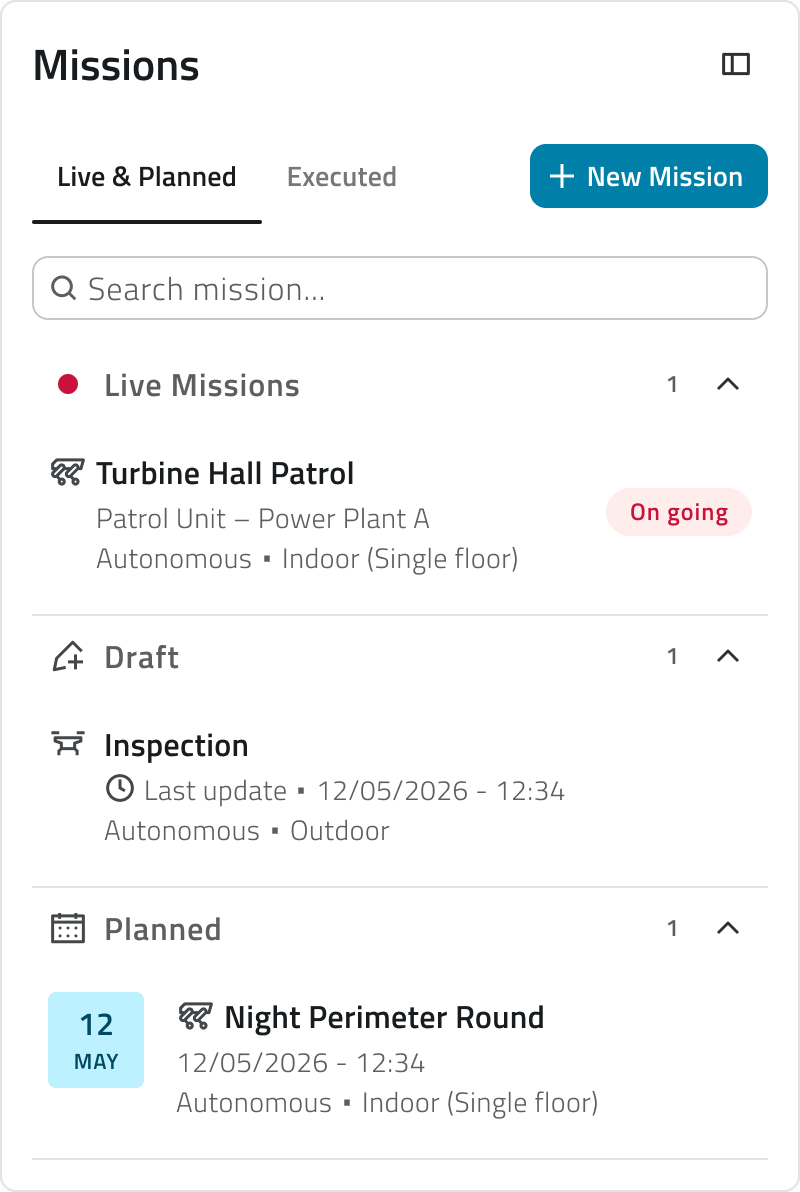
Find a mission
The search bar filters the list by name and keeps the grouping: each group then holds only the missions that match.
💡Tip: When a project holds many missions, collapse the groups you are not working on using the arrow next to the group name, so that the one you need stays in view.
Open a mission
Click a mission to open it. Where you land depends on its state:
- a Live mission opens on the live view, where you follow it and control the Mission Unit.
- a Draft or Scheduled mission opens on the mission editor.
When you open a Draft or Scheduled mission, the initial setup you have already completed is not requested again. To change it, open the Details section and select Edit mission details.
Save a mission as a draft
On the planning screen, Save as a Draft stores the mission with everything you have defined so far. You can save whenever there is something new to keep; once the mission is saved, there is nothing left to save until you change something again.
If you leave the planning screen with unsaved changes, a confirmation is asked before you go.
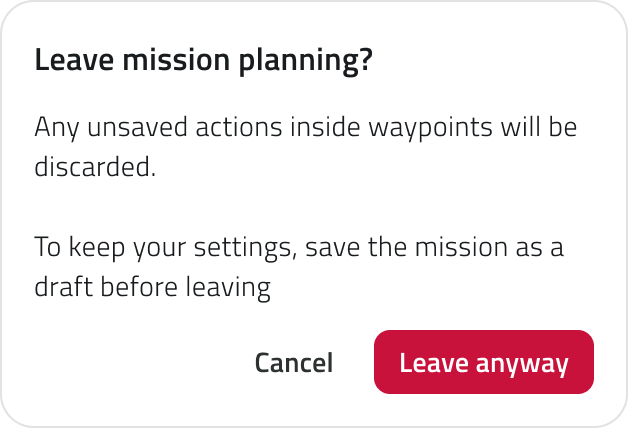
Going ahead discards the actions configured on the Waypoints that have not been saved. Save the mission as a draft first to keep them.
Delete a mission
Deleting a mission removes it from the project together with everything defined on it. The confirmation says how many occurrences are about to be deleted.
To delete more than one mission at a time, hold CTRL and click the ones you need; CTRL and click on a mission that is already selected takes it out of the selection.

Deletion is permanent and cannot be undone.
Start a new mission
The New Mission button, at the top of the Live & Planned tab, opens the configuration of a new mission.
A Mission Unit and an Equipment must be registered before a mission can be created. If either is missing, a message explains what to register.
Links
- Create a mission: configure a new mission step by step.
- Draw the mission on the map: what you can do on the planning screen.
- Initial Setup: register Mission Units, Add-ons and Equipment.
Trova e gestisci le tue missioni
La scheda Missioni raccoglie tutte le missioni del progetto. Da qui puoi seguire quelle in corso, riprendere quelle già preparate e avviarne di nuove. Apri la scheda Missioni dalla barra laterale sinistra.
La sezione Live & Planned
Missioni si divide in due sezioni: Live & Planned, dove le missioni si preparano e si seguono, ed Eseguite, che raccoglie quelle già eseguite.
In Live & Planned le missioni sono raggruppate per stato. Ogni gruppo indica quante missioni contiene e si comprime con la freccia accanto al nome.
| Gruppo | Cosa contiene | Cosa puoi fare |
| Live Missions | Le missioni in esecuzione in questo momento. | Aprire la missione per seguirla e intervenire sulla Mission Unit. |
| Bozze | Le missioni configurate e salvate, non ancora avviate. Una Bozza viene creata appena completi la configurazione e resta disponibile per essere ripresa. | Aprire la missione per completarla o modificarla, poi eseguire il Pre Check e avviarla. |
| Pianificate | Le missioni pianificate per una data e un'ora, una sola volta oppure a ripetizione. | Aprire la missione per modificarla prima che venga eseguita. |
Leggere l'elenco
Ogni missione mostra il nome e la Mission Unit assegnata. L'icona accanto al nome indica il tipo di unità: robot dog, oppure drone e hangar.
Ogni gruppo riporta l'informazione più utile per quello stato:
| Gruppo | Cosa viene mostrato |
| Live Missions | Per un robot dog, un chip che indica cosa sta facendo la Mission Unit: In corso mentre la missione è in corso, RTH mentre l'unità sta rientrando alla Home Position. |
| Bozze | L'etichetta Bozza. |
| Pianificate | La data pianificata e l'ora di avvio. Se la missione si ripete, compare anche la voce Prossima, con la data e l'ora dell'esecuzione più imminente, e un chip che indica quante esecuzioni restano. |
Il chip di stato riguarda soltanto il robot dog: per una missione in corso con un drone non compare.
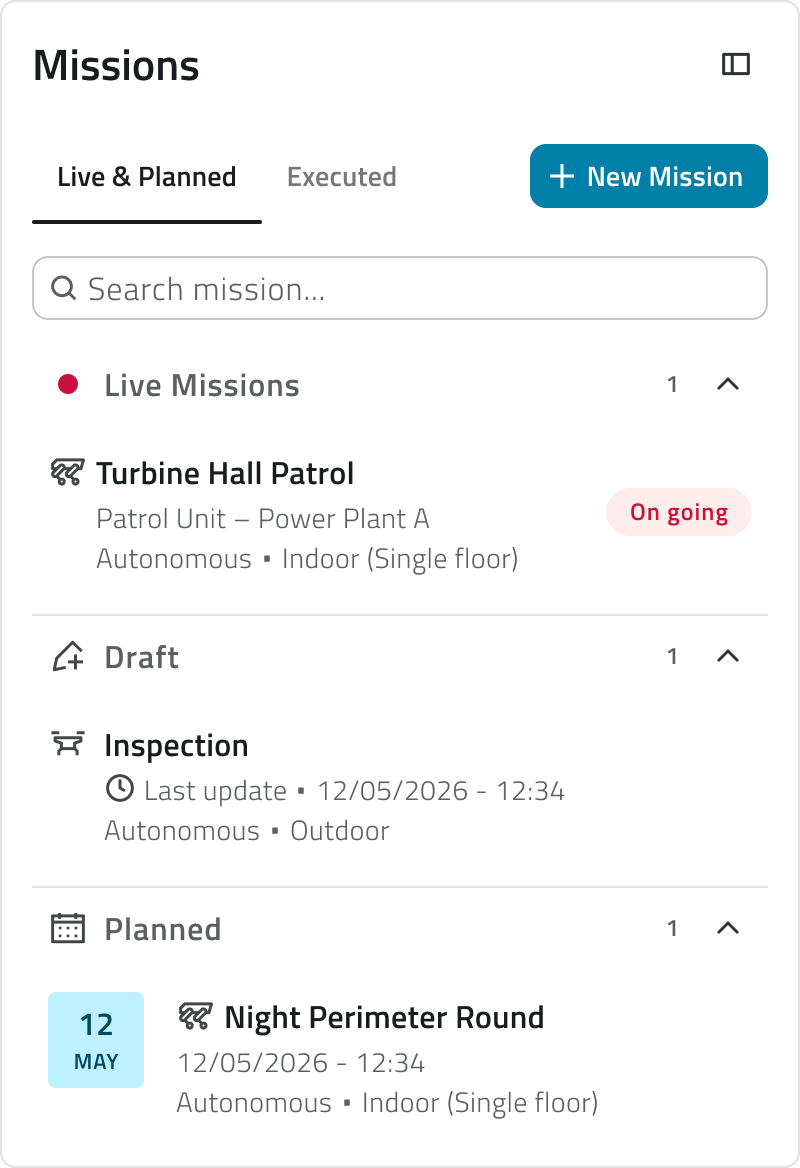
Trovare una missione
La barra di ricerca filtra l'elenco per nome, mantenendo la divisione in gruppi: dentro ciascuno rimangono soltanto le missioni corrispondenti.
💡Tip: Se un progetto contiene molte missioni, comprimi con la freccia i gruppi su cui non stai lavorando, così resta in vista solo quello che ti serve.
Aprire una missione
Clicca una missione per aprirla: la schermata su cui arrivi dipende dal suo stato:
- una missione Live si apre sulla vista in diretta, dove la segui e comandi la Mission Unit.
- una missione Bozza o Pianificata si apre sull'editor della missione.
Aprendo una missione Bozza o Pianificata, la configurazione iniziale che hai già completato non viene richiesta di nuovo. Per modificarla, apri la sezione Dettagli e seleziona Modifica i dettagli della missione.
Salvare una missione come bozza
Nella schermata di pianificazione, Salva come bozza salva la missione con tutto ciò che hai definito fino a quel momento. Puoi salvare ogni volta che c'è qualcosa di nuovo; una volta salvata la missione, non resta nulla da salvare finché non la modifichi.
Se esci dalla schermata di pianificazione con modifiche non salvate ti viene chiesta conferma.
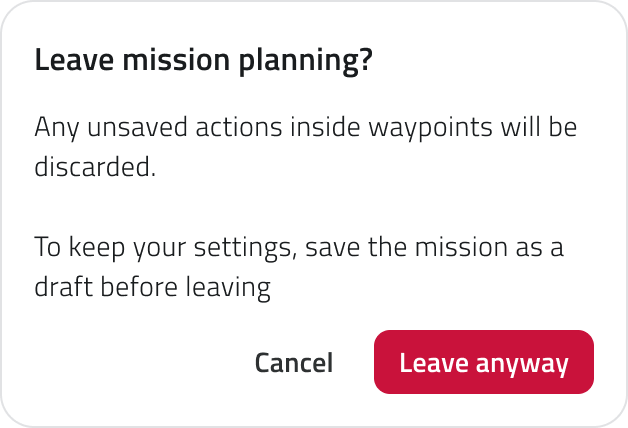
Proseguendo, le azioni configurate sui Waypoints e non salvate vengono perse: salva la missione come bozza per conservarle.
Eliminare una missione
Eliminando una missione, dal progetto vengono rimossi anche tutti gli elementi definiti al suo interno. La conferma indica quante occorrenze verranno eliminate.
💡Tip: Per eliminare più missioni insieme, tieni premuto CTRL e clicca quelle che ti servono; con CTRL + clic su una missione già selezionata la togli dalla selezione.

L'eliminazione è permanente e non può essere annullata.
Avviare una nuova missione
Il pulsante Nuova missione, in alto nella sezione Live & Planned, apre la configurazione di una nuova missione.
Per creare una missione servono almeno una Mission Unit e un Equipment già censiti. Se manca uno dei due, un messaggio indica cosa censire.
Collegamenti
- Creare una missione: configurare una nuova missione passo per passo.
- Disegnare la missione in mappa: cosa puoi fare nella schermata di pianificazione.
- Configurazione iniziale: censire Mission Unit, Add-on ed Equipment.
Last update: 31 July 2026