| **Repeats** | **What you get** |
| **Daily** | One occurrence every day of the period. |
| **Custom** | One occurrence only on the days of the week you pick. |
A series cannot stretch beyond a year: **Start date** and **End date** must fall within twelve months of each other. Plan a longer campaign as more than one series.
--- ### Checking the plan before confirming The **Preview in calendar** button opens the **Missions calendar** beside the scheduling options. It puts the mission you are planning next to what is already booked for the same **Mission Unit**, so you see the plan in context instead of as a list of dates. **Close calendar** closes it again. The calendar tells three things apart: **Other Missions**, already booked; **Schedule preview**, the occurrences you are about to create; and **Preview in conflict**, the ones that clash with something already there. Switch between **Day**, **Week** and **Month** to see how the series falls over the period, and use **Today** to come back to the current date. --- ### When a mission clashes with another A conflict means the same **Mission Unit** is already committed to another mission at that moment, and one unit can only carry out one mission at a time. The preview tells you how many occurrences are in conflict and on which dates. You can confirm the schedule anyway: the mission is created with its conflicting occurrences flagged. A mission cannot be moved once it is scheduled, though, so clearing a conflict means deleting one of the two. [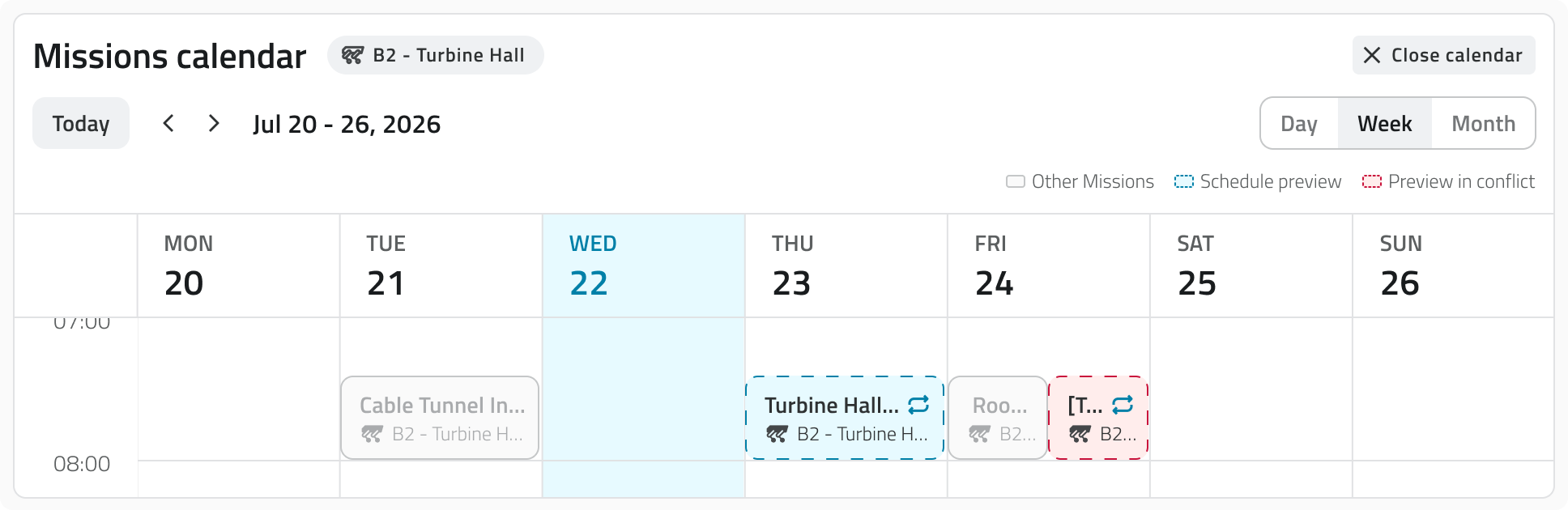](https://wiki.eaglearca.com/uploads/images/gallery/2026-08/BLqimage-3.png)An occurrence left in conflict is not carried out. The mission stays in the calendar, marked as conflicting, until you delete one of the two missions.
--- ### Confirming the schedule The date you choose is not booked yet. The mission is saved as a **Draft** and takes its place in the calendar only when you confirm it in the **Pre Check**. An **Autonomous** mission has to be drawn on the map first, while a **Discovery** mission has no path to draw and goes straight to the Pre Check. Once confirmed, the mission moves in among the **Planned** ones, where you find the date of its next run and how many runs it still has ahead. --- ### Following a series once it is planned In the mission list, a recurring mission carries **Next** with the date and time of the occurrence that comes first, and a badge with how many occurrences it still holds. [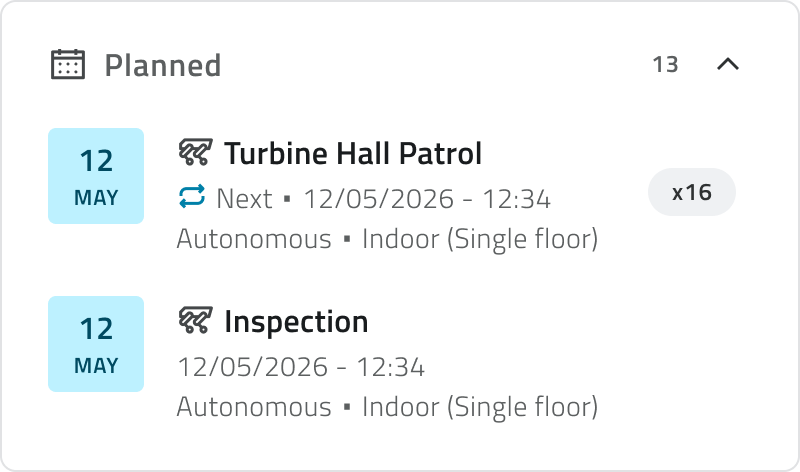](https://wiki.eaglearca.com/uploads/images/gallery/2026-08/rL9image-4.png) Click the mission and choose what to open: **View next occurrence** or **View entire series**. The series shows the mission as it was planned, with a **Schedule** section that gathers the period the series covers, the time of each run and the days of the week it falls on, followed by the list of the occurrences still to come. That list gets shorter as the series is carried out. In the **Details** tab, next to the button that deletes the mission, a second button opens the **Missions calendar** already filtered on the mission's **Mission Unit**, so you see the series alongside everything that unit is already booked for. The occurrence, which you also reach by selecting one of the dates in that list, shows the same mission with the schedule reduced to the day and the time of that single run. --- ### Links - *[Run the pre-check and start a mission](https://wiki.eaglearca.com/books/mission-planner-sBN/page/run-the-pre-check-and-start-a-mission "Run the pre-check and start a mission")*: where the schedule is confirmed. - *[Missions calendar](https://wiki.eaglearca.com/books/mission-planner-sBN/page/missions-calendar "Missions calendar")*: seeing and managing what is planned, conflicts included. ---| **Ripetizione** | **Cosa ottieni** |
| **Giornaliera** | Un'occorrenza ogni giorno del periodo. |
| **Personalizzata** | Un'occorrenza solo nei giorni della settimana che scegli. |
Una serie non può estendersi oltre un anno: **Data di inizio** e **Data di fine** devono restare entro dodici mesi l'una dall'altra. Per un periodo più lungo, crea più serie.
--- ### Verificare il piano prima di confermare Il pulsante **Anteprima nel calendario** apre il **Calendario delle missioni** accanto alle opzioni di pianificazione. La missione che stai pianificando compare insieme a quelle già prenotate per la stessa **Mission Unit**, così la vedi nel suo contesto e non come un semplice elenco di date. Per richiuderlo, usa **Chiudi calendario**. Il calendario distingue tre cose: le missioni già prenotate (**Altre missioni**), le occorrenze che stai per creare (**Anteprima della pianificazione**) e quelle che si sovrappongono a una missione esistente (**Anteprima in conflitto**). Con **Giorno**, **Settimana** e **Mese** cambi vista per capire come cade la serie nel periodo, mentre **Oggi** riporta alla data corrente. --- ### Quando una missione si sovrappone a un'altra Si crea un conflitto quando la **Mission Unit** è già impegnata in un'altra missione allo stesso orario, perché un'unità può eseguire una sola missione per volta. L'anteprima ti dice quante occorrenze sono in conflitto e in quali date. Puoi confermare la pianificazione anche così: la missione viene creata con le occorrenze in conflitto evidenziate. Una volta pianificate, però, le missioni non si possono spostare: per risolvere un conflitto devi eliminare una delle due. [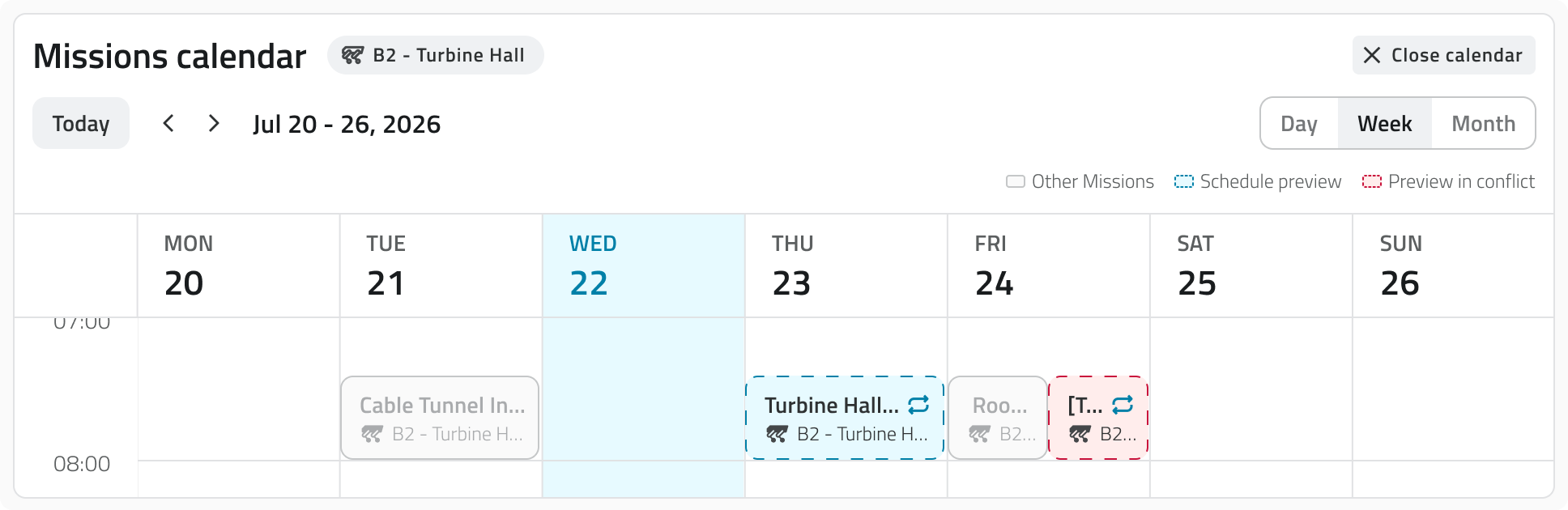](https://wiki.eaglearca.com/uploads/images/gallery/2026-08/BLqimage-3.png)Un'occorrenza lasciata in conflitto non viene eseguita. La missione resta nel calendario, segnalata come in conflitto, finché non elimini una delle due missioni.
--- ### Confermare la pianificazione Scegliere la data non basta a prenotarla: la missione viene salvata come **Bozza** e prende posto nel calendario solo quando la confermi nel **Pre Check**. In una missione **Autonoma** devi prima disegnarla sulla mappa, mentre in una **Esplorativa** non c'è un percorso da disegnare e si passa direttamente al Pre Check. Da quel momento la missione compare tra le **Pianificate**, con la data della prossima esecuzione e il numero di esecuzioni ancora da svolgere. --- ### Seguire una serie dopo la pianificazione Nell'elenco delle missioni, una missione ricorrente mostra la voce **Prossima**, con la data e l'ora dell'occorrenza più imminente, e un badge che indica quante occorrenze restano. [](https://wiki.eaglearca.com/uploads/images/gallery/2026-08/rL9image-4.png) La serie mostra la missione come l'hai pianificata: sotto **Pianificazione** trovi il periodo coperto, l'orario di ogni esecuzione e i giorni della settimana in cui è prevista, seguiti dall'elenco delle occorrenze ancora da svolgere, che si accorcia man mano che la serie procede. Nella scheda **Dettagli**, accanto al button che elimina la missione, un secondo button apre il **Calendario delle missioni** già filtrato sulla **Mission Unit** della missione, così vedi la serie insieme a tutto ciò per cui quell'unità è già impegnata. Selezionando una data dell'elenco apri la singola occorrenza: è la stessa missione, ma con la pianificazione limitata al giorno e all'ora di quell'esecuzione. --- ### Collegamenti - *[Eseguire il pre-check e avviare una missione](https://wiki.eaglearca.com/books/mission-planner-sBN/page/run-the-pre-check-and-start-a-mission "Run the pre-check and start a mission")*: dove la pianificazione viene confermata. - *[Calendario delle missioni](https://wiki.eaglearca.com/books/mission-planner-sBN/page/missions-calendar "Missions calendar")*: vedere e gestire ciò che è pianificato, conflitti compresi. --- ***Last update:** 14 September 2026*