Access and Overview
This book collects the introductory guides for getting started with EagleArca independently.
Here you will find clear, practical instructions for accessing the platform, understanding the structure of roles, groups, and users, entering projects or the Backoffice, and becoming familiar with the core concepts of object classes and Global List objects.
ITA:
Questo libro raccoglie le guide introduttive per iniziare a utilizzare EagleArca in modo autonomo.
Qui trovi indicazioni chiare e pratiche per accedere alla piattaforma, comprendere la struttura di ruoli, gruppi e utenze, entrare nei progetti o nel Backoffice, e familiarizzare con i concetti fondamentali di classi oggetto e oggetti Global List.
Access to the platform
 English
  Italiano
 Logging into EagleArca allows you to use both the Backoffice (user management, roles, groups, projects, objects and object classes) and the Inventory App (data collection and fieldwork).
This page describes the steps for logging into the system, setting a password and selecting an organization and application.
To log in, the user account must be created and enabled by an administrator with backoffice permissions.
First-time login
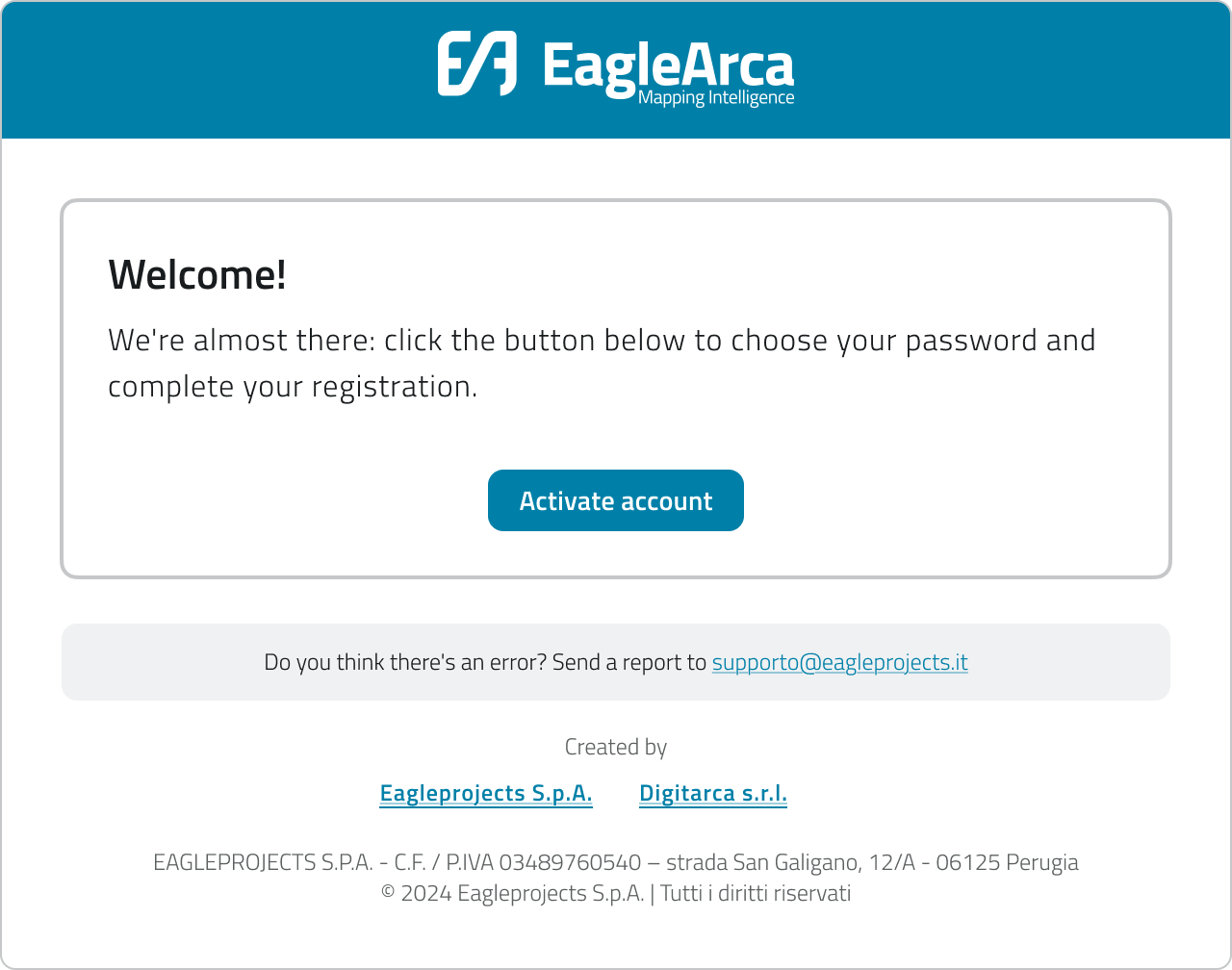
1. Open the welcome email you received after creating your account and click the activation link.
2. Set your new password, making sure it meets the minimum requirements:
- at least 8 characters
- one uppercase letter
- one number
- one special character
3. Confirm to save the password.
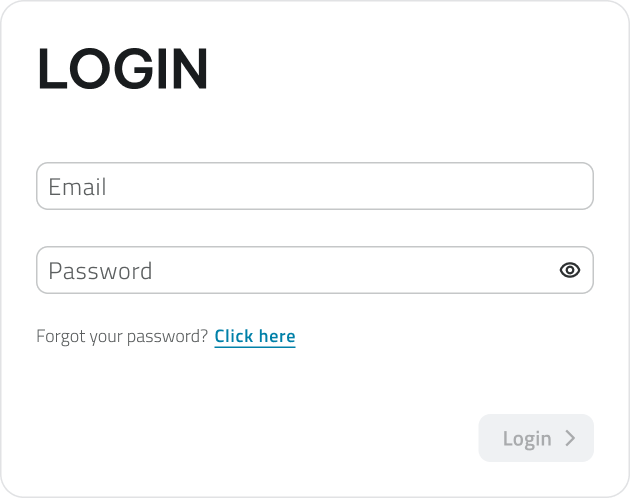
4. You will be redirected to the login page: enter your email address and password, then click Login.
The activation link is valid for a limited time. If it has expired, please request account creation again.
💡 TIP: If the welcome link has expired, ask the project contact for a new invitation or reset.
Reset your password
1. Go to the EagleArca login page.
2. Click on Forgot your password?

3. Enter the email address associated with your account and click Send.
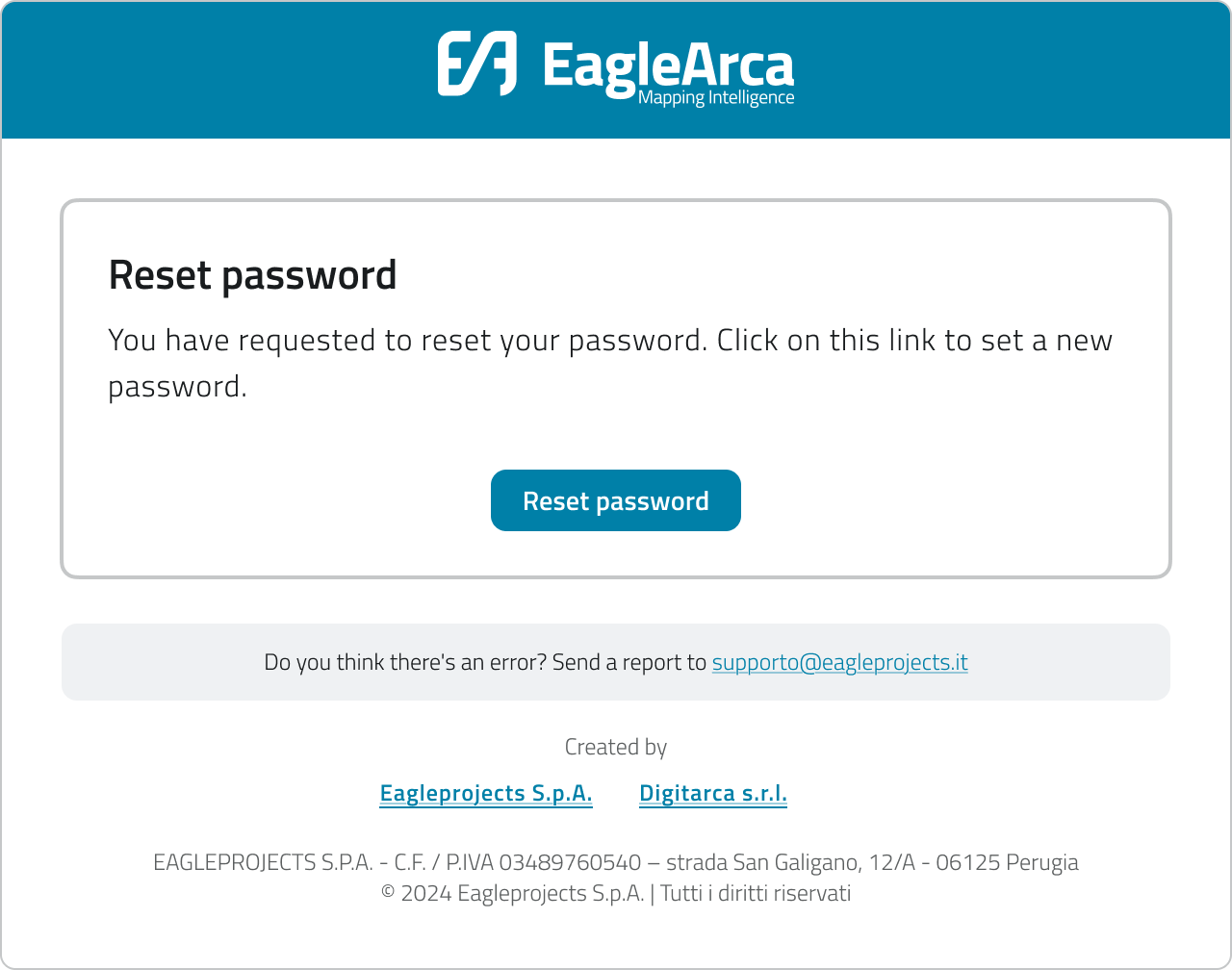
4. Check your email inbox and open the reset link you received.
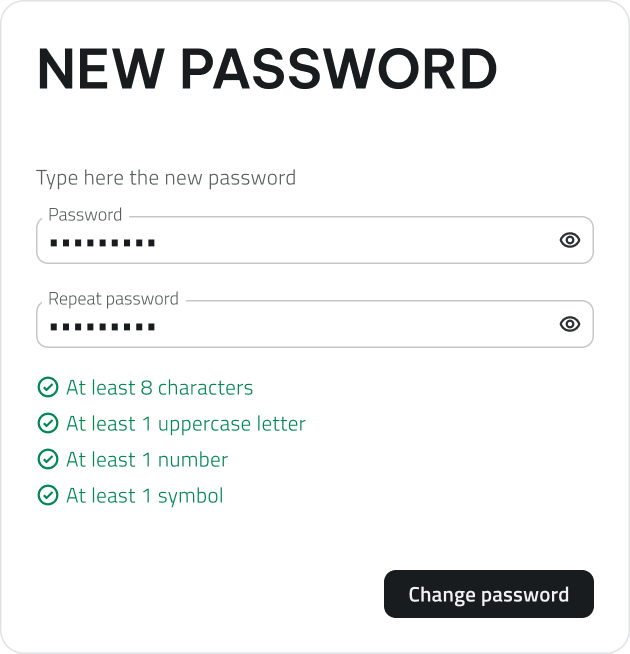
5. Set and confirm your new password, making sure it meets the minimum requirements:
- at least 8 characters
- one uppercase letter
- one number
- one special character
then click Change Password.
6. Go back to the login page and sign in with your new password.
If you don't receive the email, check your Spam or Junk folder.
Select organization and app
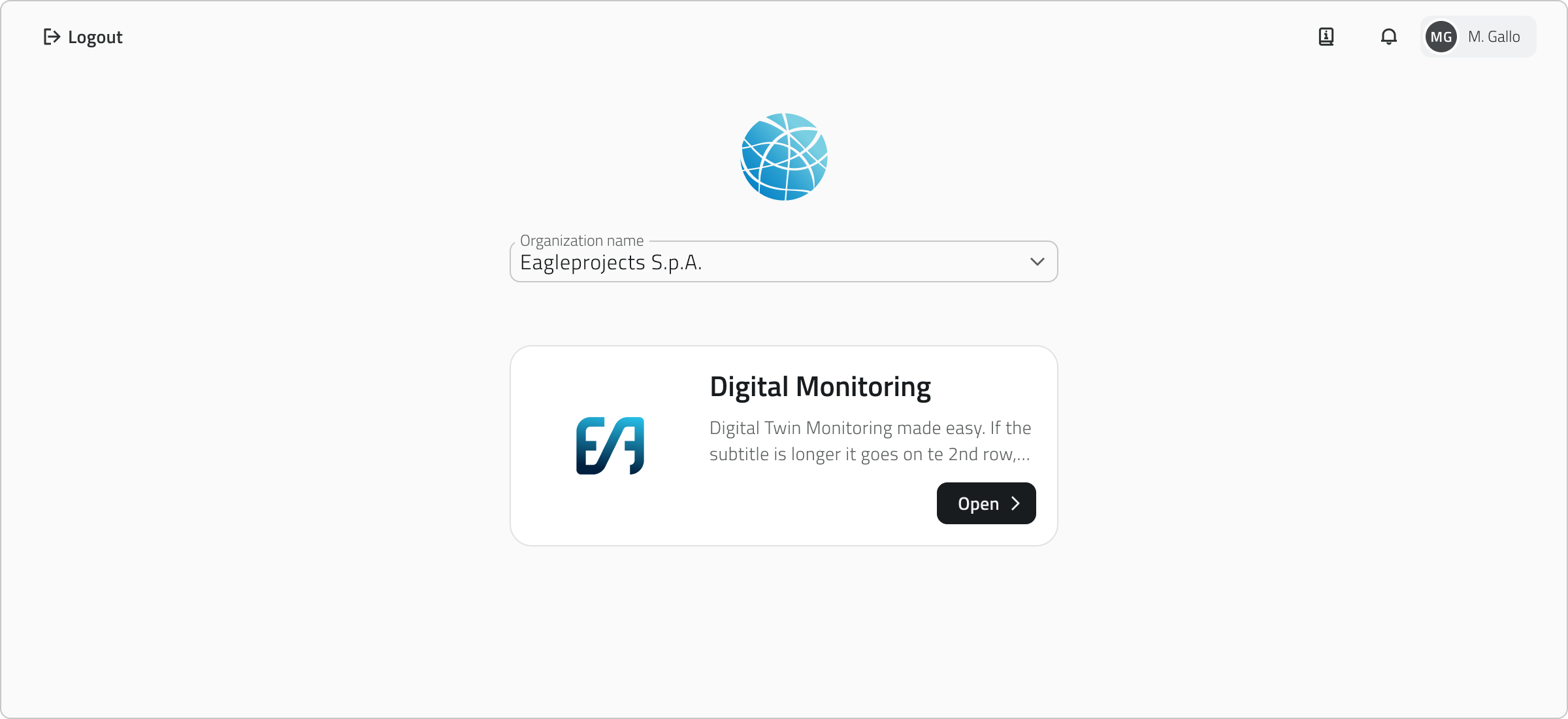
1. After logging in, the app selection page opens.
- Choose the organization from the top menu.
- Select the desired app (Backoffice or App Inventory).
- Click Open on the app card.
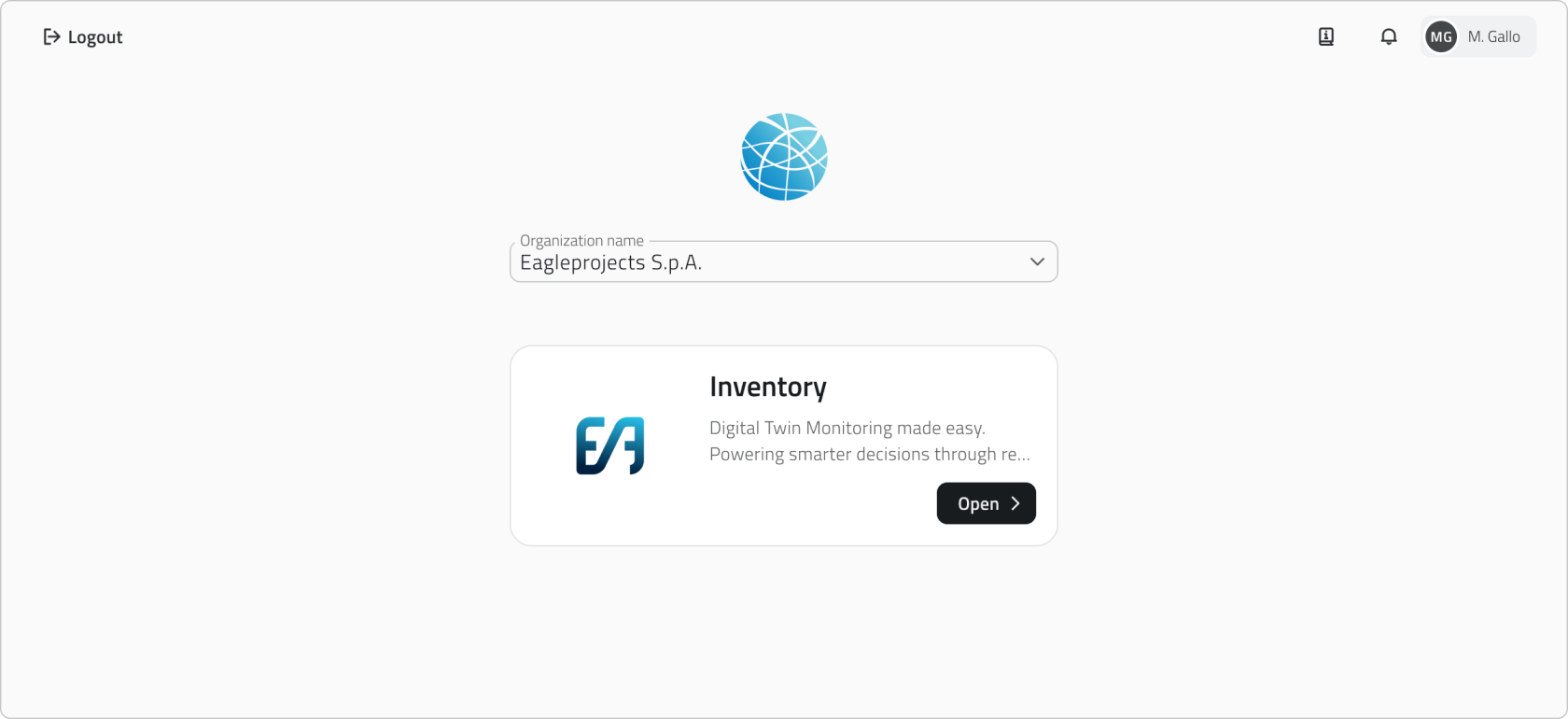
2. If you are associated with only one organization and one application, access is granted automatically.
- With App Inventory permissions, you access the application directly.
- With Backoffice permissions, you enter the configuration console.
3. If you access an organization but you are not associated with any app, an empty page is displayed.
- The page indicates that no apps are available for the selected organization.
- You are asked to contact the administrator to obtain the necessary authorizations.
4. To change organization or app after entering, click the current organization and app name at the top left and select a new item.

Access the project
Once you open the Inventory app, the project selection home page appears.
You can change the view (to cards, list, or table) using the selector in the top-right corner.
Projects can be filtered using the search bar.
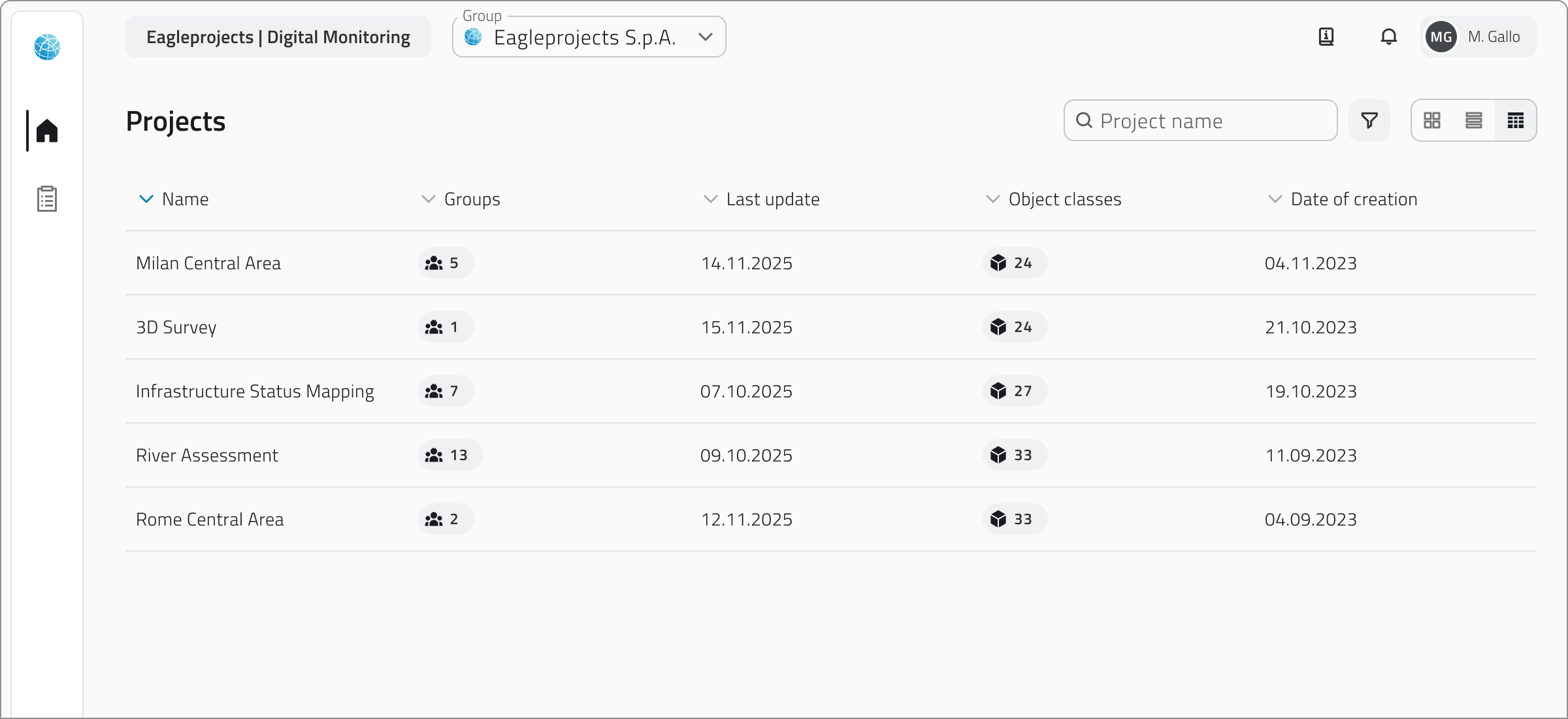
Each project represents a separate workspace, containing its own groups, object classes, and data.
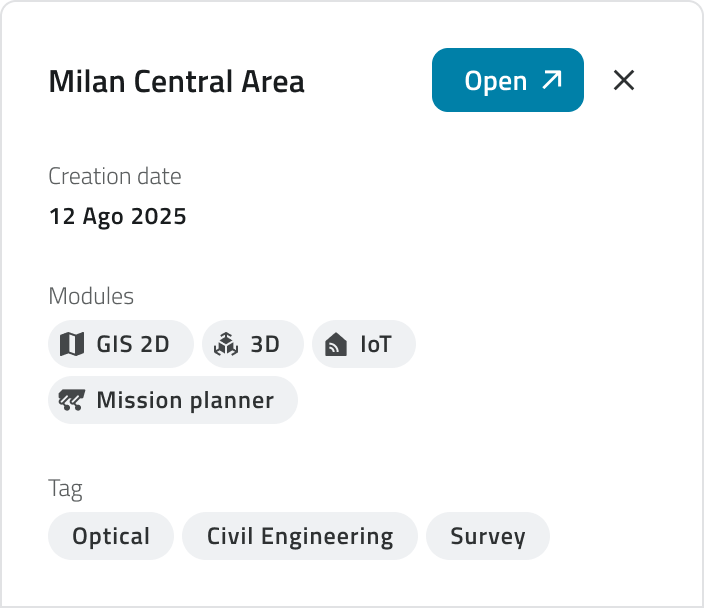
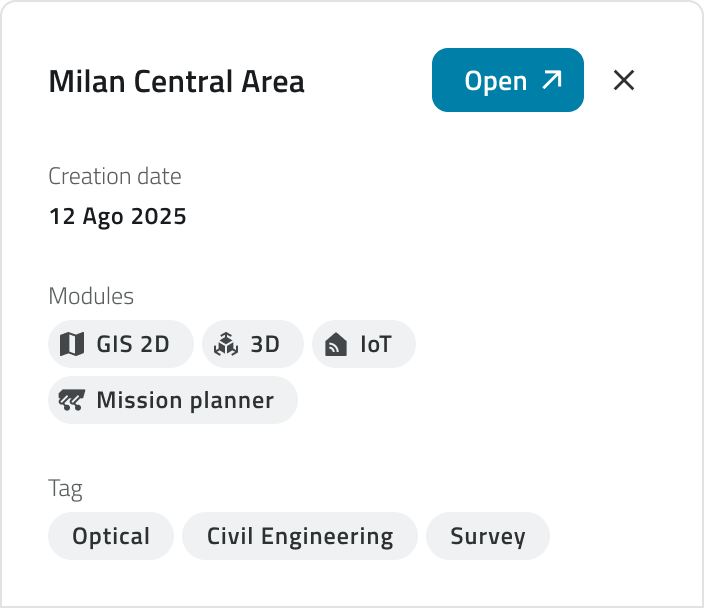
- To view a project's details, click on it to open a side panel with the information.
- To open a project, click the Open button, which appears when you hover over the item or at the top of the details panel.
- Please wait for the main view to load.
Project availability depends on the groups and roles assigned to you: if you don't see a project in the list, check with an administrator to make sure your account is properly assigned.
Managing concurrent sessions
Only one session can be active per account at a time.
If you try to log in while your account is already logged in from another browser or device, the platform will display a message indicating that a session is already active.
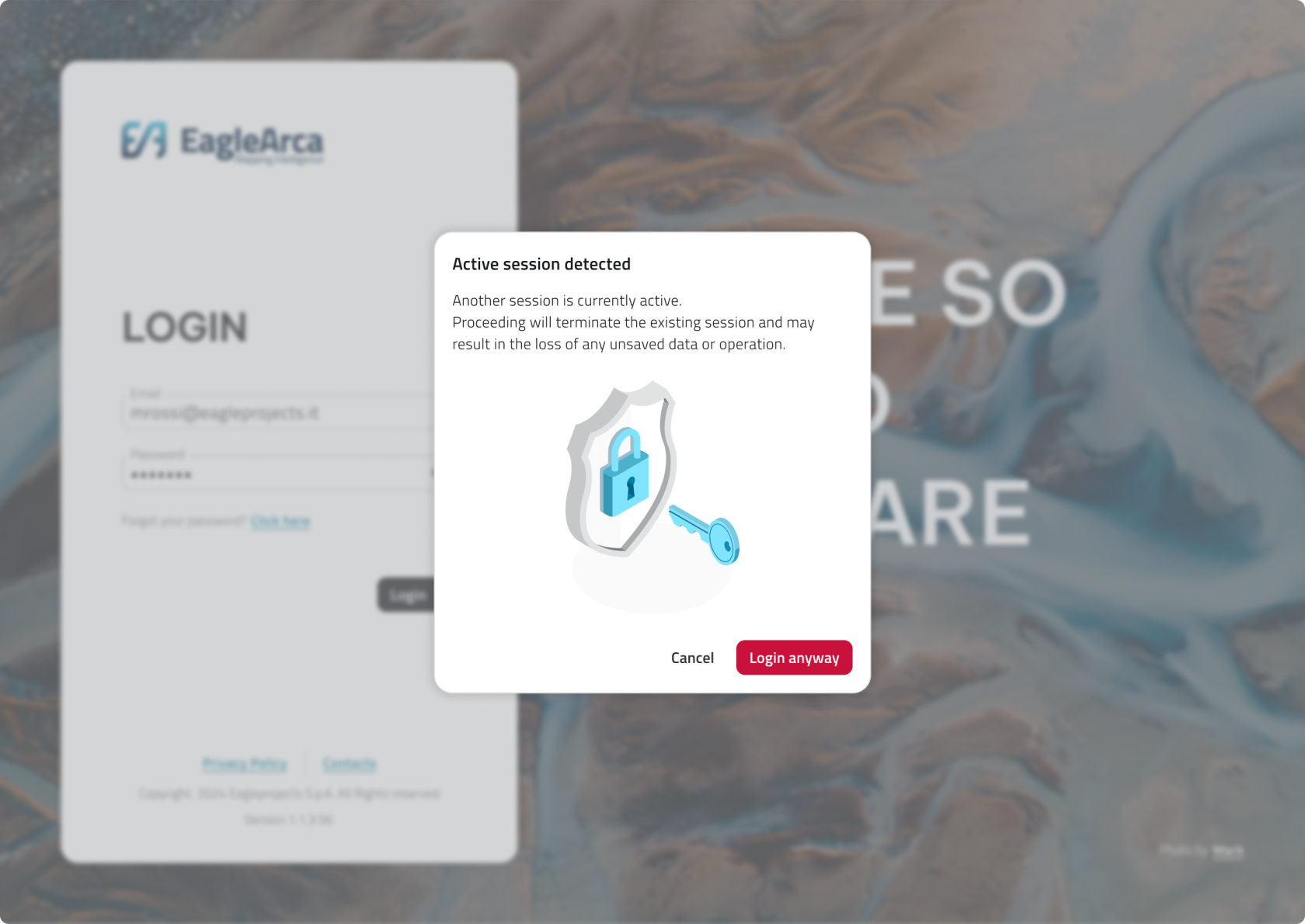
In this case, you can choose between two options:
- Cancel: Stops the login and keeps the already open session active.
- Access anyway: Completes access in the new session and automatically disconnects the previous one.
It is not possible to be connected simultaneously from a mobile device and computer.
If you log in from mobile while already connected from a computer (or vice versa) you will be automatically disconnected from the other device.
Links
Accesso alla piattaforma
Accedere a EagleArca permette di utilizzare sia il Backoffice (gestione utenti, ruoli, gruppi, progetti, oggetti e classi oggetto) sia l’App Inventory (raccolta dati e lavoro sul campo).
Questa pagina descrive i passaggi per entrare nel sistema, impostare la password e selezionare organizzazione e applicazione.
Per accedere è necessario che l’utenza sia creata e abilitata da un amministratore con permesso di backoffice.
Primo accesso
1. Apri la mail di benvenuto ricevuta dopo la creazione dell’utenza e clicca il link di attivazione.
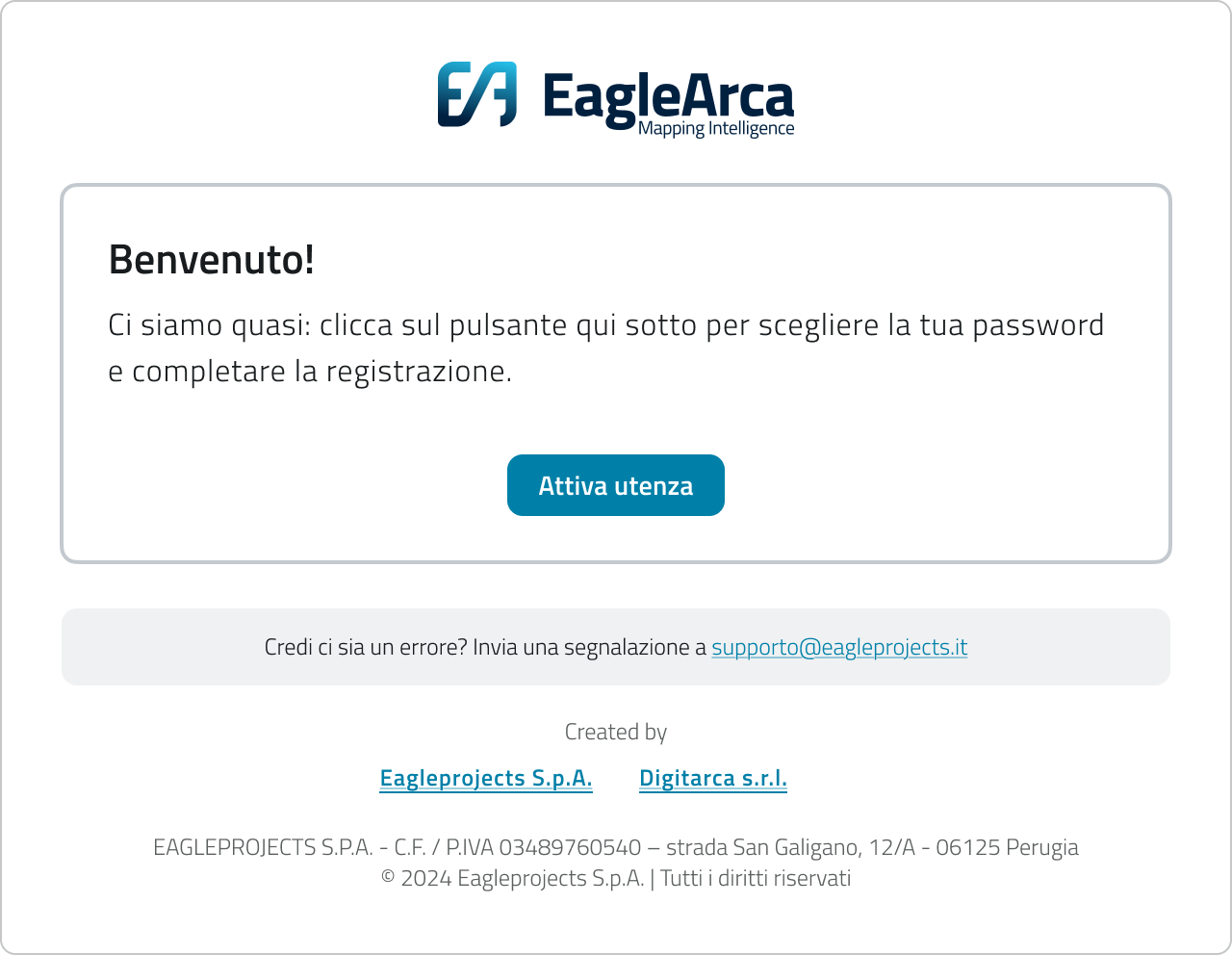
2. Imposta la nuova password rispettando i requisiti minimi:
- almeno 8 caratteri
- una lettera maiuscola
- un numero
- un carattere speciale
3. Conferma per salvare la password.
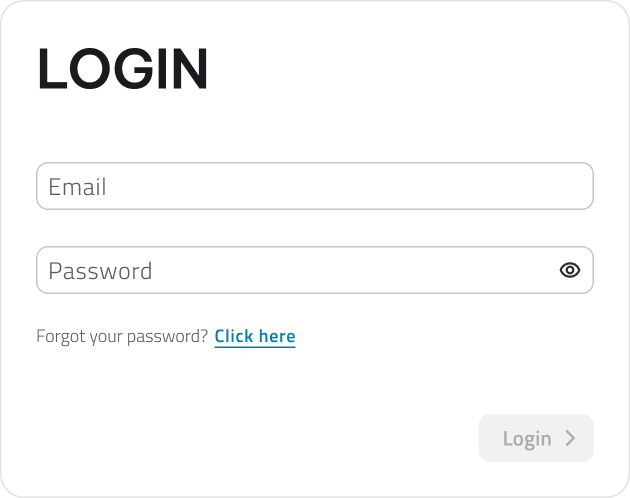
4. Verrai reindirizzato alla pagina di login: inserisci email e password, quindi clicca su Login.
Il link di attivazione ha validità limitata. Se risulta scaduto, richiedi nuovamente la creazione dell’utenza.
💡 Suggerimento: Se il link di benvenuto è scaduto, richiedi un nuovo invito o un reset al referente del progetto.
Reimpostare la password
1. Vai alla pagina di login di EagleArca.
2. Clicca su Hai dimenticato la password?

3. Inserisci l’email associata all’utenza e clicca su Invia.
4. Controlla la tua casella email e apri il link di reset ricevuto.
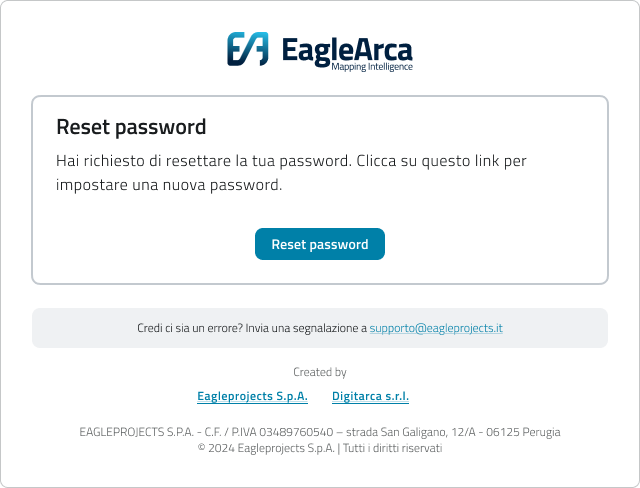
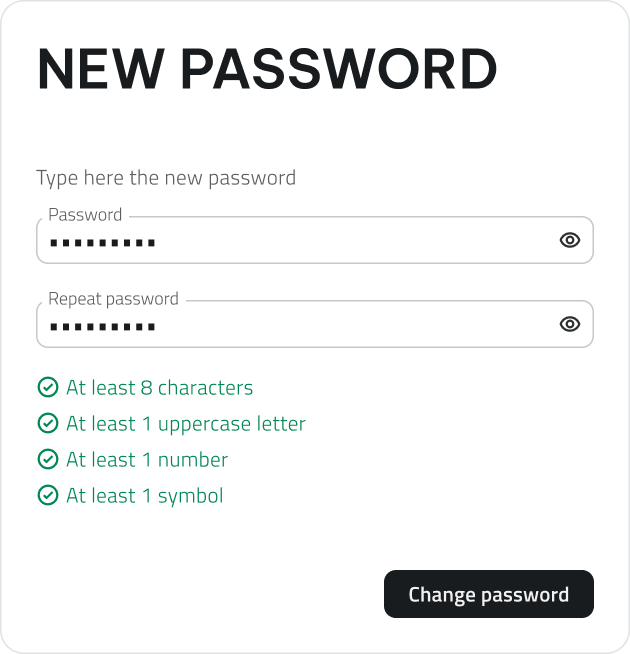
5. Imposta e conferma la nuova password rispettando i requisiti minimi:
- almeno 8 caratteri
- una lettera maiuscola
- un numero
- un carattere speciale
quindi clicca su Cambia password.
6. Torna alla pagina di login e accedi con la nuova password.
Se la mail non arriva, controlla la cartella Spam o Posta indesiderata.
Selezionare organizzazione e app
1. Dopo il login, si apre la pagina di selezione app.
- Scegli l’organizzazione dal menu in alto.
- Seleziona l’app desiderata (Backoffice o App Inventory).
- Clicca su Apri nella card dell’app.
2. Se si è associati a una sola organizzazione e a una sola applicazione, l’accesso avviene automaticamente.
- Con permessi per l’App Inventory, si accede direttamente all’applicazione.
- Con permessi Backoffice, si entra nella console di configurazione.
3. Se accedi a un’organizzazione ma non sei associato a nessuna app, viene mostrata una pagina vuota.
- La pagina indica che non sono disponibili app per l’organizzazione selezionata.
- Viene richiesto di contattare l’amministratore per ottenere le autorizzazioni necessarie.
4. Per cambiare organizzazione o app una volta entrato, clicca in alto a sinistra sul nome dell'organizzazione e dell'app correnti e seleziona una nuova voce.

Accedere al progetto
Una volta aperta l’App Inventory, viene mostrata la pagina iniziale di selezione progetto.
La visualizzazione può essere cambiata (a card, a lista o a tabella) con un selettore in alto a destra.
I progetti possono essere filtrati tramite searchbar.
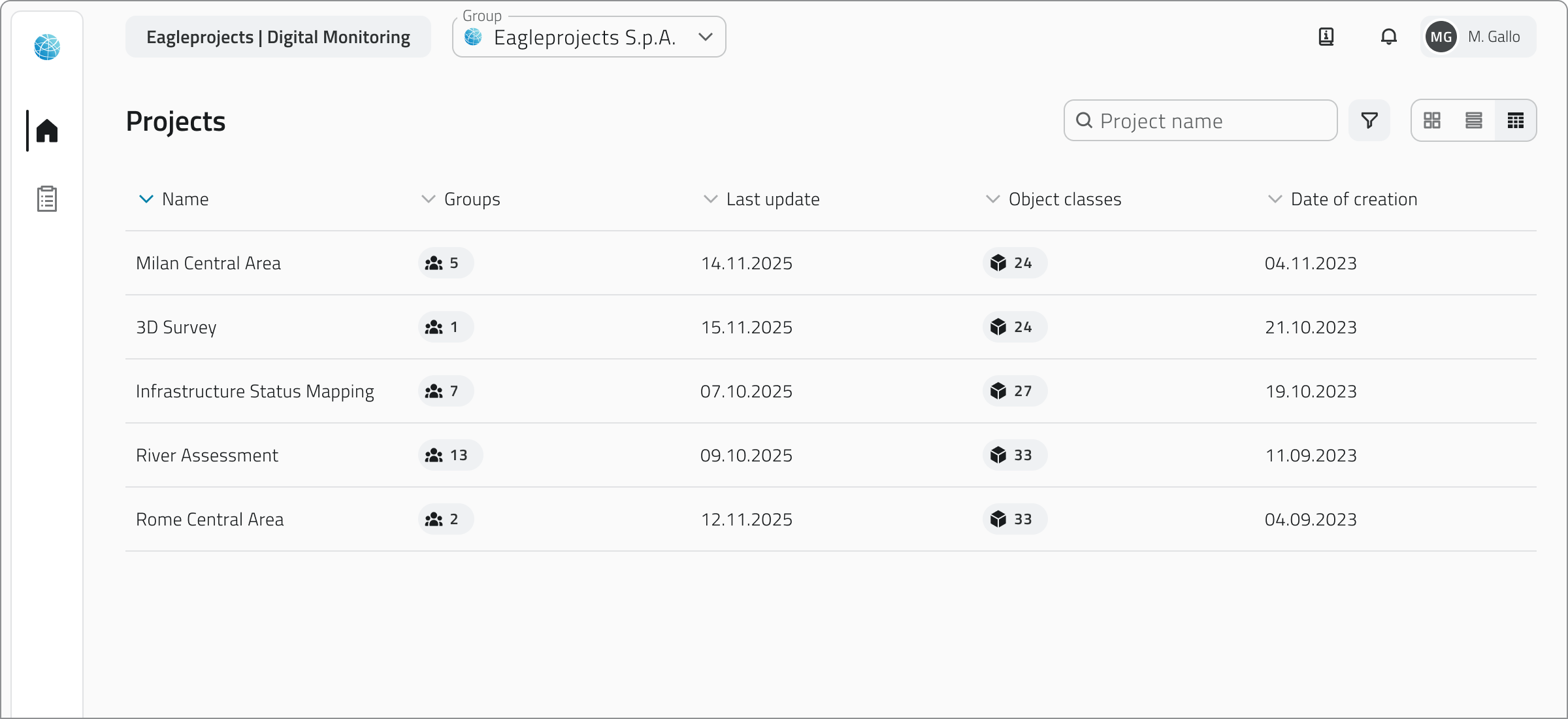
Ogni progetto rappresenta un ambiente di lavoro indipendente, che contiene i propri gruppi, classi oggetto e dati.
- Per visualizzare i dettagli di un progetto, clicca su di esso per aprire un pannello laterale con le informazioni.
- Per aprire un progetto, clicca sul bottone Apri, visibile al passaggio del mouse sopra l'elemento o in alto sul pannello dei dettagli.
- Attendere il caricamento della vista principale.
La disponibilità dei progetti dipende dai gruppi e dai ruoli assegnati: se non vedi un progetto nella lista, verifica con un amministratore che l’utenza sia associata correttamente.
Gestione degli accessi contemporanei
Per ogni account può essere attiva una sola sessione alla volta.
Se provi ad accedere mentre la tua utenza è già collegata da un altro browser o dispositivo, la piattaforma mostra un messaggio che segnala la presenza di una sessione già attiva.
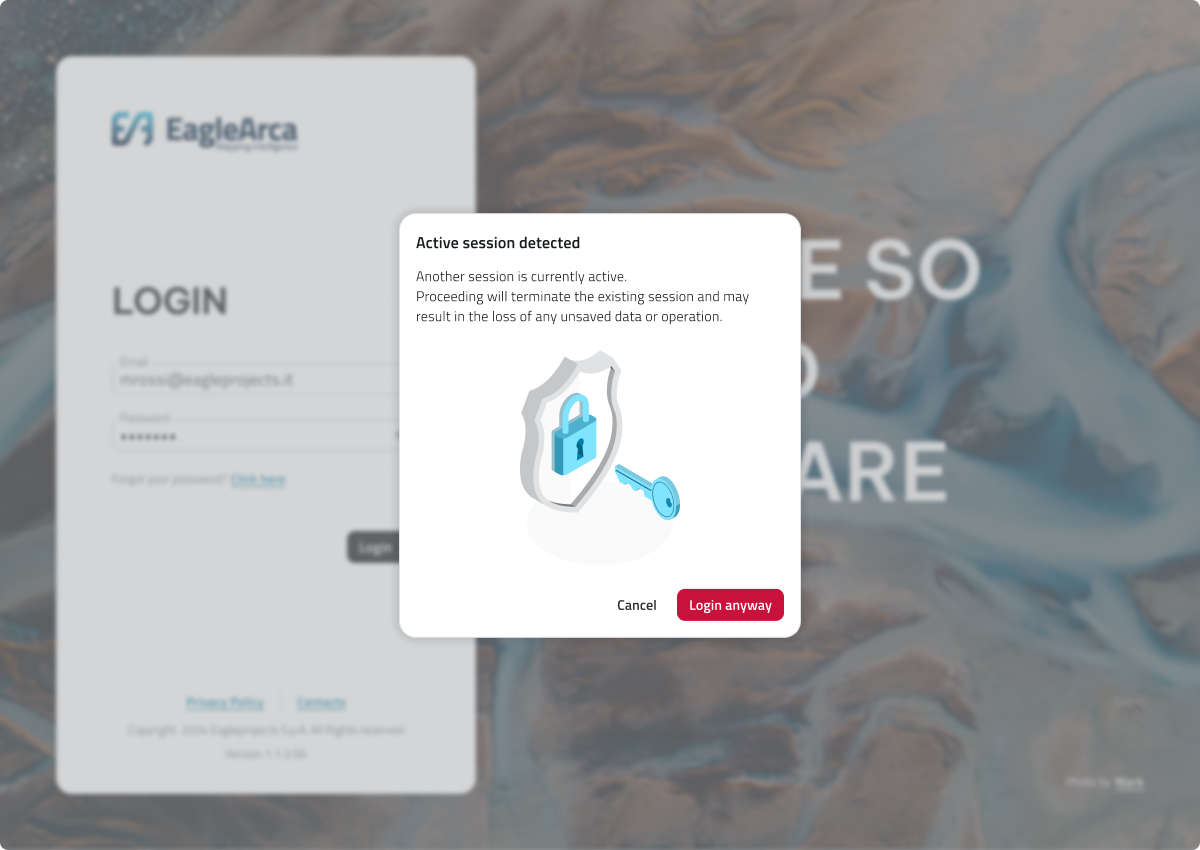
In questo caso puoi scegliere tra due opzioni:
- Annulla: Interrompe il login e mantiene attiva la sessione già aperta.
- Accedi comunque: Completa l’accesso nella nuova sessione e disconnette automaticamente quella precedente.
Non è possibile essere collegati contemporaneamente da dispositivo mobile e computer.
Se accedi da mobile mentre sei già collegato da computer (o viceversa), verrai automaticamente disconnesso dall’altro dispositivo.
Collegamenti
Last update: 28 May 2026
Overview of users, roles and groups
In EagleArca, each user’s access and permissions are managed through users, roles and groups.
These three elements work together to control who can access which projects and what editing privileges they have.
Users
A user is a person who accesses the platform.
Each user can belong to one or more organizations, but access to projects depends on the roles and groups to which they are assigned.
Within EagleArca, users are classified as:
- Internal, if created directly within the organization.
- External, if already registered in another organization and added as collaborators.
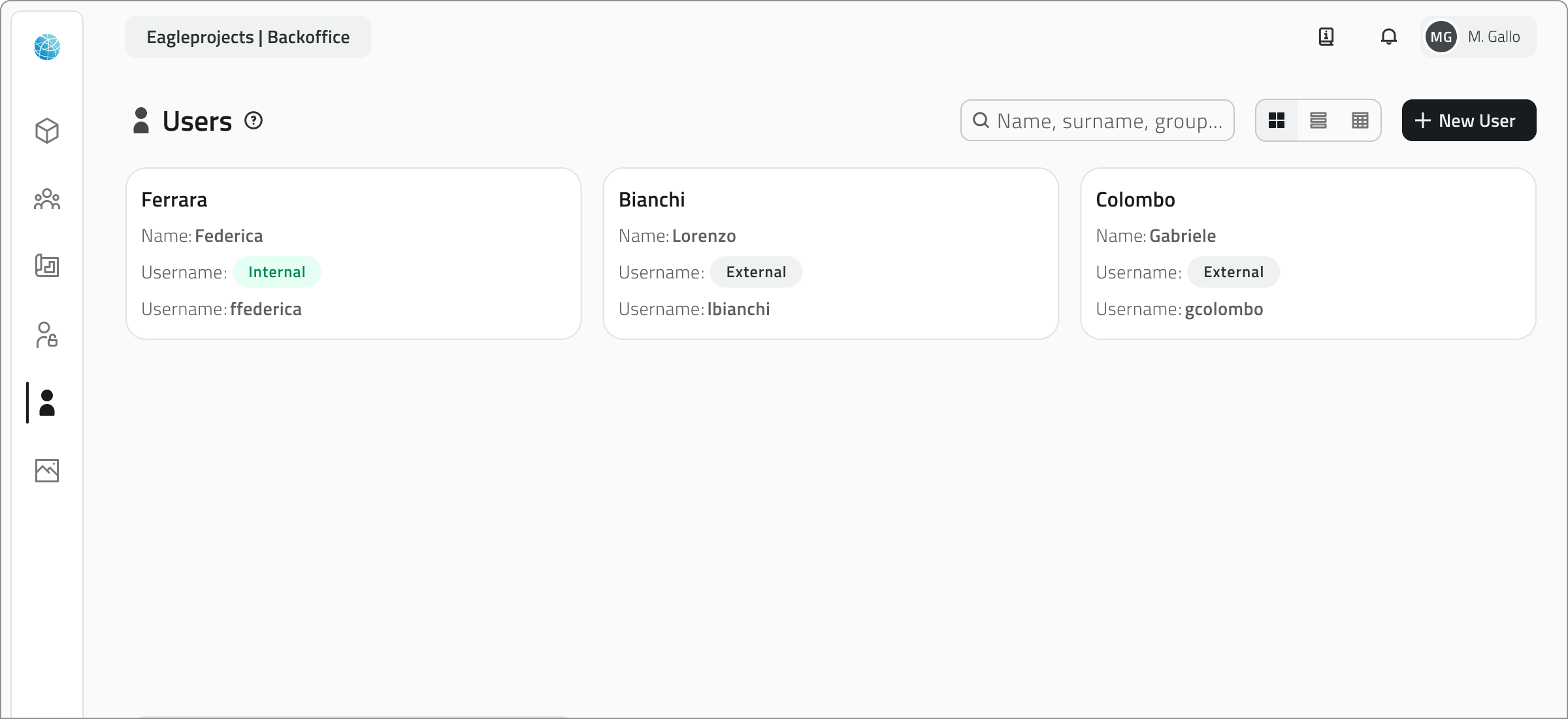
When a new user is created, they receive a welcome email containing a link to set their password and complete their first login.
Each user account can have different permissions for the App Inventory and the Backoffice, and consume separate licenses based on the access granted.
Roles
A role defines which actions a user can perform on the platform's data.
It is a set of permissions that determine what is visible or editable.
- Object classes can be set to be invisible, visible, or editable.
- Resources can be either visible or invisible.
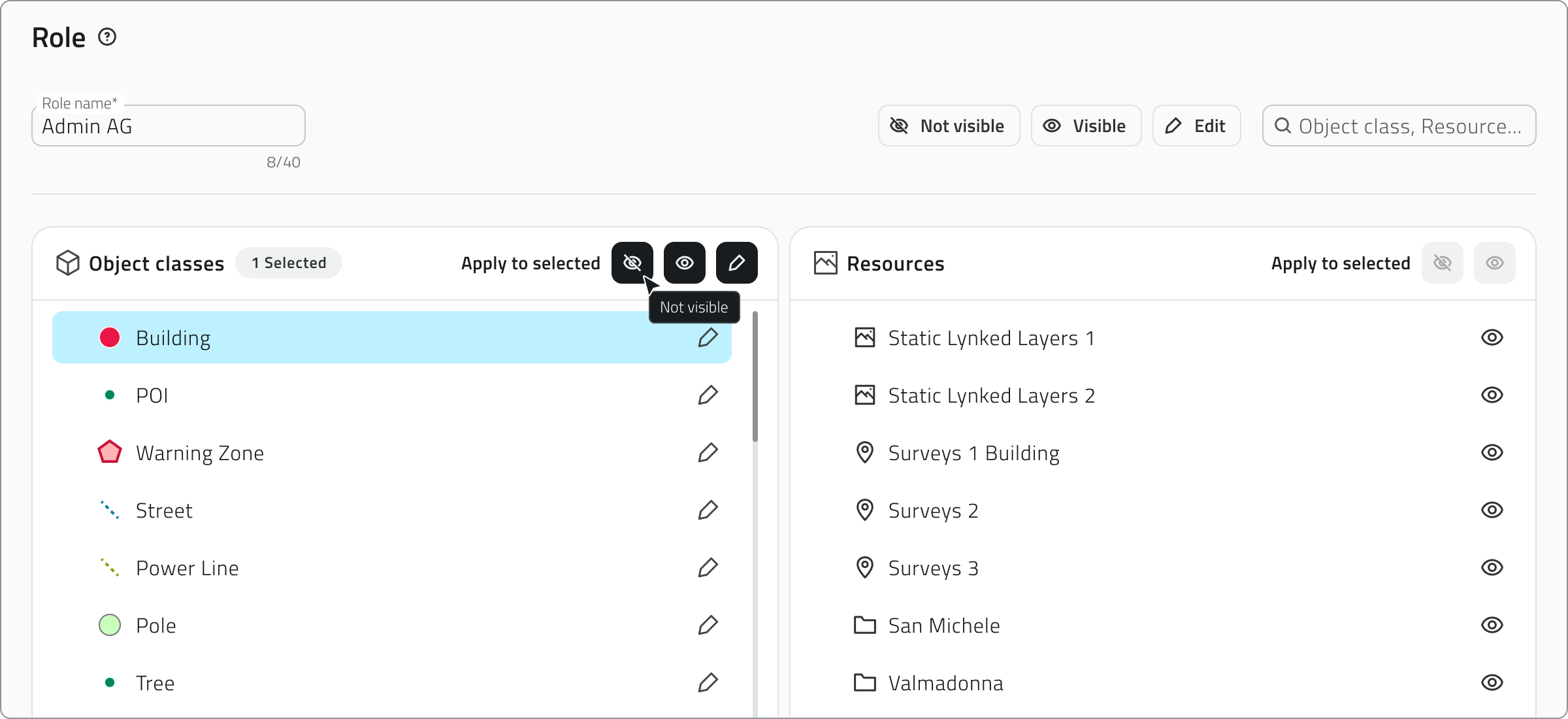
Each role can be linked to one or more groups.
This allows you to automatically apply the same permissions to multiple users without having to configure them one by one.
💡 TIP: Create clear, reusable roles to avoid redundant configurations.
Groups
A group is a collection of users who share the same role and have access to the same projects.
Each group is associated with:
- a role, which determines permissions;
- one or more projects, which define where users can work.
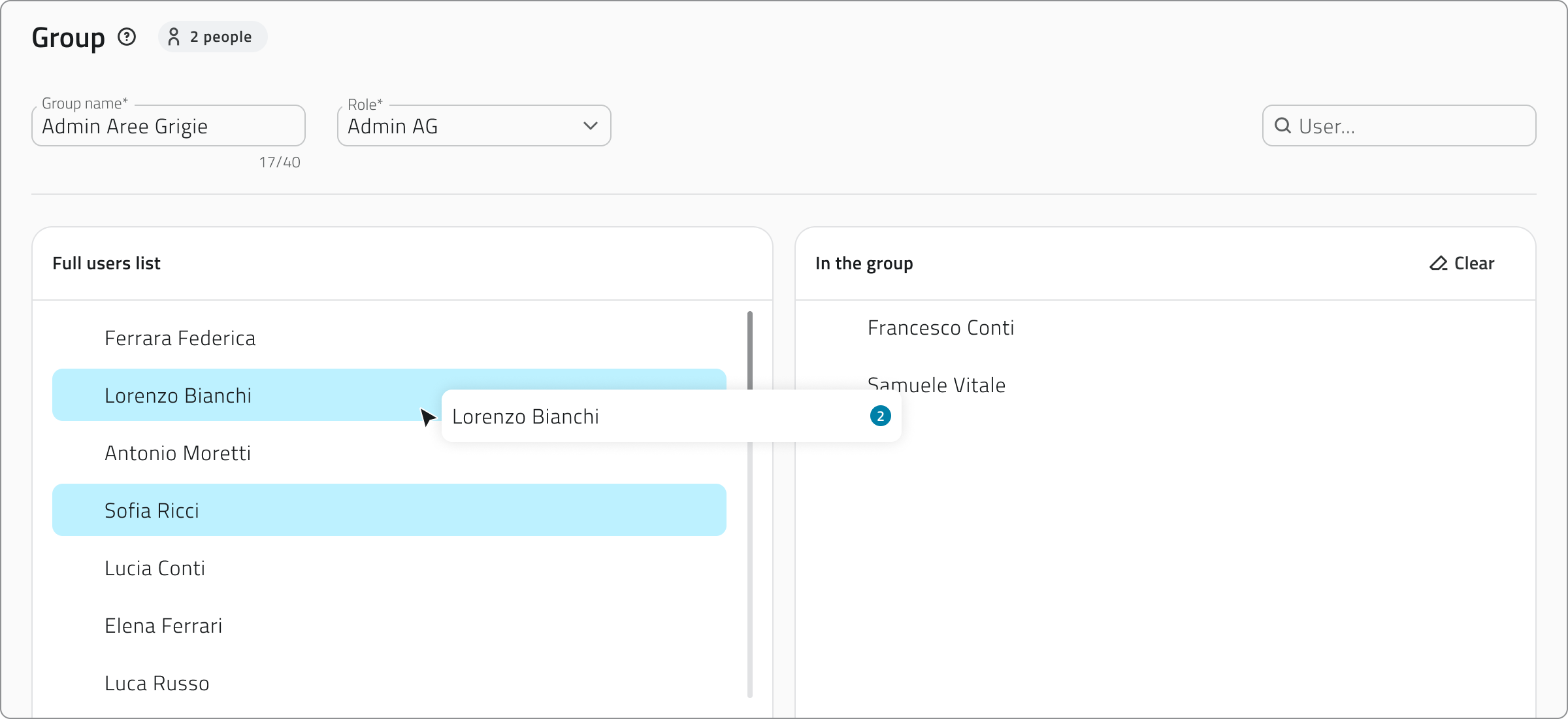
Groups simplify access management, especially in complex organizations.
Assigning users to a group allows you to:
- Quickly assign consistent permissions to multiple people.
- Centrally manage role changes.
- Reduce configuration errors in projects.
If a user belongs to multiple groups, after logging in, they can select which group to work with to access the corresponding projects.
💡 TIP: Keep the names consistent (e.g., “Northern Operators” / “Southern Operators”) to make searching easier.
Relationship between users, roles and groups
| Element | Main function | Assigned to / by |
|---|---|---|
| User | Identifies a person | Is included in one or more groups |
| Role | Defines operational permissions | Is assigned to a group |
| Group | Collects multiple users with the same purpose | Is associated with a role and one or more projects |
Links
Panoramica su utenti, ruoli e gruppi
In EagleArca, l’accesso e i permessi di ogni persona vengono gestiti attraverso utenti, ruoli e gruppi.
Questi tre elementi lavorano insieme per controllare chi può accedere, a quali progetti e con quali possibilità di modifica.
Utenti
Un utente rappresenta una persona che accede alla piattaforma.
Ogni utente può appartenere a una o più organizzazioni, ma l’accesso ai progetti dipende dai ruoli e dai gruppi a cui è assegnato.
All’interno di EagleArca, gli utenti sono classificati come:
-
Interni, se creati direttamente all’interno dell’organizzazione.
-
Esterni, se già registrati in un’altra organizzazione e aggiunti come collaboratori.
Quando si crea un nuovo utente, questo riceve una mail di benvenuto con il link per impostare la password e completare il primo accesso.
Ogni utenza può avere permessi diversi per l'App Inventory e per il Backoffice, e consumare licenze separate in base all’accesso concesso.
Ruoli
Un ruolo definisce quali azioni può svolgere un utente sui dati della piattaforma.
È un insieme di permessi che determinano cosa è visibile o modificabile.
-
Le classi oggetto possono essere impostate come non visibili, visibili o modificabili.
-
Le risorse possono essere solo visibili o non visibili.
Ogni ruolo può essere collegato a uno o più gruppi.
Questo consente di applicare automaticamente gli stessi permessi a più utenti senza doverli configurare uno per uno.
💡 Suggerimento: Crea ruoli chiari e riutilizzabili per evitare configurazioni ridondanti.
Gruppi
Un gruppo è un insieme di utenti che condividono lo stesso ruolo e accedono agli stessi progetti.
Ogni gruppo è associato a:
-
un ruolo, che stabilisce i permessi;
-
uno o più progetti, che definiscono dove gli utenti possono operare.
I gruppi semplificano la gestione degli accessi, specialmente in organizzazioni complesse.
Associare utenti a un gruppo consente di:
-
Assegnare rapidamente permessi coerenti a più persone.
-
Gestire in modo centralizzato le modifiche dei ruoli.
-
Ridurre gli errori di configurazione nei progetti.
Se un utente appartiene a più gruppi, dopo l’accesso può selezionare con quale gruppo lavorare per accedere ai progetti corrispondenti.
💡 Suggerimento: Mantieni i nomi coerenti (es. “Operatori Nord” / “Operatori Sud”) per facilitare la ricerca.
Relazione tra utenti, ruoli e gruppi
| Elemento | Funzione principale | Assegnato a / da |
|---|---|---|
| Utente | Identifica una persona | È inserito in uno o più gruppi |
| Ruolo | Definisce i permessi operativi | È assegnato a un gruppo |
| Gruppo | Raccoglie più utenti con lo stesso scopo |
È associato a un ruolo e uno o più progetti |
Collegamenti
Last update: 28 May 2026
Introduction to Object Classes
Object Classes define the data structure in EagleArca projects.
Each class represents a type of surveyable element (such as a plant, a pole, a pipeline or a sensor) and specifies what information should be collected and how the object should appear on the map.
Once created and published, a class becomes available to all projects within the organization and can be used to create new objects.
Types of Object Classes
In EagleArca, there are two categories of Object Classes:
Vector Object Classes
These allow you to create objects displayed on the map.
Each class defines a basic geometry, which can be:
- Point
For individual elements such as trees or sensors - Line
For extended elements such as pipes or paths - Polygon
For areas such as flower beds, buildings or operational zones
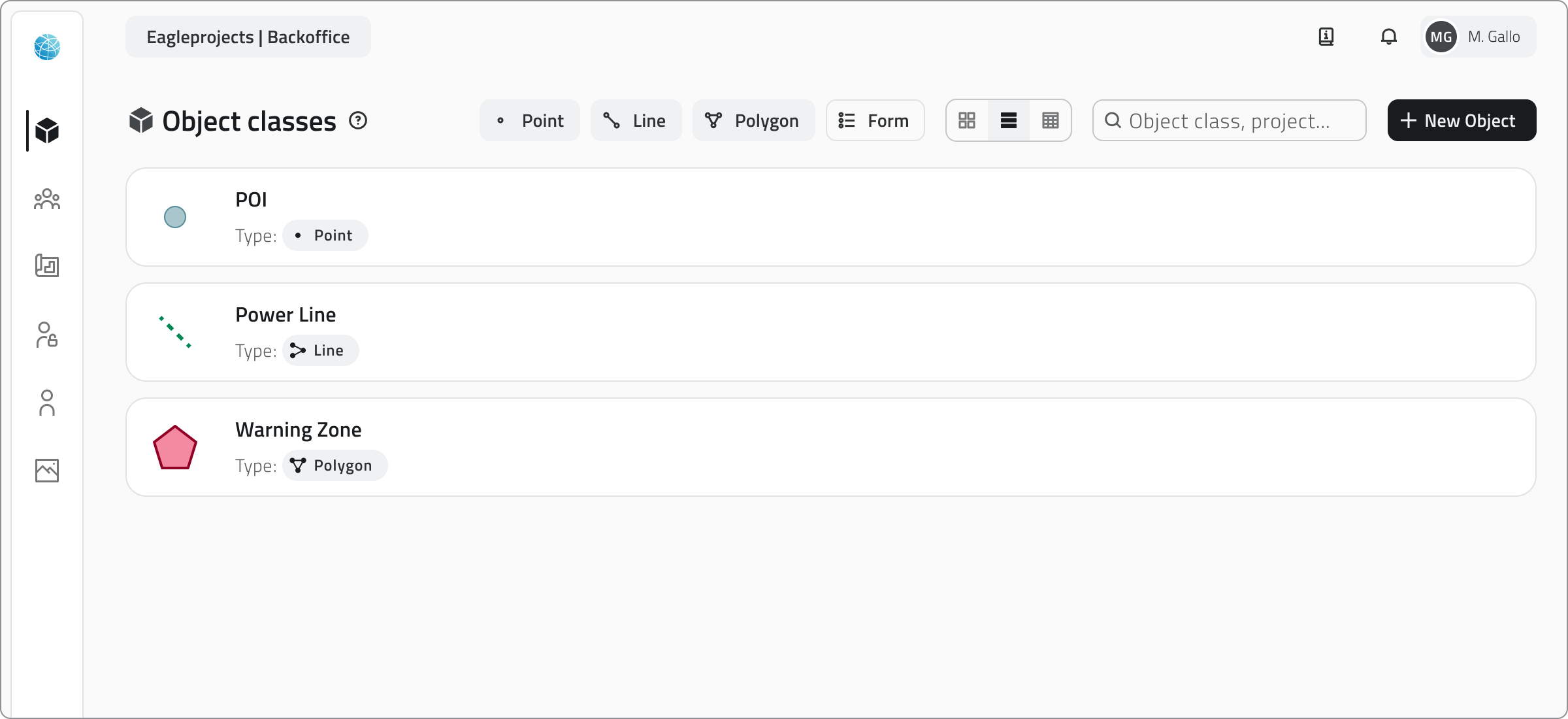
Geometric classes can be styled with basic shapes, colors and conditional styles.
Conditional styles automatically change the appearance of objects on the map based on the value of one or more attributes, for example to distinguish operational statuses, criticality levels, or numerical thresholds.
(e.g. status = active → green color).
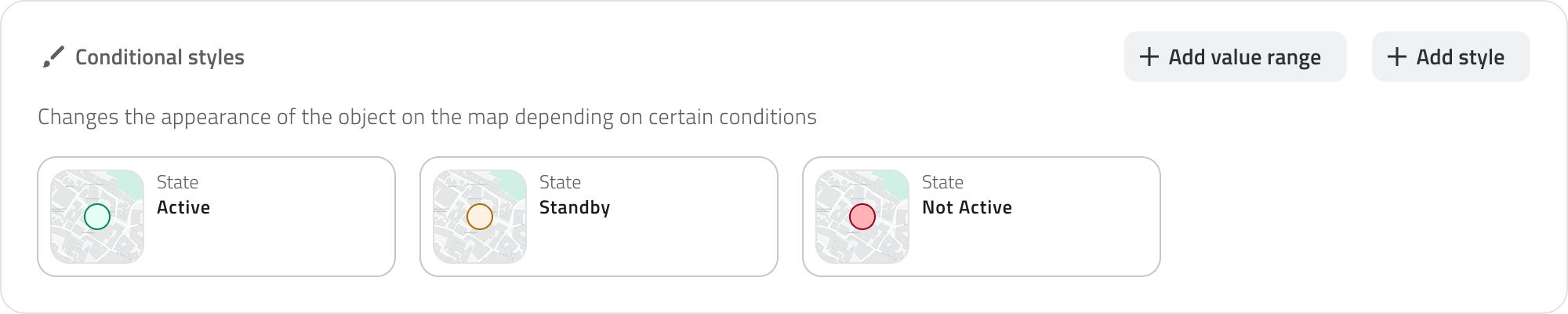
You can make an oriented point, that is, a point oriented in a specific direction on the map, which is useful for representing elements such as cameras or headlights.
Non-vector Object Classes
Known as Form classes. They define the attributes of objects that do not have a geographic representation.
They are used to manage non-mapped information, such as inspection reports, technical checks or reference lists that can be used within projects.
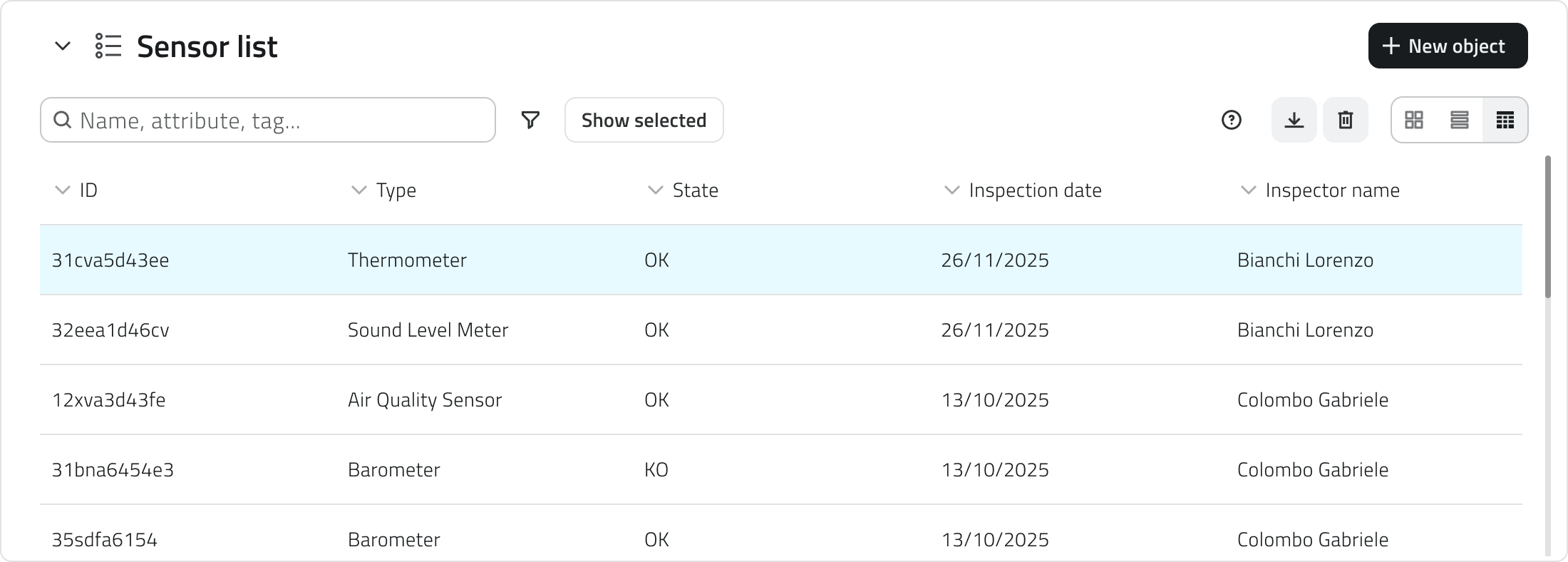
Global List
Global Lists are Form-type object classes that exist at the organizational level and are not tied to a single project.
They serve as shared, centralized repositories of reusable data.
For example:
- lists of suppliers or sensor models
- material types or risk categories
- code tables or references used by multiple projects
Global List objects are added from the Home screen and not within the project.
Object Class Attributes
Each Object Class consists of attributes, which are the data fields that describe the information to be entered for each object in the class.
An attribute can be of the following types:
- Text field
For names or descriptions - Numeric field
For quantitative values or measurements - List of values
For selecting an option from a predefined list - Date
For entering dates or deadlines - Attachments
For uploading files, images, or videos - Dimensions
For automatically recording measurable quantities (e.g., length, area, coordinates) - True/False
For Boolean fields - Object list
For fields composed of multiple sub-attributes, such as a set of repeated measurements or parameters
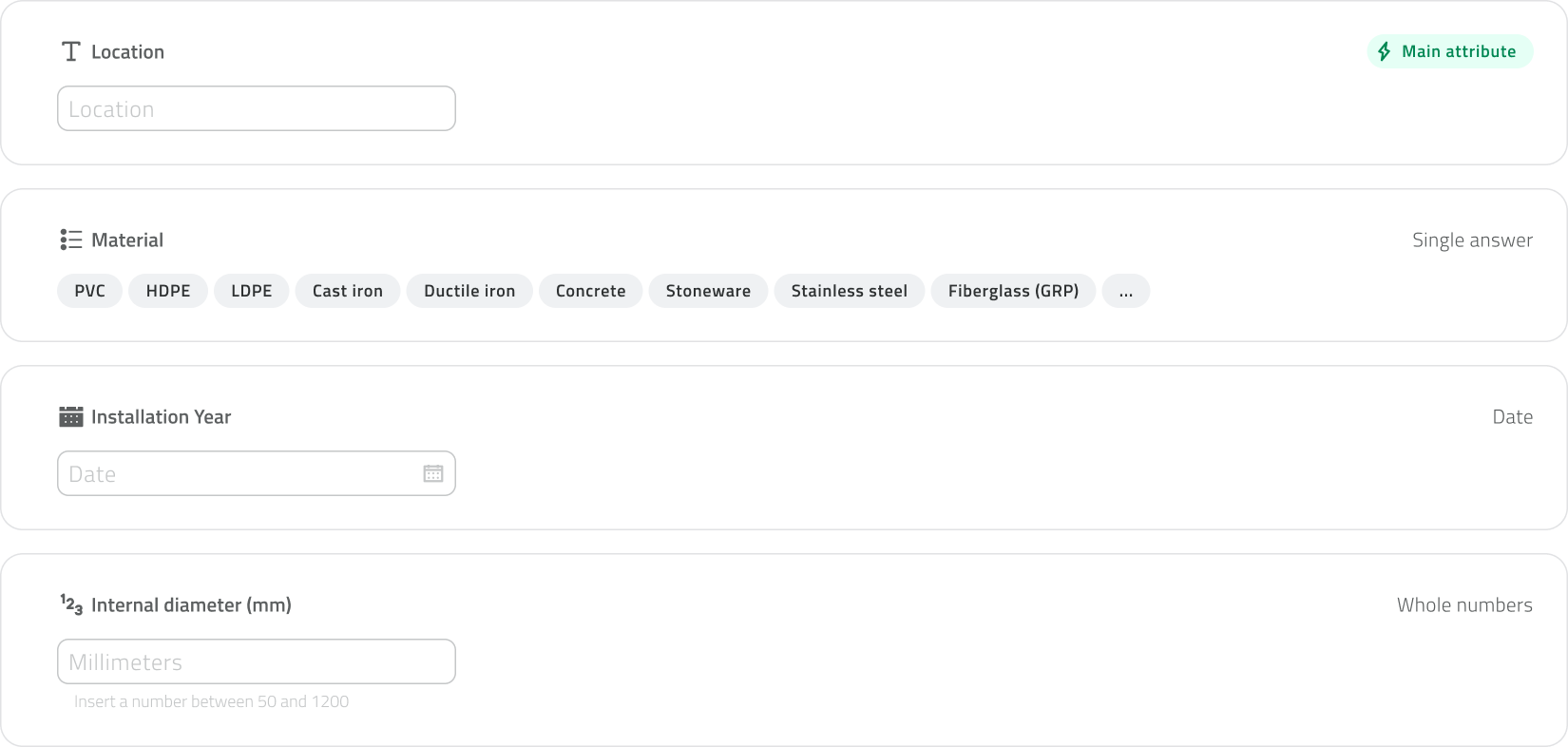
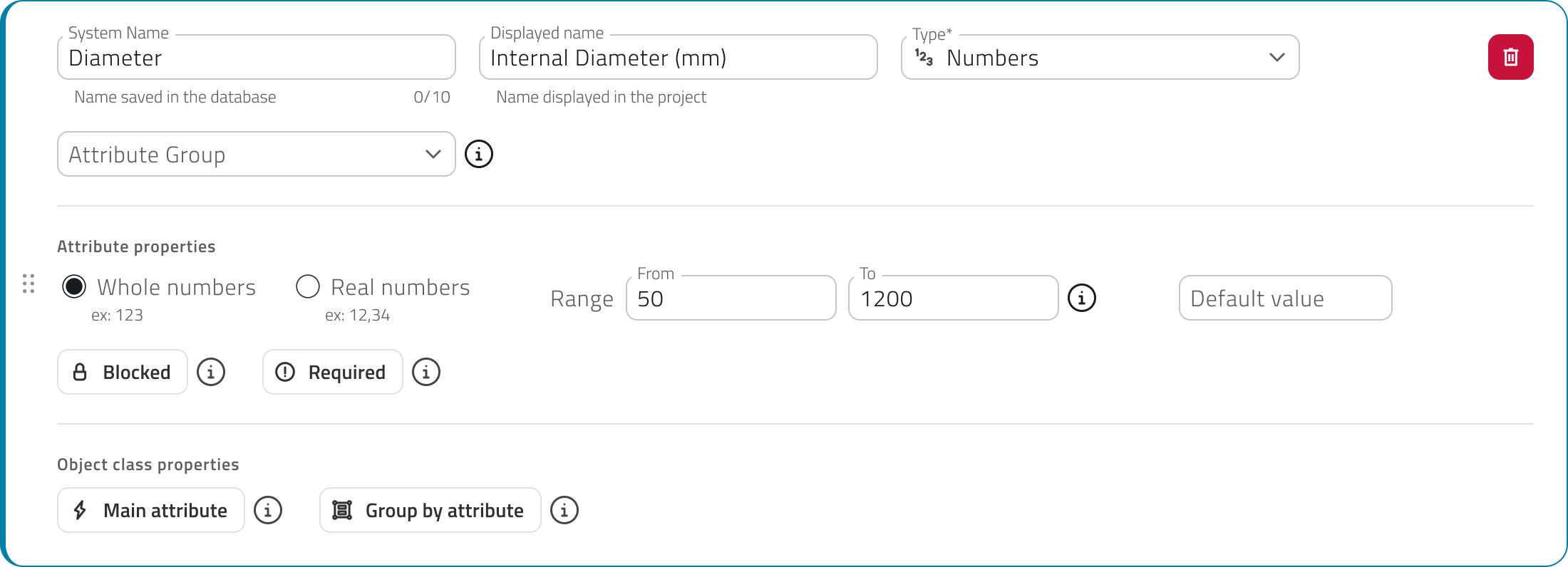
Each attribute also has configurable properties:
- Name
The field label - Required
Indicates whether the field must be filled in - Default value
The preset value, which can be changed if necessary - Locked
The field is visible but cannot be edited - Main attribute
The primary attribute displayed when querying the object, useful for quickly identifying it
Creation and Management
Object classes are created and modified in the Backoffice, which is accessible only to users with the appropriate permissions.
Once published, the class becomes available in projects and can be used to create new objects.
In summary
- Object Classes define the structure and representation of data.
- They can be geometric (displayed on the map) or form-based (data sheets only).
- Global Lists are forms shared across projects, useful for standardized lists.
- Attributes define the information that each object must contain.
- Oriented points allow for the representation of directed points.
- Only users with backoffice permissions can create or modify classes.
Introduzione alle classi oggetto
Le Classi Oggetto definiscono la struttura dei dati nei progetti EagleArca.
Ogni classe rappresenta un tipo di elemento censibile, per esempio una pianta, un palo, una condotta o un sensore, e stabilisce quali informazioni devono essere raccolte e come l’oggetto deve apparire sulla mappa.
Una volta creata e pubblicata, una classe diventa disponibile per tutti i progetti dell’organizzazione e può essere utilizzata per creare nuovi oggetti.
Tipologie di Classe Oggetto
In EagleArca esistono due categorie di Classi Oggetto:
Classi Oggetto vettoriali
Permettono di creare oggetti visualizzati sulla mappa.
Ogni classe definisce una geometria di base, che può essere:
- Punto
Per elementi singoli come alberi o sensori - Linea
Per elementi estesi come tubazioni o percorsi - Poligono
Per aree come aiuole, edifici o zone operative
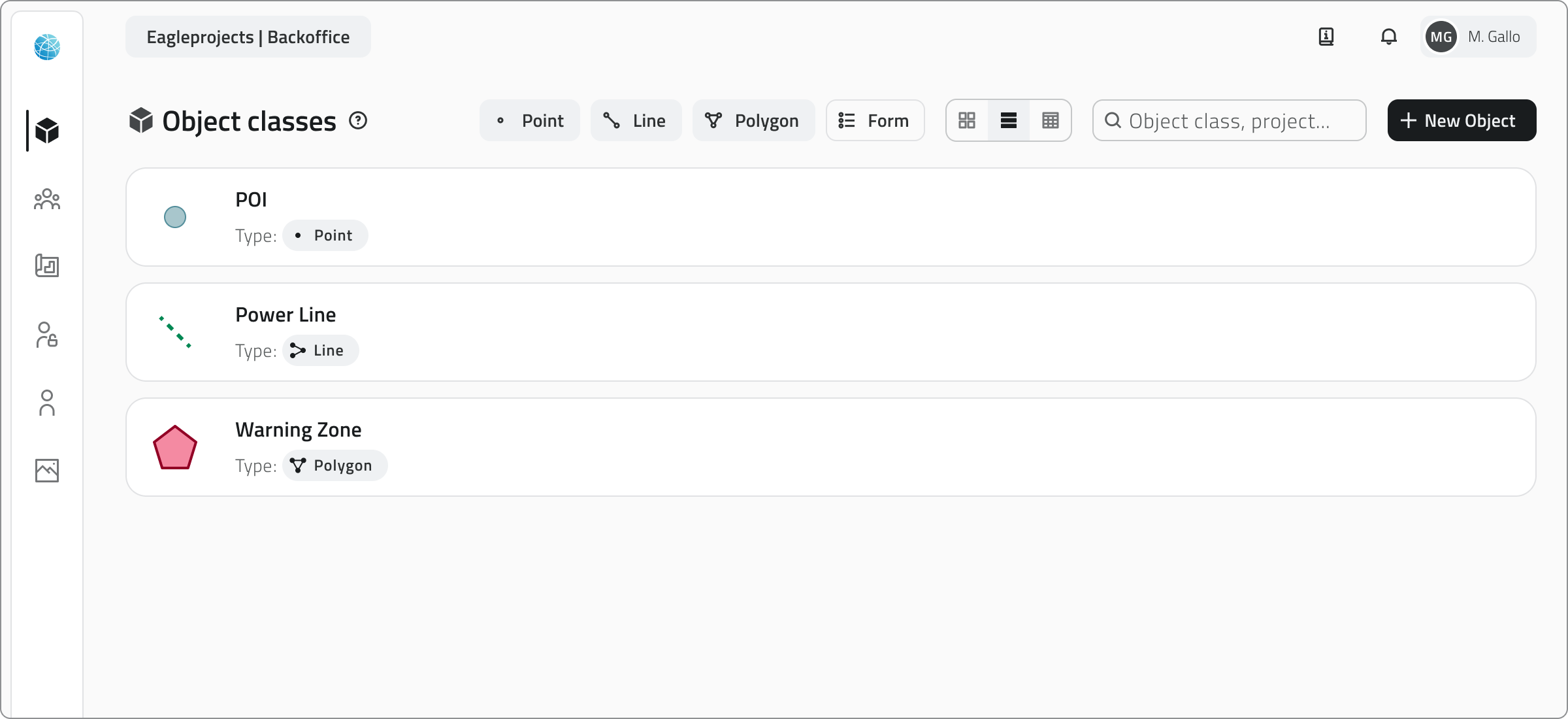
Le classi geometriche possono essere stilizzate con forme di base, colori e stili condizionali.
Gli stili condizionali permettono di cambiare automaticamente l’aspetto degli oggetti in mappa in base al valore di uno o più attributi, ad esempio per distinguere stati operativi, livelli di criticità o soglie numeriche.
(es: stato = attivo → colore verde).
È possibile rendere un punto orientato, cioè un punto orientato in una direzione specifica della mappa, utile per rappresentare elementi come telecamere o fari.
Classi Oggetto non vettoriali
Chiamate Form. Definiscono gli attributi di oggetti che non hanno rappresentazione geografica.
Servono per gestire informazioni non mappate, come schede di ispezione, controlli tecnici o elenchi di riferimento utilizzabili all’interno dei progetti.
Liste Globali
Le Liste globali sono classi oggetto di tipo Form che esistono a livello di organizzazione e non dipendono da un singolo progetto.
Servono come archivi condivisi e centralizzati di dati riutilizzabili.
Ad esempio:
-
elenco dei fornitori o dei modelli di sensori;
-
tipologie di materiali o categorie di rischio;
-
tabelle di codici o riferimenti usati da più progetti.
Gli oggetti delle Global List vengono aggiunti dalla Home e non dentro al progetto.
Attributi delle Classi Oggetto
Ogni Classe Oggetto è composta da attributi, ovvero i campi di dati che descrivono le informazioni da compilare per ogni oggetto della classe.
Un attributo può essere di tipo:
- Campo di testo
Per nomi o descrizioni - Campo numerico
Per valori quantitativi o misurazioni - Lista di valori
Per scegliere un’opzione da un elenco predefinito - Data
Per inserire date o scadenze - Allegati
Per caricare file, immagini o video - Dimensioni
Per registrare automaticamente grandezze misurabili (es. lunghezza, area, coordinate) - Vero/Falso
Per campi booleani - Lista oggetti
Per campi composti da più sotto-attributi, ad esempio un set di misure o parametri ripetuti
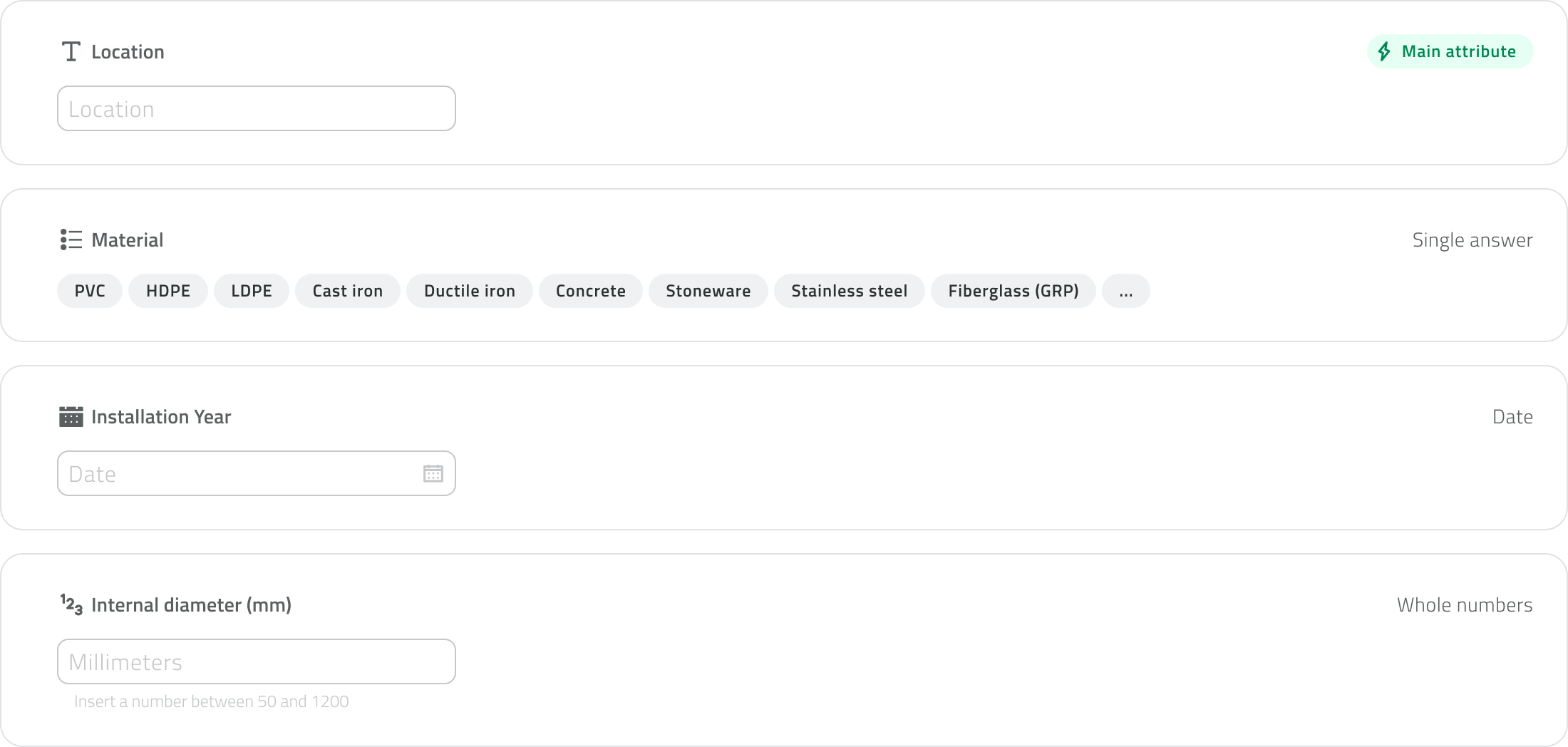
Ogni attributo ha inoltre proprietà configurabili:
- Nome
Etichetta del campo - Obbligatorietà
Indica se deve essere compilato - Valore di default
Valore preimpostato ma modificabile se necessario - Bloccato
Campo visibile ma non modificabile - Attributo principale
L’attributo principale mostrato quando si interroga l’oggetto, utile per identificarlo rapidamente
Creazione e gestione
La creazione e la modifica delle Classi Oggetto avvengono dal Backoffice, accessibile solo agli utenti con permessi adeguati.
Dopo la pubblicazione, la classe diventa disponibile nei progetti e può essere usata per creare nuovi oggetti.
In sintesi
- Le Classi Oggetto definiscono la struttura e la rappresentazione dei dati.
- Possono essere geometriche (visualizzate sulla mappa) o form (solo schede dati).
- Le Liste globali sono Form condivisi tra progetti, utili per elenchi standardizzati.
- Gli attributi definiscono le informazioni che ogni oggetto deve contenere.
- I punti orientati permettono di rappresentare punti direzionati.
- Solo utenti con permesso backoffice possono creare o modificare classi.
Last update: 28 May 2026