
Missions calendar
English version
Missions calendar puts what is planned on a timeline, so you can see when a Mission Unit is busy, which missions are about to run and which ones are waiting for a conflict to be resolved.
The same calendar appears in two places, and what changes is how much of the organisation it covers:
| Where you open it | What it covers |
| Inside a project, from the calendar icon in the side bar | The missions of that project. This is where you delete a mission or one of its occurrences. |
| In the Backoffice, from the calendar icon in the side bar | The missions of the organisation and of the selected group, across all of its projects. |
The five views
Each view answers a different question, and they all show the same missions:
| View | What it shows |
| Series | The recurring missions listed one by one, instead of a grid of days. |
| Day | One day on an hourly grid, with each mission at its own time and a line marking the current moment. |
| Week | Seven days side by side, to see how a week is loaded. |
| Month | The whole month, with the missions of each day. When a day is too full to show them all, +N missions tells you how many others there are. |
| Agenda | The next 14 days as a list grouped by day, without empty days. |
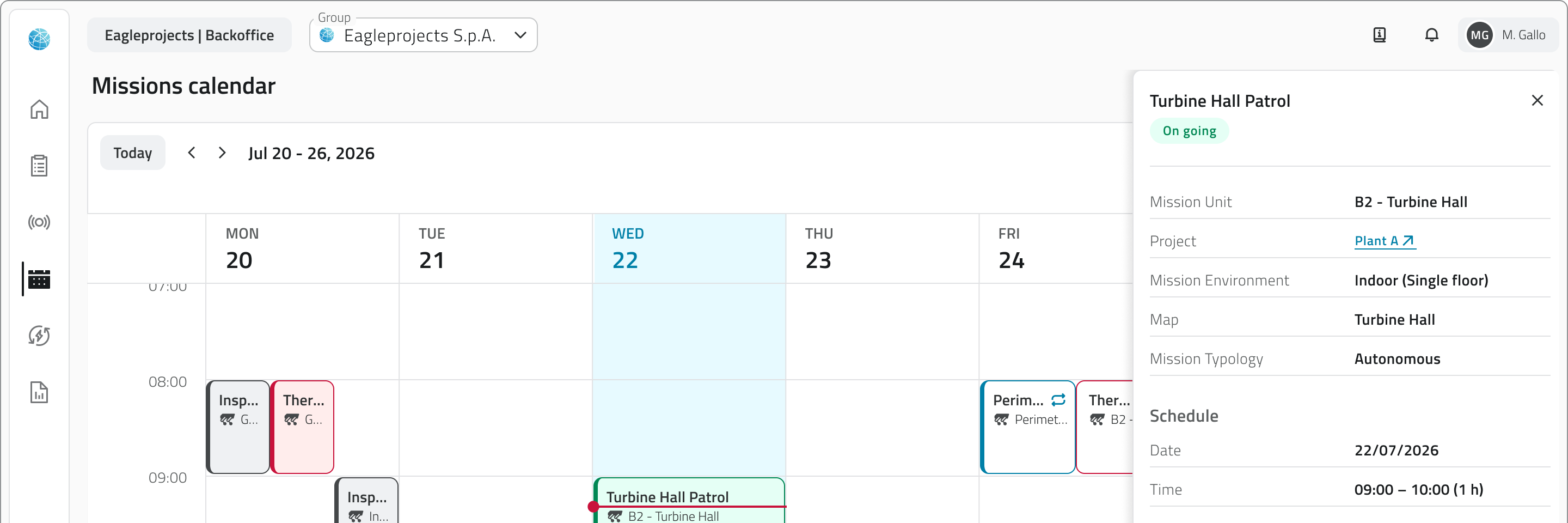
Reading a mission at a glance
Every mission on the calendar carries its start time, its name and the Mission Unit that runs it. A mission that belongs to a series also carries the recurrence icon, so you can tell it apart from a mission planned once.
The colour of each mission represents its state, and the legend above the calendar shows what each colour means:
| State | What it means |
| Planned | The mission will start at the date and time set for it. |
| On going | The mission is running now. |
| Executed | The mission has run and is over. |
| Failed | The mission started but did not get to the end. |
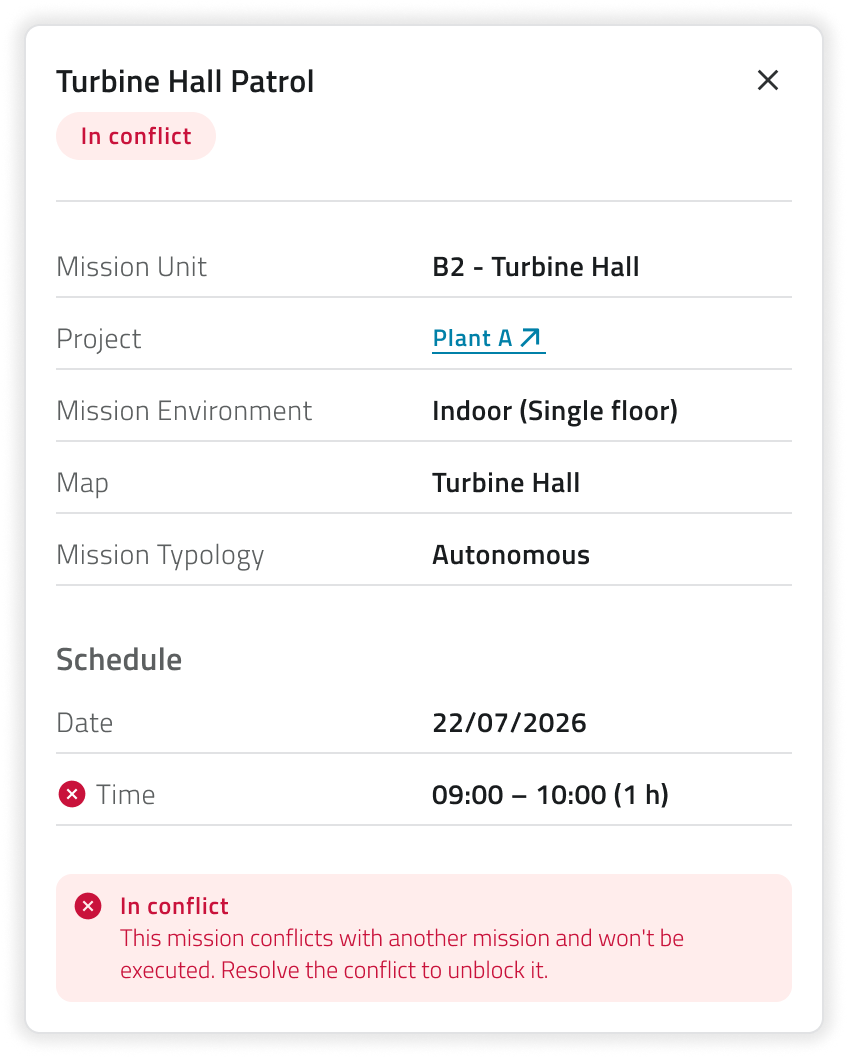
| In conflict | The Mission Unit is already committed at that moment, so this mission will not run until you free it. |
Opening a mission from the calendar
Select a mission and a panel opens on the right, showing its state and its configuration: the Mission Unit, the Mission Environment, the map and the typology, followed by a Schedule section with the date, the time and how long the run lasts.
When the mission is in conflict, the panel says so, and the mission will not be carried out until the conflict is resolved.
Following the recurring missions
The Series view lists the recurring missions one by one. Each of them shows the rhythm and the time it runs at, the first and the last date of the series, how many occurrences are still to come and how many of them are in conflict, and the date of the next one. View opens the series on the calendar.
[IMAGE TO BE INSERTED]
What to show: the Series view with two recurring missions, one of them reporting occurrences in conflict, and the View button.
Deleting a planned mission
The Delete button, at the bottom of the panel, removes the mission from the project. For a mission planned once, a confirmation is all it takes.
For a mission that belongs to a series, you first choose what to delete: only that occurrence, that one and all the following ones, or the entire series. Next to each choice you see how many occurrences it involves and the date it reaches.
Deleting is permanent and cannot be undone. To keep a planned mission but move it, change its schedule instead of deleting it.
[IMAGE TO BE INSERTED]
What to show: the dialog that asks what to delete, with the three options and the number of occurrences each one covers, over the calendar with the panel of the occurrence open.
The calendar of a whole group
In the Backoffice the calendar covers every project of one group, chosen in Group at the top of the page. Views, states and panel are the same, so the way you read it does not change.
Since the missions here come from different projects, the project a mission belongs to is always within reach: the panel adds a Project row, and in the Series view each recurring mission carries it as well. In both cases it is a link that takes you into the project.
[IMAGE TO BE INSERTED]
What to show: the calendar in the Backoffice with the Group selector at the top, a panel open showing the Project row with its link, and the Series view where each recurring mission carries its project.
Links
- Schedule a mission: how a mission ends up on the calendar.
- Edit a mission's configuration: changing a mission instead of deleting it.
 Italian version
Calendario delle missioni distribuisce su un calendario tutto ciò che è pianificato, così vedi quando una Mission Unit è impegnata, quali missioni stanno per partire e quali restano in attesa che un conflitto venga risolto.
Lo stesso calendario compare in due punti, e cambia solo l'ampiezza di ciò che raccoglie:
| Dove lo apri | Cosa raccoglie |
| Dentro un progetto, dall'icona del calendario nella barra laterale | Le missioni di quel progetto. È da qui che elimini una missione o una delle sue occorrenze. |
| Nel Backoffice, dall'icona del calendario nella barra laterale | Le missioni dell'organizzazione e del gruppo selezionato, su tutti i suoi progetti. |
Le cinque viste
Le viste mostrano le stesse missioni, ma ciascuna risponde a una domanda diversa:
| Vista | Cosa mostra |
| Serie | Le missioni ricorrenti elencate una per una, al posto della griglia dei giorni. |
| Giorno | Una giornata su griglia oraria, con ogni missione al proprio orario e una linea che segna il momento attuale. |
| Settimana | Sette giorni affiancati, per capire quanto è carica una settimana. |
| Mese | Il mese intero, con le missioni di ogni giorno. Quando un giorno è troppo pieno per mostrarle tutte, +N missioni indica quante altre ce ne sono. |
| Agenda | I prossimi 14 giorni in elenco, raggruppati per giorno e senza i giorni vuoti. |
[IMMAGINE DA INSERIRE]
Cosa mostrare: la vista Mese di un calendario di progetto con missioni di colori diversi, almeno un giorno che riporta +N missioni, il selettore delle viste e la legenda degli stati.
Leggere una missione a colpo d'occhio
Ogni missione sul calendario riporta l'orario di avvio, il nome e la Mission Unit che la esegue. Le missioni che fanno parte di una serie portano anche l'icona della ricorrenza, che le distingue da quelle pianificate una volta sola.
Il colore di ogni missione rappresenta il suo stato, e la legenda sopra il calendario ricorda a cosa corrisponde ciascun colore:
| Stato | Cosa significa |
| Pianificata | La missione partirà alla data e all'ora impostate. |
| In corso | La missione è in esecuzione adesso. |
| Eseguita | La missione è stata eseguita e si è conclusa. |
| Fallita | La missione è partita ma non è arrivata alla fine. |
| In conflitto | La Mission Unit è già impegnata in quel momento, quindi la missione non verrà eseguita finché non la liberi. |
Aprire una missione dal calendario
Selezionando una missione si apre un pannello a destra che riporta il suo stato e la sua configurazione: la Mission Unit, l'Ambiente della missione, la mappa e la tipologia, seguiti da una sezione Pianificazione con la data, l'ora e la durata dell'esecuzione.
Se la missione è in conflitto il pannello lo segnala, e la missione non verrà eseguita finché il conflitto non viene risolto.
[IMMAGINE DA INSERIRE]
Cosa mostrare: se possibile due pannelli affiancati: quello di una missione in conflitto con il messaggio sull'orario e quello di una missione eseguita, così da confrontare il badge dello stato e i campi.
Seguire le missioni ricorrenti
La vista Serie raccoglie le missioni ricorrenti, una riga per ciascuna. Per ognuna vedi con quale ritmo e a che ora viene eseguita, il primo e l'ultimo giorno della serie, quante occorrenze restano da svolgere e quante di queste sono in conflitto, insieme alla data della prossima. Con il pulsante Visualizza apri la serie direttamente sul calendario.
[IMMAGINE DA INSERIRE]
Cosa mostrare: la vista Serie con due missioni ricorrenti, di cui una segnala occorrenze in conflitto, e il pulsante Visualizza.
Eliminare una missione pianificata
In fondo al pannello della missione, il pulsante Elimina la rimuove dal progetto. Se la missione è pianificata una volta sola, basta confermare.
Se invece la missione fa parte di una serie, devi prima indicare cosa eliminare: solo quell'occorrenza, quella e tutte le successive, oppure l'intera serie. Accanto a ogni scelta trovi quante occorrenze comprende e fino a quale data arriva.
L'eliminazione è permanente e non può essere annullata. Se vuoi conservare una missione pianificata spostandola, modificane la pianificazione invece di eliminarla.
[IMMAGINE DA INSERIRE]
Cosa mostrare: il dialogo che chiede cosa eliminare, con le tre opzioni e il numero di occorrenze che ciascuna comprende, sopra il calendario con il pannello dell'occorrenza aperto.
Il calendario di un intero gruppo
Nel Backoffice il calendario copre tutti i progetti di un gruppo, che scegli dal selettore Gruppo in cima alla pagina. Viste, stati e pannello restano gli stessi, quindi si legge esattamente come il calendario di un progetto.
Dato che qui le missioni arrivano da progetti diversi, ognuna indica sempre da quale: il pannello aggiunge la riga Progetto e nella vista Serie il progetto compare accanto a ogni missione ricorrente. In entrambi i casi è un link che apre il progetto.
[IMMAGINE DA INSERIRE]
Cosa mostrare: il calendario nel Backoffice con il selettore Gruppo in alto, un pannello aperto che mostra la riga Progetto con il suo link, e la vista Serie dove ogni missione ricorrente riporta il proprio progetto.
Collegamenti
- Pianificare una missione: come una missione finisce sul calendario.
- Modificare la configurazione di una missione: modificare una missione invece di eliminarla.
Last update: 6 August 2026