
Review an executed mission
English version
A mission that has come to an end stays available under Executed, in the Missions panel. Open it and you find how the run went, the media it collected, and the possibility to restore the mission without configuring it from scratch.
The panel on the left has three tabs, Summary, Details and In view, while beside it the map opens on which the mission ran, with the waypoints and the areas drawn when it was created.
The report of the mission
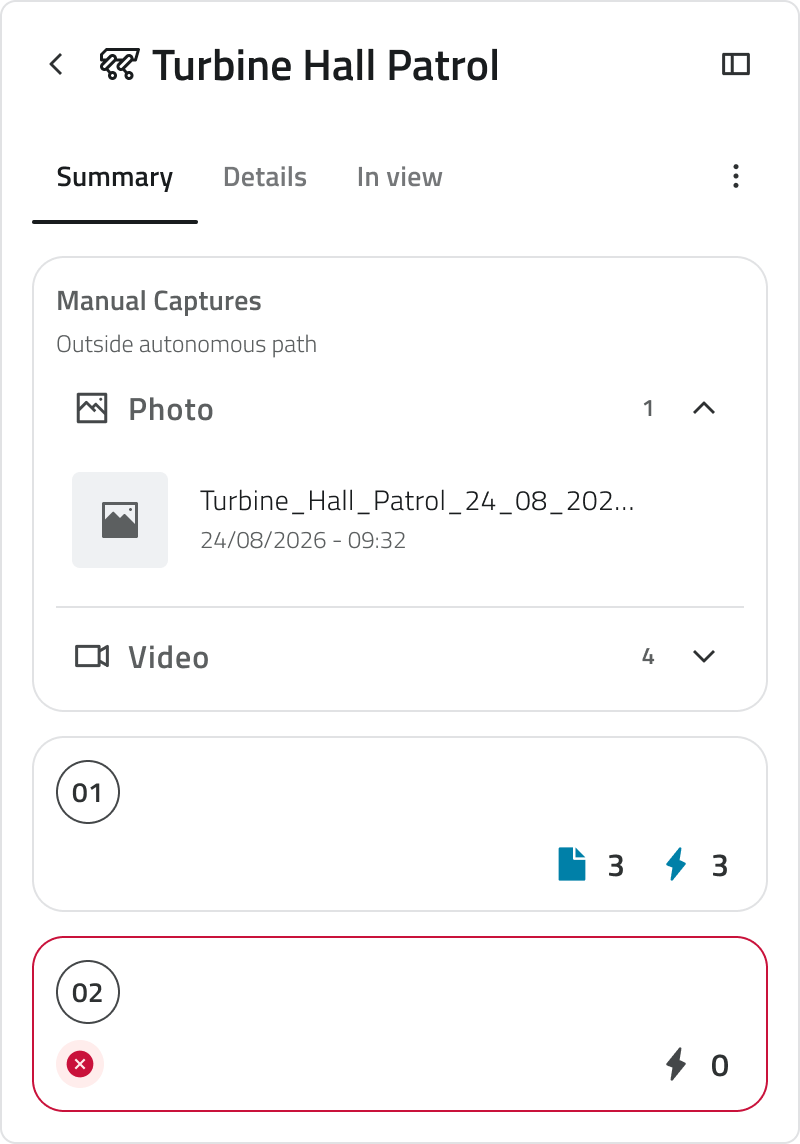
At the top of the Summary tab is the list of Manual Captures: the photos and videos taken at your request while the mission was running, kept apart from those produced at the waypoints. They are split in two groups, photos and videos, each with its own count and with the name and the time of every file.
The waypoints follow, in the order they were reached, each with the number of actions carried out and media collected. Open one and you find the individual actions, with the add-on that performed them, and the files that go with them.
Waypoints the Mission Unit did not reach are marked in red, both in the list and on the map, so you can see at a glance which part of the route was left uncovered.
The map of a mission that is over
The map of a mission that is over is read only: it shows the mission as it ran and can no longer be changed. You can still select the elements and use the measuring tools, to take distances and areas over the route that was covered.
Opening a photo or a video
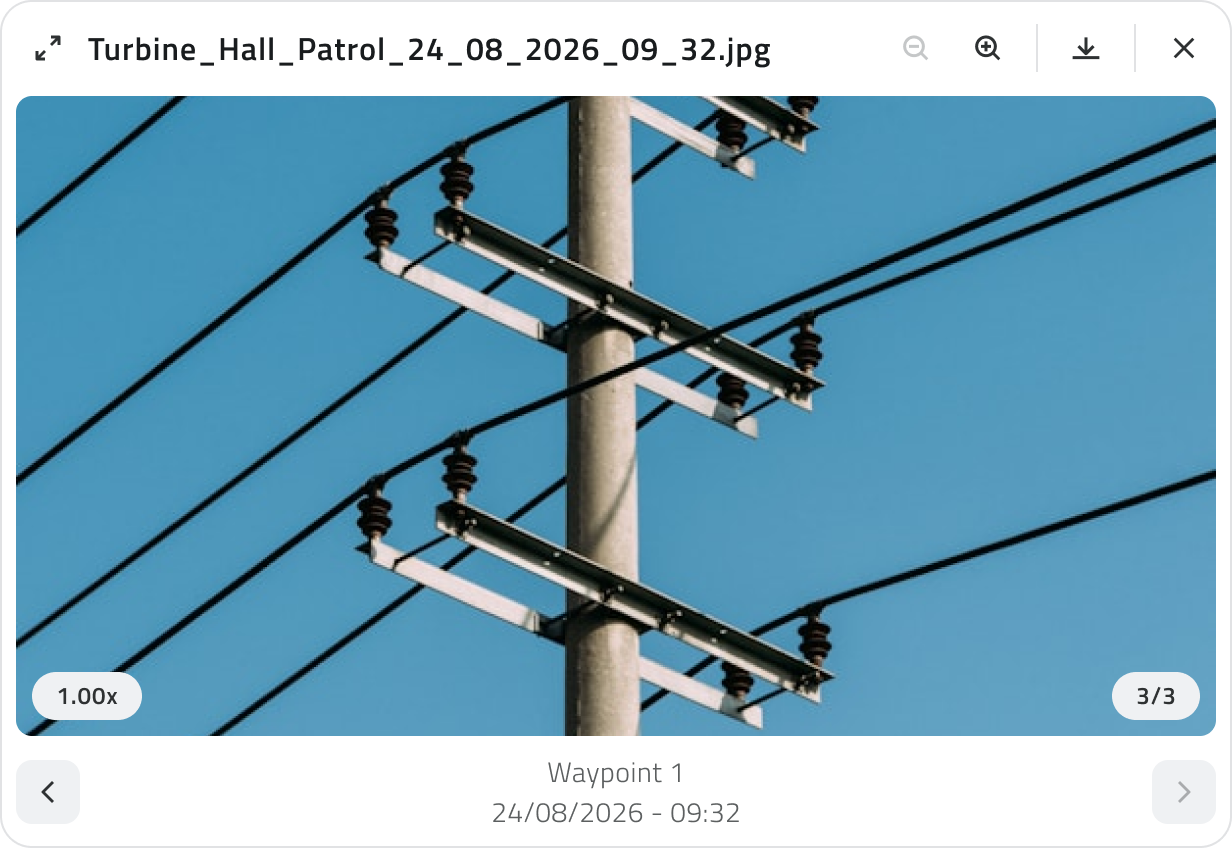
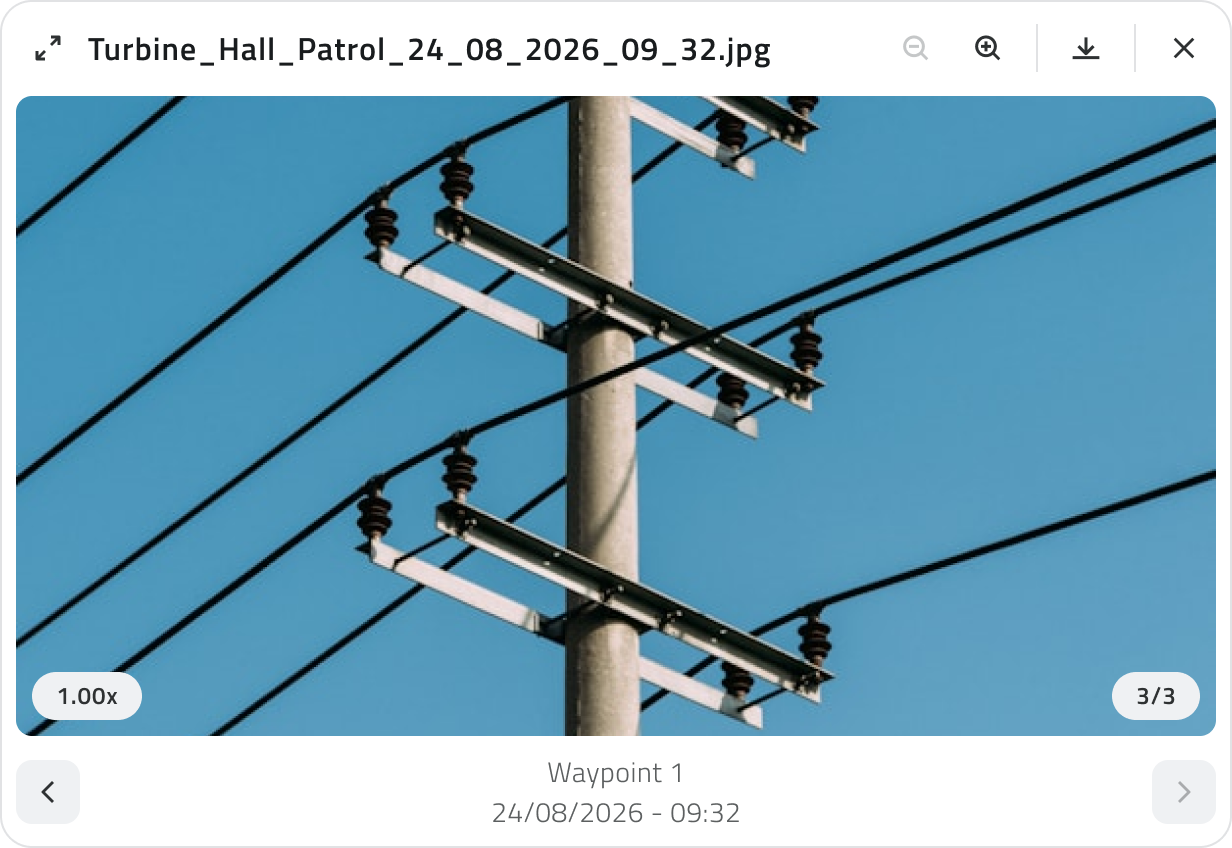
Select a file to open it full screen. Below it you find where it comes from, a waypoint or a manual capture, and when it was taken; the arrows on either side move to the other files of the same group. From here you can enlarge the image and download the file.
How it was configured
The Details tab reports the configuration the mission ran with: the Mission Unit, the Equipment with its add-ons, the Mission Environment, the map, the typology and the moment it started.
The In view tab works as it does while planning: it lists the map and the elements drawn on it, hides and shows them, adjusts the opacity of the map and, in a multi floor mission, lists the floors.
Running the same mission again
When a mission has to be repeated there is no need to configure it again: Restore Mission, in the menu at the top right of the panel, makes a copy of it as a Draft, with waypoints, actions, Danger Zones and Geofencing already in place. The copy can still be changed before it starts.
From the copy you take the usual path of a Draft: the platform connects to the Mission Unit, you capture the Home Position again and you move on to the Pre Check. The Home is taken again because it concerns where the unit is now, not where it was then.
[IMAGE TO BE INSERTED]What to show: two moments if possible: the Restore Mission confirmation with the text listing what is copied, and the Draft just created with the Home card waiting for the unit to connect.
[IMAGE TO BE INSERTED]What to show: the Details tab of the restored Draft with the count of the things to sort out, the map row marked and the message open under it.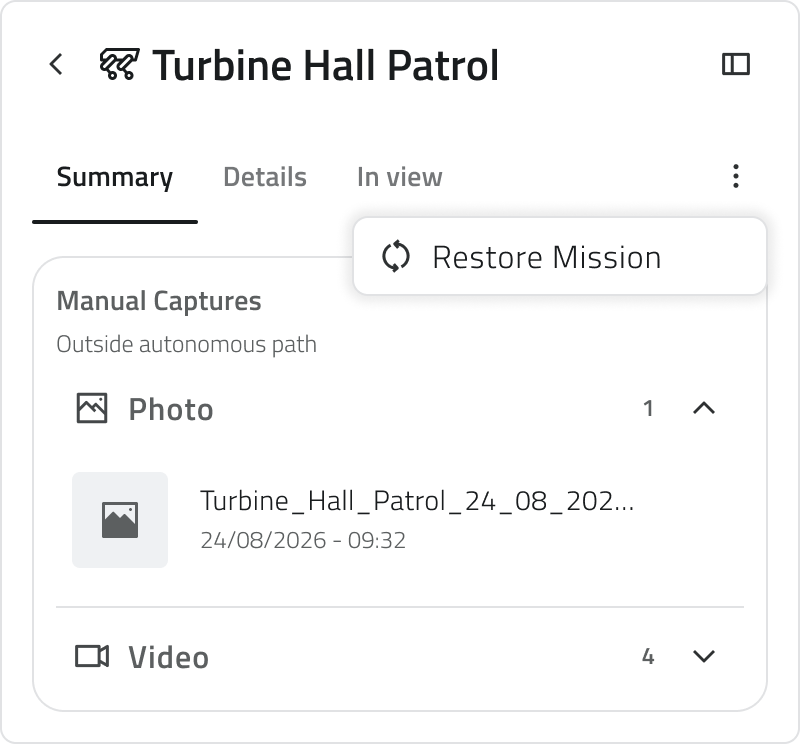
Discovery missions
A Discovery mission follows no route: it explores the environment and produces a map of it. Its report therefore holds no waypoints and no actions, only a message confirming that the mission is complete, and the map beside it is the one generated during the run.
Missions of this kind cannot be restored: to explore again, configure a new Discovery mission.
[IMAGE TO BE INSERTED]
What to show: the Summary tab of a Discovery mission that is over, with the message about the map that was generated and the map beside it without waypoints.
Links
- Find and manage your missions: where you open an executed mission.
- Missions calendar: where an executed mission also appears.
 Italian version
Una missione che si è conclusa resta a disposizione nella sezione Eseguite del pannello Missioni. Aprendola ritrovi come si è svolta, i media che ha raccolto e la possibilità di ripristinare la missione senza configurarla da capo.
Il pannello a sinistra è diviso in tre sezioni, Riepilogo, Dettagli e In vista. Accanto si apre la mappa su cui la missione si è svolta, con i waypoint e le aree definiti in fase di creazione.
Il resoconto della missione
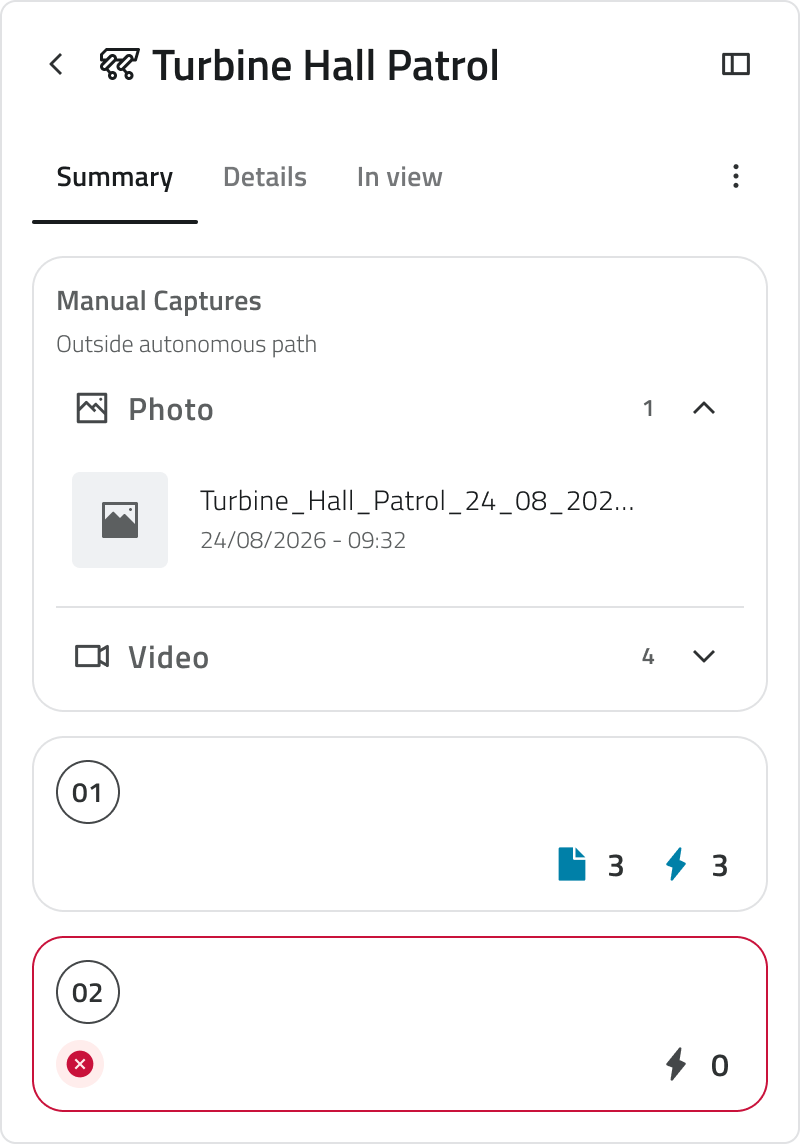
In cima alla sezione Riepilogo è riportato l'elenco delle Acquisizioni manuali: le foto e i video acquisiti su tua richiesta durante lo svolgimento della missione, tenuti distinti da quelli prodotti sui waypoint. Sono divisi in due gruppi, foto e video, ognuno con il proprio conteggio e con il nome e l'ora di acquisizione di ciascun file.
Seguono i waypoint, nell'ordine in cui sono stati raggiunti, ciascuno con il numero di azioni svolte e di media raccolti. Aprendone uno trovi le singole azioni, con l'add-on che le ha eseguite, e i file corrispondenti.
I waypoint che la Mission Unit non ha raggiunto sono evidenziati in rosso, nell'elenco e sulla mappa: individui così a colpo d'occhio quale parte del percorso è rimasta scoperta.
La mappa di una missione conclusa
La mappa di una missione conclusa è in sola lettura: mostra la missione com'è stata eseguita e non può più essere modificata. Puoi comunque selezionare gli elementi e usare gli strumenti di misura, per rilevare distanze e aree sul percorso svolto.
Aprire una foto o un video
Selezionando un file lo apri a schermo intero. Sotto compaiono la sua origine, il waypoint oppure un'acquisizione manuale, e la data in cui è stato acquisito; le frecce ai lati portano agli altri file dello stesso gruppo. Da qui puoi ingrandire l'immagine e scaricare il file.
Com'è stata configurata
La sezione Dettagli riporta la configurazione con cui la missione è stata eseguita: la Mission Unit, l'Equipment con i suoi add-on, l'Ambiente della missione, la mappa, la tipologia e il momento di avvio.
La sezione In vista si comporta come in fase di pianificazione: elenca la mappa e gli elementi disegnati, permette di nasconderli e di mostrarli, regola l'opacità della mappa e, in una missione multipiano, riporta i singoli piani.
Eseguire di nuovo la stessa missione
Per ripetere una missione non serve riconfigurarla: Ripristina missione, nel menu in alto a destra del pannello, ne crea una copia come Bozza, con waypoint, azioni, Zone di pericolo e Geofencing già al loro posto. La copia resta modificabile prima dell'avvio.
Da lì la copia segue il percorso di una qualsiasi Bozza: la piattaforma si collega alla Mission Unit, tu riacquisisci la Home Position e passi al Pre Check. La Home Position va riacquisita perché dipende da dove si trova l'unità ora, non da dov'era allora.
[IMMAGINE DA INSERIRE]Cosa mostrare: se possibile due momenti: la conferma di Ripristina missione con il testo che elenca cosa viene copiato, e la Bozza appena creata con la card Casa che attende il collegamento dell'unità.
[IMMAGINE DA INSERIRE]Cosa mostrare: la sezione Dettagli della Bozza ripristinata con il conteggio delle cose da sistemare, la riga della mappa segnalata e il messaggio aperto sotto di essa.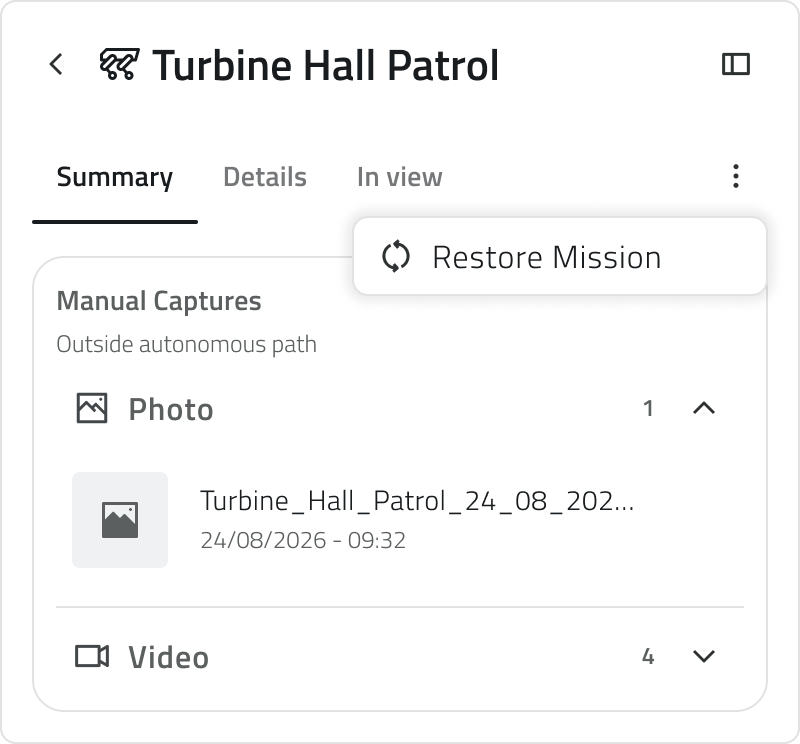
Missioni Esplorative
Una missione Esplorativa non segue un percorso: esplora l'ambiente e ne produce una mappa. Per questo il resoconto non contiene waypoint né azioni, ma un messaggio che conferma la conclusione della missione, e la mappa che vedi accanto è quella generata durante l'esecuzione.
Le missioni di questo tipo non possono essere ripristinate: per esplorare di nuovo occorre configurare una nuova missione Esplorativa.
[IMMAGINE DA INSERIRE]
Cosa mostrare: la sezione Riepilogo di una missione Esplorativa conclusa, con il messaggio sulla mappa generata e la mappa accanto senza waypoint.
Collegamenti
- Trovare e gestire le missioni: da dove apri una missione eseguita.
- Calendario delle missioni: dove una missione eseguita compare anche.
Last update: 6 August 2026