
Robot Dog – Create and start a mission
 IT
IT

 English

This section describes the steps to create, configure and start a mission with a Robot Dog, from mission creation to preliminary checks and launch.
Available only if at least one Robot Dog Mission Unit is configured, a Profile is set up and access permissions to the App are granted.
Create a new mission
1. From the main page, open the project where you want to create the mission.
2. From the left-side nav rail, go to the Inventory section.

3. Click on the Missions Object Class to view the list of missions.
4. Click on New object.

5. A mission creation modal will open, asking you to input the following details:
-
Name
The identifying name of the mission. - Mission unit type
Select Robot Dog from the list. - Start Mode
Choose how the mission should start:
- Manual, with a specific command, or
- Scheduled, indicating the mission start date.
-
Mission Typology
Defines the operational mode of the mission. You can choose from:-
Autonomous: Robot Dog runs the mission autonomously, following the path and actions configured for the mission.
-
Discovery: An exploratory mission to acquire data without a predefined path.
-
- Mission Unit
Select the Robot Dog that will execute this mission. - Profile
Select a profile for the mission. This field will become active only after selecting the Mission Unit.
6. To create the mission, click Save.
Editing missions
You can edit and delete missions in the inventory, in the mission list.
Editing
To edit a mission, open the details by clicking the blue button that appears when you hover over the item.
To update the mission details, click Edit.
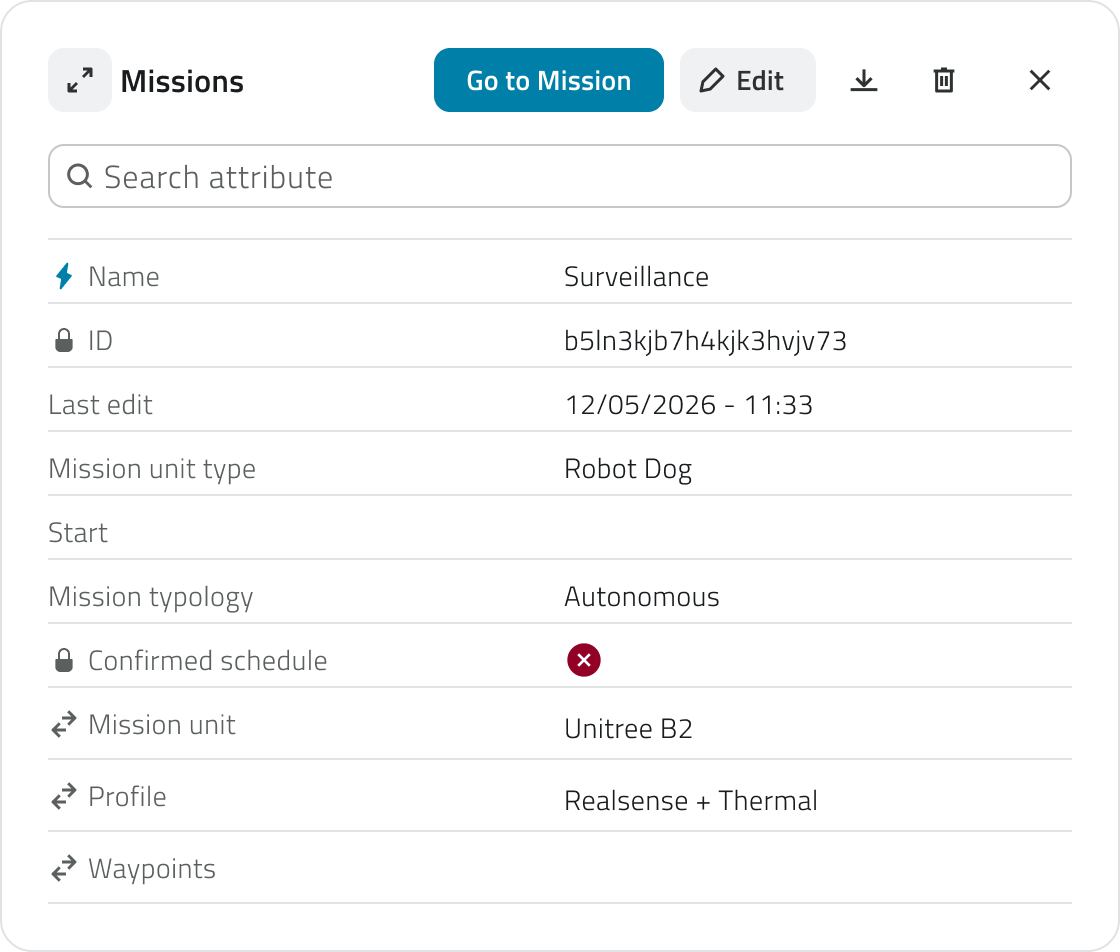
Some attributes can be edited, depending on the mission’s status and whether there are any waypoints.
Deleting
To delete a mission:
- Open the mission details and click the Delete button in the top-right corner of the window.
- Select one or more missions from the list and click the Delete button in the top-right corner of the view.
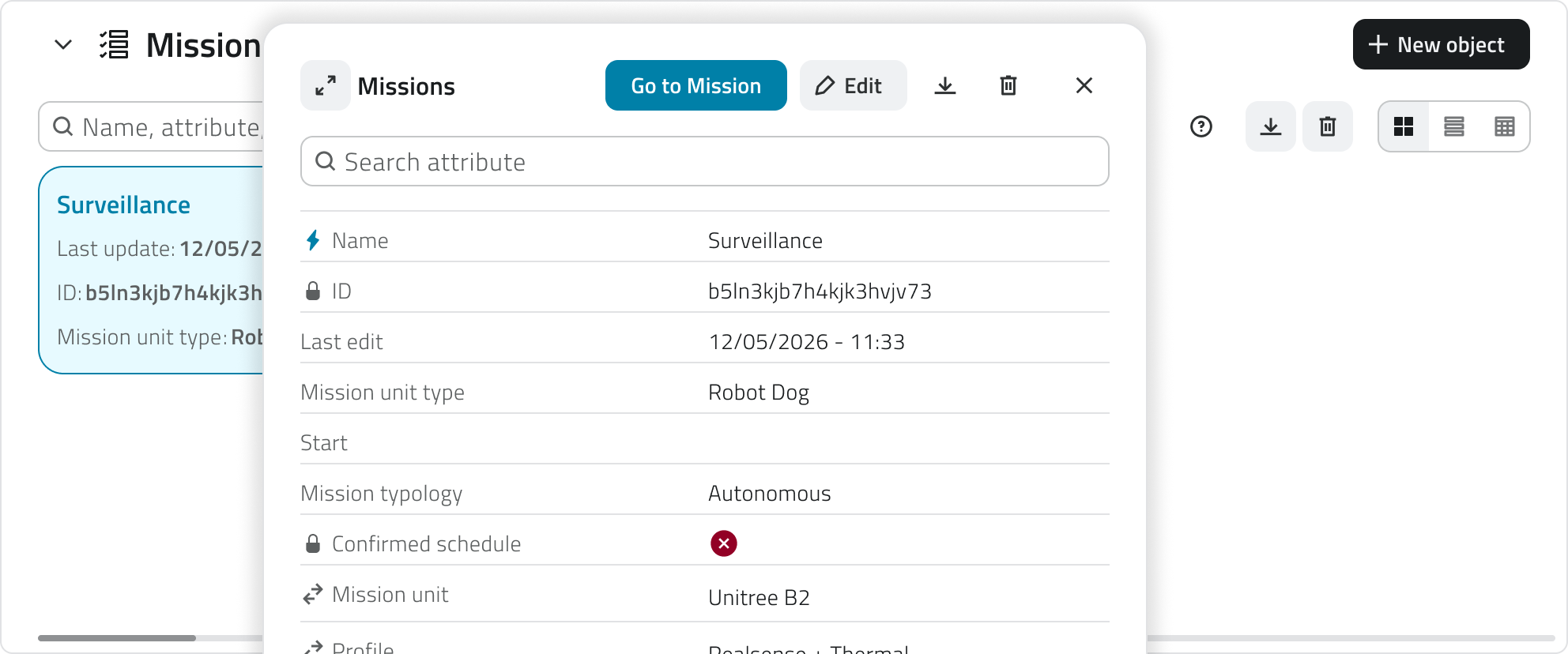
In both cases, a confirmation window will appear for the operation.
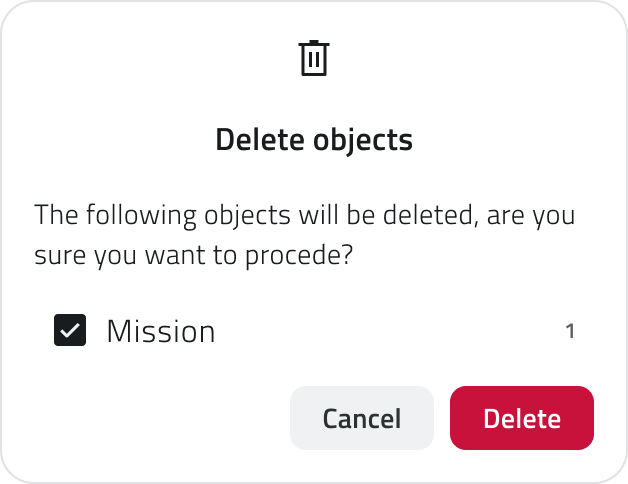
Deletion is only allowed for missions that have not been started.
Archived missions cannot be deleted, but can only be viewed or duplicated.
Adding elements to the map
To make a mission operational, you must define a Mission Home and at least one Waypoint. You can also draw Danger Zones and Geofences.
To add them, click Go to Mission from the mission details panel.
Adding Danger Zones and Geofences
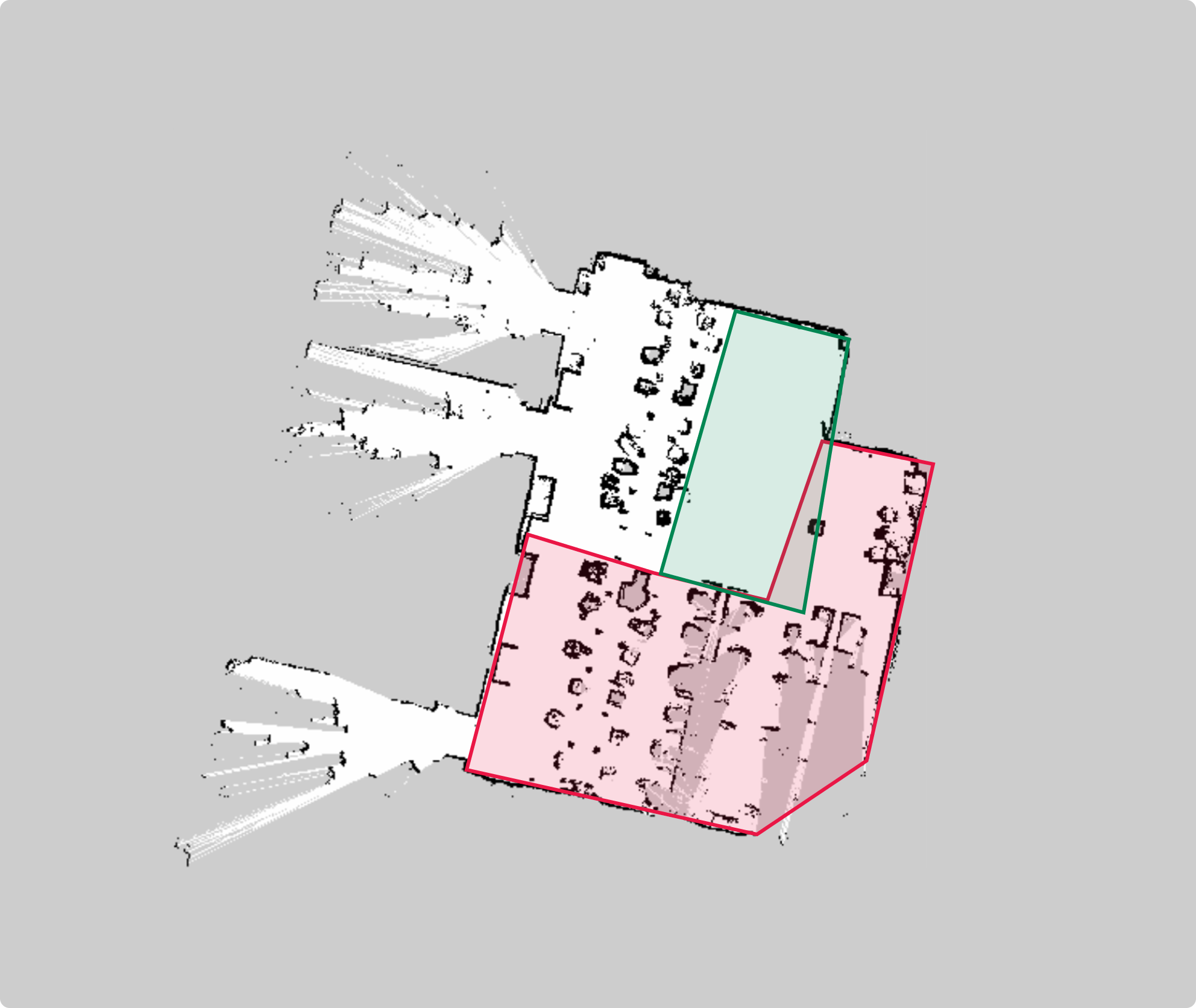
Danger Zones and Geofences are areas that limit the Robot Dog's operational area.
- Danger Zone
Represents an area that the Robot Dog cannot enter. - Geofence
Represents an area where the Robot Dog can operate safely. The robot can leave this area, but you will be notified if it does.
To add a Danger Zone or a Geofence, select the Draw tool from the toolbar and choose the corresponding Object Class.
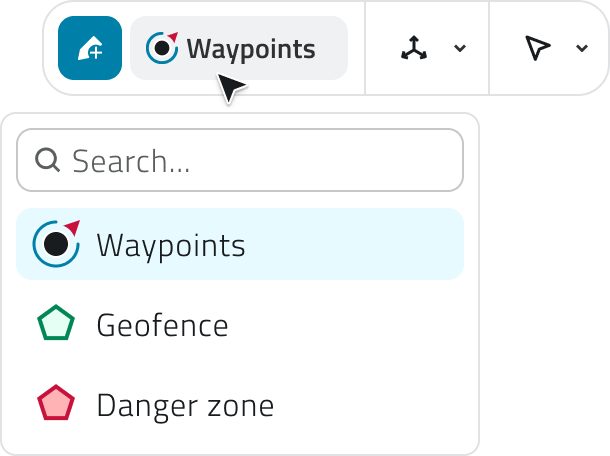
To draw the polygon, place the vertices by left-clicking on the map.
Close the polygon by right-clicking.
Fill in the required attributes and click Save.
Set the Mission Home
The Mission Home is the Robot Dog’s starting and return point.
It is not drawn manually on the map, but is automatically detected by the system based on the robot’s location.
Before setting the Home, make sure the Robot Dog is turned on and placed on the charging station.
From the side panel, click Mark on map.
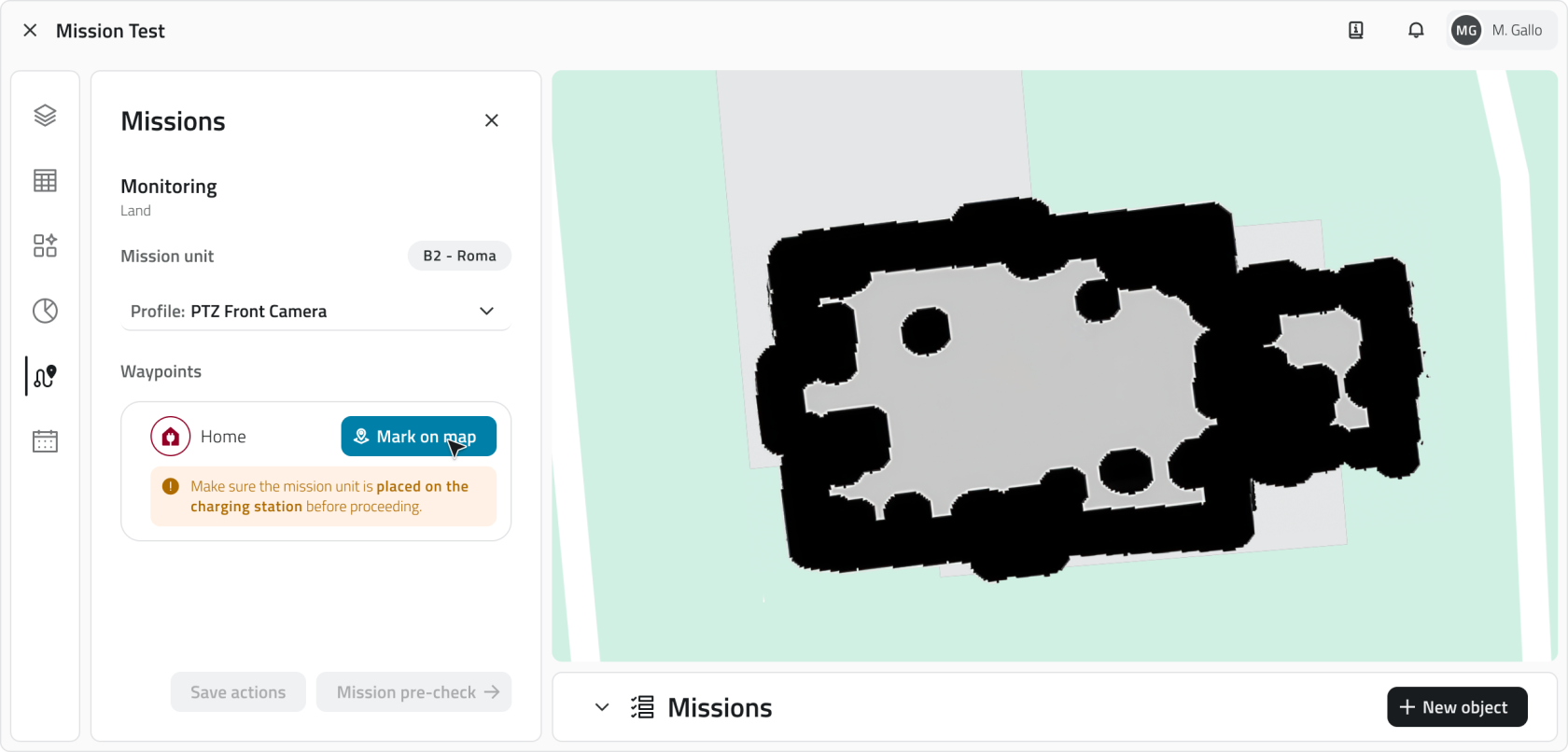
The system records the robot's current position and saves it as the Mission Home.
To change the Home, delete the existing one and click Mark on map again.
You can set the Home within a Danger Zone, but this will be considered a fatal error during verification.
Add Waypoints to the Map
Waypoints define the operational path that the Robot Dog will follow during the mission.
To add a Waypoint, select the Draw tool from the toolbar and choose the corresponding Object Class.
To place the waypoint, left-click on the map.
To adjust the waypoint's orientation, move the mouse.
To confirm the entry, right-click.
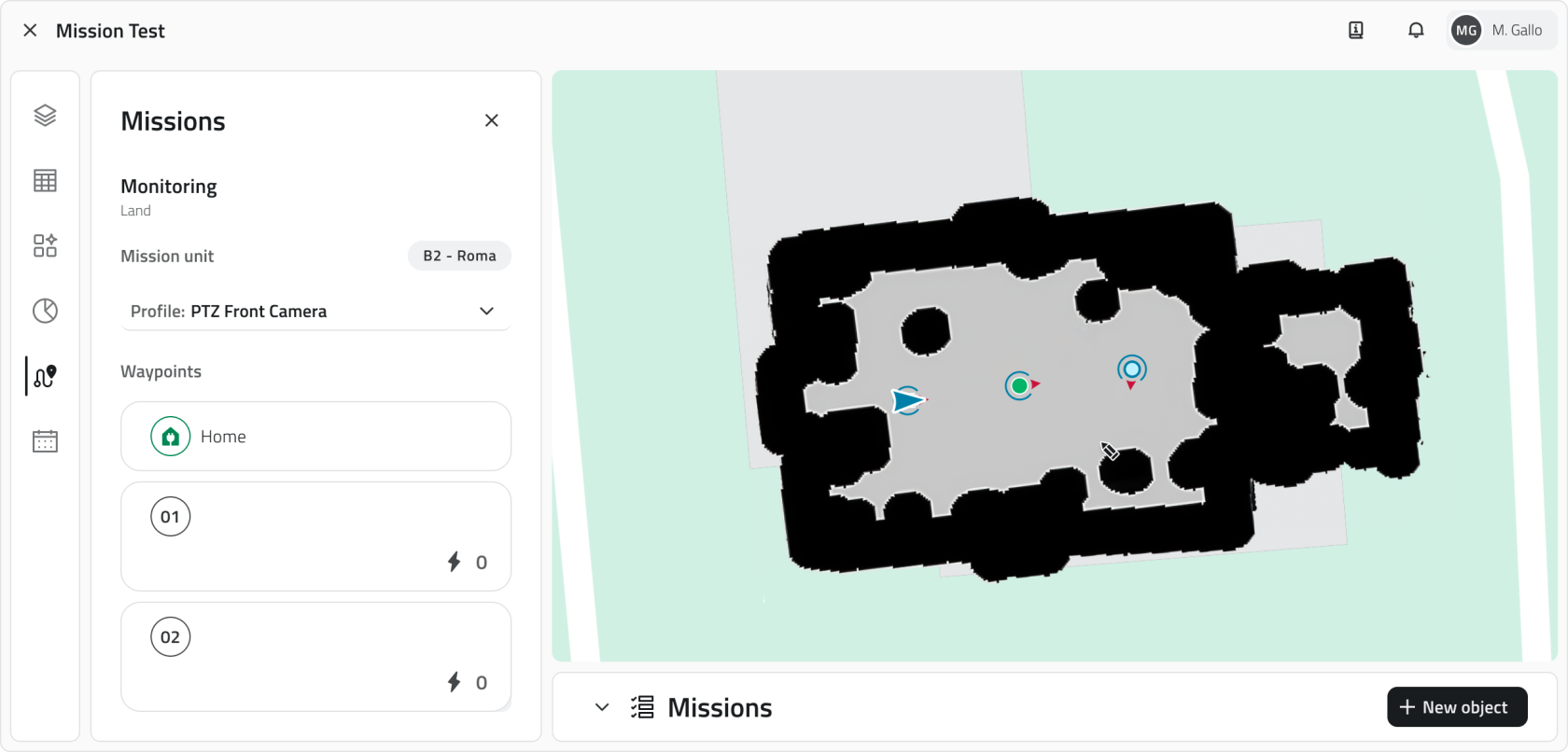
You can place waypoints within a danger zone, but they will be excluded from the robot's path during verification.
Waypoints are visible both on the map and in the list in the side panel. Each Waypoint is automatically numbered based on the order in which it was created. The order of the Waypoints also determines the order in which the Robot Dog will reach them.
To change the order of the waypoints, drag them in the sidebar list.
To change the orientation, select a waypoint on the map and click Rotate from the toolbar.
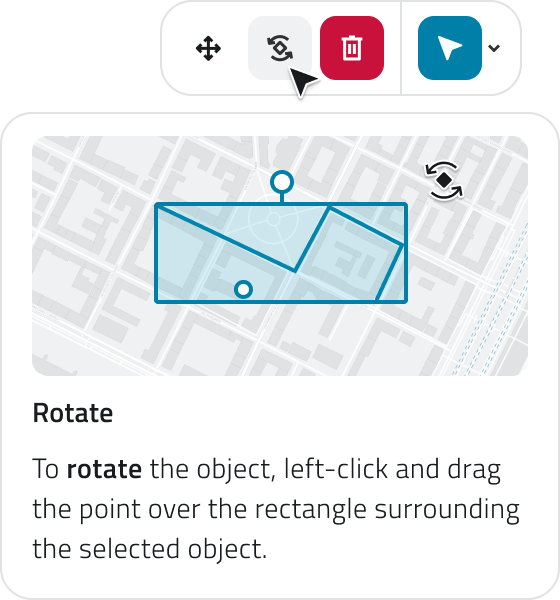
To delete a waypoint, click Delete when you hover over the item in the list, or select a waypoint on the map and click Delete on the toolbar.
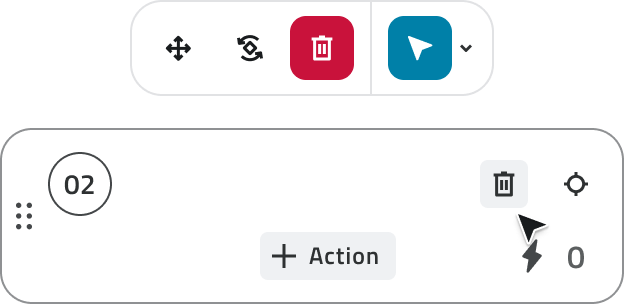
Set actions on Waypoint
For each Waypoint, it is possible to configure one or more actions that the Robot Dog will perform after reaching the point.
The actions define what operation the robot should perform, using a specific Add-on or for a defined duration.
To add an action to a Waypoint, hover over one of the action cards on the left-hand panel and click the +Action button.
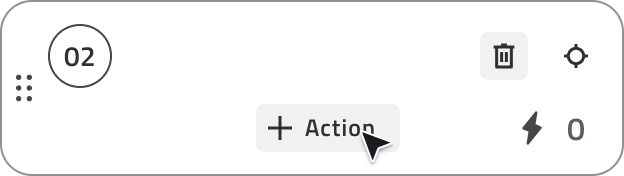
The available actions on the platform are:
- Wait
Keeps the robot waiting for a period of time, which you can define in the next field. - Body height
Allows adjusting the robot’s height by lowering or raising it within a range. - Tilt
Allows adjusting the robot's body tilt by rocking it forward and backward within a range. - Take photo
Takes a photo using a specific Add-on that you can define in the next field. - Start video recording
Starts recording a video using a specific Add-on, which you can define in the next field. - Stop video recording
Stops the video recording of a specific Add-on, which you can define in the next field.
The list of available actions may vary based on the Add-on in use. For example, if the profile used does not have a camera, the action Take photo will not be available.
For media acquisition actions, you can associate one or more AI models, which will be executed automatically after collecting the content.
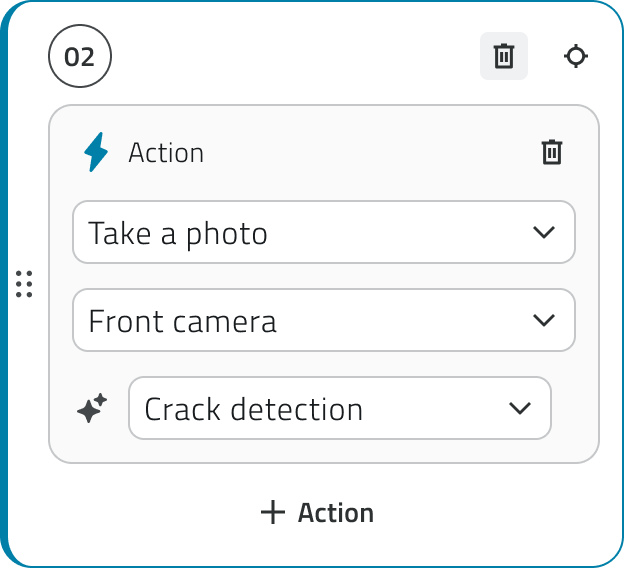
At the end of the mission, the following are displayed:
- Original media
- Processed media from the selected AI models
For each waypoint, you can add multiple actions, but it is also possible to save without setting any actions.
The actions are executed in sequence, in the order in which they were created and are visible in the list.
To save the waypoint configuration and actions, click the Save button at the bottom.
Mission pre-check
Before starting the mission, a pre-check must be performed.
Clicking on Mission pre-check, the system will verify the connection status of the Robot Dog and the position of the Home and Waypoints.
The system may detect the following types of errors:
Blocking errors
Related to the Mission Unit or Home.
In this case, the mission cannot be started until the issue is resolved.
Non-blocking errors
Related to the Add-on or individual Waypoint.
In this case, the mission can still be started, but the system will request confirmation before proceeding.
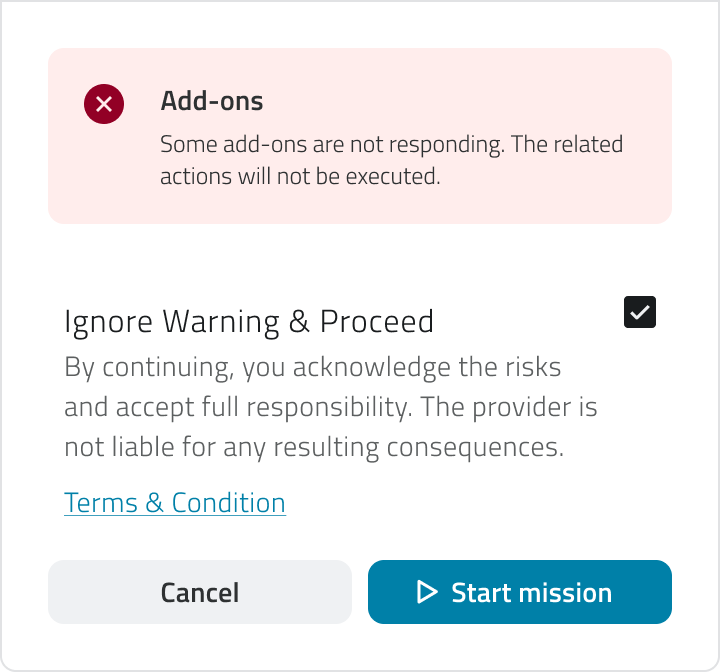
Every time you reopen the mission, the Robot Dog’s connection status will be automatically checked. In addition, the Home point must be reset each time, and the Mission pre-check must be performed again.
Mission start
If the check did not present any blocking errors, you can start the mission by clicking the Start mission button.
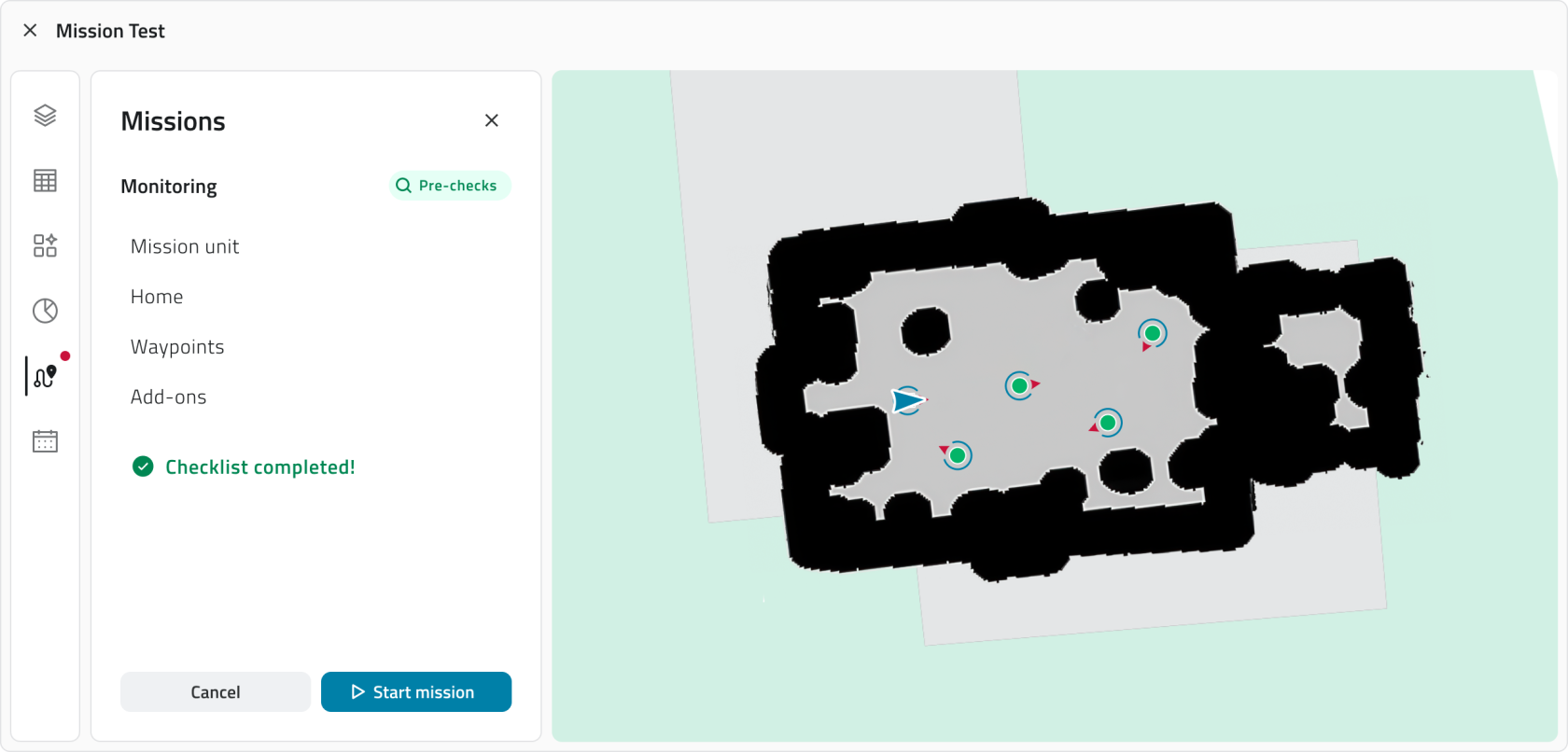
Upon start, the Robot Dog autonomously begins to execute the path and actions configured for the mission.
From this moment, it is possible to monitor the mission in real-time and intervene using the available controls.
Links
 Italiano
Questa sezione descrive i passaggi per creare, configurare e avviare una missione con un Robot Dog, dalla creazione della missione fino al controllo preliminare e all’avvio.
Disponibile solo con almeno una Mission Unit Robot Dog configurata, un Profilo configurato e permessi di accesso all'App.
Creare una nuova missione
1. Dalla pagina principale dei progetti, apri il progetto in cui vuoi creare la missione.
3. Clicca sulla Classe Oggetto Missions per visualizzare l'elenco delle missioni.
4. Clicca su Nuovo oggetto.
5. Si aprirà il modale di creazione missione, che che richiede l'inserimento dei seguenti dati:
-
Nome
Il nome identificativo della missione. - Mission unit type
Selezione Robot Dog dall'elenco. - Start Mode
Scegli se la missione deve partire:- Manualmente, con un comando specifico.
- In modalità programmata, indicando la data di inizio della missione.
- Manualmente, con un comando specifico.
-
Mission Typology
Definisce la modalità operativa della missione. Puoi scegliere tra:-
Autonomous: Il Robot Dog esegue la missione autonomamente, seguendo il percorso e le azioni che verranno configurati nei passaggi successivi.
-
Discovery: Missione esplorativa utilizzata per acquisire dati senza un percorso predefinito.
-
- Mission Unit
Seleziona il Robot Dog che dovrà eseguire questa missione. - Profile
Seleziona il profilo per la missione. Questo campo diventa attivo solo dopo aver selezionato la Mission Unit.
6. Per creare la missione, clicca Salva
Modifica delle missioni
Puoi modificare ed eliminare le missioni nell'inventory, nella lista delle missioni.
Modifica
Per modificare una missione, apri il dettaglio cliccando sul bottone blu, visibile al passaggio del mouse sull'elemento.
Per aggiornare i dati della missione, clicca Modifica.
Alcuni attributi possono essere modificati, a seconda dello stato della missione e della presenza di Waypoint.
Eliminazione
Per eliminare una missione:
- Apri il dettaglio della missione e clicca sul bottone Elimina in alto a destra della finestra.
- Seleziona una o più missioni dalla lista e clicca sul bottone Elimina in alto a destra della vista.
In entrambi i casi, apparirà una finestra di conferma per l'operazione.
L’eliminazione è consentita solo per le missioni non avviate.
Le missioni archiviate non possono essere eliminate, ma solo consultate o duplicate.
Inserire elementi in mappa
Per rendere una missione operativa, è necessario definire una Mission Home e almeno un Waypoint. È anche possibile disegnare aree di Danger Zone e Geofence.
Per inserirli clicca Go to Mission dal pannello di dettaglio della missione.
Aggiungere Danger Zones e Geofence
Le Danger Zones e i Geofences sono zone che limitano l'area operativa del Robot Dog.
- Danger Zone
Rappresenta un'area nella quale il Robot Dog non può entrare. - Geofence
Rappresenta un'area nella quale il Robot Dog può operare in modo sicuro. Il robot può uscire da quest'area, ma verrai notificato se lo farà.
Per aggiungere una Danger Zone o un Geofence, seleziona lo strumento Disegna dalla toolbar e scegli la Classe Oggetto corrispondente.
Per disegnare il poligono, posiziona i vertici cliccando il tasto sinistro del mouse sulla mappa.
Chiudi il poligono cliccando il tasto destro del mouse.
Compila gli attributi richiesti e clicca su Salva.
Impostare la Mission Home
La Mission Home rappresenta il punto di partenza e di rientro del Robot Dog.
Non viene disegnata manualmente sulla mappa, ma viene rilevata automaticamente dal sistema in base alla posizione del robot.
Prima di impostare la Home, assicurati che il Robot Dog sia acceso e posizionato sulla charging station.
Dal pannello laterale, clcca Segna posizione.
Il sistema registra la posizione corrente del robot e la salva come Mission Home.
Per modificare la Home, elimina quella esistente e clicca nuovamente Segna posizione.
Puoi posizionare la Home all'interno di una Danger Zone, ma in fase di verifica sarà considerato un errore bloccante.
Aggiungere Waypoint in mappa
I Waypoint definiscono il percorso operativo che il Robot Dog seguirà durante la missione.
Per aggiungere un Waypoint seleziona lo strumento Disegna dalla toolbar e scegli la Classe Oggetto corrispondente.
Per posizionare il punto, clicca con il tasto sinistro del mouse sulla mappa.
Per definire l’orientamento del Waypoint, muovi il mouse.
Per confermare l’inserimento, clicca con il tasto destro del mouse.
Puoi posizionare i Waypoint all'interno di una Danger Zone, ma in fase di verifica saranno scartati dalla traiettoria del robot.
I Waypoint sono visibili sia in mappa che che nell'elenco nel pannello laterale. Ogni Waypoint viene numerato automaticamente, in base all'ordine di creazione. L'ordine dei Waypoint indica anche l'ordine in cui il Robot Dog li raggiungerà.
Per cambiare l'ordine dei Waypoint, trascinali nell'elenco del pannello laterale.
Per modificare l’orientamento seleziona un Waypoint in mappa e clicca Ruota dalla toolbar.
Per eliminare un Waypoint clicca su Elimina che appare andando in hover sull'elemento dell'elenco, o seleziona un waypoint in mappa e clicca Elimina dalla toolbar.
Impostare azioni sui Waypoint
Per ogni Waypoint è possibile configurare una o più azioni, che il Robot Dog esegue dopo aver raggiunto il punto.
Le azioni definiscono quale operazione deve eseguire il robot, utilizzando uno specifico Add-on oppure per una durata definita.
Per aggiungere un’azione a un Waypoint, porta il cursore sopra una delle card azione nel pannello laterale sinistro e clicca sul bottone +Action.
Le azioni disponibili in piattaforma sono:
- Aspetta
Mantiene il robot in attesa per un intervallo di tempo che puoi definire dal campo successivo. - Body height
Consente di modificare l'altezza del robot facendolo abbassare ed alzare entro un range. - Tilt
Consente di modificare l'inclinazione del corpo del robot facendolo oscillare ain avanti e indietro entro un range. - Scatta foto
Acquisisce un'immagine utilizzando uno specifico Add-on che puoi definire dal capo successivo. - Inizia registrazione Video
Inizia a registrare un video utilizzando uno specifico Add-on che puoi definire dal capo successivo. - Termina registrazione Video
Interrompe la registrazione di un video di uno specifico Add-on che puoi definire dal capo successivo.
La lista delle azioni disponibili può variare in base agli Add-on in uso. Ad esempio se nel profilo utilizzato non sono presenti fotocamere, non sarà possibile selezionare Scatta foto come azione.
Per le azioni di acquisizione media è possibile associare uno o più modelli AI, che vengono eseguiti automaticamente dopo la raccolta del contenuto.
Al termine della missione vengono visualizzati:
-
Media originale
-
Media elaborato dai modelli AI selezionati
Per ogni waypoint è possibile aggiungere più azioni, ma è anche possibile salvare senza aver impostato alcuna azione.
Le azioni vengono eseguite in sequenza, nell’ordine in cui sono state create e in cui sono visibili nella lista.
Per salvare la configurazione dei waypoint e delle azioni, clicca sul bottone Salva, in basso.
Controlli pre-missione
Prima di avvire la missione è necessario effettuare un pre-check.
Cliccando su Controlli pre-missione il sistema effettuerà una verifica sullo stato di connessione del Robot dog e sulla posizione della Home e dei Waypoints.
Il sistema potrebbe rilevare le seguenti tipologie di errori:
Errori bloccanti
Riguardano Mission Unit o Home.
In questo caso non sarà possibile avviare la missione finché il problema non viene risolto.
Errori non bloccanti
Riguardano Add-on o singoli Waypoint.
In questo caso è comunque possibile avviare la missione, ma il sistema richiede una conferma prima di procedere.
Ogni volta che riaprirai la missione, verrà eseguito un controllo automatico sullo stato di connessione del Robot Dog. Inoltre, ogni volta la Home dovrà essere reimpostata e il Controllo pre-missione dovrà essere nuovamente effettuato.
Avvio della missione
Se la verifica non ha presentato errori bloccanti, puoi avviare la missione cliccando il bottone Inizia la missione.
All’avvio il Robot Dog parte in autonomia e inizia ad eseguire il percorso e le azioni configurate per la missione.
Da questo momento è possibile monitorare la missione in tempo reale e intervenire tramite i controlli disponibili.
Collegamenti
Last update: 13 May 2026