
Introduction to Object Classes
 English version
Object Classes define the data structure in EagleArca projects.
Each class represents a type of surveyable element (such as a plant, a pole, a pipeline or a sensor) and specifies what information should be collected and how the object should appear on the map.
Once created and published, a class becomes available to all projects within the organization and can be used to create new objects.
Types of Object Classes
In EagleArca, there are two categories of Object Classes:
Vector Object Classes
These allow you to create objects displayed on the map.
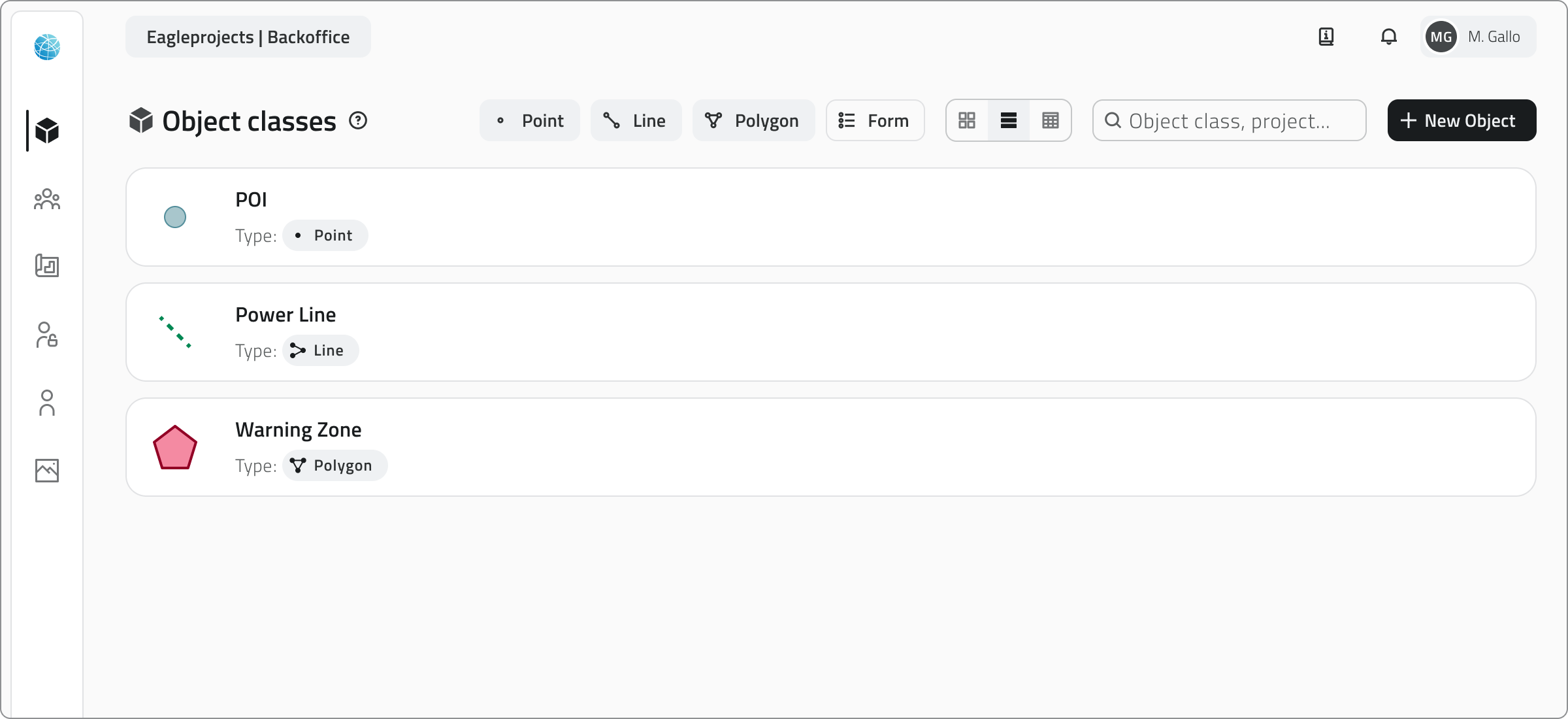
Each class defines a basic geometry, which can be:
- Point
For individual elements such as trees or sensors - Line
For extended elements such as pipes or paths - Polygon
For areas such as flower beds, buildings or operational zones
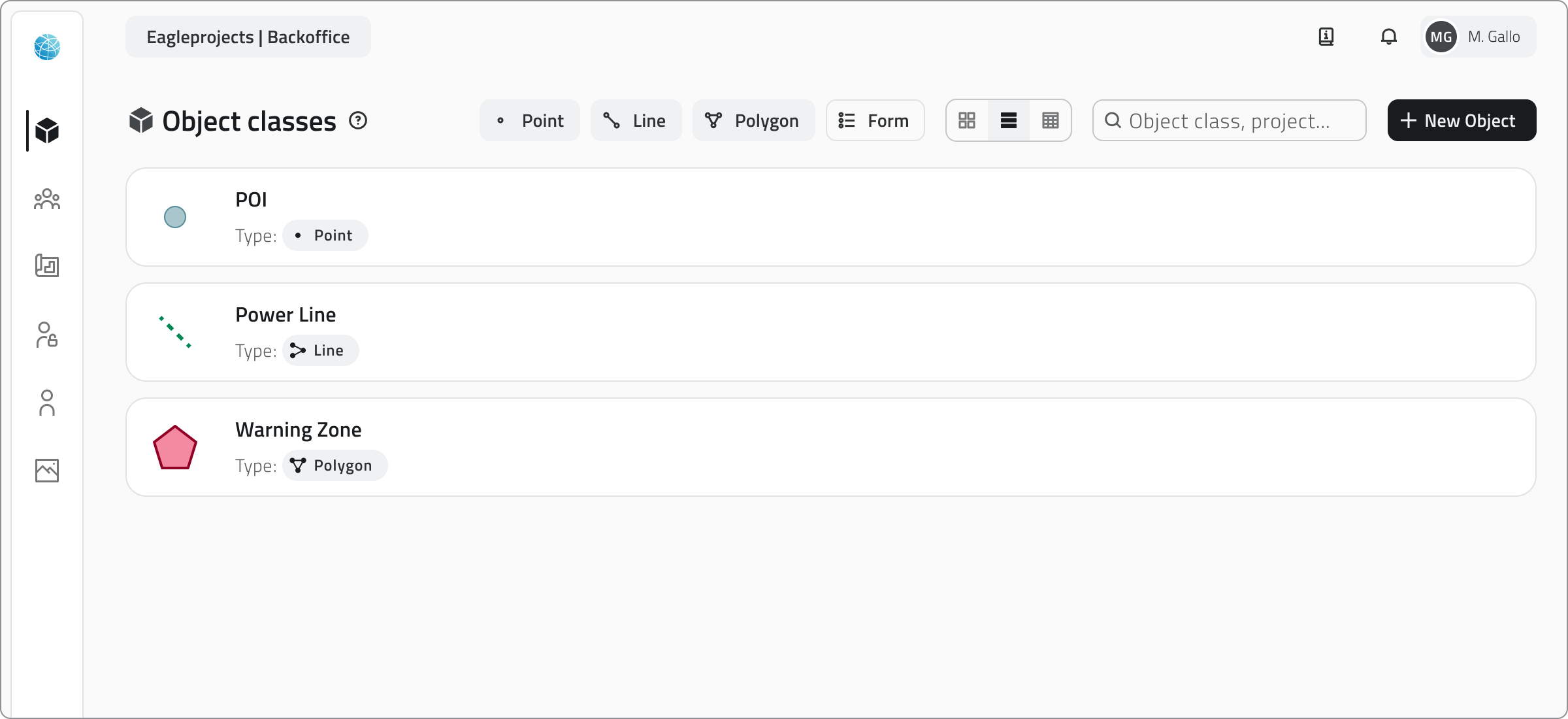
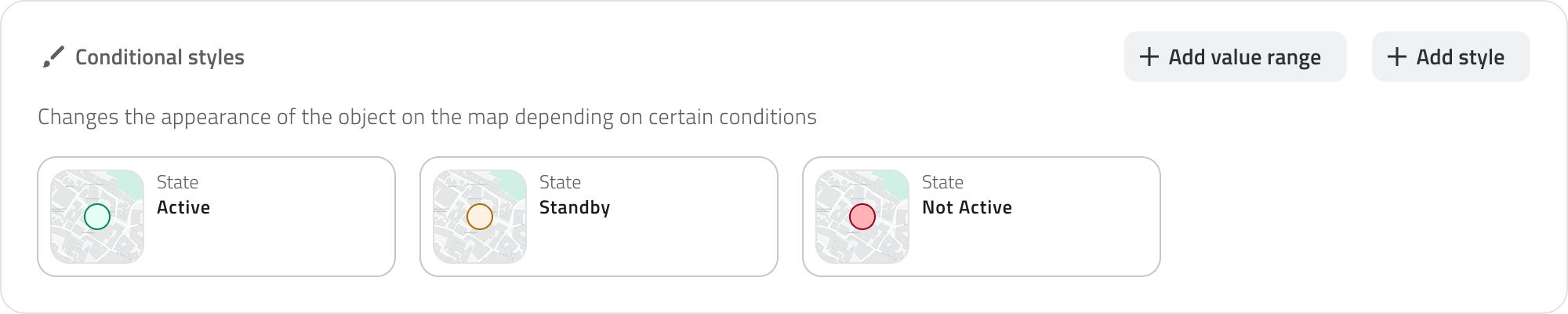
Geometric classes can be styled with basic shapes, colors and conditional styles.
Conditional styles automatically change the appearance of objects on the map based on the value of one or more attributes, for example to distinguish operational statuses, criticality levels, or numerical thresholds.
(e.g. status = active → green color).
You can make a point an oriented point, that is, a point oriented in a specific direction on the map, which is useful for representing elements such as cameras or headlights.
Non-vector Object Classes
Known as Form classes. They define the attributes of objects that do not have a geographic representation.
They are used to manage non-mapped information, such as inspection reports, technical checks or reference lists that can be used within projects.
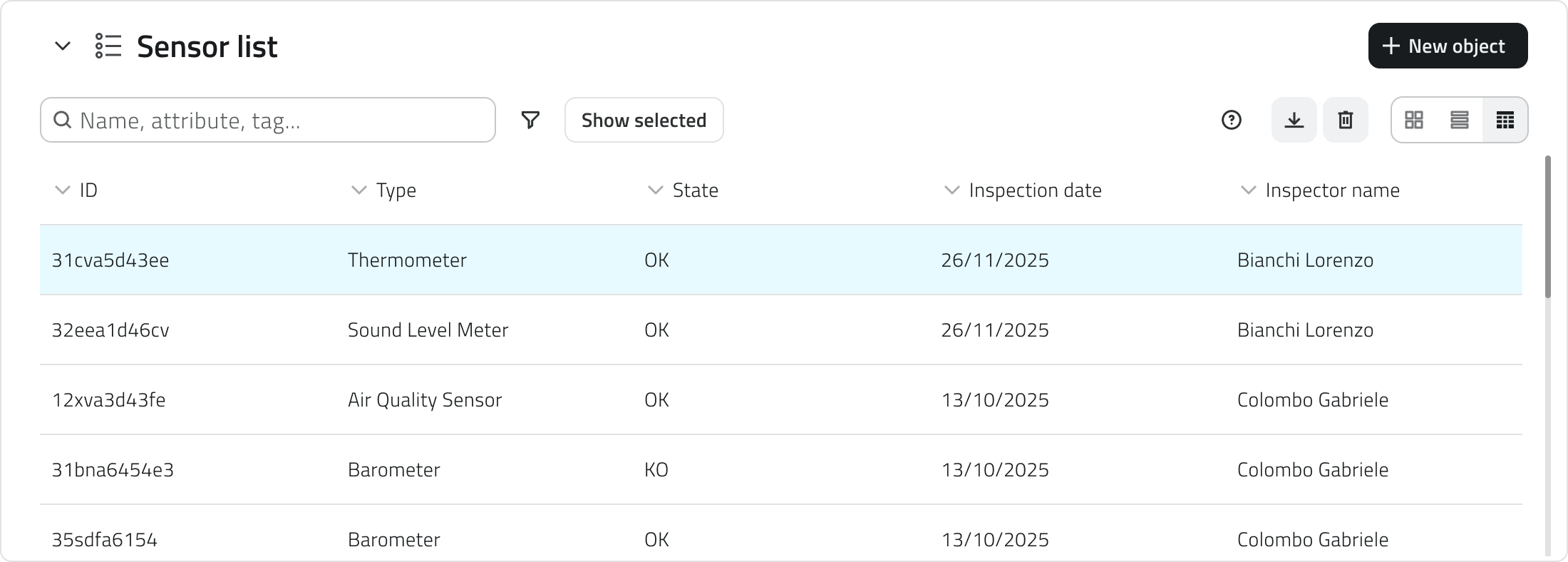
Global List
Global Lists are Form-type object classes that exist at the organizational level and are not tied to a single project.
They serve as shared, centralized repositories of reusable data.
For example:
- lists of suppliers or sensor models
- material types or risk categories
- code tables or references used by multiple projects
Global List objects are added from the Home screen and not within the project.
Object Class Attributes
Each Object Class consists of attributes, which are the data fields that describe the information to be entered for each object in the class.
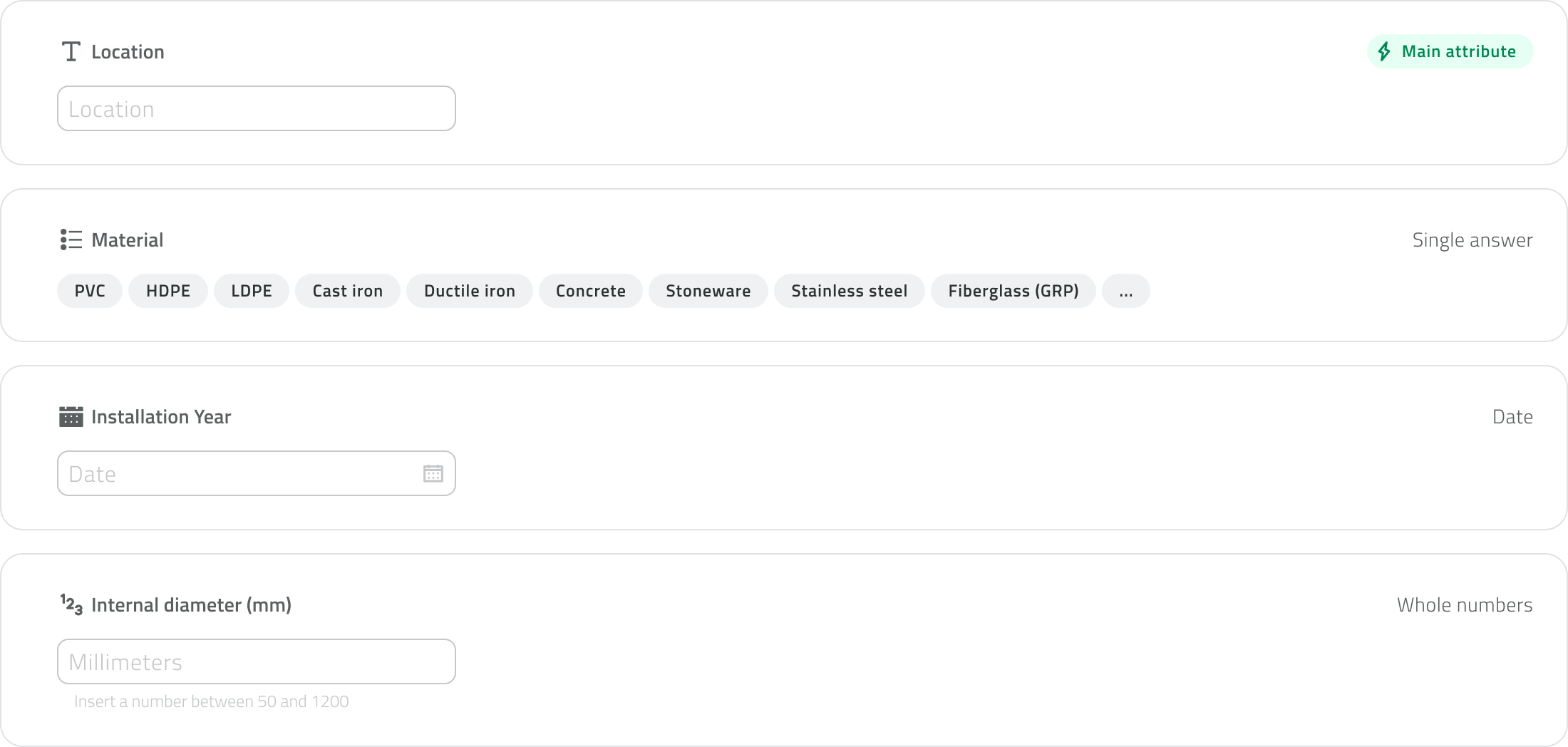
An attribute can be of the following types:
- Text field
For names or descriptions - Numeric field
For quantitative values or measurements - List of values
For selecting an option from a predefined list - Date
For entering dates or deadlines - Attachments
For uploading files, images, or videos - Dimensions
For automatically recording measurable quantities (e.g., length, area, coordinates) - True/False
For Boolean fields - Object list
For fields composed of multiple sub-attributes, such as a set of repeated measurements or parameters
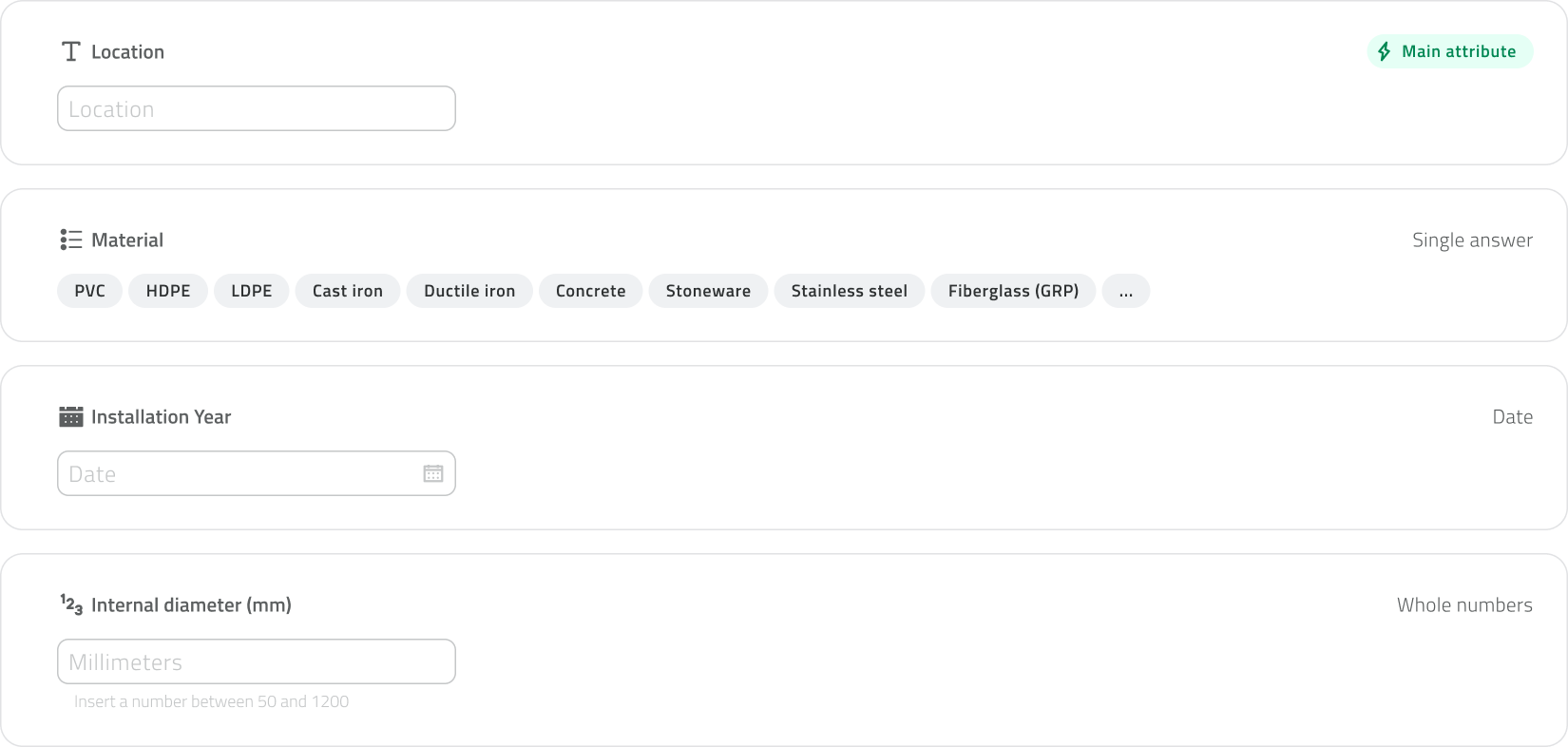
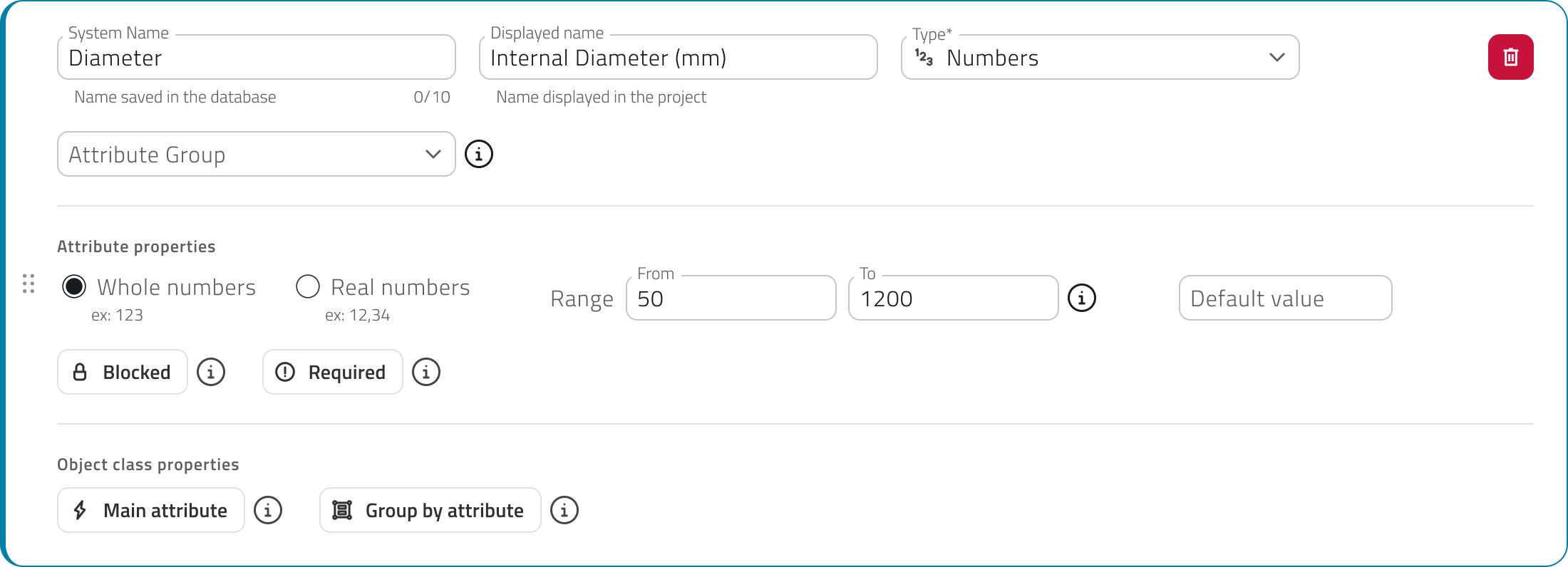
Each attribute also has configurable properties:
- Name
The field label - Required
Indicates whether the field must be filled in - Default value
The preset value, which can be changed if necessary - Locked
The field is visible but cannot be edited - Main attribute
The primary attribute displayed when querying the object, useful for quickly identifying it
Creation and Management
Object classes are created and modified in the Backoffice, which is accessible only to users with the appropriate permissions.
Once published, the class becomes available in projects and can be used to create new objects.
In summary
- Object Classes define the structure and representation of data.
- They can be geometric (displayed on the map) or form-based (data sheets only).
- Global Lists are forms shared across projects, useful for standardized lists.
- Attributes define the information that each object must contain.
- Oriented points allow for the representation of directed points.
- Only users with backoffice permissions can create or modify classes.
 Italian version
Le Classi Oggetto definiscono la struttura dei dati nei progetti EagleArca.
Ogni classe rappresenta un tipo di elemento censibile, per esempio una pianta, un palo, una condotta o un sensore, e stabilisce quali informazioni devono essere raccolte e come l’oggetto deve apparire sulla mappa.
Una volta creata e pubblicata, una classe diventa disponibile per tutti i progetti dell’organizzazione e può essere utilizzata per creare nuovi oggetti.
Tipologie di Classe Oggetto
In EagleArca esistono due categorie di Classi Oggetto:
Classi Oggetto vettoriali
Permettono di creare oggetti visualizzati sulla mappa.
Ogni classe definisce una geometria di base, che può essere:
- Punto
Per elementi singoli come alberi o sensori - Linea
Per elementi estesi come tubazioni o percorsi - Poligono
Per aree come aiuole, edifici o zone operative
Le classi geometriche possono essere stilizzate con forme di base, colori e stili condizionali.
Gli stili condizionali permettono di cambiare automaticamente l’aspetto degli oggetti in mappa in base al valore di uno o più attributi, ad esempio per distinguere stati operativi, livelli di criticità o soglie numeriche.
(es: stato = attivo → colore verde).
È possibile rendere un punto orientato, cioè un punto orientato in una direzione specifica della mappa, utile per rappresentare elementi come telecamere o fari.
Classi Oggetto non vettoriali
Chiamati Form. Definiscono gli attributi di oggetti che non hanno rappresentazione geografica.
Servono per gestire informazioni non mappate, come schede di ispezione, controlli tecnici o elenchi di riferimento utilizzabili all’interno dei progetti.
Global List
Le Global List sono classi oggetto di tipo Form che esistono a livello di organizzazione e non dipendono da un singolo progetto.
Servono come archivi condivisi e centralizzati di dati riutilizzabili.
Ad esempio:
-
elenco dei fornitori o dei modelli di sensori;
-
tipologie di materiali o categorie di rischio;
-
tabelle di codici o riferimenti usati da più progetti.
Gli oggetti delle Global List vengono aggiunti dalla Home e non dentro al progetto.
Attributi delle Classi Oggetto
Ogni Classe Oggetto è composta da attributi, ovvero i campi di dati che descrivono le informazioni da compilare per ogni oggetto della classe.
Un attributo può essere di tipo:
- Campo di testo
Per nomi o descrizioni - Campo numerico
Per valori quantitativi o misurazioni - Lista di valori
Per scegliere un’opzione da un elenco predefinito - Data
Per inserire date o scadenze - Allegati
Per caricare file, immagini o video - Dimensioni
Per registrare automaticamente grandezze misurabili (es. lunghezza, area, coordinate) - Vero/Falso
Per campi booleani - Lista oggetti
Per campi composti da più sotto-attributi, ad esempio un set di misure o parametri ripetuti
Ogni attributo ha inoltre proprietà configurabili:
- Nome
Etichetta del campo - Obbligatorietà
Indica se deve essere compilato - Valore di default
Valore preimpostato ma modificabile se necessario - Bloccato
Campo visibile ma non modificabile - Main attribute
L’attributo principale mostrato quando si interroga l’oggetto, utile per identificarlo rapidamente
Creazione e gestione
La creazione e la modifica delle Classi Oggetto avvengono dal Backoffice, accessibile solo agli utenti con permessi adeguati.
Dopo la pubblicazione, la classe diventa disponibile nei progetti e può essere usata per creare nuovi oggetti.
In sintesi
- Le Classi Oggetto definiscono la struttura e la rappresentazione dei dati.
- Possono essere geometriche (visualizzate sulla mappa) o form (solo schede dati).
- Le Global List sono Form condivisi tra progetti, utili per elenchi standardizzati.
- Gli attributi definiscono le informazioni che ogni oggetto deve contenere.
- Gli oriented point permettono di rappresentare punti direzionati.
- Solo utenti con permesso backoffice possono creare o modificare classi.
Last update: 28 May 2026