
Create and manage Reports
 English version
The Report section of the Backoffice allows you to select and configure report templates that will then be used in projects or from the Home to generate downloadable reports. Each template defines the structure, parameters and formats available for generation.
Available only to users with backoffice permission.
Create a new Report
1. Access the Backoffice and click Report in the left-side menu.

2. Click the New report button in the top-right corner.

3. Enter the report name in the Report Name field (required, maximum 40 characters).
4. If the report needs to collect data from all projects in the organisation, enable the Global Report switch.
Global reports are managed from the Home and not from individual projects.

5. Fill in the fields in the two sections.
Template section
In this section, fields unlock progressively. First select the category and then the type of report: these two fields help you identify the most suitable template.
You can then select the base template and choose one or more available output formats.
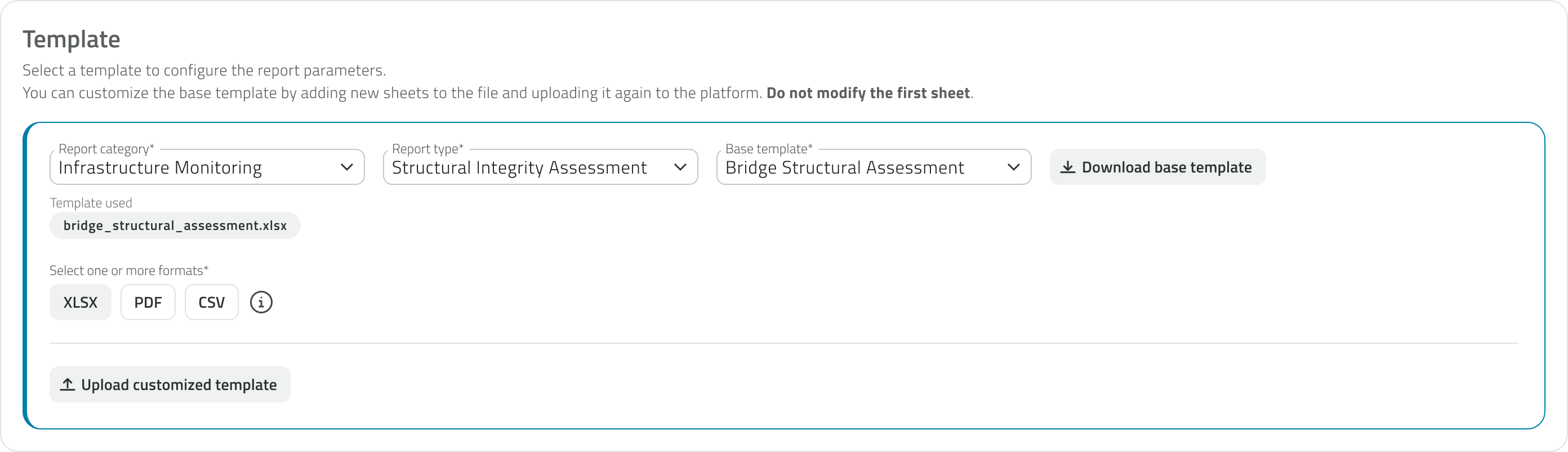
The available formats vary depending on the selected template. If a format is not available for that template, the relevant option is present but disabled. The XLSX format is always selected by default.
Once the template has been chosen, you can download it using the Download base template button and customise it by adding new sheets to the XLSX file.
To use the customised template, re-upload it using the Upload customised template button. The uploaded file is shown with its name, upload date and time, and can be downloaded or removed. Removing it will automatically revert to the base template.
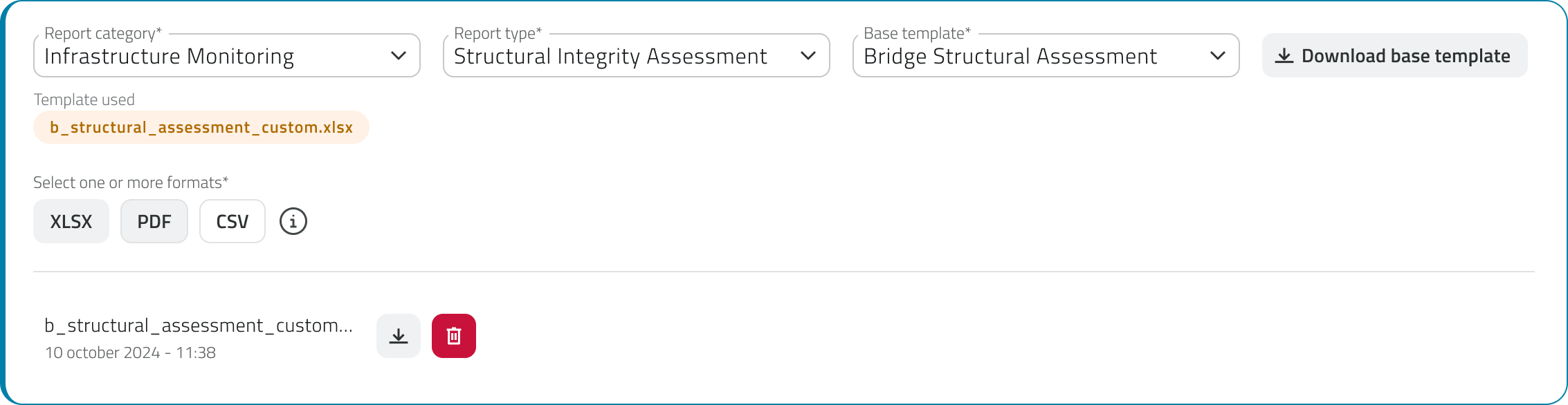
Do not modify the first sheet of the XLSX file: it contains the data structure used by the platform to populate the report.
Parameters section
Once the template has been selected, the Parameters section populates with the parameters to configure, which vary depending on the chosen template. For each parameter it is possible to:
- Enter a display name, which overrides the system name shown to the user in the app;
- Choose whether the parameter should be:
- filled in manually by the user in the app at the time of generation, when the Manual input switch is active
- or filled in automatically by the system drawing from platform data.

If manual input is disabled, the following fields unlock in sequence to indicate where the system should retrieve the data from:
- Data category
The data category to draw from - Table or Object Name
The specific table or object class - Data Field or Property
The specific field or property to use
Parameters can be of different types, such as text, numbers, true/false, date and date and time.
The parameter type is indicative in the Backoffice and helps guide the configuration. In the app, if the parameter is set to manual input, it determines the type of field the user will need to fill in at the time of generation.
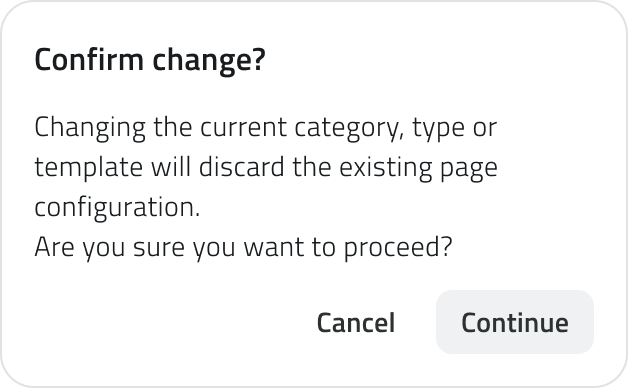
Changing the category, type or base template after having configured the parameters will reset the entire parameter configuration. The system will display a confirmation window before proceeding.
Save the Report
Click Save in the top-right corner to complete the creation. On first save, a window opens to set the default permission to assign to the template for all existing roles. This setting can be modified later from the Roles page of the Backoffice.
View and edit Reports
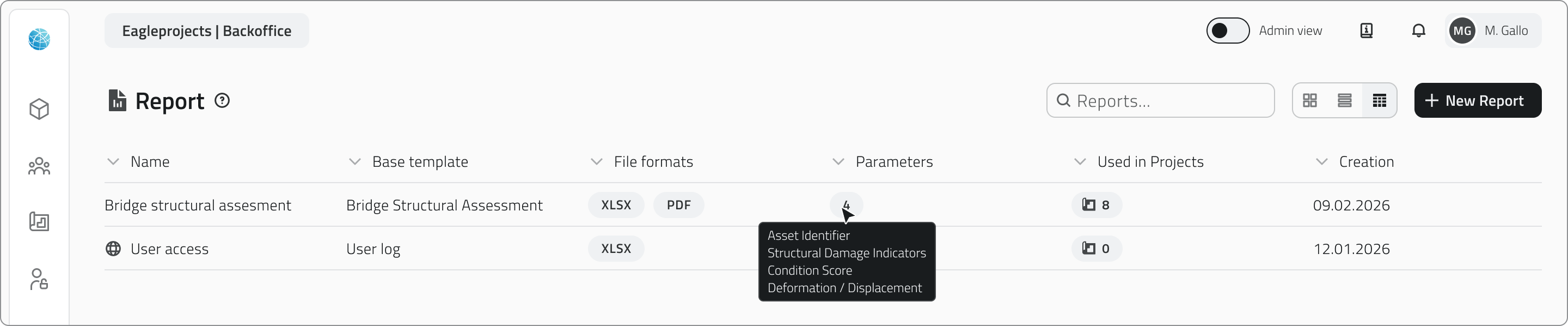
The report list shows the following information for each element:
- Name
- Base template
The selected base template. - Formats
- Parameters
Hovering over the number shows all parameters available for that template. - Projects
Hovering over the number shows the list of projects in which the template has been added; global reports show 0 because they are managed from the Home. - Creation date
Global reports are recognisable by the globe icon next to their name.
Edit
To edit a report, click the blue button with the arrow icon that appears when hovering over the element.
Duplicate
To duplicate a report, select an element from the list to display the Duplicate button in the top-right corner of the page.
Delete
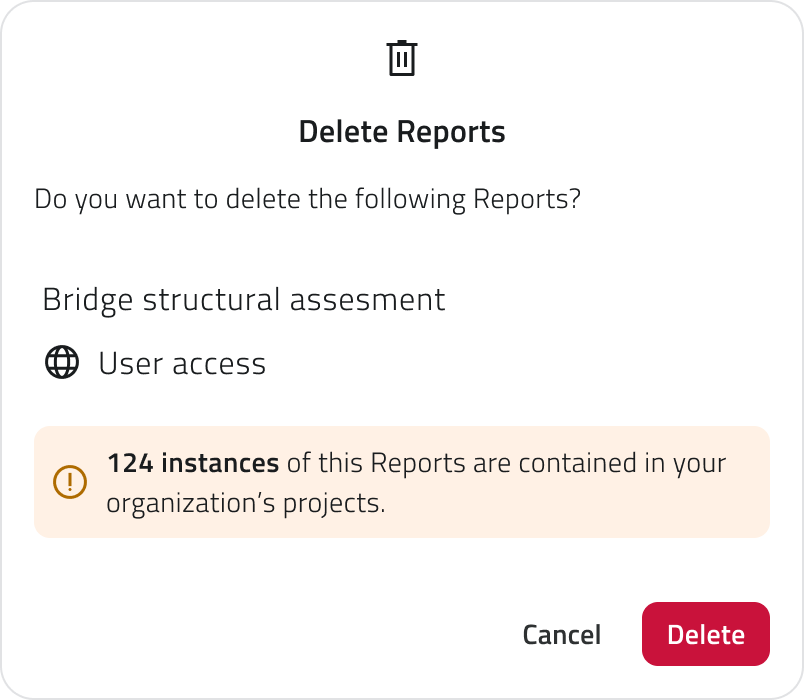
To delete a report, select one or more elements and click the Delete button in the top-right corner of the page.
Deleting a report template causes the deletion of all instances generated from that template in projects and from the Home. The system shows the number of instances involved before proceeding with the confirmation.
Links
 Italian version
La sezione Report del Backoffice consente di scegliere e configurare i template di report che verranno poi utilizzati nei progetti o dalla Home per generare report scaricabili. Ogni template definisce la struttura, i parametri e i formati disponibili per la generazione.
Disponibile solo per utenti con permesso backoffice.
Creare un nuovo Report
1. Accedi al Backoffice e clicca su Report nel menu laterale sinistro.
2. Clicca sul pulsante Nuovo report in alto a destra.
3. Inserisci il nome del report nel campo Nome Report (obbligatorio, massimo 40 caratteri).
4. Se il report deve raccogliere dati da tutti i progetti dell'organizzazione, attiva lo switch Global Report.
I report globali vengono gestiti dalla Home e non dai singoli progetti.
5. Compila i campi delle due sezioni.
Sezione Template
In questa sezione i campi si sbloccano progressivamente. Seleziona prima la categoria e poi la tipologia del report: questi due campi ti aiutano a individuare il template più adatto.
A questo punto puoi selezionare il template base e scegliere uno o più formati di output disponibili.
I formati disponibili variano in base al template selezionato. Se un formato non è disponibile per quel template, la relativa voce è presente ma disabilitata. Il formato XLSX è sempre selezionato di default.
Una volta scelto il template, è possibile scaricarlo tramite il pulsante Scarica template base e personalizzarlo aggiungendo nuovi fogli al file XLSX.
Per utilizzare il template personalizzato, ricaricalo tramite il pulsante Carica template personalizzato. Il file caricato viene mostrato con nome, data e ora di caricamento e può essere scaricato o rimosso. Rimuovendolo si tornerà automaticamente al template base.
Non modificare il primo foglio del file XLSX: contiene la struttura dati utilizzata dalla piattaforma per popolare il report.
Sezione Parametri
Una volta selezionato il template, la sezione Parametri si popola con i parametri da configurare, che variano in base al template scelto. Per ogni parametro è possibile:
- Inserire un nome in visualizzazione, che sovrascrive il nome di sistema mostrato all'utente in app;
- Scegliere se il parametro deve essere:
- compilato manualmente dall'utente in app al momento della generazione, quando lo switch Input manuale è attivo
- oppure compilato automaticamente dal sistema attingendo ai dati della piattaforma.
Se l'input manuale è disattivato, i seguenti campi si sbloccano a cascata per indicare da dove il sistema deve recuperare il dato:
- Data category
La categoria di dati da cui attingere - Table or Object Name
La tabella o la classe oggetto specifica - Data Field or Property
Il campo o la proprietà specifica da utilizzare
I parametri possono essere di diversi tipi, come testo, numeri, vero/falso, data e data e ora.
Il tipo di parametro è indicativo nel Backoffice e aiuta a indirizzare la configurazione. In app, se il parametro è impostato come input manule, determina il tipo di campo che l'utente dovrà compilare al momento della generazione.
Modificare la categoria, la tipologia o il template base dopo aver configurato i parametri resetterà tutta la configurazione dei parametri. Il sistema mostrerà una finestra di conferma prima di procedere.
Salvare il Report
Clicca Salva in alto a destra per completare la creazione. Al primo salvataggio si apre una finestra per impostare il permesso di default da assegnare al template per tutti i ruoli esistenti. Questa impostazione può essere modificata in seguito dalla pagina Ruoli del Backoffice.
Visualizzare e modificare i Report
Nella lista dei report sono visibili le seguenti informazioni per ogni elemento: La lista mostra nome, il template di base, i formati in cui il report sarà disponibile, i parametri presenti per quel template, i progetti in cui il report è utilizzato e la data di creazione.
- Nome
- Template base
Il template base selezionato - Formati
- Parametri
Passando il mouse sul numero vengono mostrati tutti i parametri disponibili per quel template. - Progetti
Passando il mouse sul numero viene mostrata la lista dei progetti in cui il template è stato aggiunto; i report globali mostrano 0 perché sono gestiti dalla Home - Data di creazione
I report globali sono riconoscibili dall'icona del globo accanto al nome.
Modifica
Per modificare un report, clicca sul pulsante blu con l'icona freccia che appare al passaggio del mouse sull'elemento.
Duplicazione
Se vuoi duplicare un report, seleziona un elemento dalla lista per visualizzare il pulsante Duplica in alto a destra della pagina.
Eliminazione
Se vuoi eliminare un report puoi selezionare uno o più elementi e cliccare sul pulsante Elimina in alto a destra della pagina.
Eliminare un template di report comporta l'eliminazione di tutte le istanze generate da quel template nei progetti e dalla Home. Il sistema mostra il numero di istanze coinvolte prima di procedere con la conferma.
Collegamenti
Last update: 26 May 2026