
Manage 2D resources
 English
  Italiano
 The 2D Resource Manager gathers the 2D resources of your organization in one place: the maps used by robot dogs. Resources are uploaded files that can be used in your projects.
To open it, go to the Backoffice and click 2D Resource Manager in the side bar on the left.

The resource list
The Resources card lists all the 2D resources of your organization, including those uploaded by other users. Each row shows the name of the resource: the name of the file you uploaded or, for the maps created automatically, the date and time of the mission.
To find a resource quickly, type part of its name in the Search field: the list is filtered as you type.
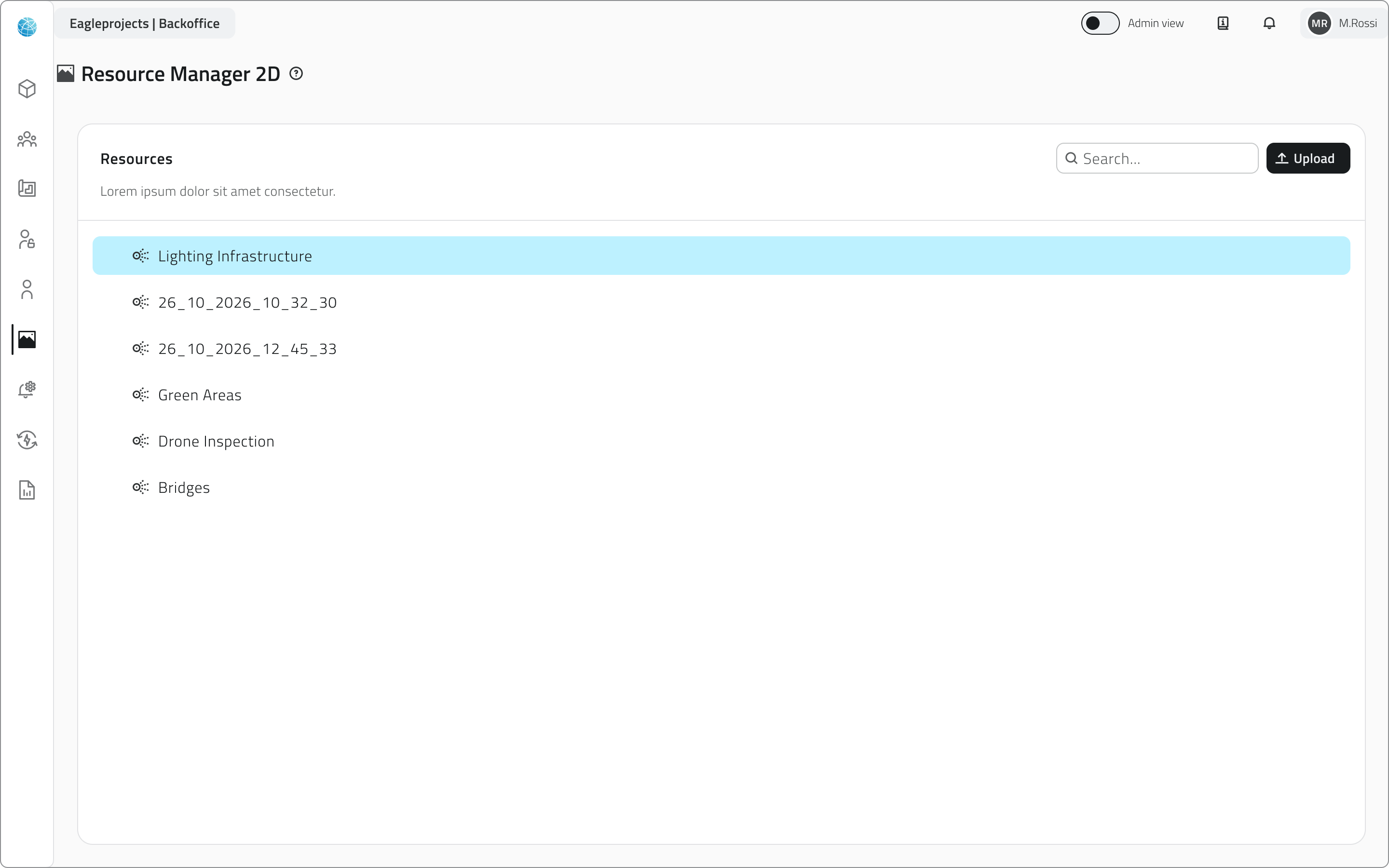
The maps created by Discovery missions are saved here automatically. They appear in the list with the date and time of the mission as their name.
Upload a map
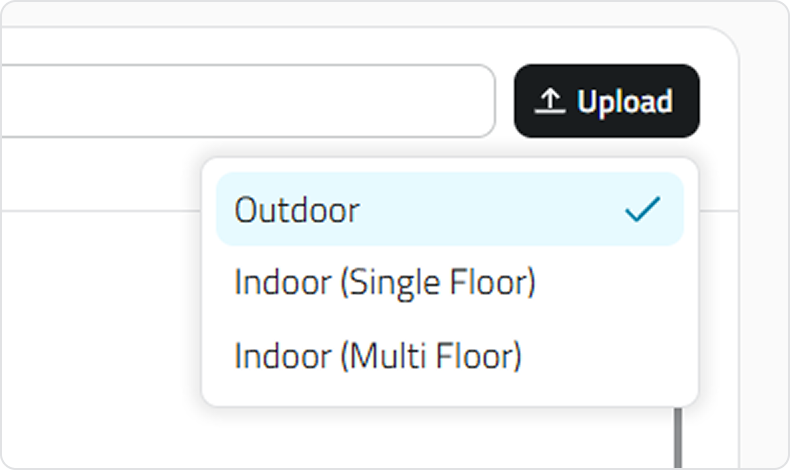
Click Upload and choose the environment the map describes. Hover over an option to read a short description.
- Outdoor: a map of an open-air area.
- Indoor (Single floor): a map of an indoor environment on a single level.
- Indoor (Multi floor): a map of an indoor environment on several levels, where the robot dog moves from one floor to another.
The environment determines which files make up the map, so choose the one that matches how the map was created. Then select the map files from your computer.
Once the upload is complete, the map appears in the list and is available to the projects of your organization.
💡Tip: the list shows the name of the file you upload. If you keep several maps of the same area, give the files recognizable names before uploading them.
Links
- Create and manage Projects: how to configure a project and the resources it uses.
 English
  Italiano
 Gestire le risorse 2D
Il 2D Resource Manager raccoglie in un unico spazio tutte le risorse 2D dell’organizzazione, ovvero le mappe utilizzate dai robot quadrupedi. Si tratta di file che possono essere caricati e riutilizzati nei diversi progetti.
Per accedere alla sezione, apri il Backoffice e seleziona 2D Resource Manager dalla barra laterale sinistra.

L’elenco delle risorse
La scheda Resources raccoglie tutte le risorse 2D dell’organizzazione, comprese quelle caricate dagli altri utenti. Ogni riga mostra il nome della risorsa: corrisponde al nome del file caricato oppure, nel caso delle mappe generate automaticamente, alla data e all’ora della missione.
Per trovare rapidamente una risorsa, inserisci parte del suo nome nel campo Search: l’elenco si aggiorna automaticamente mentre digiti.
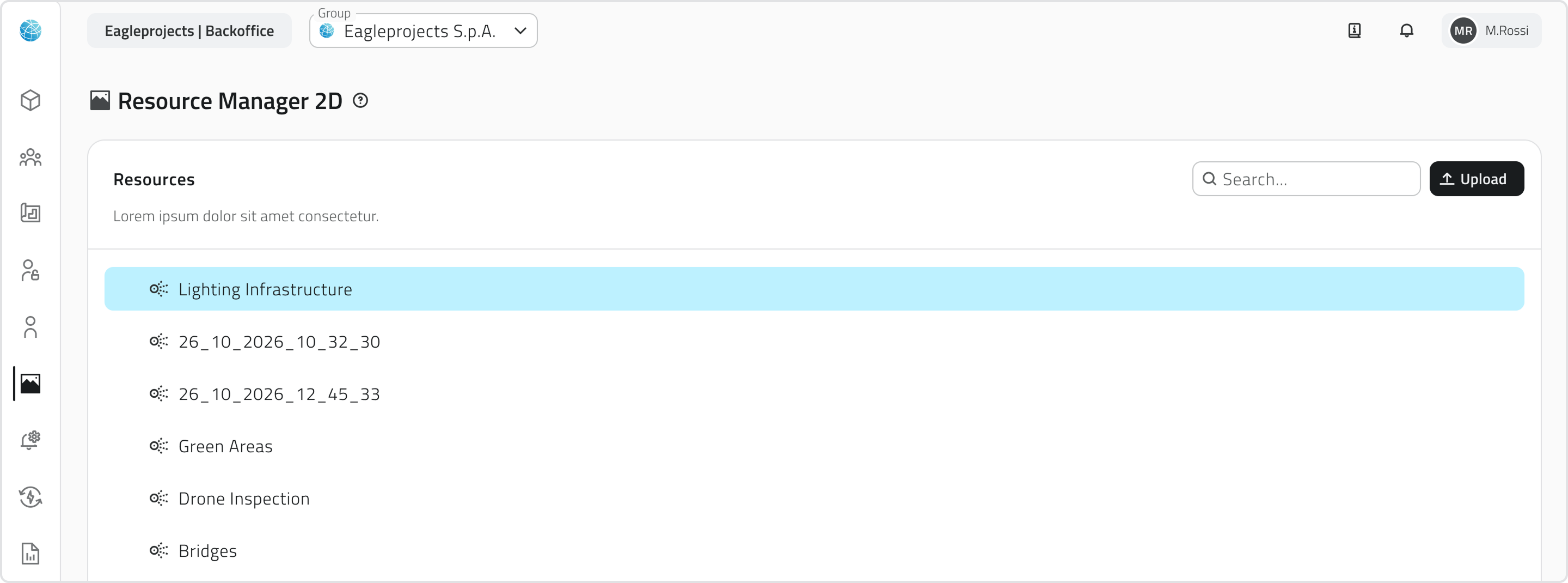
Le mappe generate durante le missioni di tipo Discovery vengono salvate automaticamente in questa sezione. Nell’elenco sono identificate dalla data e dall’ora della missione che le ha generate.
Caricare una mappa
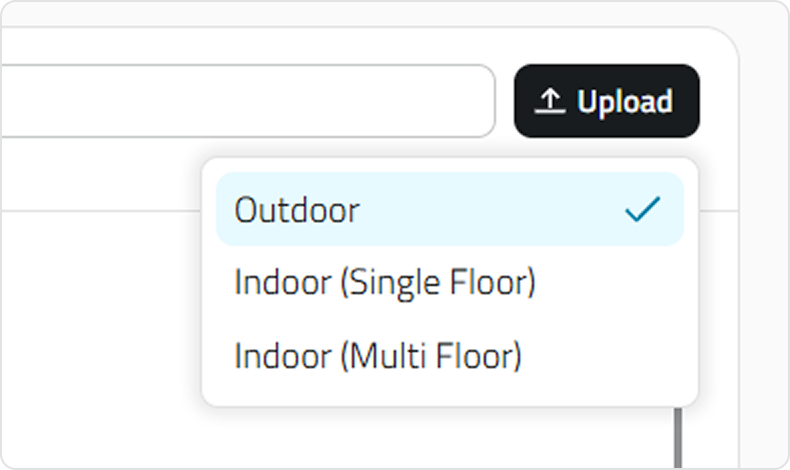
Fai clic su Upload e seleziona il tipo di ambiente rappresentato dalla mappa. Passando il cursore su ciascuna opzione, puoi visualizzarne una breve descrizione.
- Outdoor: per le mappe di aree esterne.
- Indoor (Single floor): per le mappe di ambienti interni disposti su un unico piano.
- Indoor (Multi floor): per le mappe di edifici con più piani, tra i quali il robot può spostarsi.
La tipologia di ambiente determina quali file sono necessari per comporre la mappa. Assicurati quindi di selezionare l’opzione corrispondente al modo in cui è stata creata. A questo punto, scegli dal tuo computer i file da caricare.
Al termine del caricamento, la mappa comparirà nell’elenco e sarà disponibile per tutti i progetti dell’organizzazione.
💡Tip: nell’elenco viene visualizzato il nome del file caricato. Se gestisci più mappe della stessa area, assegna a ciascun file un nome chiaro e riconoscibile prima di caricarlo.
Link utili
- Creare e gestire i progetti: scopri come configurare un progetto e selezionare le risorse da utilizzare.
Last update: 26 October 2026