
Robot Dog – Tracking a live mission
English version
During a live mission you follow the robot dog as it moves and you see what its add-ons see, and you can step in at any moment: take the controls yourself, stop the unit where it is, bring it home or end the mission.
You arrive here in two ways: by starting a mission from the Pre Check, or by opening a mission from Live Missions in the mission list.
The live screen
The panel on the left holds the state of the mission and the commands to act on it, and it can be closed when you need more room. You follow the run on the map, always among the views, with the route and the unit moving along it, while the rest of the space is shared out by the streams you have turned on.
At the top of the panel, a chip reports the state of the mission. Below it the unit is named with its model and its battery level, and then come the controls that let you drive it.
Four tabs follow: Equipment lists the add-ons the unit carries, Details gathers the configuration the mission was created with, In view decides what the map shows, and Streaming is where you manage the streams, turning each add-on's transmission on or off.
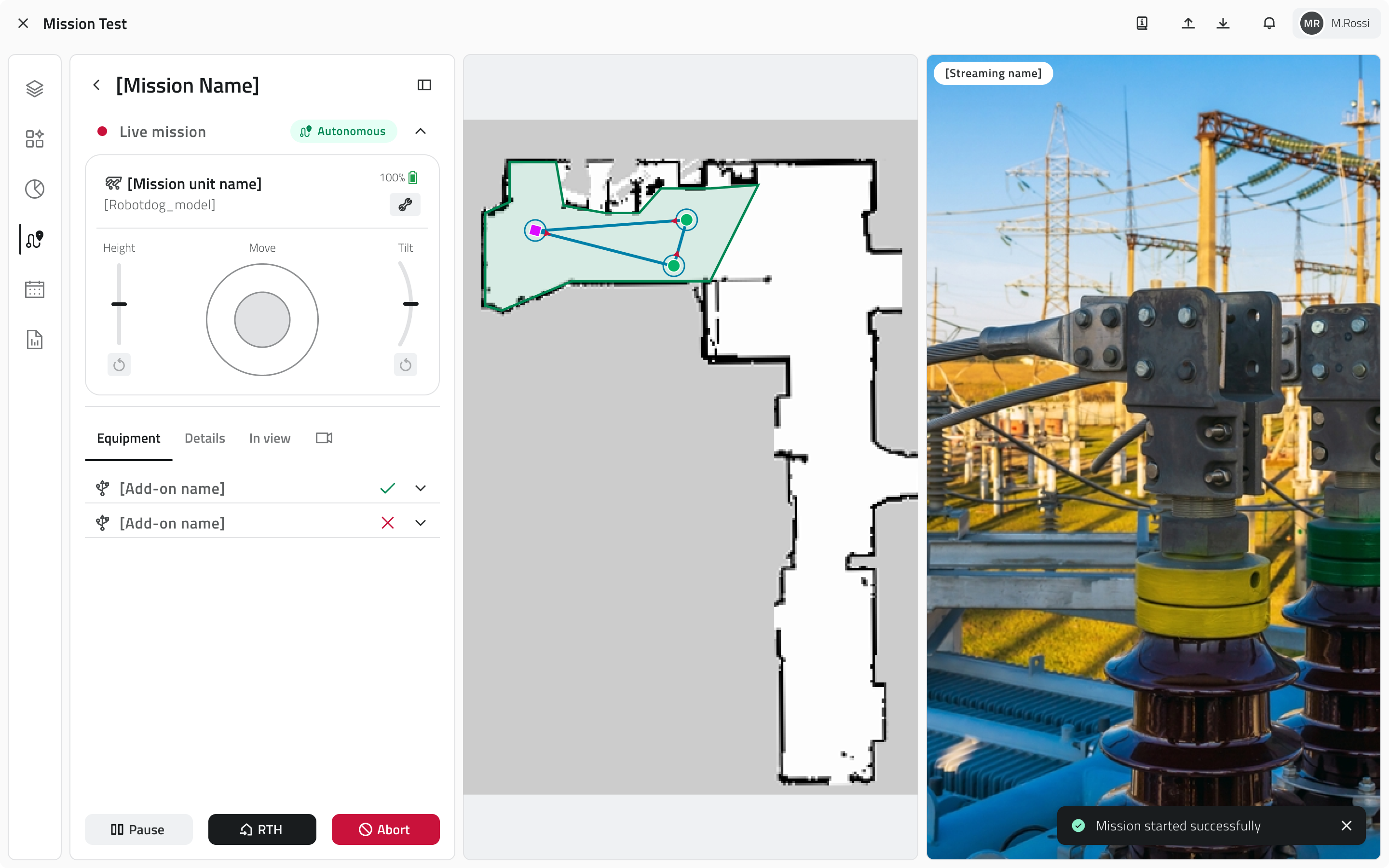
Mission control modes
The chip at the top of the panel names one of three states, and each one changes what the unit is doing and what you can do with it.
Autonomous mode
The robot dog travels the route on its own, waypoint after waypoint, and performs the actions configured on each one.
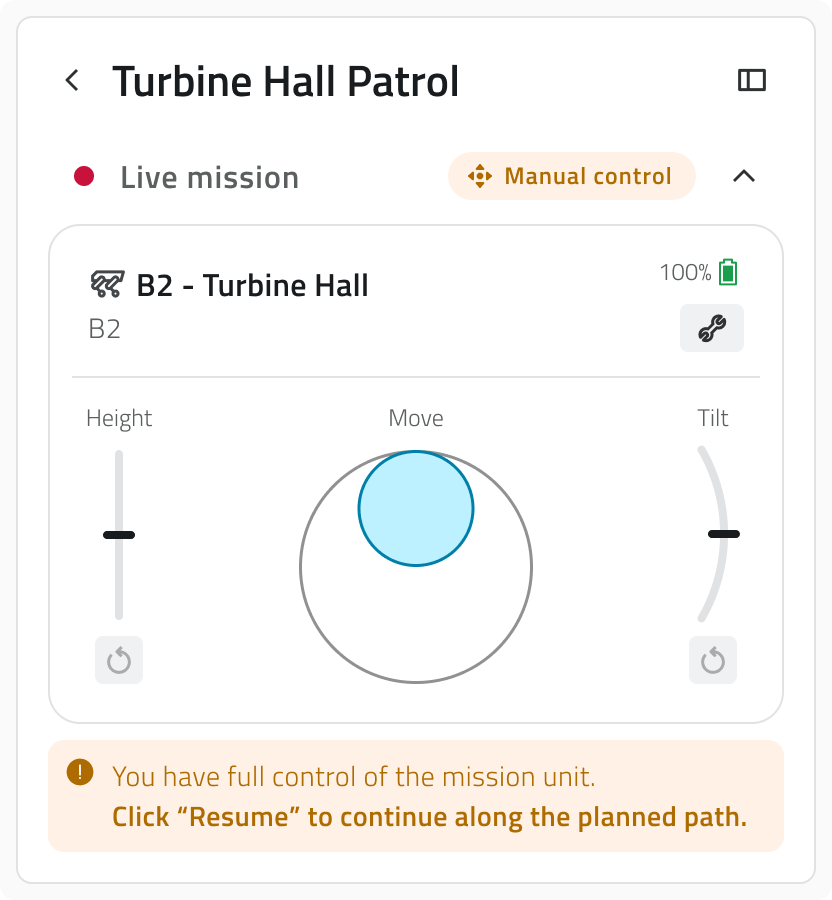
Manual control mode
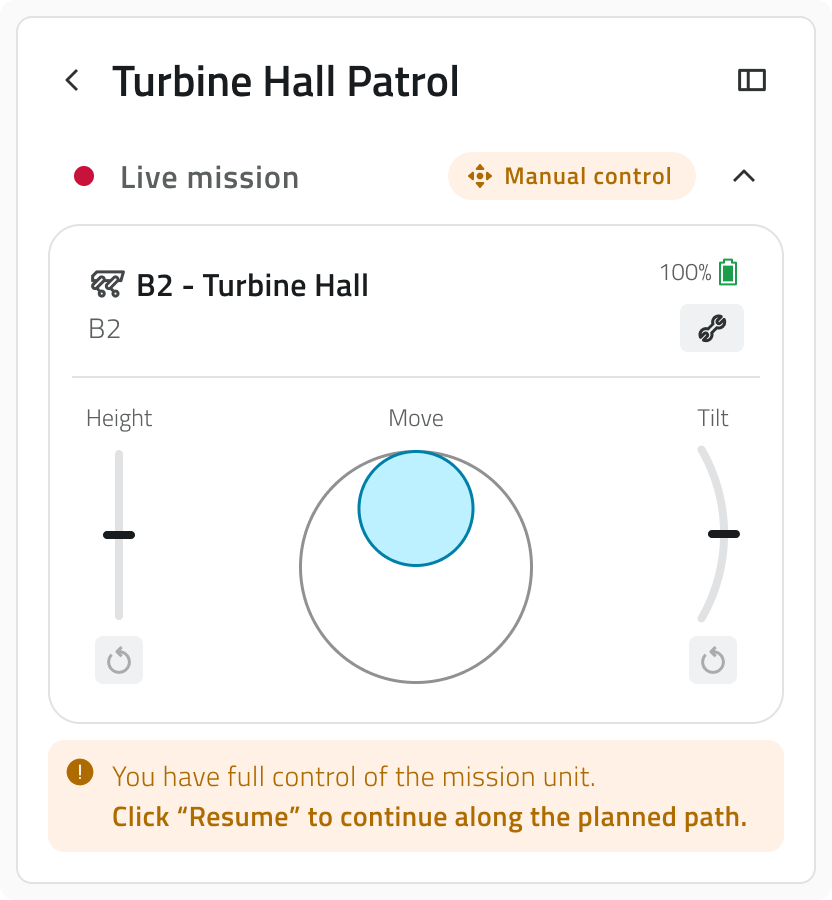
Use the joypad and the mission passes into your hands: the autonomous run is suspended, the unit answers only to your commands and a message on the panel reminds you that you have the controls. There are three of them:
| Control | What it does |
| Move (joypad) | Drives the robot dog in the direction you push. |
| Height | Raises and lowers the body of the robot dog. Height does not stop it: the unit can walk however high or low the body is. |
| Tilt | Leans the body forward or backward, to point the add-ons up or down. While the body is leaning the unit stays where it is. |
Height and Tilt each have a reset below them, which brings the value back to its default.
The Resume button puts the mission back in autonomous mode.
Pause
Pause stops the robot dog where it is. The unit waits there with no time limit, until you decide what to do next. Resume sends it back along the route.
Ending the mission early
Two commands end a mission before its last waypoint, and they leave the unit in very different places. Both ask for a confirmation, and neither can be undone.
| Command | Where the unit ends up |
| RTH | The unit works out a way back and returns to its Home Position, at the charging station. |
| Abort | The unit leaves the route and stays where it is, idle, until you take manual control or start another mission. |
Both treat what has been recorded in the same way: everything already saved is kept, while anything still being recorded when you confirm is lost. Stop a recording before confirming if you want to keep it.
While the unit is returning home you can still stop it with the Pause button, and the Resume button puts it back on the way home.
Using the add-ons during the mission
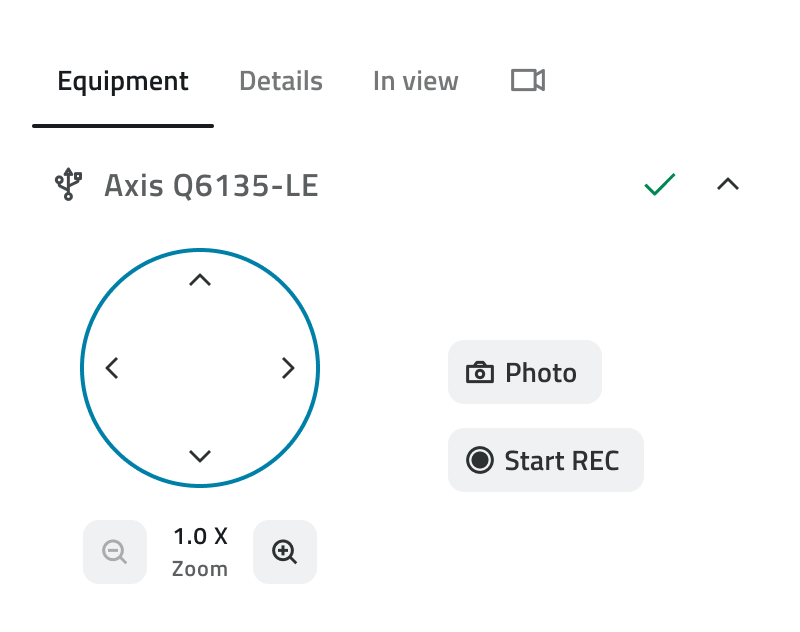
The Equipment tab lists the add-ons the unit carries, each one showing whether it is answering. Open one and you can aim it, adjust the zoom and ask it for a photo or a recording, without touching the mission that is running.
| Control | What it does |
| Aiming | The arrows point the add-on up, down, left and right, and the reset below them brings it back to the position it started from. |
| Zoom | Brings the image closer or takes it further away, with the current value between the two buttons. |
| Photo | Takes one image, there and then. |
| Start REC | Begins a recording, and stops it when you ask again. |
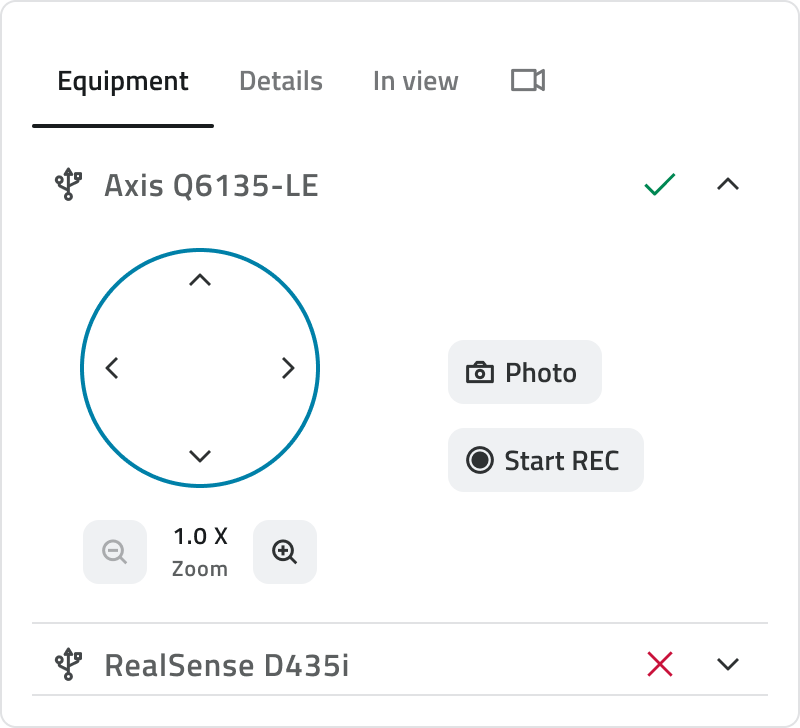
Not every add-on offers all of these: in each one you find only the controls it supports.
What you do here is yours alone: it neither changes the mission nor touches the actions configured on the waypoints, which the unit goes on performing. The controls work in autonomous mode as well as when you have taken over.
Watching the streams
Every video source you turn on opens a view of its own, with the name of the add-on it comes from at the top. The views share the available space with the map, which stays visible throughout, so you can keep an eye on where the unit is and on what it is transmitting.
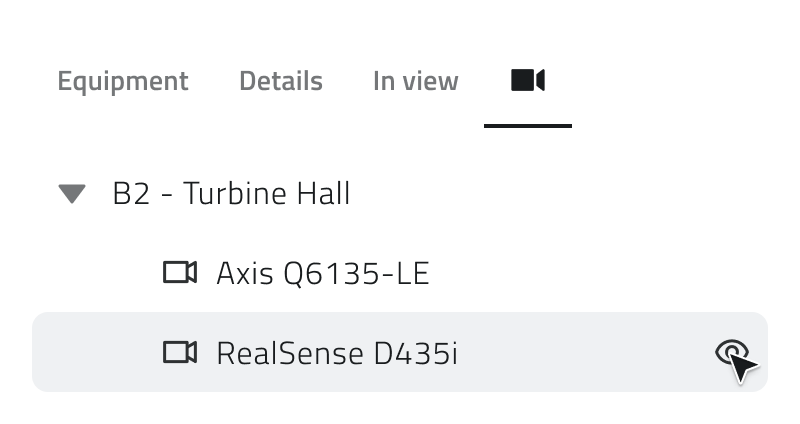
The more video sources you turn on, the smaller each view becomes to make room.
Leaving the mission without stopping it
Going back to the mission list leaves the mission running: the robot dog carries on, and the mission stays under Live Missions. Open it again from there and you are back where you were, with the map, the streams and the controls.
Links
- Run the pre-check and start a mission: the checks that come before the start.
- Review an executed mission: what you find once a mission is over.
- Control room: following every unit of the organisation at once.

Italian version
Durante una missione live segui il robot dog mentre avanza da un waypoint all'altro e vedi in diretta le immagini dei suoi add-on. Puoi intervenire in qualsiasi momento: prendere i comandi dell'unità, fermarla dov'è, farla rientrare alla Home Position oppure chiudere la missione prima della fine.
Ci si arriva in due modi: avviando una missione dal Pre Check, oppure aprendo una missione da Live Missions nell'elenco delle missioni.
La schermata della missione in corso
A sinistra, il pannello raccoglie lo stato della missione e i comandi con cui intervenire; quando ti serve più spazio puoi chiuderlo. L'esecuzione può essere seguita sulla mappa, sempre presente, che mostra il percorso e l'unità mentre lo percorre. Lo spazio restante si divide tra gli streaming che hai attivato.
In cima al pannello, un chip riporta lo stato della missione. Sotto trovi l'unità con il modello e il livello di batteria, e poi i comandi con cui guidarla.
Seguono quattro sezioni: Equipment elenca gli add-on che l'unità porta con sé, Dettagli raccoglie la configurazione con cui la missione è stata creata, In vista decide cosa mostra la mappa e da Streaming gestisci le trasmissioni, accendendo o spegnendo quella di ciascun add-on.
Modalità di controllo della missione
Il chip in cima al pannello indica in quale dei tre stati si trova la missione. Da questo dipendono sia il comportamento dell'unità sia i comandi che hai a disposizione.
Modalità autonoma
Il robot dog percorre da sé il tracciato, un waypoint dopo l'altro, eseguendo su ciascuno le azioni che sono state configurate.
Modalità controllo manuale
Basta usare il joypad perché la missione passi sotto il tuo controllo: l'esecuzione autonoma si sospende, l'unità risponde soltanto ai tuoi comandi e un messaggio nel pannello lo segnala. Hai a disposizione tre comandi:
| Comando | Cosa fa |
| Movimento (joypad) | Guida il robot dog nella direzione in cui lo spingi. |
| Altezza | Alza e abbassa il corpo del robot dog. L'altezza non gli impedisce di muoversi: l'unità può camminare sia alzata sia abbassata. |
| Inclinazione | Inclina il corpo in avanti o all'indietro, così da puntare gli add-on verso il basso o verso l'alto. A differenza dell'altezza, l'inclinazione blocca il movimento: finché il corpo è inclinato l'unità resta ferma. |
Sia Altezza sia Inclinazione hanno un reset che riporta il valore a quello predefinito.
Con il pulsante Riprendi la missione torna in modalità autonoma.
Pausa
Pausa arresta il robot dog dov'è: l'unità resta in attesa a tempo indeterminato, finché non decidi come proseguire. Con Riprendi torna a percorrere il tracciato.
Chiudere la missione prima della fine
Due comandi chiudono la missione prima dell'ultimo waypoint, con esiti molto diversi per l'unità. Entrambi chiedono una conferma e nessuno dei due può essere annullato.
| Comando | Dove finisce l'unità |
| RTH | L'unità calcola il percorso di rientro e torna alla propria Home Position, sulla stazione di ricarica. |
| Abort | L'unità abbandona il percorso e resta ferma dov'è, in attesa che tu prenda il controllo manuale o avvii un'altra missione. |
In entrambi i casi i media già salvati vengono conservati, mentre una registrazione ancora in corso al momento della conferma va perduta. Se vuoi conservarla, fermala prima di confermare.
Durante il rientro puoi comunque fermarla con il pulsante Pausa; con il pulsante Riprendi torna a dirigersi verso casa.
Usare gli add-on durante la missione
La sezione Equipment elenca gli add-on montati sull'unità e segnala, per ciascuno, se sta rispondendo. Aprendone uno ne prendi i comandi senza interrompere la missione: puoi orientarlo, regolare lo zoom e chiedergli una foto o una registrazione.
| Comando | Cosa fa |
| Orientamento | Le frecce orientano l'add-on verso l'alto, il basso, destra e sinistra; il reset sottostante lo riporta nella posizione iniziale. |
| Zoom | Avvicina o allontana l'immagine. Il valore corrente è indicato tra i due pulsanti. |
| Foto | Scatta subito un'immagine. |
| Avvia REC | Avvia la registrazione e, premuto di nuovo, la interrompe. |
Non tutti gli add-on offrono tutti questi comandi: per ciascuno trovi soltanto quelli che supporta.
Quello che fai da qui non modifica la missione e lascia intatte le azioni configurate sui waypoint, che l'unità continua a eseguire. I comandi restano utilizzabili sia in modalità autonoma sia dopo che hai preso il controllo.
Guardare gli streaming
Ogni sorgente video che attivi apre una vista dedicata, con in alto il nome dell'add-on a cui fa riferimento. Le viste si distribuiscono automaticamente nello spazio disponibile insieme alla mappa, che resta sempre visibile: puoi così tenere d'occhio la posizione dell'unità e le immagini che trasmette.
Più sorgenti video attivi, più ogni vista si riduce di dimensione per trovare posto.
Uscire dalla missione senza fermarla
Se torni all'elenco delle missioni la missione non si ferma: il robot dog continua il percorso stabilito e la trovi ancora sotto Live Missions. Basta riaprirla per ritrovare tutto come l'avevi lasciato, dalla mappa agli streaming ai comandi.
Collegamenti
- Eseguire il pre-check e avviare una missione: i controlli che precedono l'avvio.
- Consultare una missione eseguita: cosa trovi a missione conclusa.
- Control room: seguire insieme tutte le unità dell'organizzazione.
Last update: 6 August 2026