
Edit a mission's configuration
English version
Everything you decided while configuring a mission can be decided again: the Mission Unit that carries it out, the Equipment it uses, the name and the typology, the environment with its map, and the way the mission starts.
The steps depend on one another, so a change can take away a choice you had already made or part of what you had drawn. The table further down says what each one affects.
Reopening the configuration
Open the Details tab of the planning screen and select Edit Mission Details. The configuration opens again at the first step.
Reach the step you want with Next and Back, or select its number in the row at the bottom of the panel.
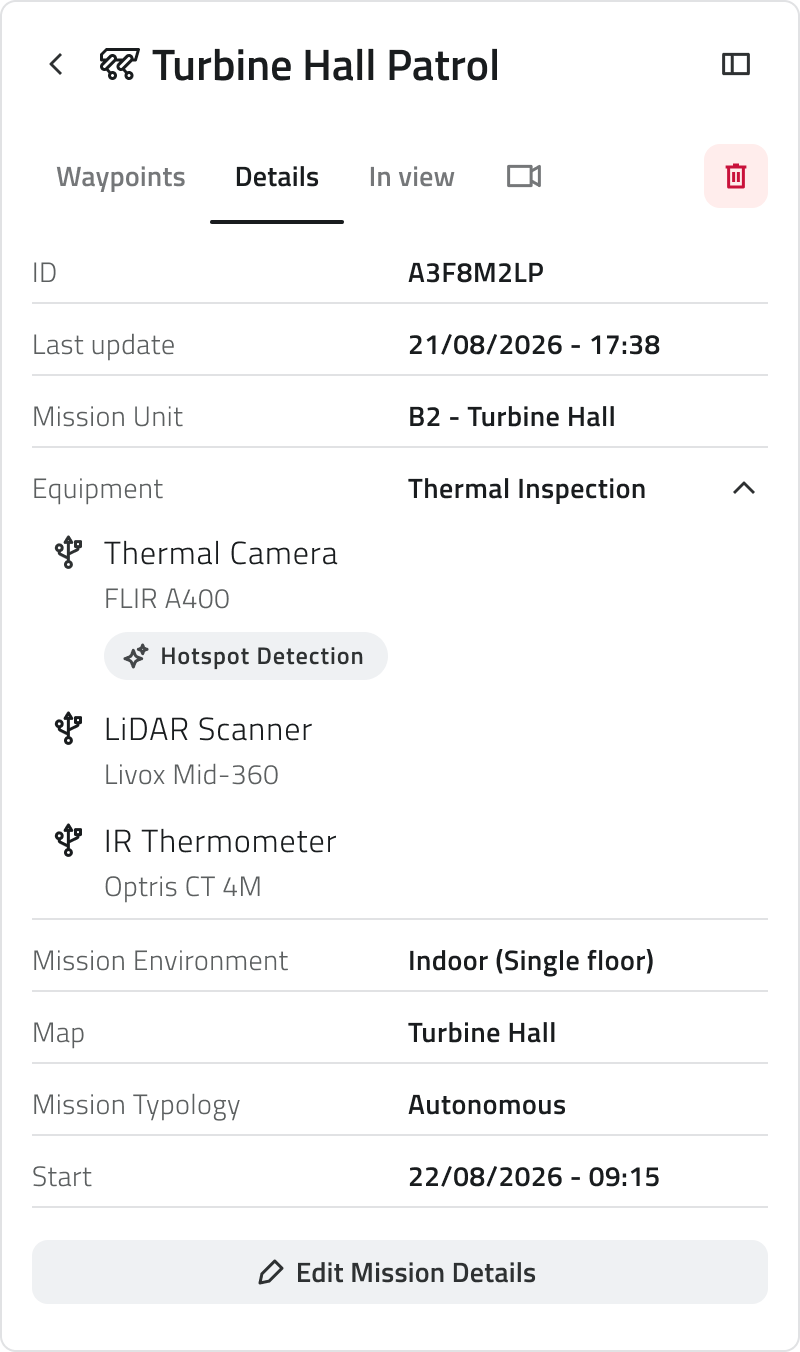
After a change, the steps that come after it have to be confirmed one by one with Next, even when the change leaves them exactly as they were.
What each change affects
| What you change | What it affects |
| The Mission Unit | If the new unit does not support the Equipment you had chosen, you will need to select another one among those it supports. If you select a unit of a different type, the configuration adapts to what that type can do. |
| The Equipment | The waypoint actions performed by an add-on the new Equipment does not carry. |
| The typology | Switching to Discovery leaves behind the map and everything you had drawn on it. Switching to Autonomous means choosing a map and drawing the mission. |
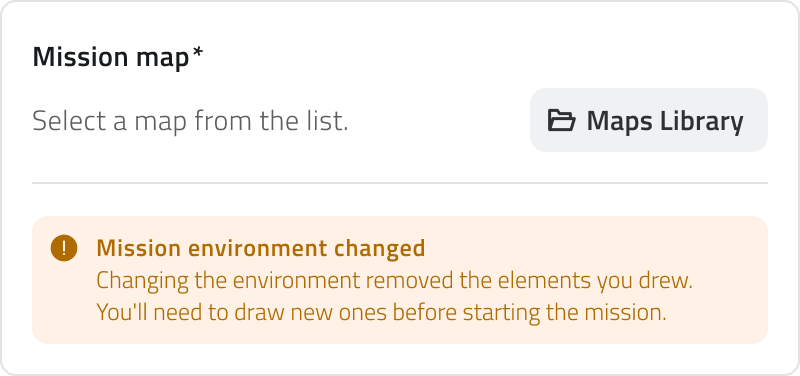
| The Mission Environment | The map is emptied, and with it all the elements you had drawn. |
| The map | Nothing is removed, but the positions of what you drew need checking on the new map. |
Waypoint actions that need attention
Every action assigned to a waypoint is performed by one of the add-ons of the Equipment. If you have changed the Equipment and the new one does not carry the add-on an action needs, that action is emptied and marked in red, and needs to be filled in again.
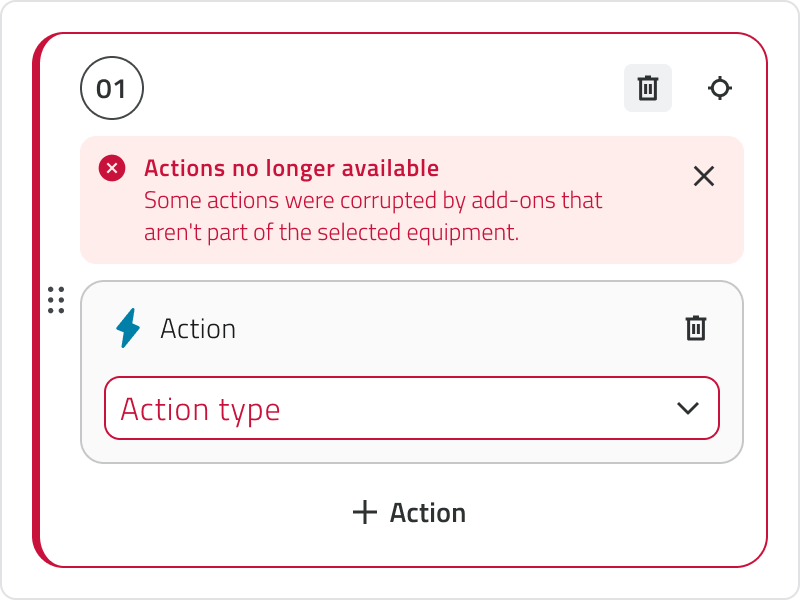
Open the waypoints that are marked and either assign an action the new Equipment can perform, or delete the empty one. The waypoints whose actions the new Equipment still covers keep them as they were.
Switching to Discovery
A Discovery mission builds its own map as it goes, so it needs no map to be selected and nothing to be drawn beforehand. Choosing it in place of Autonomous therefore leaves behind the map and everything on it: Home Position, waypoints, Danger Zones and Geofencing.
What you had drawn is not kept anywhere. Going back to Autonomous means selecting a map and drawing the mission again.
Changing the environment or the map
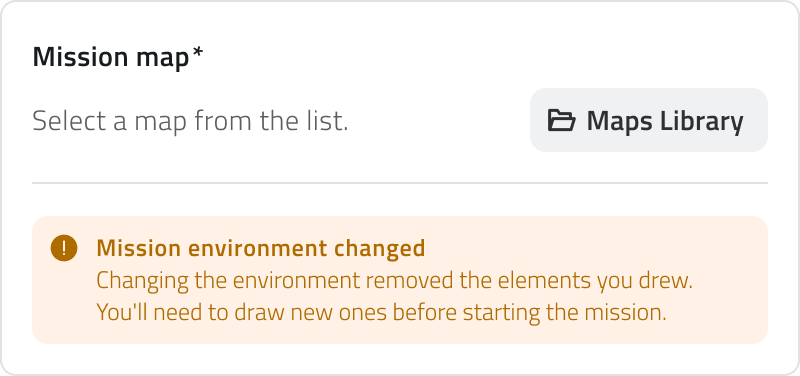
The environment decides which maps a mission can run on, so changing it empties the map and removes what you had drawn on the previous one. Select a new map from the Maps Library, as you did when you first configured the mission, then draw the mission again.
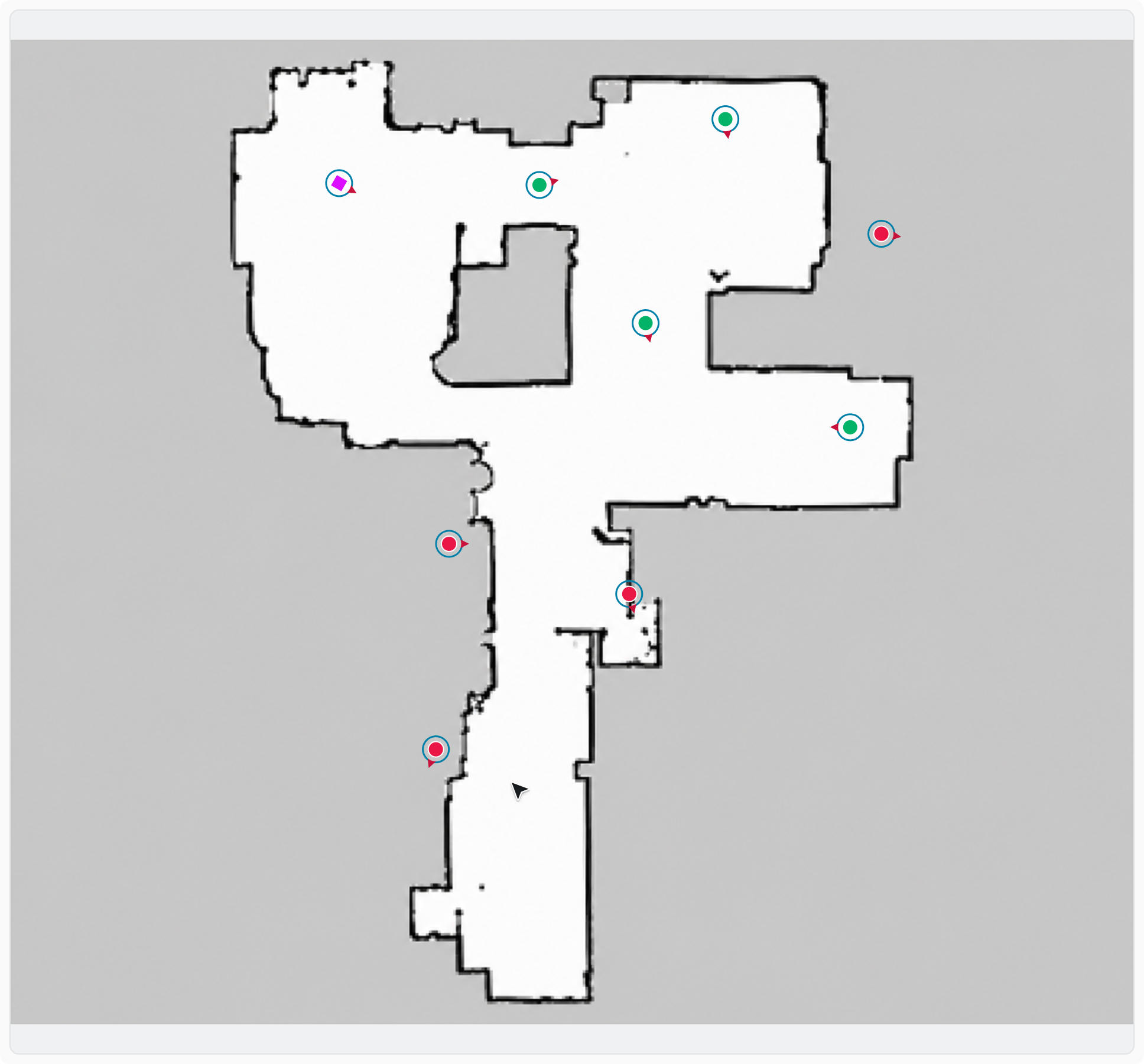
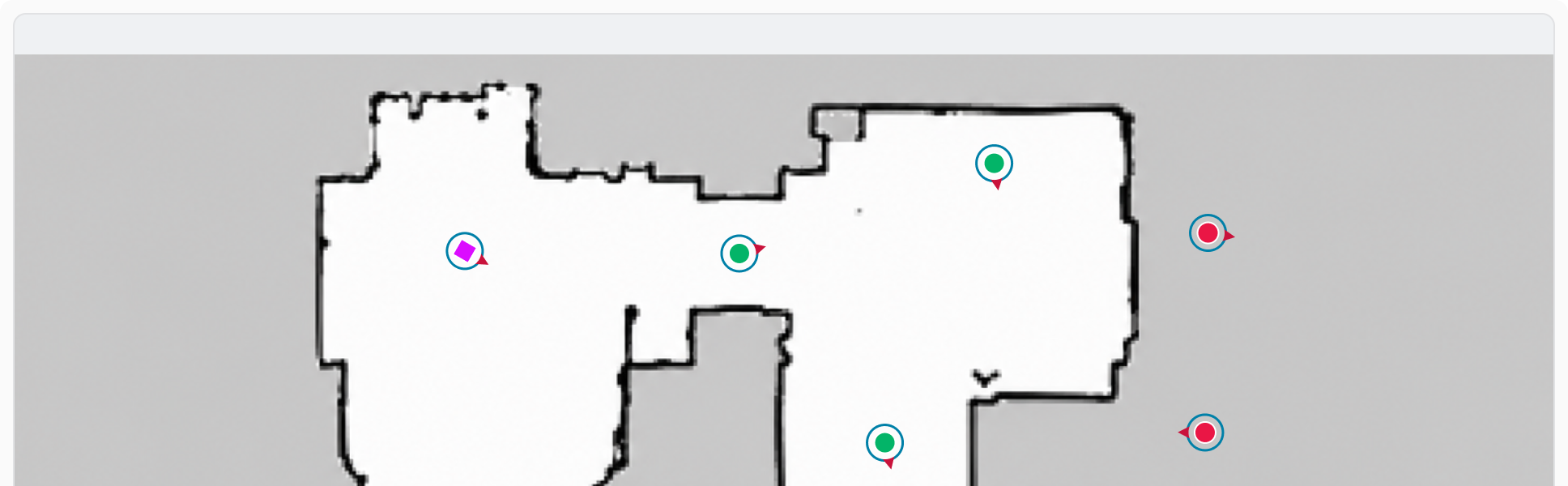
Changing only the map costs you less: Home Position, waypoints, Danger Zones and Geofencing are all kept, at the coordinates they had. Since the new map has its own layout, go through them on the map and check that each one still falls where you want it before you start the mission.
Links
- Draw the mission on the map: where you reopen the configuration from, and where you come back to.
- Create a mission: each step and each choice described in full.
- Run the pre-check and start a mission: the checks that follow what you have changed.
 Italian version
Ogni scelta fatta in fase di configurazione può essere rivista: la Mission Unit che esegue la missione, l'Equipment che utilizza, il nome e la tipologia, l'ambiente con la sua mappa e il modo in cui la missione parte.
Gli step sono legati tra loro: una modifica può far decadere una scelta già fatta o una parte del disegno. Nella tabella più sotto trovi su cosa incide ciascuna.
Riaprire la configurazione
Apri la sezione Dettagli della schermata di pianificazione e seleziona Modifica i dettagli della missione: la configurazione si riapre dal primo step.
Per spostarti tra gli step usa Avanti e Indietro, oppure vai diretto a quello che ti serve selezionandone il numero nella riga in basso nel pannello.
Dopo una modifica, gli step successivi vanno riconfermati uno per uno con Avanti, anche quando restano esattamente come erano.
Su cosa incide ogni modifica
| Cosa modifichi | Su cosa incide |
| La Mission Unit | Se la nuova unità non supporta l'Equipment scelto in precedenza, dovrai selezionarne un altro tra quelli supportati. Se scegli un'unità di tipo diverso, la configurazione si adatta alle possibilità di quel tipo. |
| L'Equipment | Le azioni dei waypoint che richiedono un add-on non presente nel nuovo Equipment. |
| La tipologia | Passando a Esplorativa si perdono la mappa e tutti gli elementi disegnati. Passando ad Autonoma dovrai scegliere una mappa e disegnare la missione. |
| L'Ambiente della missione | La mappa si svuota, insieme a tutti gli elementi disegnati. |
| La mappa | Nulla viene rimosso, ma le posizioni degli elementi vanno verificate sulla nuova mappa. |
Azioni dei waypoint che richiedono attenzione
Ogni azione assegnata a un waypoint viene eseguita da uno degli add-on dell'Equipment. Se hai modificato l'Equipment e quello nuovo non dispone dell'add-on richiesto da un'azione, l'azione si svuota, viene segnalata in rosso e va compilata di nuovo.
Apri i waypoint segnalati e assegna un'azione che il nuovo Equipment è in grado di eseguire, oppure elimina quella rimasta vuota. Gli altri waypoint mantengono le azioni che avevano.
Passare a Esplorativa
Una missione Esplorativa costruisce la propria mappa mentre procede: non richiede quindi né una mappa da selezionare né un disegno preparato in anticipo. Scegliendola al posto di Autonoma si perdono la mappa e tutti gli elementi che conteneva, cioè Home Position, waypoint, Zone di pericolo e Geofencing.
Il disegno non viene conservato in alcun modo. Per tornare ad Autonoma dovrai quindi selezionare una mappa e disegnare di nuovo la missione.
Cambiare l'ambiente o la mappa
L'ambiente determina su quali mappe la missione può svolgersi: cambiandolo, la mappa si svuota e con essa si perde tutto quello che avevi disegnato. Scegli una nuova mappa dalla Libreria mappe, come alla prima configurazione, e disegna di nuovo la missione.
Se invece cambi soltanto la mappa non perdi nulla: Home Position, waypoint, Zone di pericolo e Geofencing restano alle coordinate che avevano. La nuova mappa ha però una conformazione diversa, quindi controllali prima di avviare la missione, per assicurarti che cadano ancora dove ti servono.
Collegamenti
- Disegnare la missione in mappa: da dove riapri la configurazione, e dove torni.
- Creare una missione: ogni step e ogni scelta descritti per esteso.
- Eseguire il pre-check e avviare una missione: i controlli che seguono ciò che hai modificato.
Last update: 6 August 2026