
Run the pre-check and start a mission
English version
The Pre-check is the final step before a mission starts. It verifies that everything required for the mission is in place, tells you what needs to be fixed if something is missing, and allows you to start the mission or confirm its schedule.
Open it with Pre Check, at the bottom of the planning screen.
The pre-check runs with the Mission Unit connected, because part of what it verifies is reported by the unit itself.
What the pre-check verifies
The result is grouped into sections, each with the outcome of its own checks. A mission with a robot dog is checked on Mission Unit, Add-ons, Home and Waypoints; a mission with a drone on Mission Unit, Hangar and Waypoints.
| Section | What it verifies |
| Mission Unit | That the unit assigned to the mission is connected and ready to carry it out. |
| Add-ons | That the add-ons the mission relies on are connected. The outcome tells you whether they all are, or only some. |
| Home | That the Home Position is set, so the unit knows where to return. |
| Hangar | That the position of the hangar has been captured and can be reached, so the drone has a point to return to. |
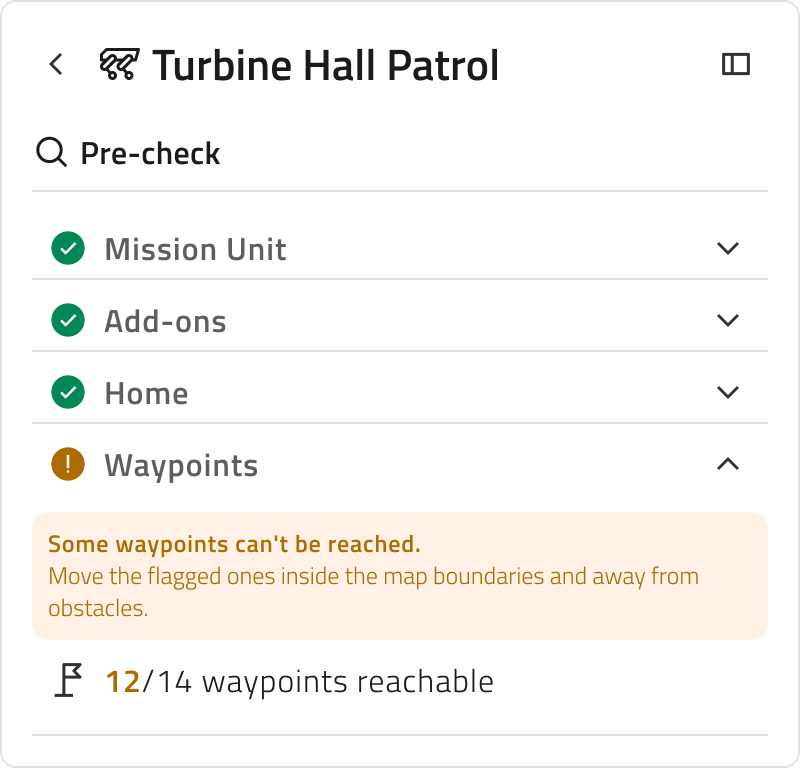
| Waypoints | That the unit can reach the waypoints you placed. The outcome tells you how many are reachable out of the total. |
Each section shows its outcome at a glance and opens to show the detail. Open the ones that need attention to read what is wrong and what to do about it.
What stops the mission and what does not
Not everything the pre-check reports has the same weight:
| Outcome | What it means |
| Passed | The section has nothing to report. |
| Warning | The mission can run, but not as you planned it. A warning on Waypoints, for example, means some of them cannot be reached and will be skipped. Accept the warnings to go ahead, or go back and fix them. |
| Error | The mission cannot run as it is. Go back and resolve what the section reports. |
Before you start
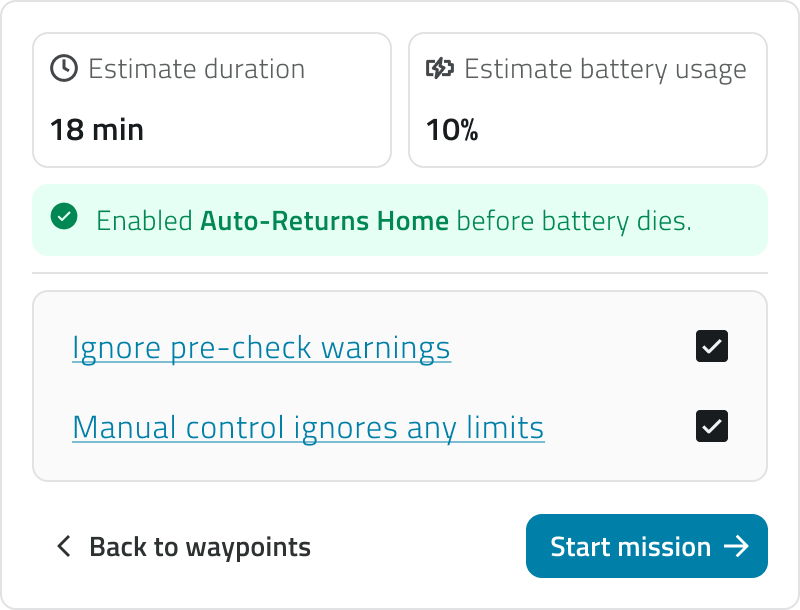
For a mission with a robot dog, when it can go ahead, the pre-check also gives you an Estimate duration and an Estimate battery usage for the run you are about to start, so you can weigh them against the charge the unit has now.
It also confirms that Auto-Returns Home is enabled: the emergency safeguard that brings the unit back, on its own, if the charge is not enough to complete the mission.
Depending on what the pre-check reports and on how the mission is set up, one or more statements to acknowledge appear above Start mission. The button remains disabled until you have read and checked each one.
Starting the mission
What the last step does depends on the Launch Mode chosen during the configuration:
| Launch Mode | What happens |
| Manual | The mission starts straight away and you follow it on the live view. |
| Planned | The schedule is confirmed and the mission moves to Planned, ready to run at the date and time you set. |
To change something before starting, the Back to waypoints button returns to the planning screen with everything as you left it.
Leaving a mission set to Planned without confirming its schedule keeps it as a Draft: it will not run until you come back and confirm it.
[IMAGE TO BE INSERTED]
What to show: the same screen for a mission with Launch Mode set to Planned.
Links
- Robot Dog – Tracking a live mission: what you see once the mission is running.
- Draw the mission on the map: where you go back to fix what the pre-check reports.
- Schedule a mission: setting the date and time of a planned mission.
 Italian version
Il Pre-check è l'ultimo passaggio prima che una missione parta. Verifica che sia presente tutto ciò che la missione richiede, indica cosa correggere se qualcosa manca, e consente di avviare la missione o di confermarne la pianificazione.
Si apre con Pre Check, in fondo alla schermata di pianificazione.
Il pre-check richiede la Mission Unit collegata, perché parte dei controlli si basa sui dati che l'unità comunica.
Cosa verifica il pre-check
L'esito è diviso in sezioni, ciascuna con il risultato dei propri controlli. Una missione con robot dog viene verificata su Mission Unit, Add-ons, Casa e Waypoints; una missione con drone su Mission Unit, Hangar e Waypoints.
| Sezione | Cosa verifica |
| Mission Unit | Che l'unità assegnata alla missione sia collegata e pronta a eseguirla. |
| Add-ons | Che gli add-on necessari alla missione siano collegati. L'esito indica se lo sono tutti oppure solo alcuni. |
| Home | Che la Home Position sia impostata, così l'unità sa dove rientrare. |
| Hangar | Che la posizione dell'hangar sia stata acquisita e sia raggiungibile, così il drone ha un punto in cui rientrare. |
| Waypoints | Che l'unità possa raggiungere i waypoint che hai disegnato. L'esito indica quanti sono raggiungibili sul totale. |
Ogni sezione mostra il proprio esito e può essere aperta per vederne il dettaglio. Apri quelle che richiedono attenzione per capire cosa non va e come intervenire.
Cosa blocca la missione e cosa no
Non tutto ciò che il pre-check segnala ha lo stesso peso:
| Esito | Cosa significa |
| Superato | La sezione non ha nulla da segnalare. |
| Avviso | La missione può partire, ma non come l'avevi pianificata. Un warning sui Waypoints, per esempio, indica che alcuni non sono raggiungibili e verranno saltati. Accetta i warning per procedere, oppure torna indietro e correggili. |
| Errore | La missione non può partire in queste condizioni: torna indietro e risolvi quanto segnalato dalla sezione. |
Prima di avviare
Per una missione con un robot dog, quando è possibile procedere, il pre-check fornisce anche una Durata stimata e un Consumo stimato della batteria per la missione che si sta per avviare, così da poterle confrontare con il livello di carica attuale dell’unità.
Conferma inoltre che Auto-Returns Home è abilitato: la funzione di sicurezza di emergenza che riporta automaticamente l’unità al punto di partenza se la carica non è sufficiente per completare la missione.
In base all’esito del pre-check e alla configurazione della missione, sopra il pulsante Avvia missione vengono visualizzate una o più dichiarazioni da accettare: il pulsante rimane disabilitato finché non sono state lette e selezionate tutte.
Avviare la missione
L'ultimo passaggio dipende dalla Modalità di avvio scelta durante la configurazione:
| Modalità di avvio | Cosa succede |
| Manuale | La missione parte subito e la segui dalla vista in diretta. |
| Pianificata | La pianificazione viene confermata e la missione passa tra le Pianificate, pronta a partire alla data e all'ora impostate. |
Se vuoi cambiare qualcosa prima di avviare, il pulsante Torna ai waypoint riporta alla schermata di pianificazione, dove ritrovi tutto come l'avevi lasciato.
Se esci da una missione impostata su Pianificata senza confermare la pianificazione, questa resta una Bozza e non verrà eseguita finché non la confermi.
[IMMAGINE DA INSERIRE]
Cosa mostrare: la stessa schermata per una missione con Modalità di avvio impostata su Pianificata.
Collegamenti
- Robot Dog – Seguire una missione in diretta: cosa vedi una volta che la missione è partita.
- Disegnare la missione in mappa: dove tornare per correggere quanto il pre-check segnala.
- Pianificare una missione: impostare data e ora di una missione pianificata.
Last update: 31 July 2026