
Drone - Tracking a live mission
 English version
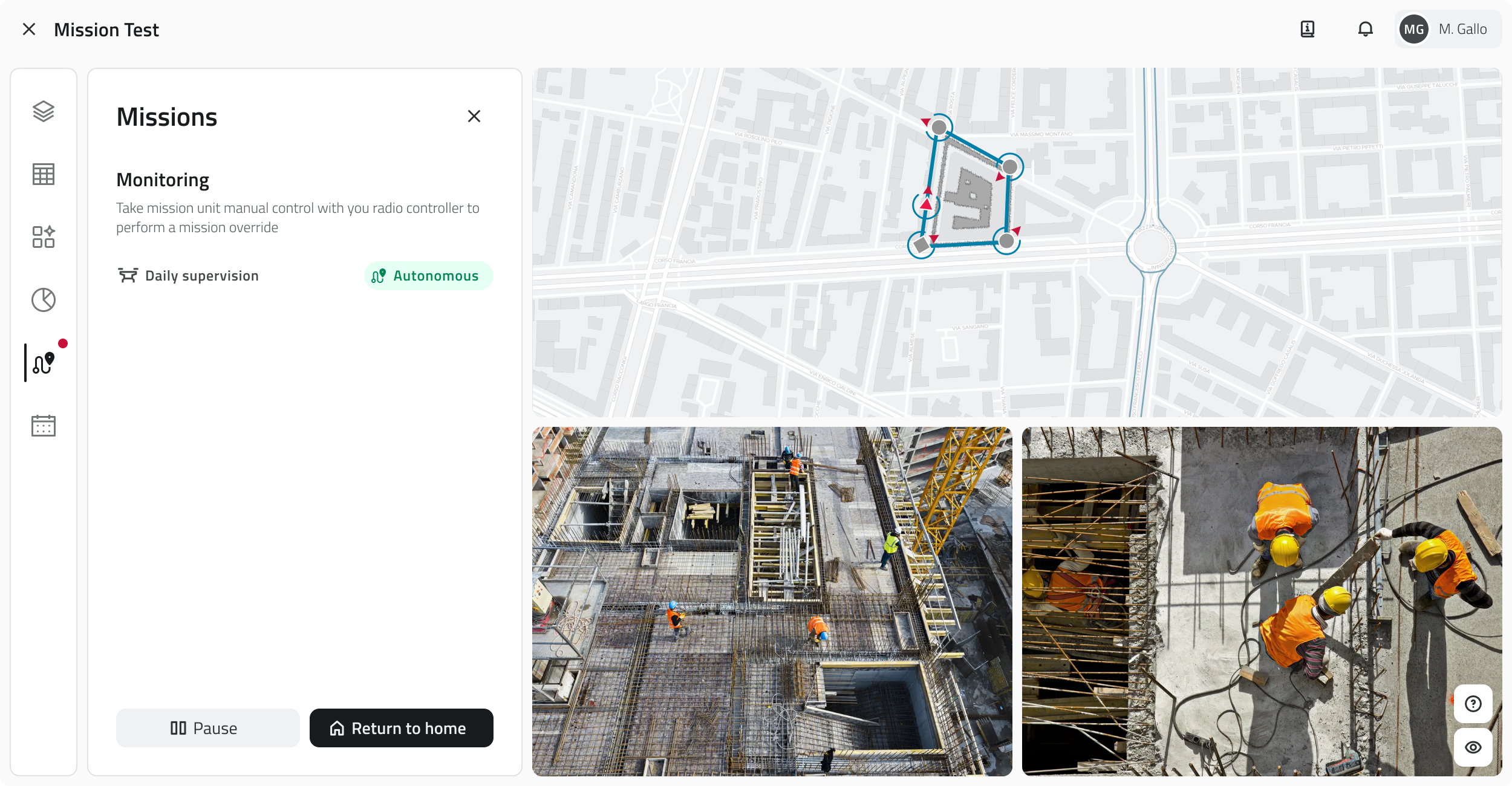
After the mission is started, it enters live mode.
From this moment, it is possible to monitor the mission status in real time.
Available with access to the App and a successfully completed mission pre-check.
Autonomous mode
The drone executes the mission in autonomous mode, following the sequence of Drone Waypoints and actions configured during planning.
To follow the drone's video feed during the mission, the view must be enabled from the Layers section.
Media management
During live execution, all acquired media is saved automatically.
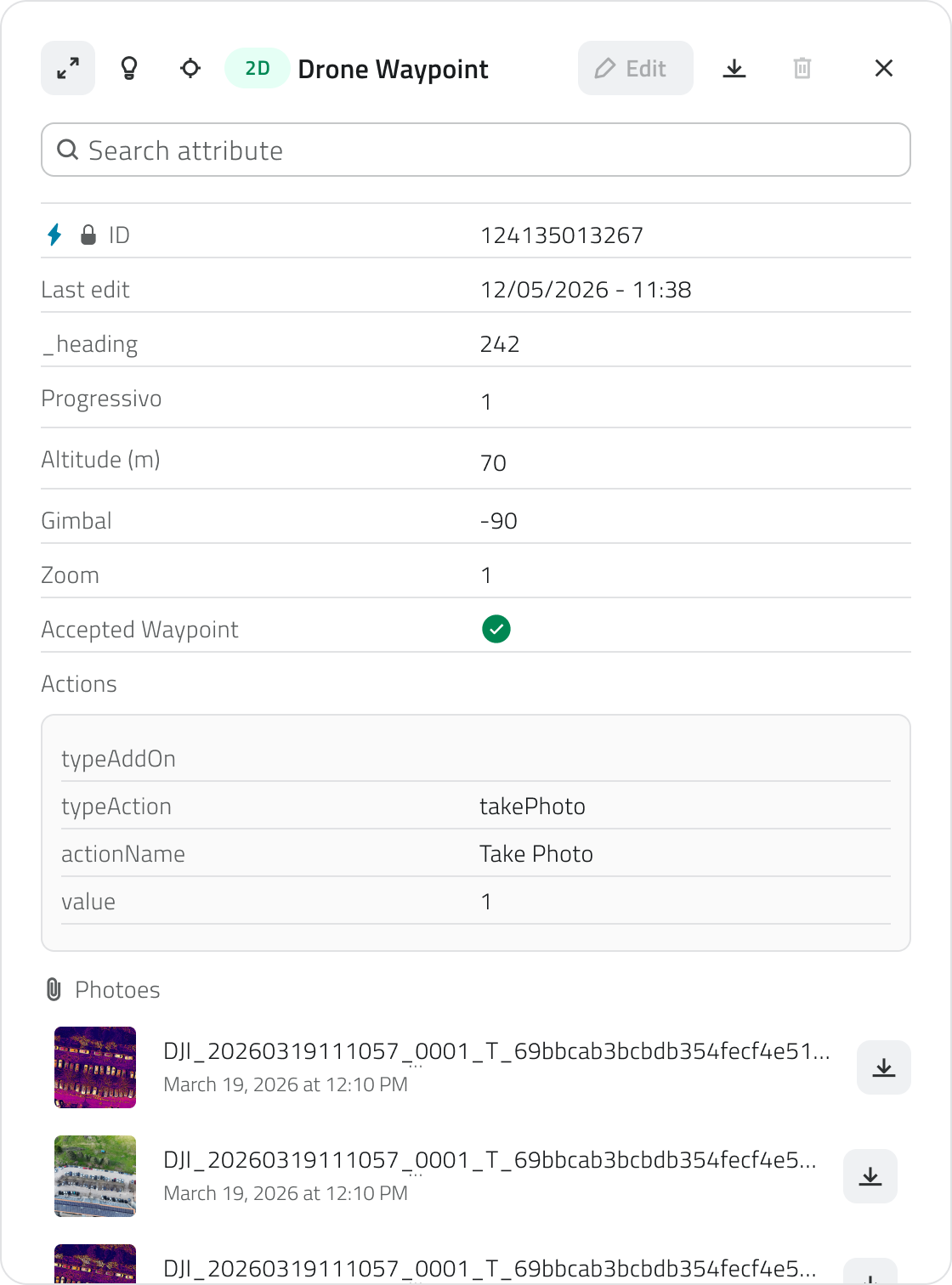
Photos captured during the mission are saved directly on the mission's Waypoints, and can be accessed by opening the attribute details of the corresponding Waypoint from the map or from the Inventory.
If you want to plan a new session or modify the mission, simply act on the original mission, updating the Waypoints and settings as needed.
Deleting a Waypoint from a completed mission will permanently delete all media associated with it.
Before proceeding with the deletion, make sure you have downloaded or archived any files you wish to keep.
Links
 Italian version
Dopo l'avvio, la missione entra in modalità live.
Da questo momento è possibile monitorare lo stato della missione in tempo reale.
Disponibile con permessi di accesso all'App e il pre-check della missione completato con esito positivo.
Modalità autonoma
Il drone esegue la missione in modalità autonoma, seguendo la sequenza di Drone Waypoint e azioni configurate durante la pianificazione.
Per seguire il feed video del drone durante la missione, è necessario attivare la vista dalla sezione Layers.
Gestione dei media
Durante l'esecuzione live, tutti i media acquisiti vengono salvati automaticamente.
Le foto scattate durante la missione vengono salvate direttamente sui Waypoint della missione, e sono accessibili aprendo il dettaglio attributi del Waypoint corrispondente dalla mappa o dall'Inventory.
Se si vuole pianificare una nuova sessione o modificare la missione, è sufficiente agire sulla missione originale, aggiornando i Waypoint e le impostazioni secondo necessità.
Eliminando un Waypoint di una missione conclusa si perdono definitivamente anche tutti i media ad esso associati.
Prima di procedere con l'eliminazione, assicurati di aver scaricato o archiviato i file che intendi conservare.
Collegamenti
Last update: 15 May 2026
No comments to display
No comments to display