
Configure relations between objects
 English
  Italiano
 Relations are an attribute type that allows you to connect objects belonging to different object classes, creating structured links between the elements of the project.
This function allows you to represent logical relationships between instances. For example, you can connect a road to the lighting poles along its route, or associate a road with the road signs installed along it.
Relations are configured during the creation or editing of an object class, inside a dedicated section.
Available only to users with backoffice permissions.
How relations work
A relation always connects two object classes:
- Current object class
This is the class you are configuring at that moment in the Backoffice. - Linked object class
This is the class with which the objects of the current class can be linked.
When a relation is configured between two classes, objects can be associated with one or more instances of the related class.
The number of objects that can be linked depends on the cardinality set in the relation.
Set up relations
To configure a relationship between object classes, open the Backoffice, access the edit page of an object class, and select the Relations tab.

To create a new relationship, click the Add relation button.
The configuration is divided into two sections: This object class and Is related to.
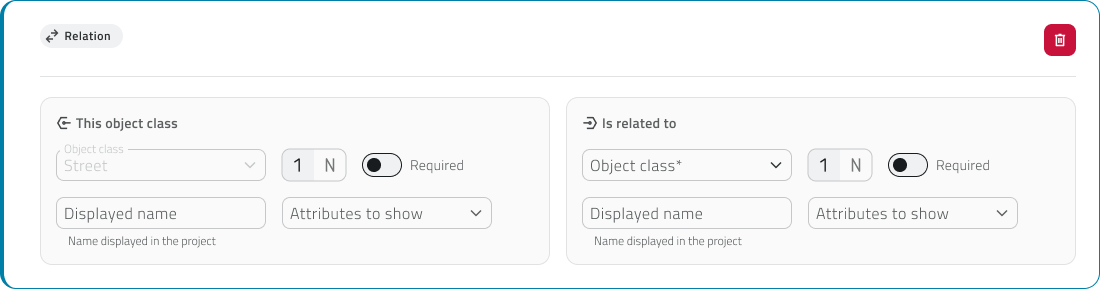
Current object class
The This object class section represents the object class you are editing.
The Object class field is filled in automatically and cannot be edited.
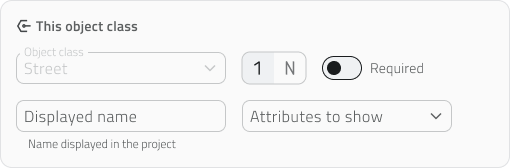
In this section, you can configure:
- Cardinality: select 1 or N to indicate how many objects of the current class can be linked to objects of the other class.
- Required: activate the switch if this object class is necessary for the existence of the other one.
If the switch is active, an object of the other class can exist only if it is linked to an object of this class. - Displayed name: when an object with a relationship is created and displayed in the app, the relationship attribute has a name. If necessary, you can enter the name with which this class is shown in the relationship.
If no name is set, the system automatically uses the name of the object class. - Attributes to show: when an object with a relationship is created and displayed in the app, the related object class appears in the relationship attribute. The related class can be expanded to show a preview of its attributes. With this field, you can choose which attributes to show. You cannot select attributes of type relationship or object list.
Linked object class
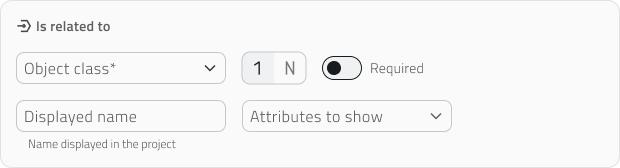
You can also configure the following fields for this class:
- Cardinality: select 1 or N to indicate how many objects of the linked class can be associated with an object of the current class.
- Required: activate the switch if the linked object class is necessary for the existence of the current class.
If the switch is active, an object of the current class can exist only if it is linked to an object of this class. - Displayed name: if necessary, you can enter the name with which the linked class is shown in the relationship.
If no name is set, the system automatically uses the name of the linked object class. - Attributes to show: with this field, you can choose which attributes to show, but only after selecting the class. You cannot select attributes of type relationship or object list.
Relationship cardinality
The overall cardinality of the relationship depends on the combination of the values set in the two sections.
| Configuration | Meaning |
|
1 → 1 |
one object can be linked to one object only |
|
1 → N |
one object can be linked to multiple objects |
| N → 1 | multiple objects can be linked to one object |
| N → N | multiple objects can be linked to each other |
Only one of the two classes can be required, making one class necessary for the existence of the other.
💡 Tip: Limit the attributes to display to keep the attributes panel more readable.
Configuration rules and conditions
A current object class cannot be set as required if the linked object class already has created instances.
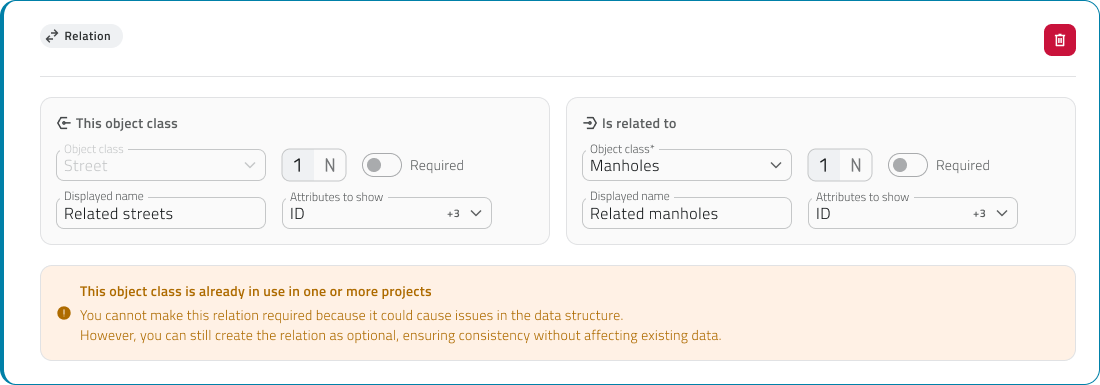
After saving a relationship, it is not possible to edit:
- the cardinality
- the linked object class
- the required status
To configure a relationship on an object class of type Form or Global Form, the class must be saved first. After saving, re-enter edit mode for the object class and open the Relations section to create the relationship.
If a relationship is deleted, the system automatically removes the link from all involved instances.
Links
Configurare le relazioni tra gli oggetti
Le relazioni sono una tipologia di attributo che permette di collegare tra loro oggetti appartenenti a classi oggetto diverse, creando legami strutturati tra gli elementi del progetto.
Questa funzione consente di rappresentare relazioni logiche tra istanze. Ad esempio, puoi collegare una strada ai pali dell’illuminazione presenti lungo il suo tracciato oppure associare una strada ai segnali stradali installati lungo di essa.
Le relazioni vengono configurate durante la creazione o la modifica di una classe oggetto, all’interno di una sezione dedicata.
Disponibile solo per utenti con permesso backoffice.
Come funzionano le relazioni
Una relazione collega sempre due classi oggetto:
- Classe oggetto corrente
È la classe che stai configurando in quel momento nel Backoffice. - Classe oggetto collegata
È la classe con cui gli oggetti della classe corrente possono essere collegati.
Quando una relazione viene configurata tra due classi, gli oggetti possono essere associati a una o più istanze della classe relazionata.
Il numero di oggetti collegabili dipende dalla cardinalità impostata nella relazione.
Configurare le relazioni
Per configurare una relazione tra classi oggetto, apri il Backoffice, accedi alla pagina di modifica di una classe oggetto e seleziona la tab Relazioni.
Per creare una nuova relazione clicca sul pulsante Aggiungi relazione.
La configurazione è suddivisa in due sezioni: Questa classe oggetto e È legata a.
Classe oggetto corrente
La sezione Questa classe oggetto rappresenta la classe oggetto che stai modificando.
Il campo Classe oggetto è compilato automaticamente e non può essere modificato.
In questa sezione puoi configurare:
- Cardinalità: seleziona 1 oppure N per indicare quanti oggetti della classe corrente possono essere collegati agli oggetti dell'altra classe.
- Obbligatoria: attiva lo switch se questa classe oggetto è necessaria per l’esistenza dell’altra.
Se lo switch è attivo, un oggetto dell’altra classe può esistere solo se è collegato a un oggetto di questa classe.
- Nome visualizzato: quando un oggetto con una relazione viene creato e visualizzato nell’app, l’attributo della relazione ha un nome. Se necessario, puoi inserire il nome con cui questa classe viene mostrata nella relazione.
Se non viene impostato un nome, il sistema utilizza automaticamente il nome della classe oggetto. - Attributi da mostrare: quando un oggetto con una relazione viene creato e visualizzato nell’app, la classe oggetto relazionata compare nell’attributo della relazione. La classe relazionata può essere espansa per mostrare un’anteprima dei suoi attributi. Con questo campo puoi scegliere quali attributi mostrare. Non puoi selezionare attributi di tipo relazione o lista oggetti.
Classe oggetto collegata
La sezione È legata a permette di definire la classe oggetto da collegare alla classe corrente.
Nel campo Classe oggetto, seleziona dal menu a tendina la classe con cui creare la relazione.
Anche per questa classe puoi configurare:
- Cardinalità: seleziona 1 oppure N per indicare quanti oggetti della classe collegata possono essere associati a un oggetto della classe corrente.
- Obbligatoria: attiva lo switch se la classe oggetto collegata è necessaria per l’esistenza della classe corrente.
Se lo switch è attivo, un oggetto della classe corrente può esistere solo se è collegato a un oggetto di questa classe. - Nome visualizzato: Se necessario, puoi inserire il nome con cui la classe collegata viene mostrata nella relazione.
Se non viene impostato un nome, il sistema utilizza automaticamente il nome della classe oggetto collegata. - Attributi da mostrare: con questo campo puoi scegliere quali attributi mostrare, ma solo dopo aver selezionato la classe. Non puoi selezionare attributi di tipo relazione o lista oggetti.
Cardinalità della relazione
La cardinalità complessiva della relazione dipende dalla combinazione dei valori impostati nelle due sezioni.
| Configurazione | Significato |
|
1 → 1 |
un oggetto può essere collegato a un solo oggetto |
|
1 → N |
un oggetto può essere collegato a più oggetti |
| N → 1 | più oggetti possono essere collegati a uno |
| N → N | più oggetti possono essere collegati tra loro |
Solo una delle due classi può essere obbligatoria, rendendo una classe necessaria per l'esistenza dell'altra.
💡 Suggerimento: Limita gli attributi da visualizzare per lasciare il pannello attributi più leggibile.
Regole e condizioni di configurazione
Una classe oggetto corrente non può essere impostata come obbligatoria se la classe oggetto collegata ha già delle istanze create.
Dopo il salvataggio di una relazione, non è possibile modificare:
- la cardinalità
- la classe oggetto collegata
- lo stato obbligatorio
Per configurare una relazione su una classe oggetto di tipo Form o Form globale, la classe deve essere prima salvata. Dopo il salvataggio, rientra in modifica nella classe oggetto e apri la sezione Relazioni per creare la relazione.
Se una relazione viene eliminata, il sistema rimuove automaticamente il collegamento da tutte le istanze coinvolte.
Collegamenti
Last update: 08 May 2026
No comments to display
No comments to display